Keyboards & mice
Sunarc Peripherals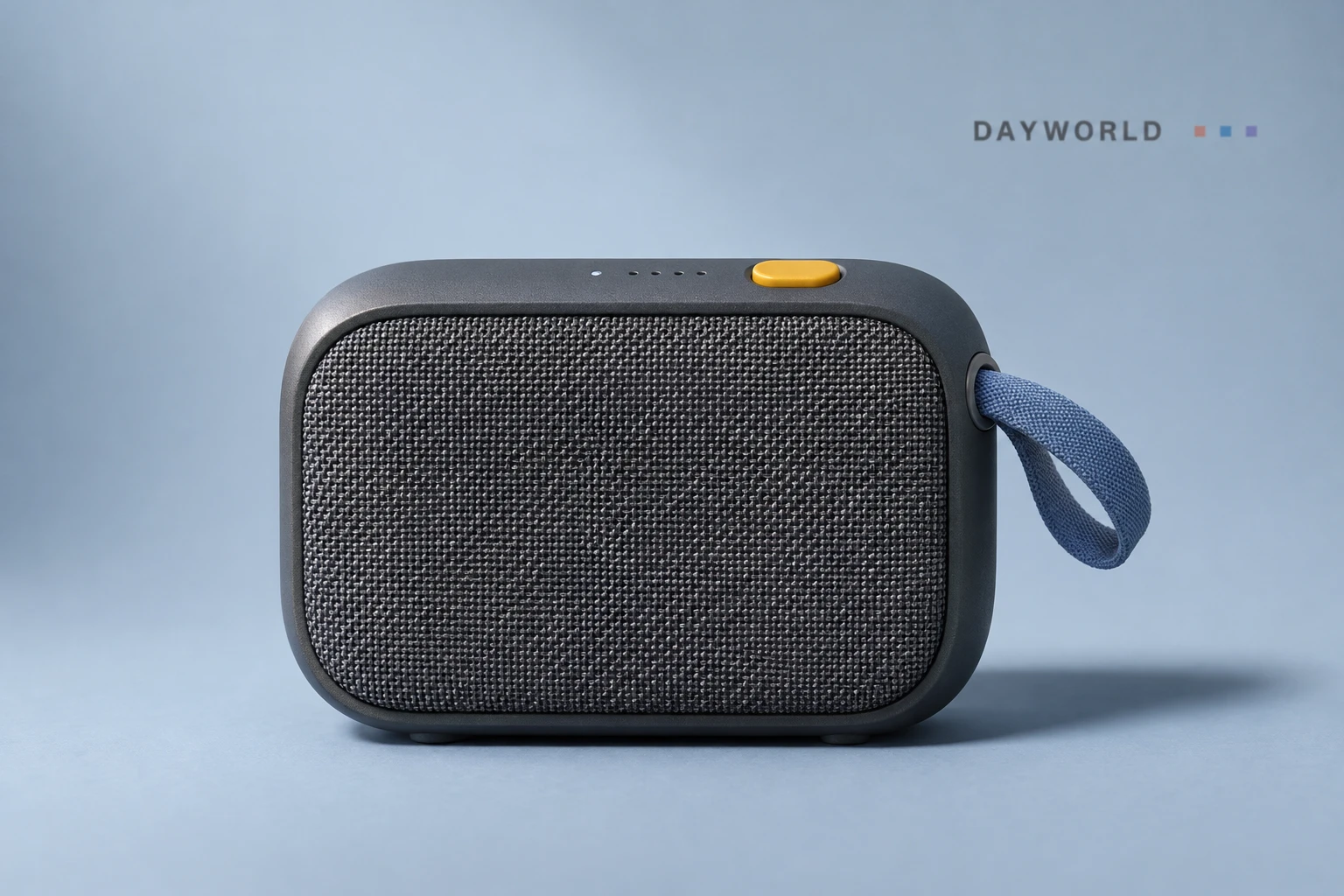
This collection features sample merchandise.


No products match your search.
Prepare your legal entity, product categories, shop name and after-sales contact. Have brand authorisations ready where relevant.
The parties agree fees before onboarding. Filing an application incurs no charge.
Browse the introductions and choose a guide to read in full.
Two USB-C connectors can carry different data, power and video signals. Start with the devices you actually plan to connect.
Measure the space your mouse needs before deciding on a number pad. Layout matters more than the key count.
Raising the display also moves the keyboard. Consider stability, typing position and the space the stand needs when folded.
Two USB-C connectors can carry different data, power and video signals. Start with the devices you actually plan to connect.
All guidesMeasure the space your mouse needs before deciding on a number pad. Layout matters more than the key count.
All guidesRaising the display also moves the keyboard. Consider stability, typing position and the space the stand needs when folded.
All guides北京沧途云工科技有限公司
Explore peripherals, audio, lighting, camera gear and workspace accessories, browse by shop, or apply to become a merchant.
Use your own account and keep your password safe. Check the item, quantity, price and contact details before submitting an application or order. Refer to the listing for the item’s availability.
Contact the marketplaceRegistration uses a mobile number. Passwords are stored as salted hashes. Application details are used to contact the applicant and process their request. Do not enter bank card numbers, verification codes or identity numbers.
Contact the marketplaceCancel an unsettled order from your account. For a product issue or a return after delivery, include the order number, product and issue in an after-sales enquiry.
Contact the marketplaceUse your recovery code to change your password. Existing sessions will be signed out.
Keyboards & mice
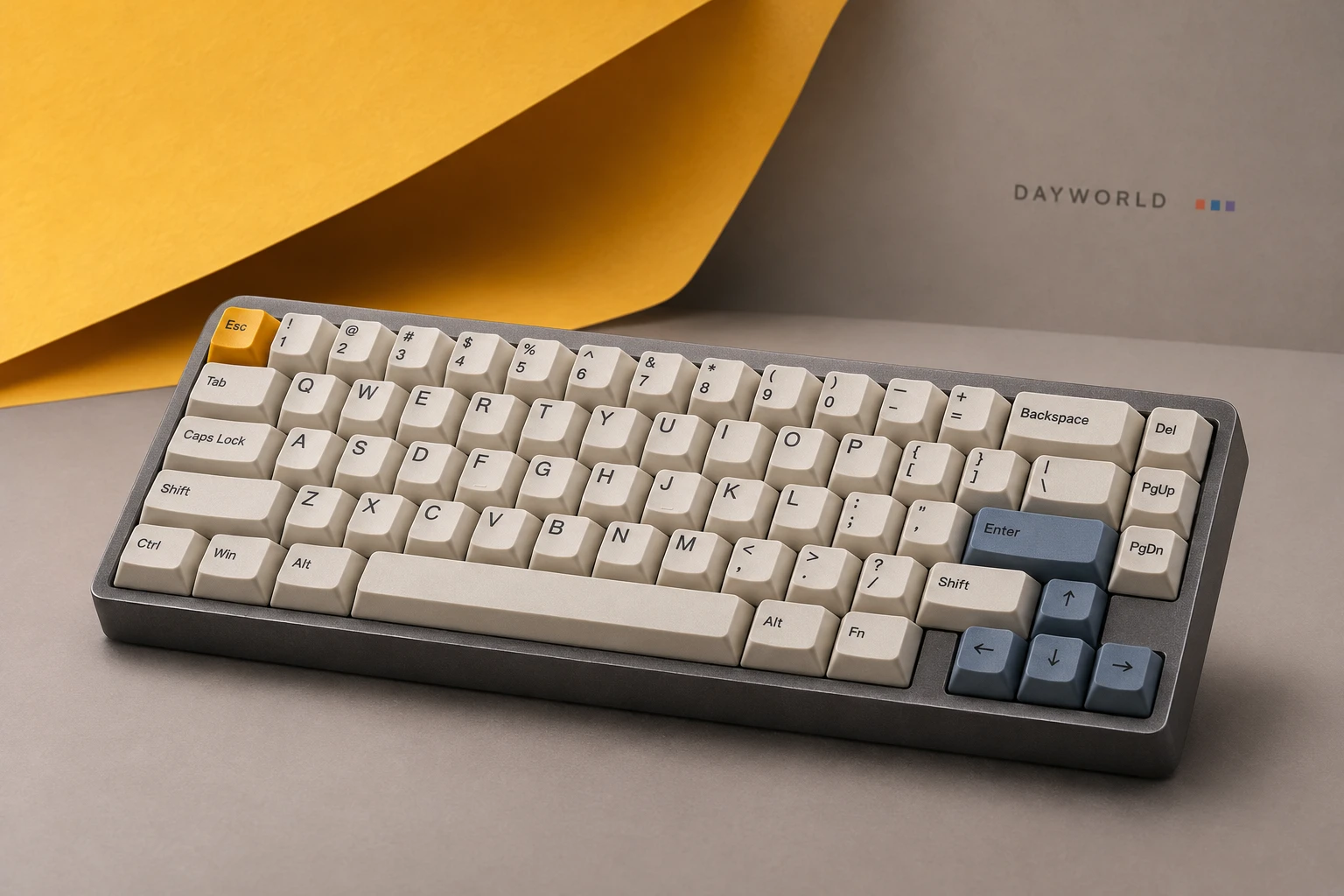
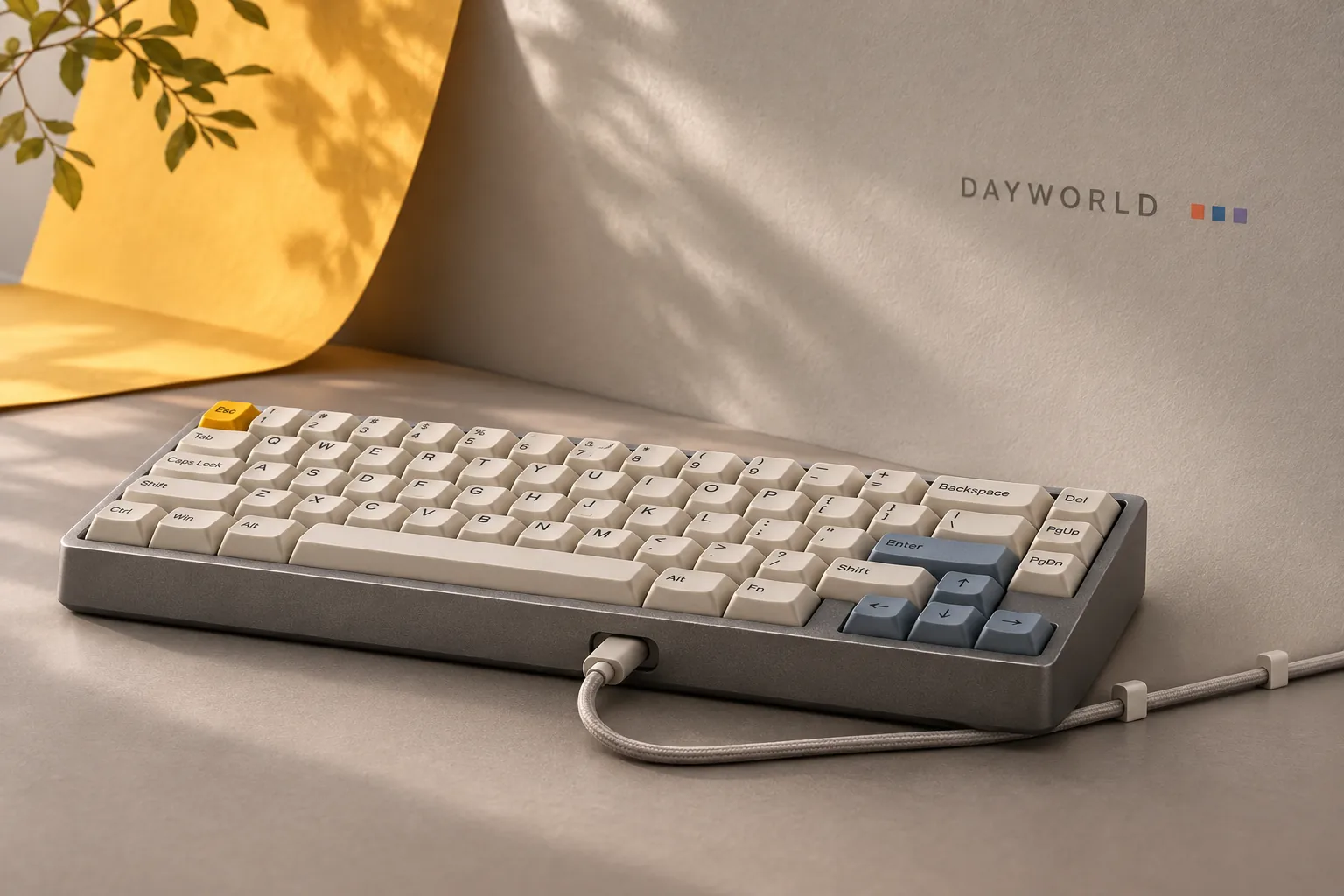
A compact layout with dedicated cursor keys leaves more room for a mouse.
Visit shop · Sunarc PeripheralsThis collection features sample merchandise.
The 68-key layout puts the mouse close to the typing area. Check the arrow cluster and your most-used keys in the close-up, along with the spacing and slope of the keycaps.
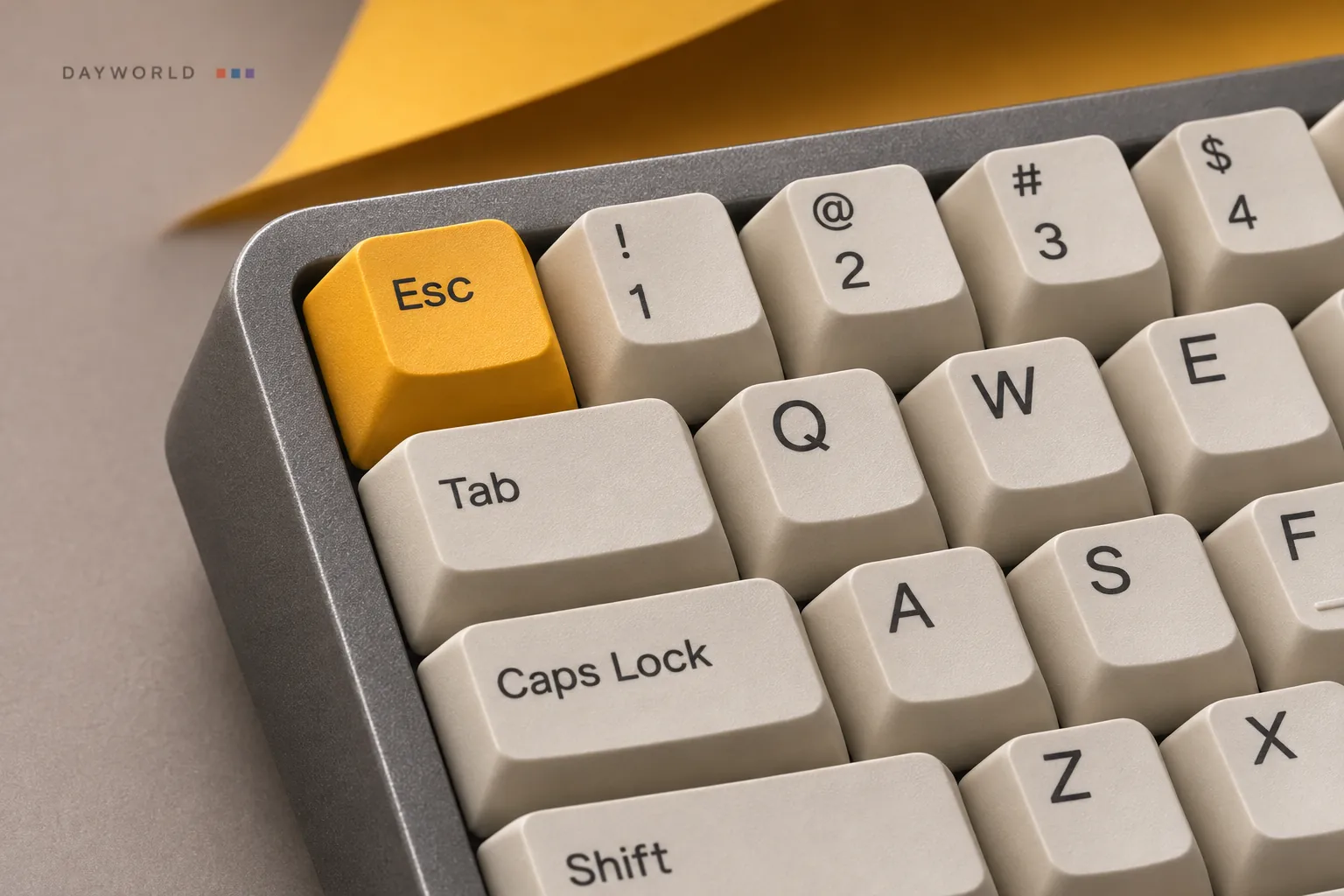
Centre the keyboard, leave the mouse on your preferred side and open a notebook on the other. A separate number pad can sit to the left for spreadsheet sessions.
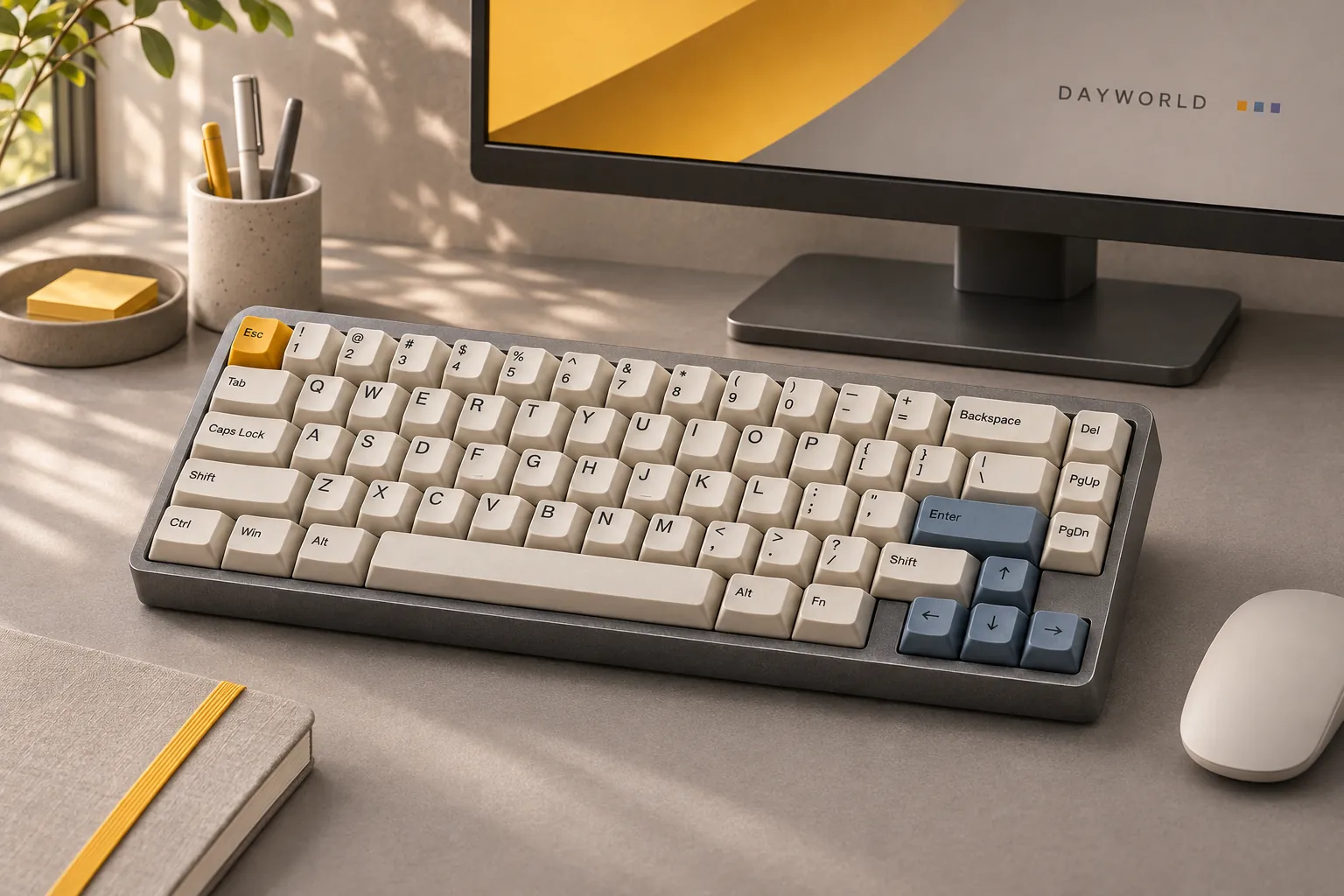
Allow a little slack at the wired USB-C connection. Hold the plug when disconnecting, then lightly brush between the PBT keycaps.
Keyboards & mice
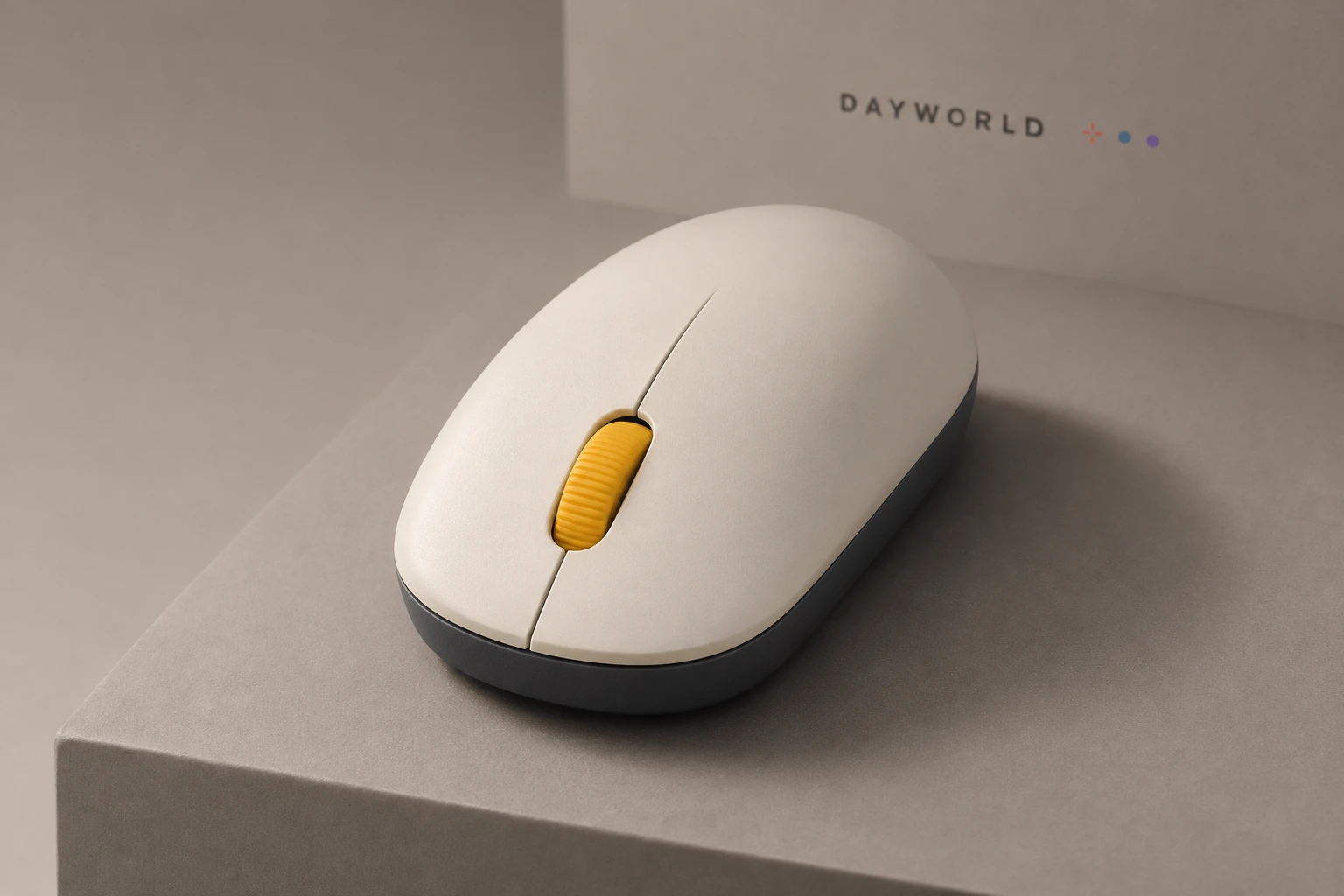
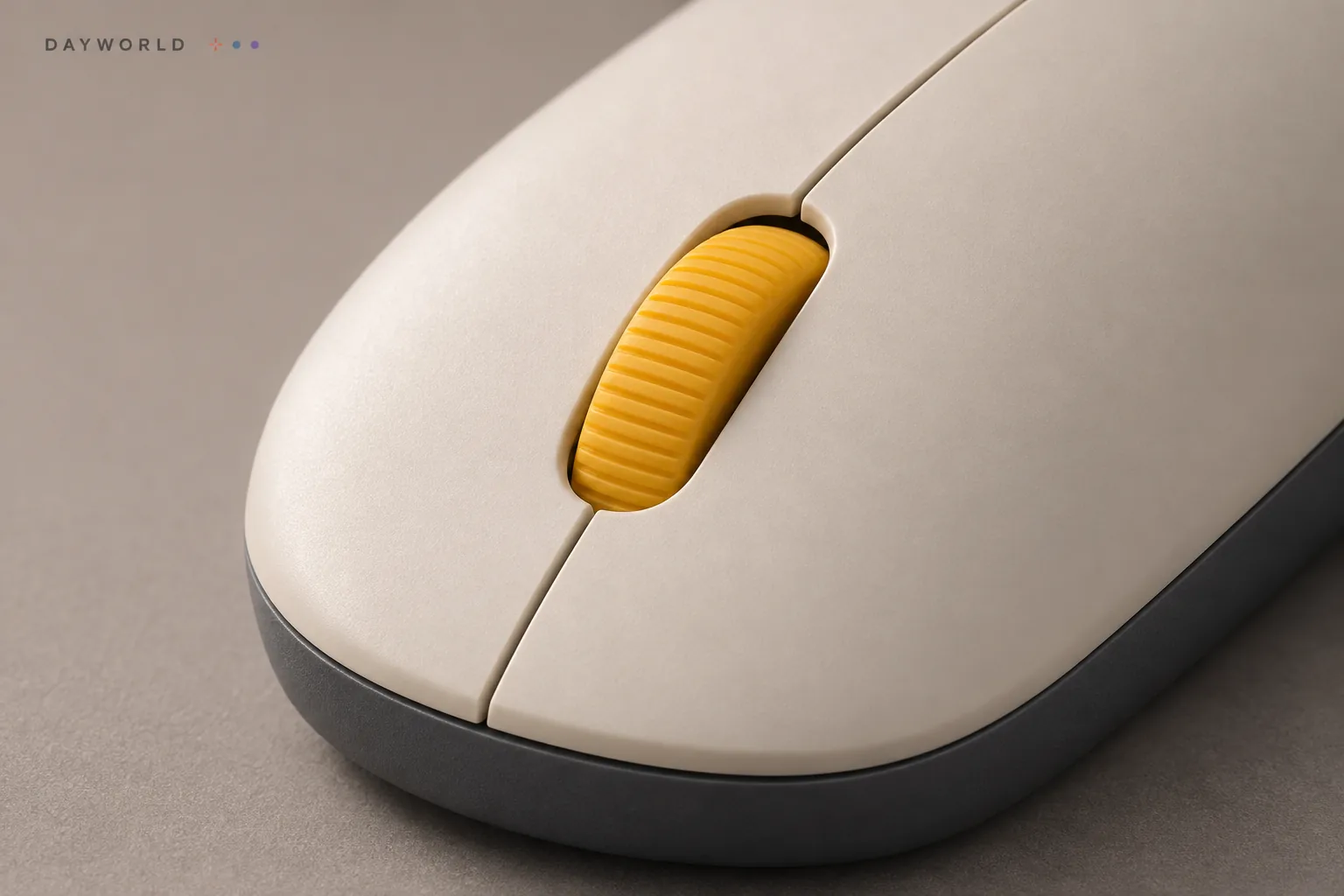
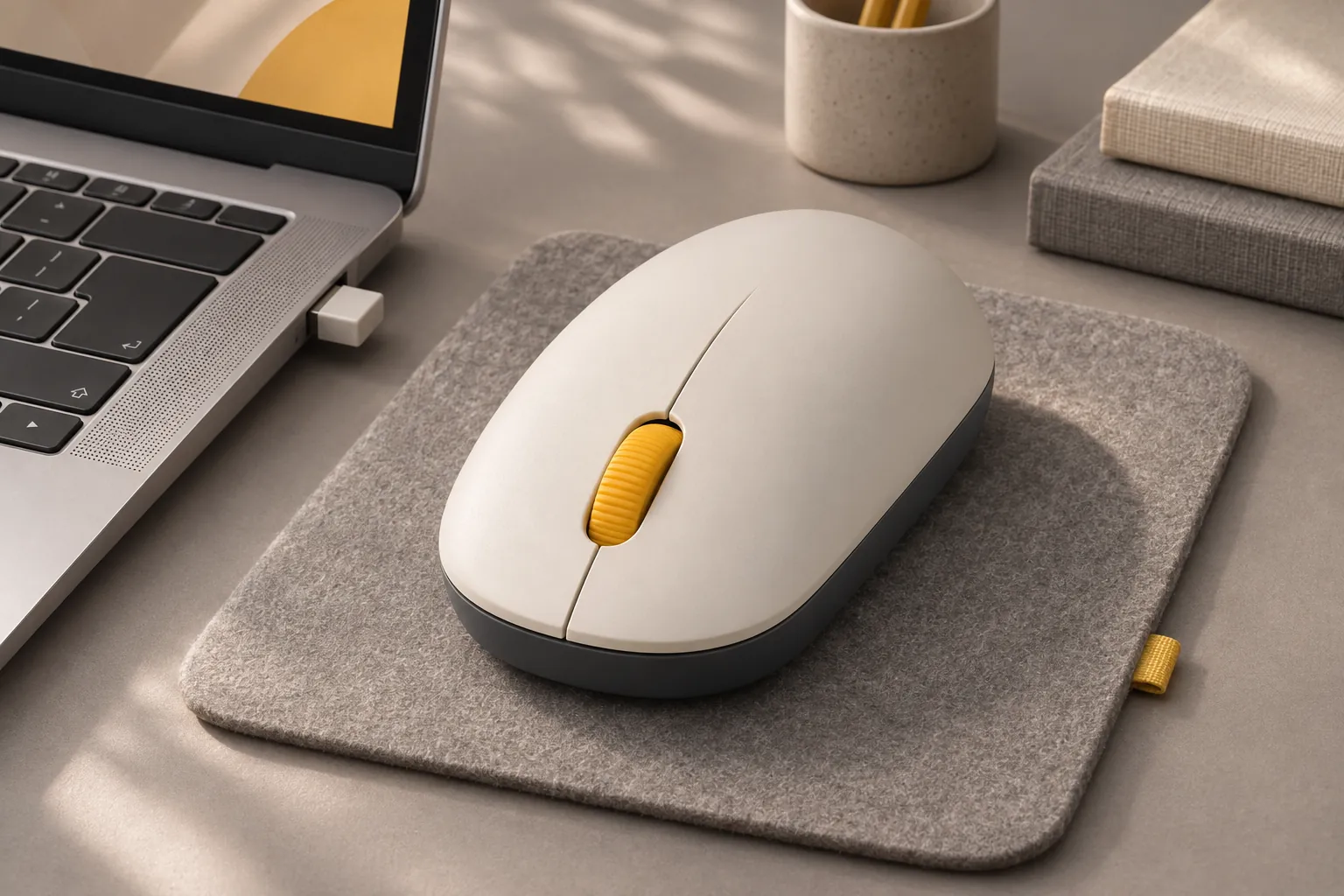
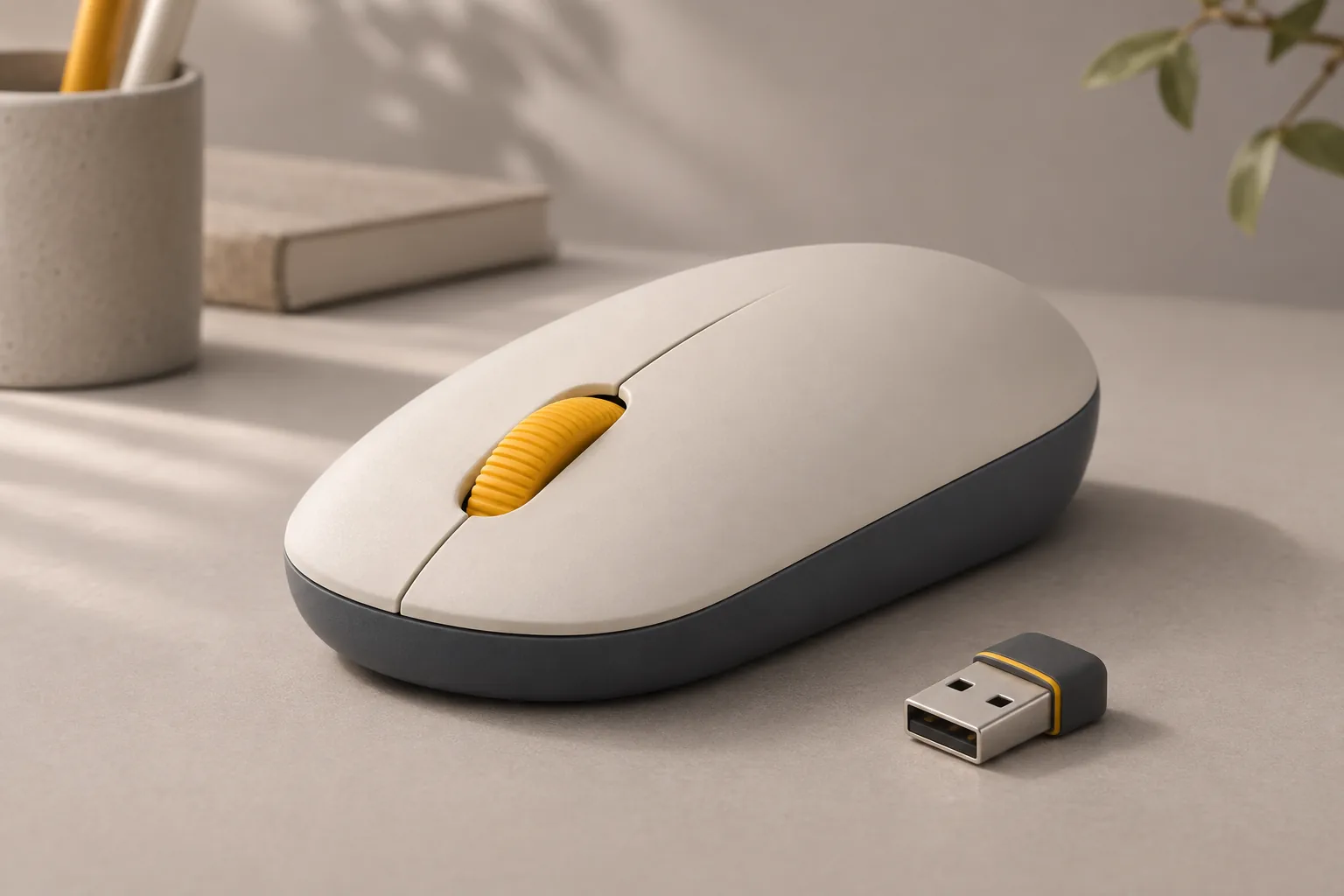
Quiet buttons for shared desks.
Visit shop · Sunarc PeripheralsThis collection features sample merchandise.
The side profile shows where your palm rests and how far your fingers travel to the wheel. Aim for a relaxed grip that lets the mouse glide without pinching it.
Connect the 2.4 GHz receiver, draw a small circle and reach the corners of the screen. Try the three sensitivity settings for fine selections and longer movements.
Put the receiver in a dedicated accessory pocket when packing up. It is much easier to find there than at the bottom of a laptop bag.
Keyboards & mice
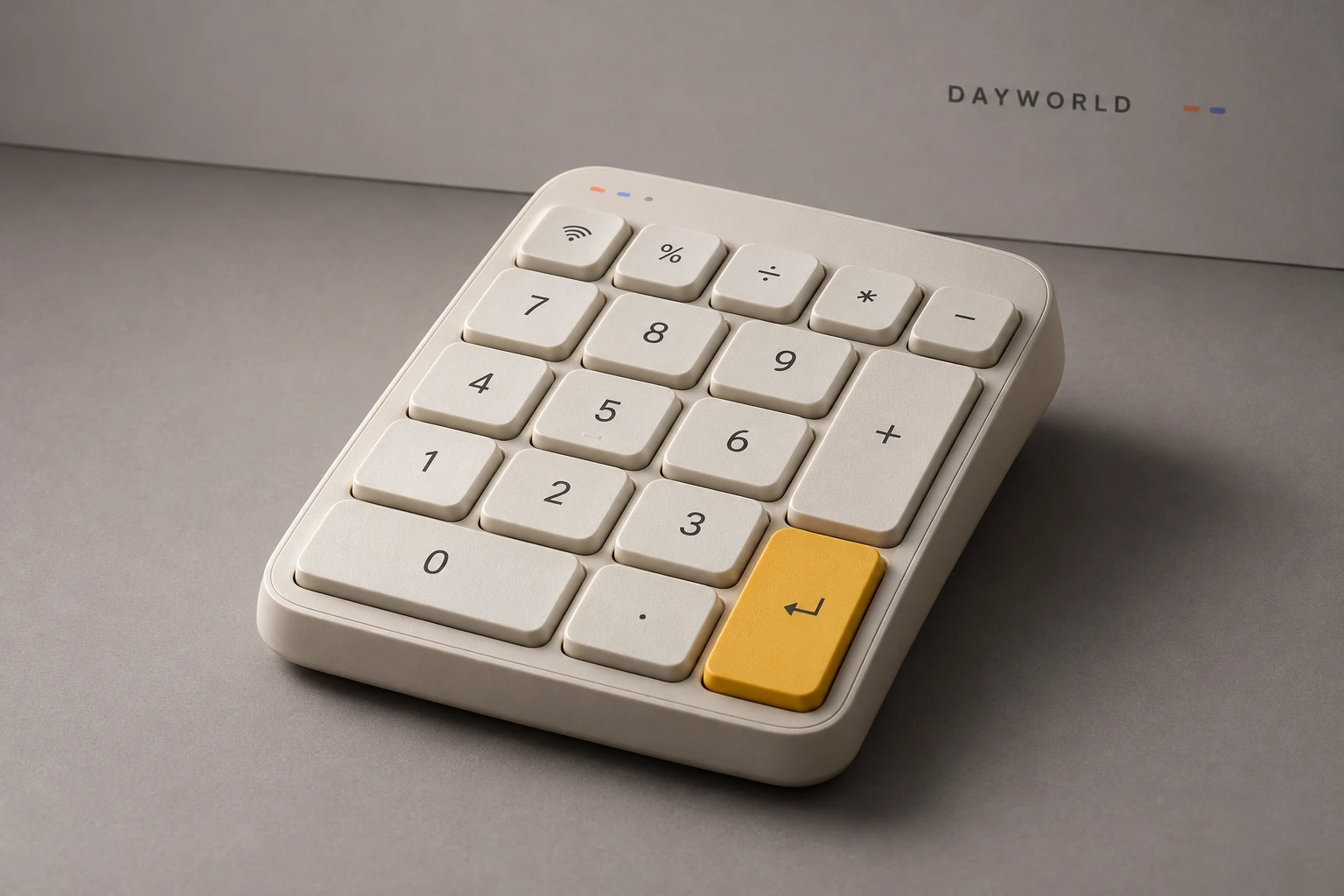
Put the number pad on either side for spreadsheet entry.
Visit shop · Sunarc PeripheralsThis collection features sample merchandise.
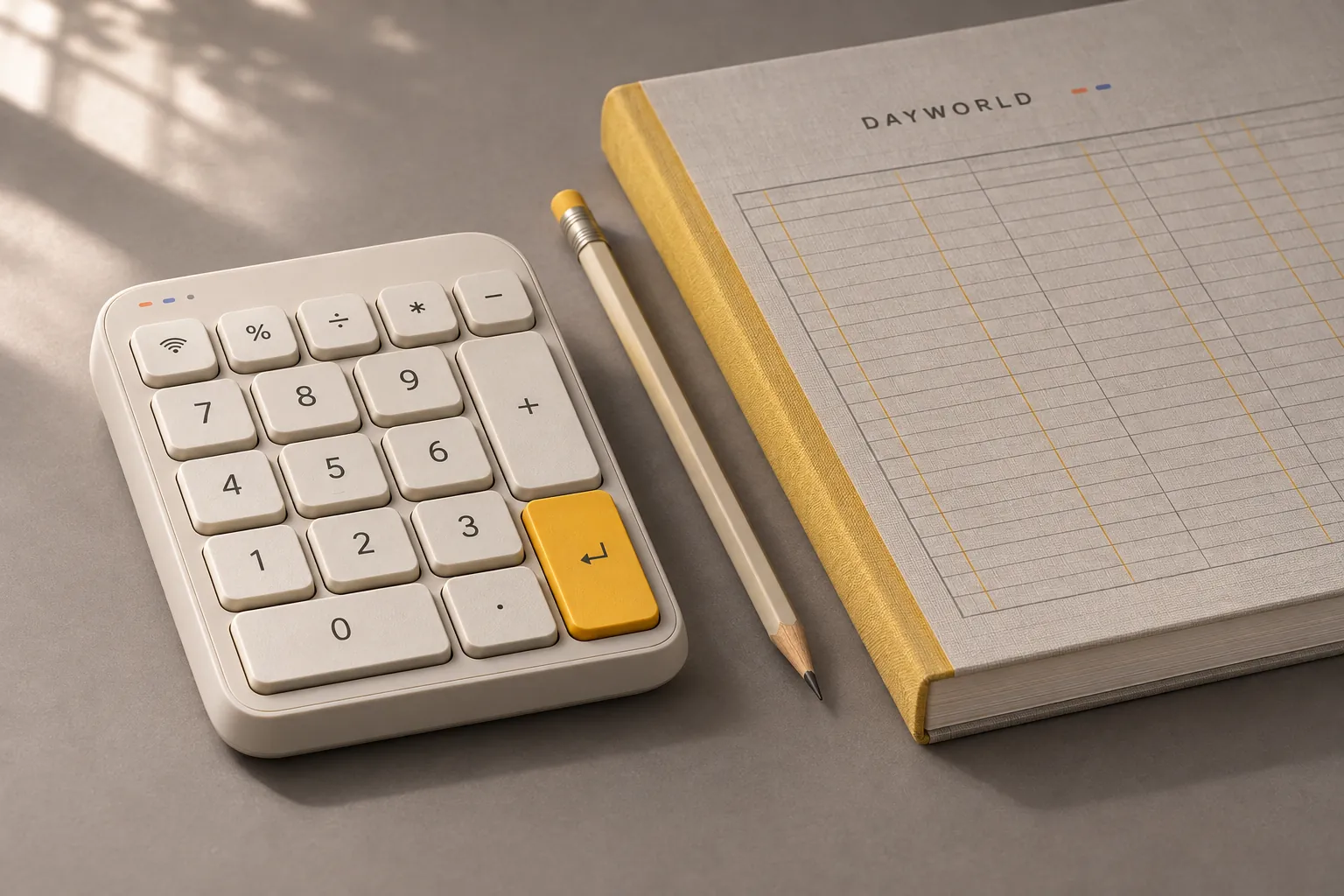
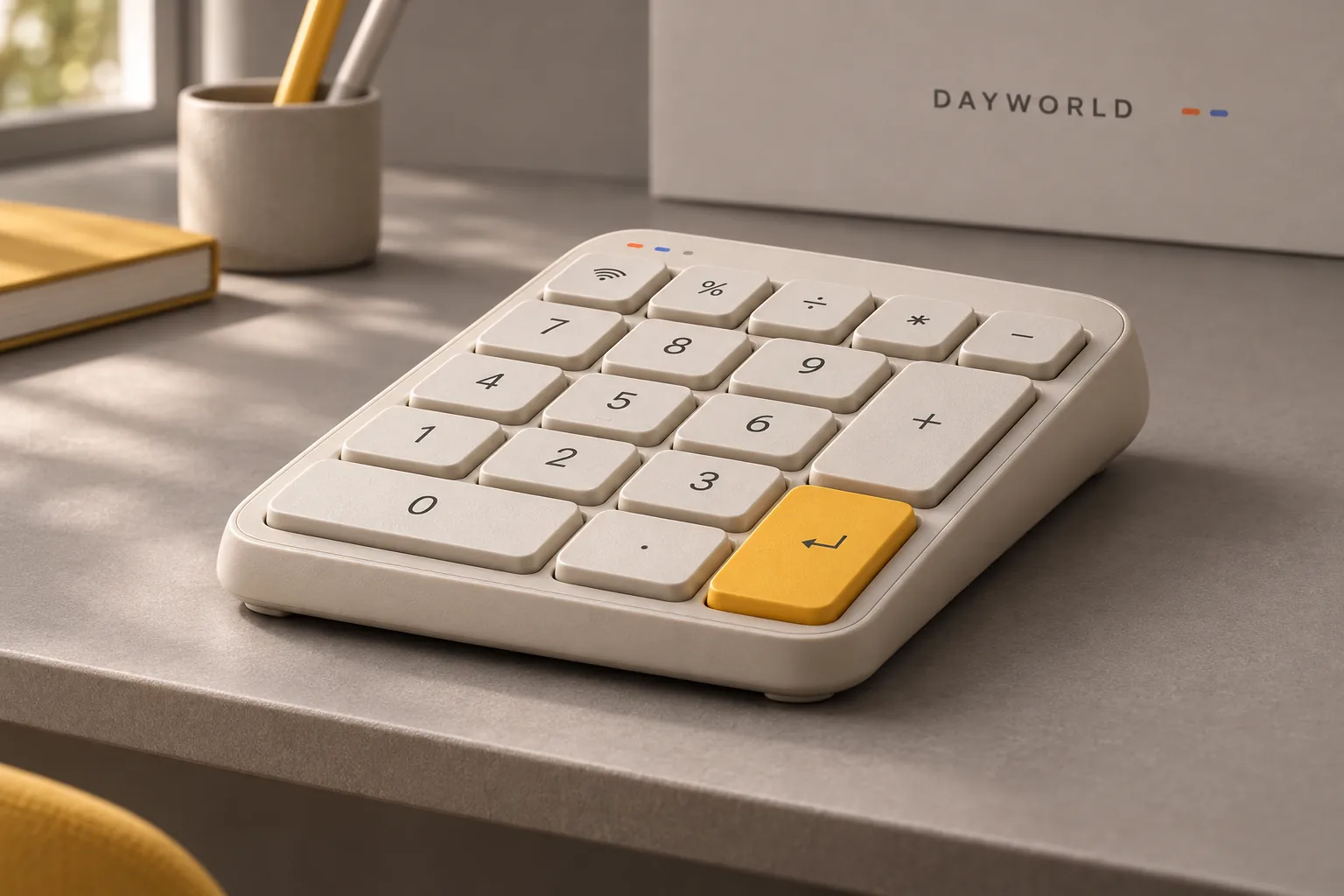
Keep a compact main keyboard in the centre while a dedicated number block handles invoices, expenses and repeated entries.
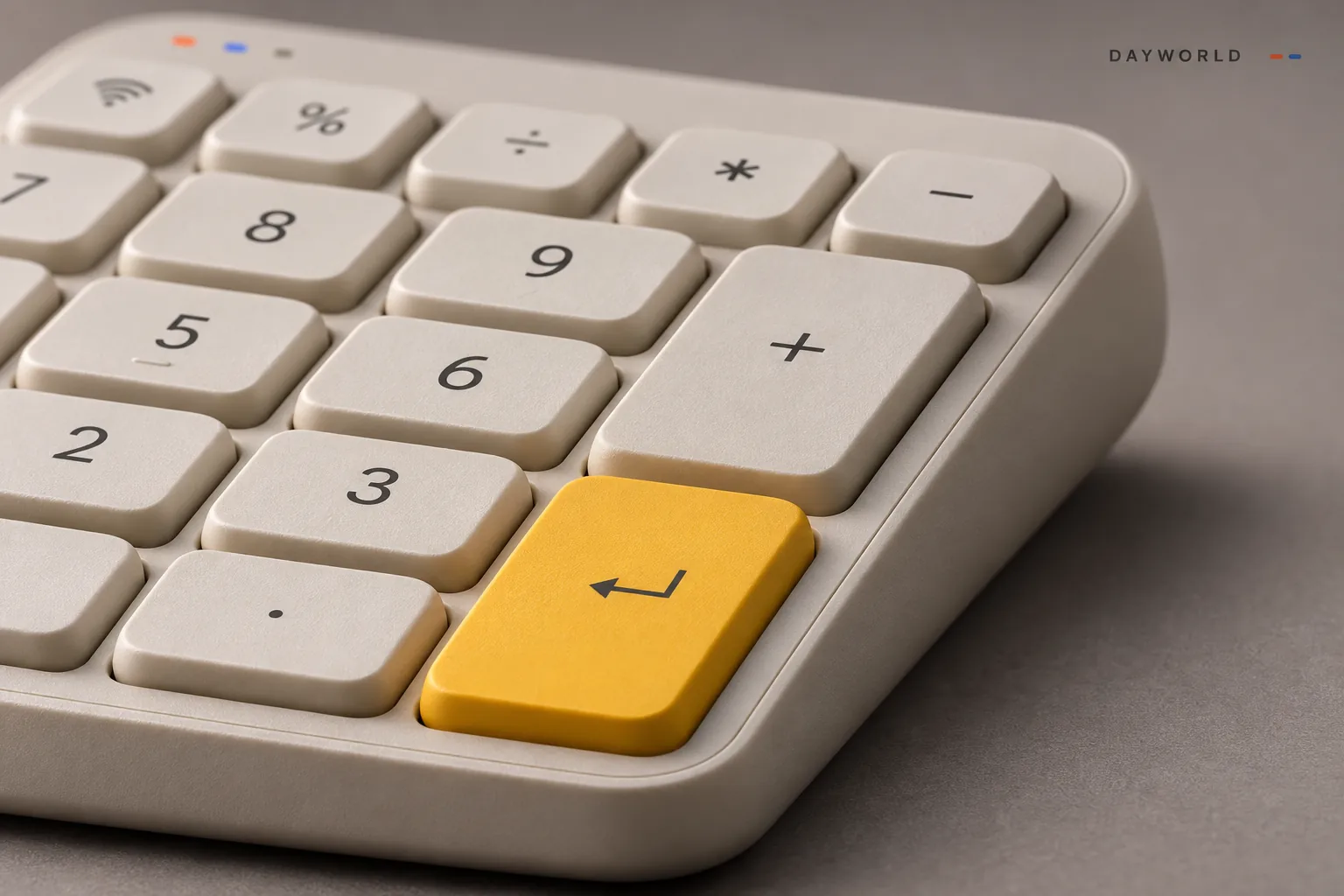
Place the pad next to the ledger on either side. A right-handed mouse user can try entering figures with the left hand while selecting cells with the right.
The side view shows the low key height. Place the whole non-slip base on a dry, even surface, clear of soft folders that can make the pad rock.
Hubs & cables
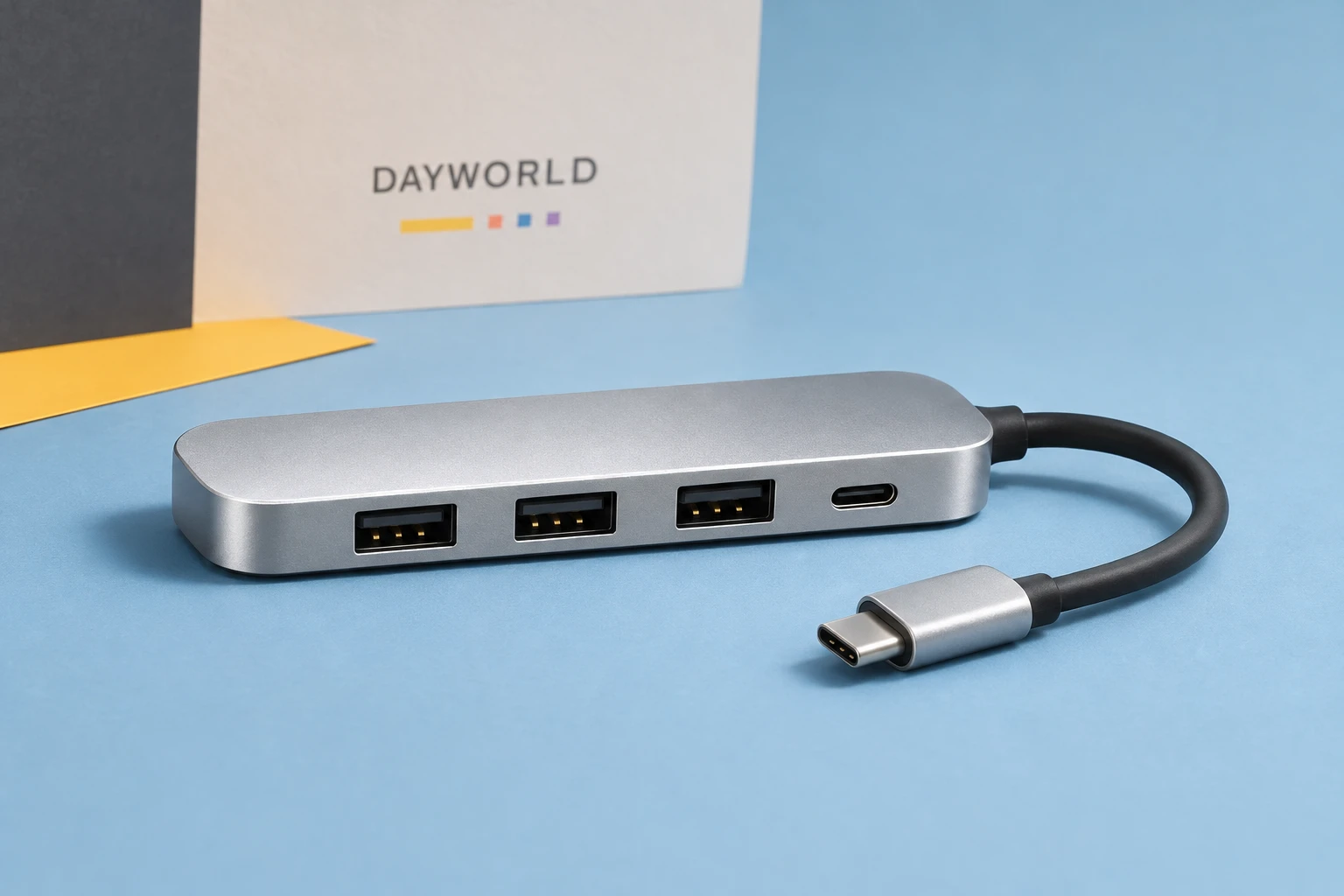
Connect input devices and external storage through a single USB-C port.
Visit shop · Foldline ConnectThis collection features sample merchandise.
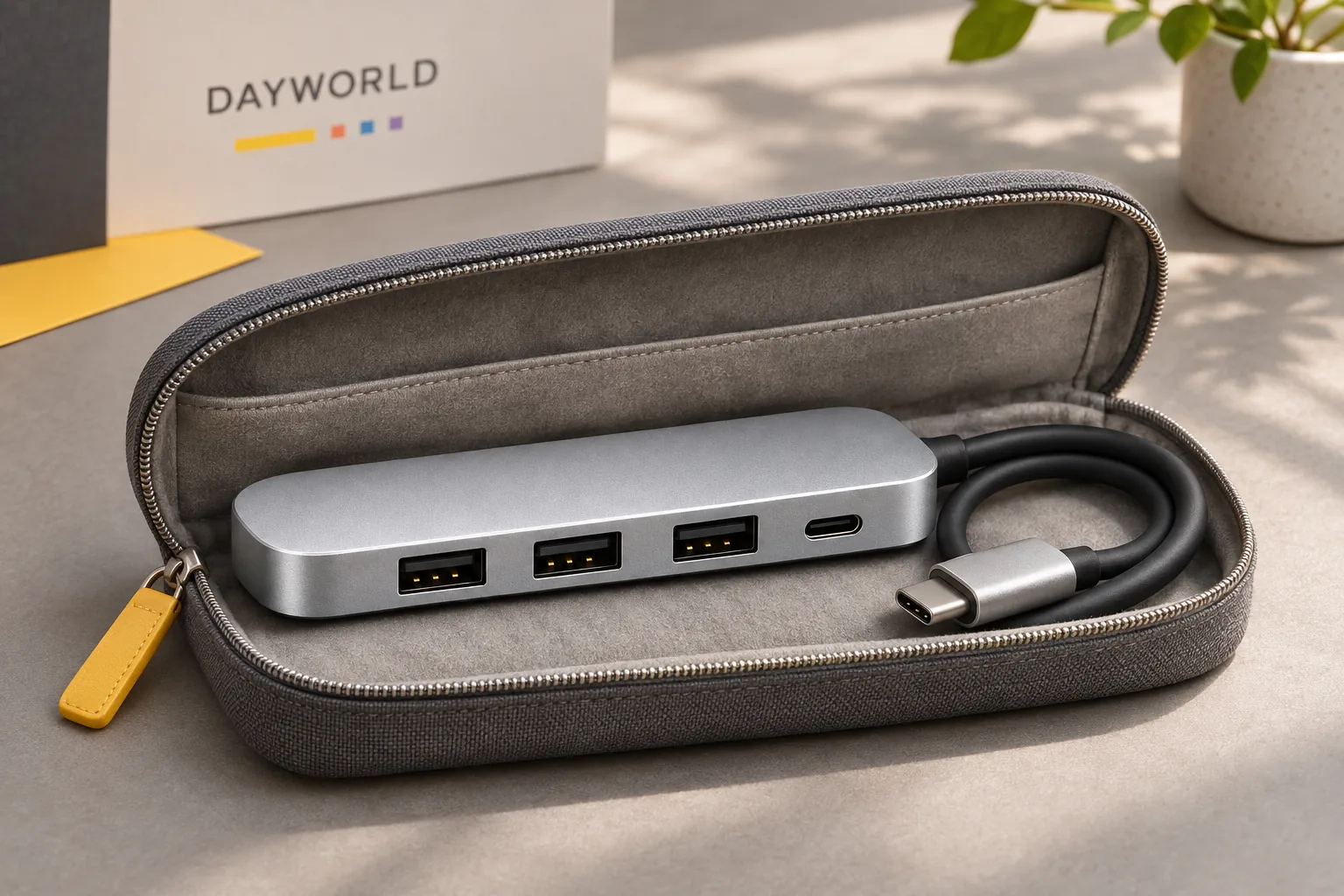
Three USB-A ports and one USB-C port share the aluminium body. Check the width of your plugs as well as their type, especially when placing a broad reader beside a receiver.
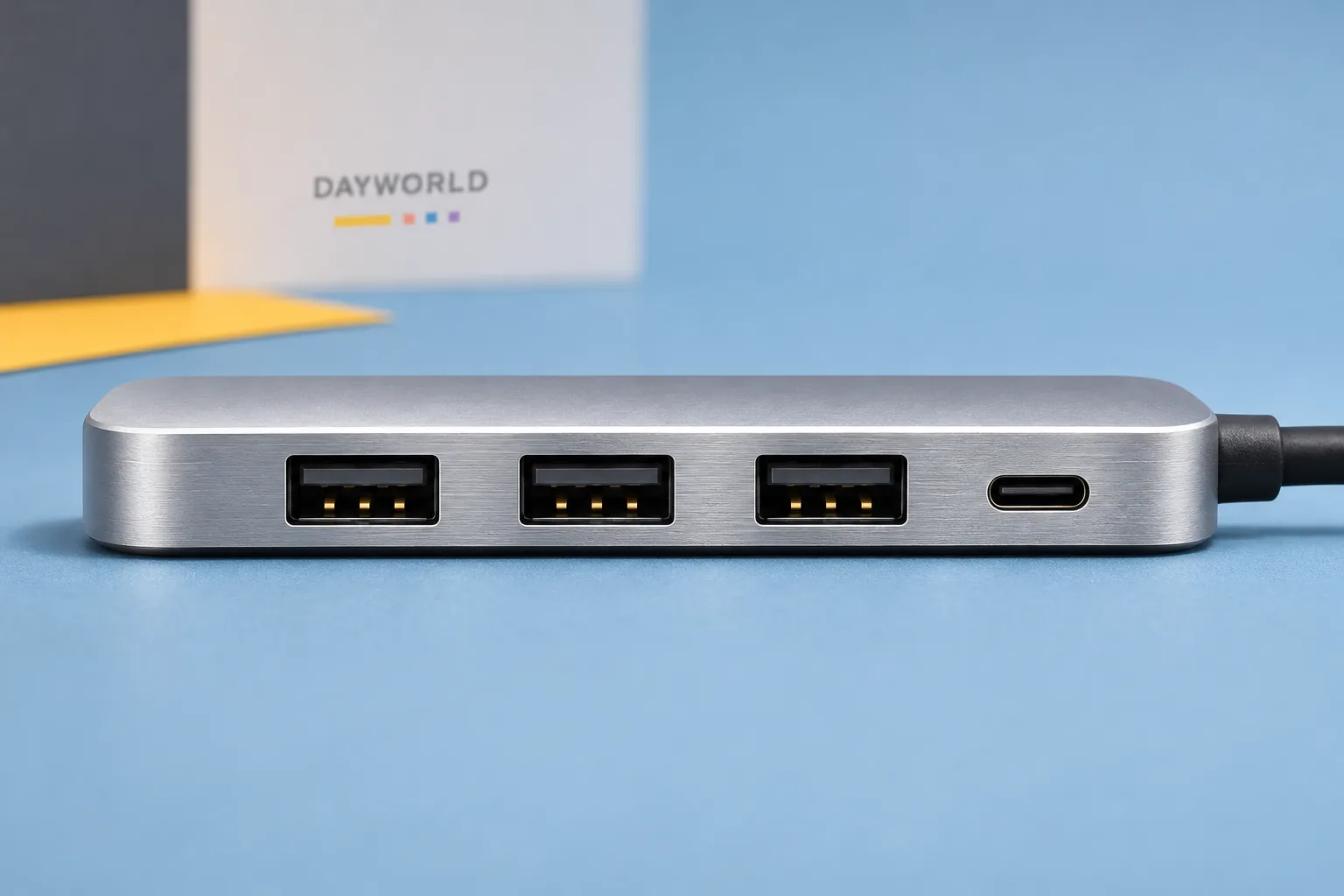
Set the hub down before attaching peripherals. Keep a frequently swapped drive at the accessible end and allow slack in the lead during file transfers.
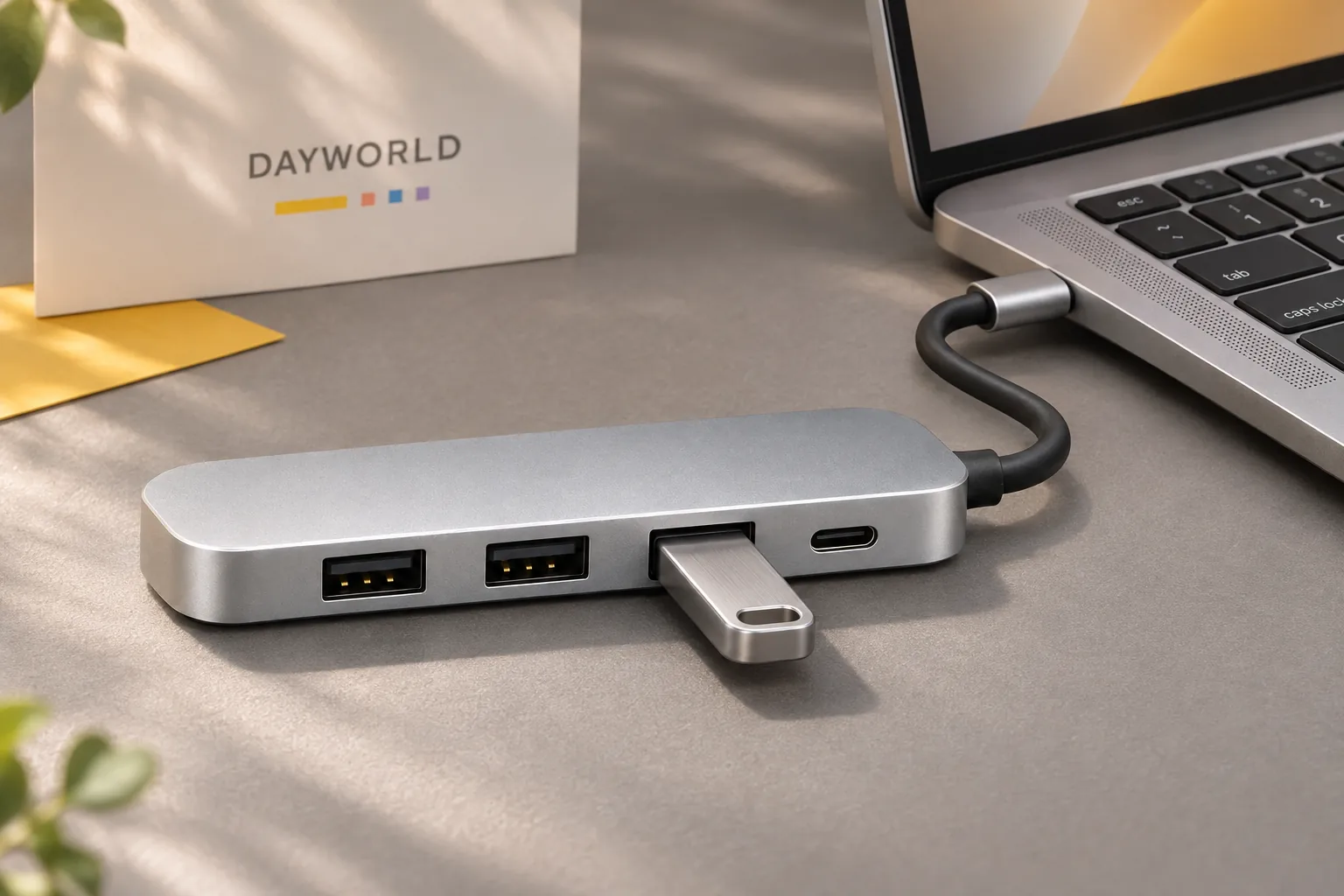
Eject active drives before disconnecting. Curl the attached lead loosely beside the hub and put the plug inward, away from keys.
Hubs & cables
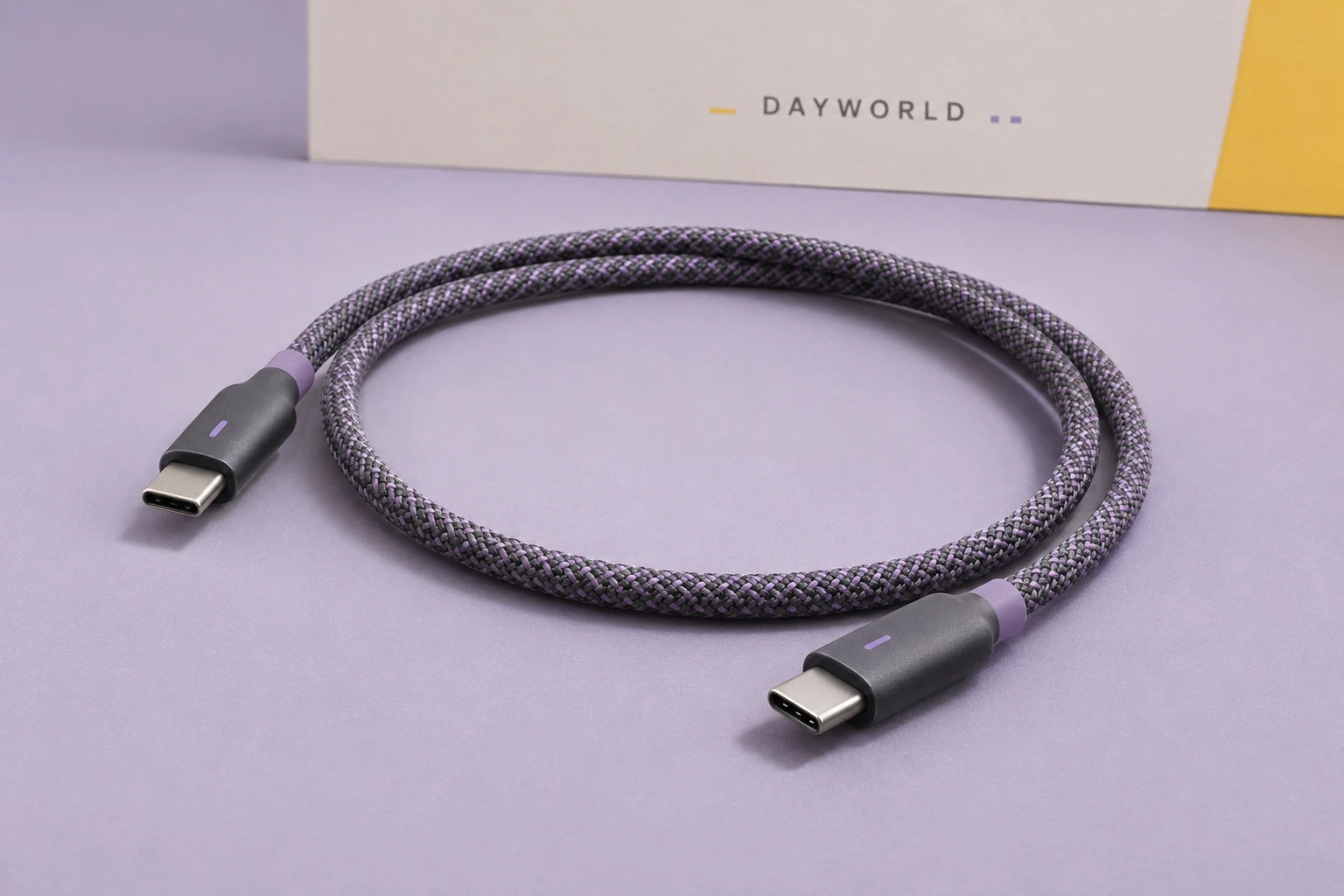
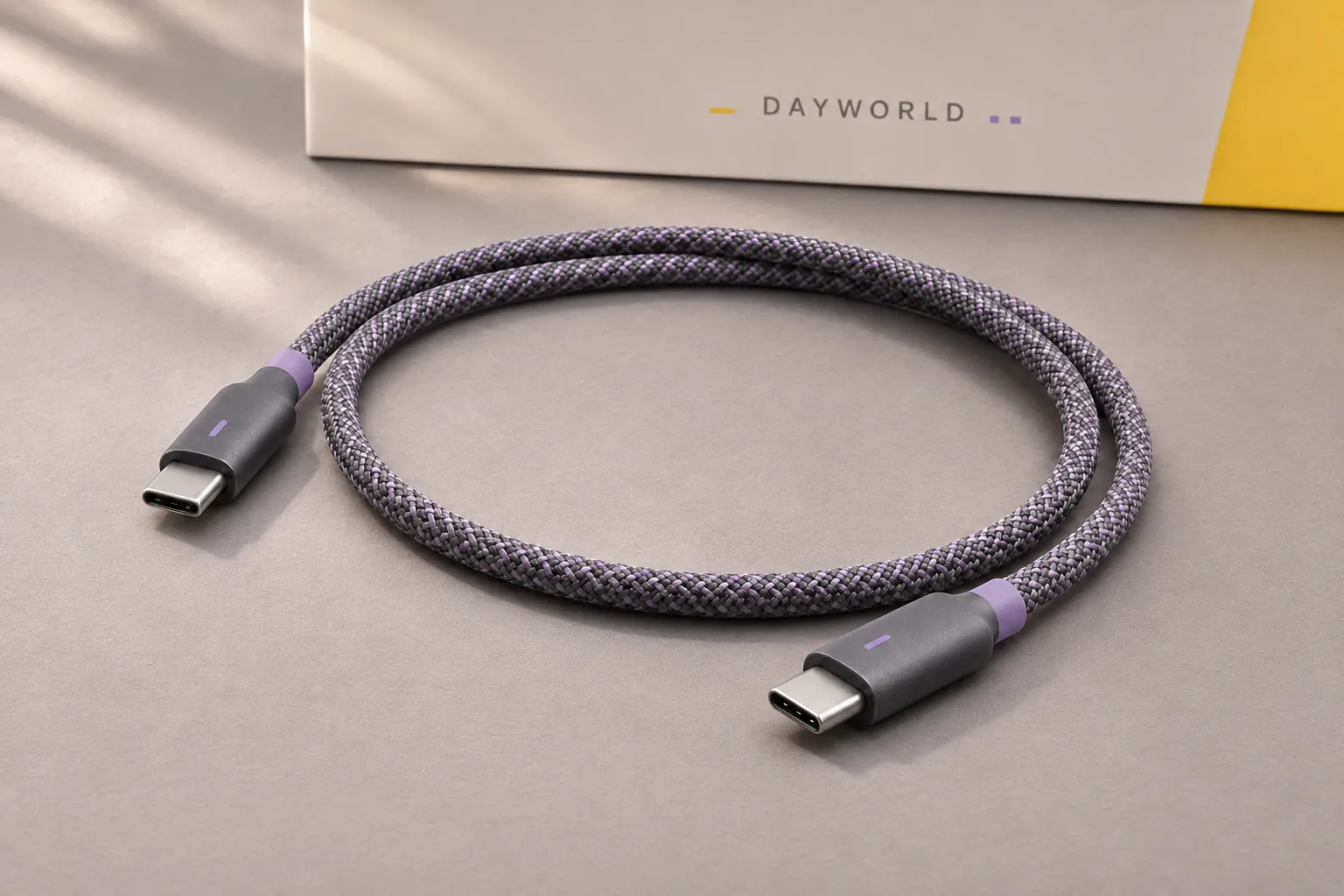
A one-metre USB-C cable that coils neatly into a bag.
Visit shop · Foldline ConnectThis collection features sample merchandise.
The close-up shows the braid and the transition into the plug housing. Hold the housing when connecting and leave a curve at each end.
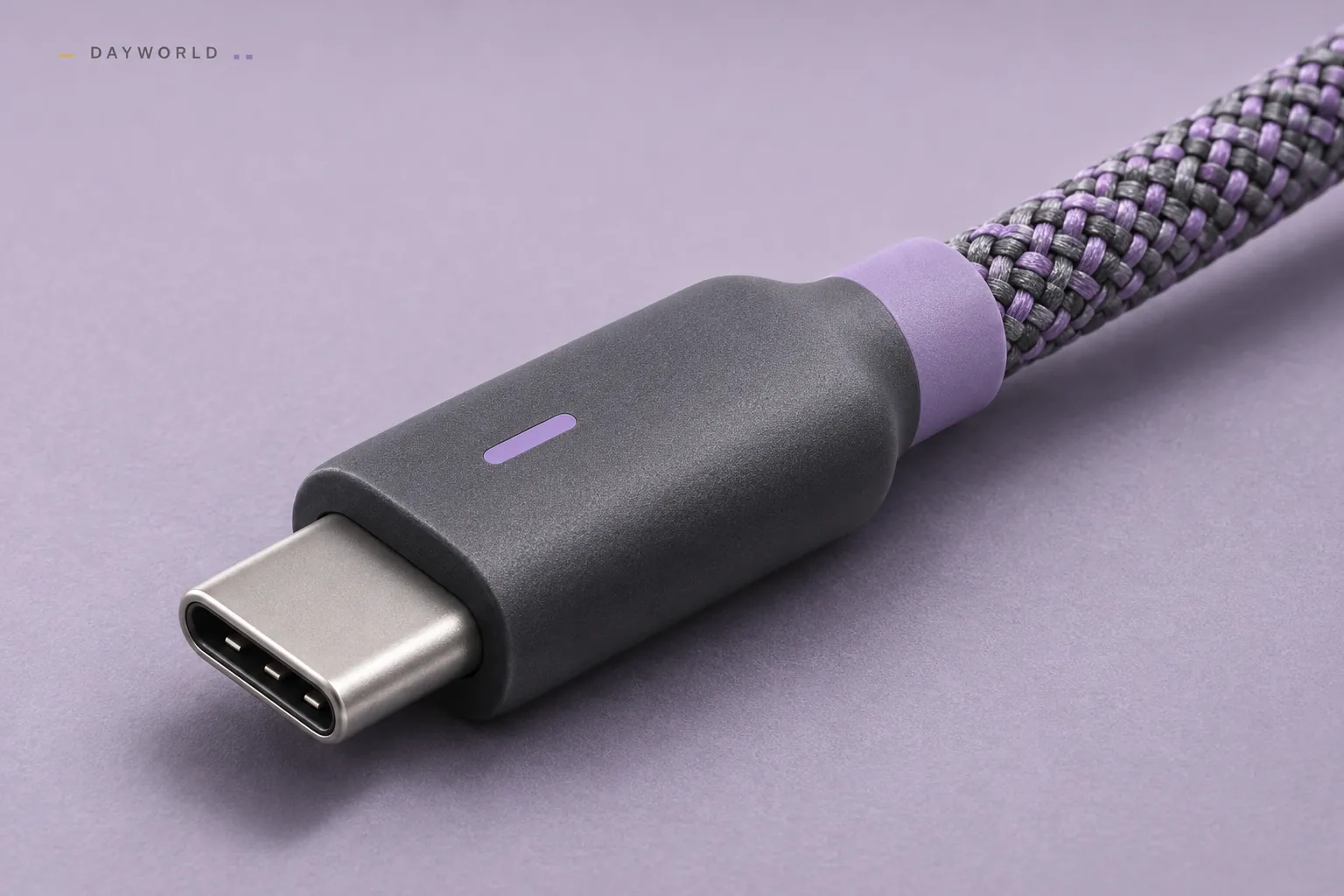
Both ends are USB-C. Measure the actual route, including the drop from a stand, before deciding whether a one-metre lead reaches comfortably.
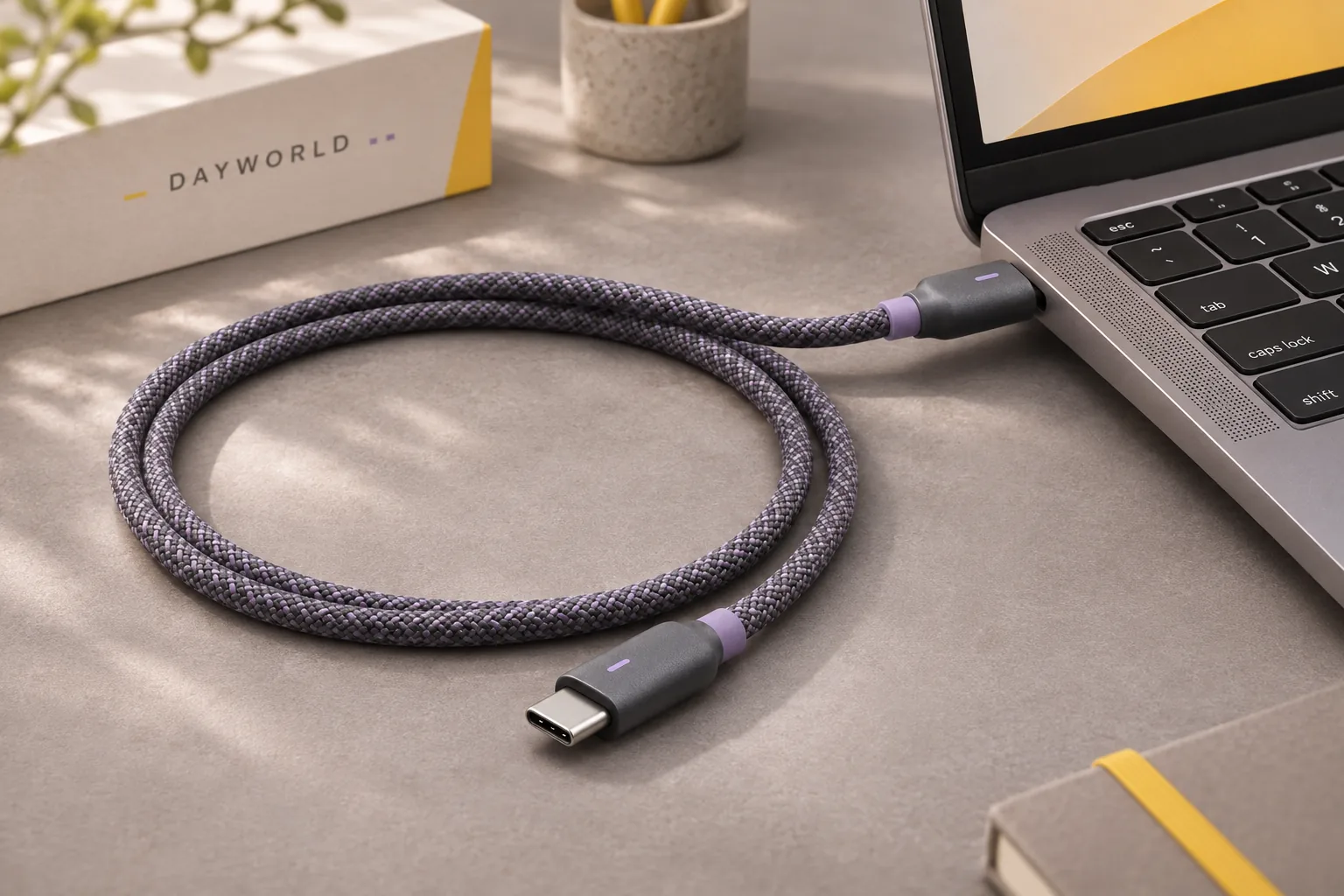
Let the cable settle into a loose coil and leave both ends easy to find. Label the pouch when carrying similar leads for different devices.
Hubs & cables
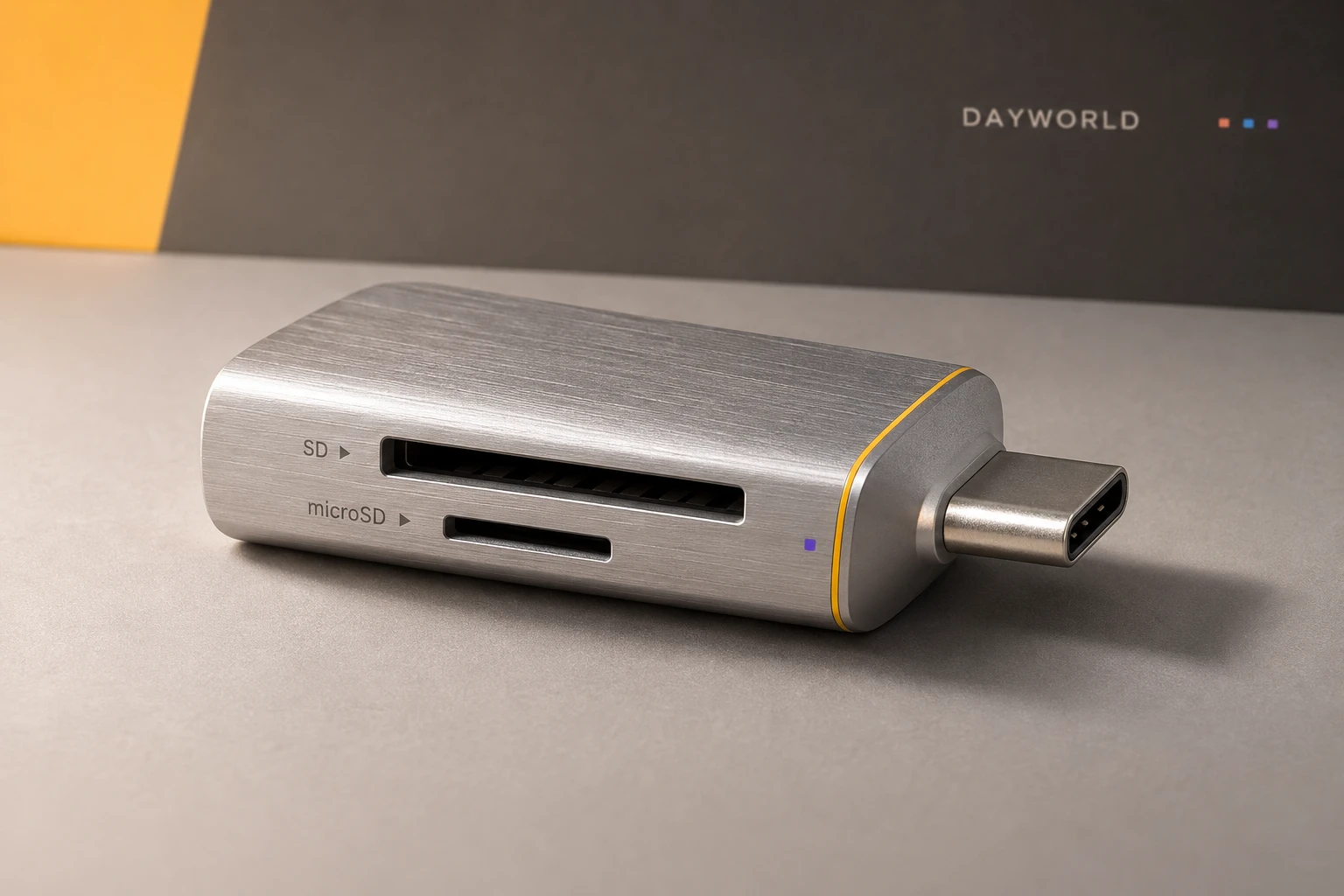
Read camera and mobile memory cards with one reader.
Visit shop · Foldline ConnectThis collection features sample merchandise.
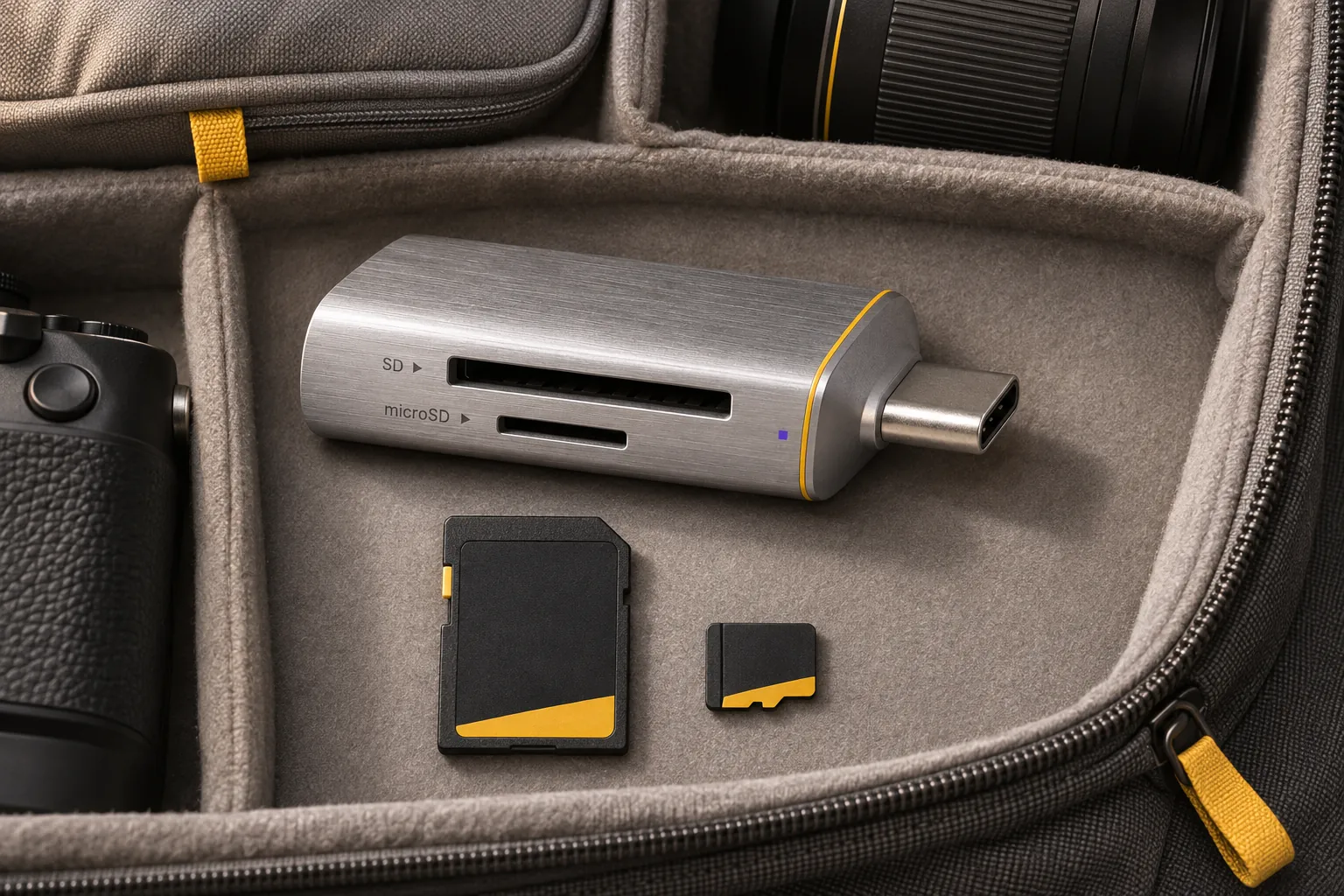
SD and microSD cards use different slots. Check the notch in good light and withdraw the card if you feel resistance.
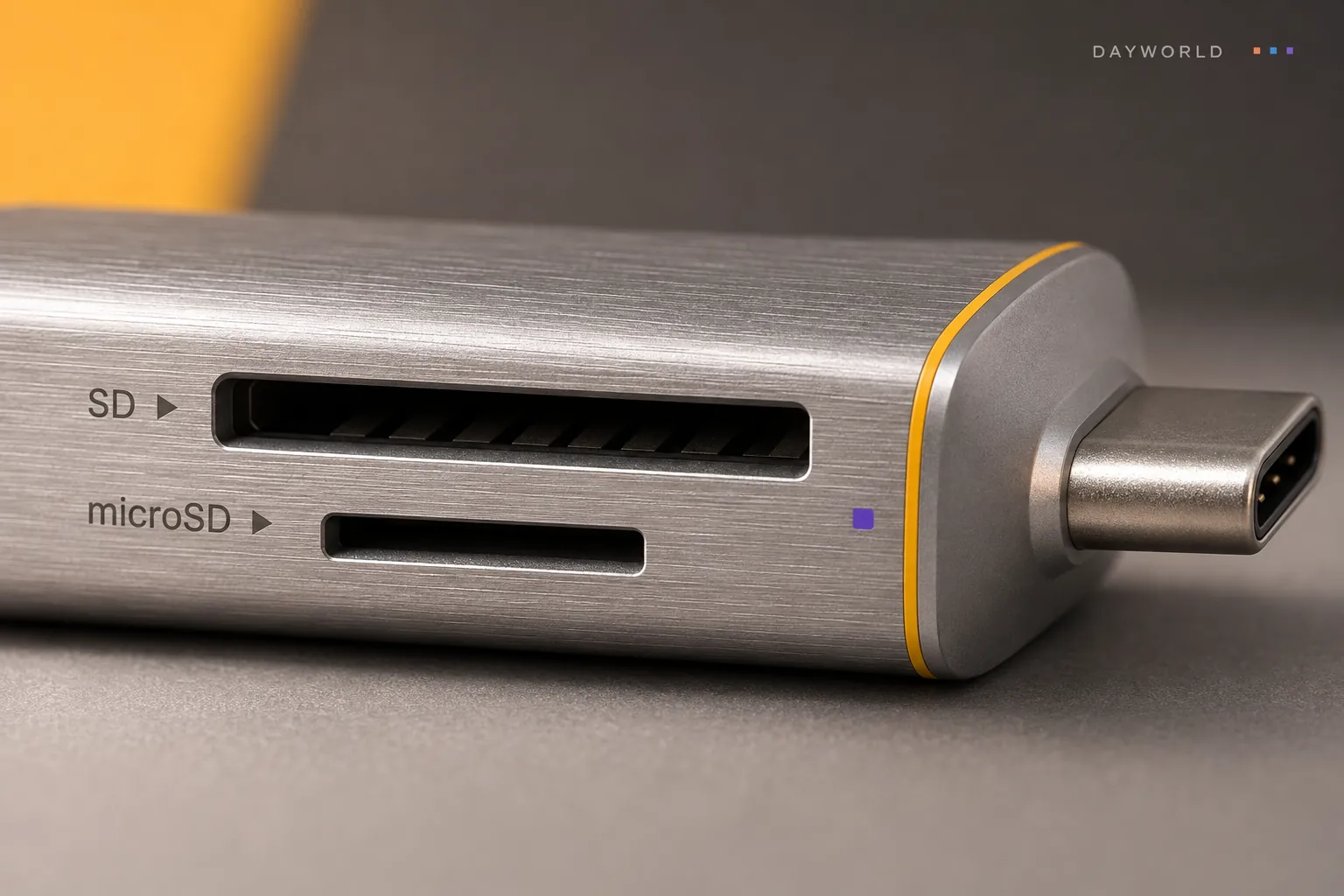
Attach the reader to the USB-C port and wait for the volume to appear. Copy into a dated folder and open a few originals before reorganising the card.
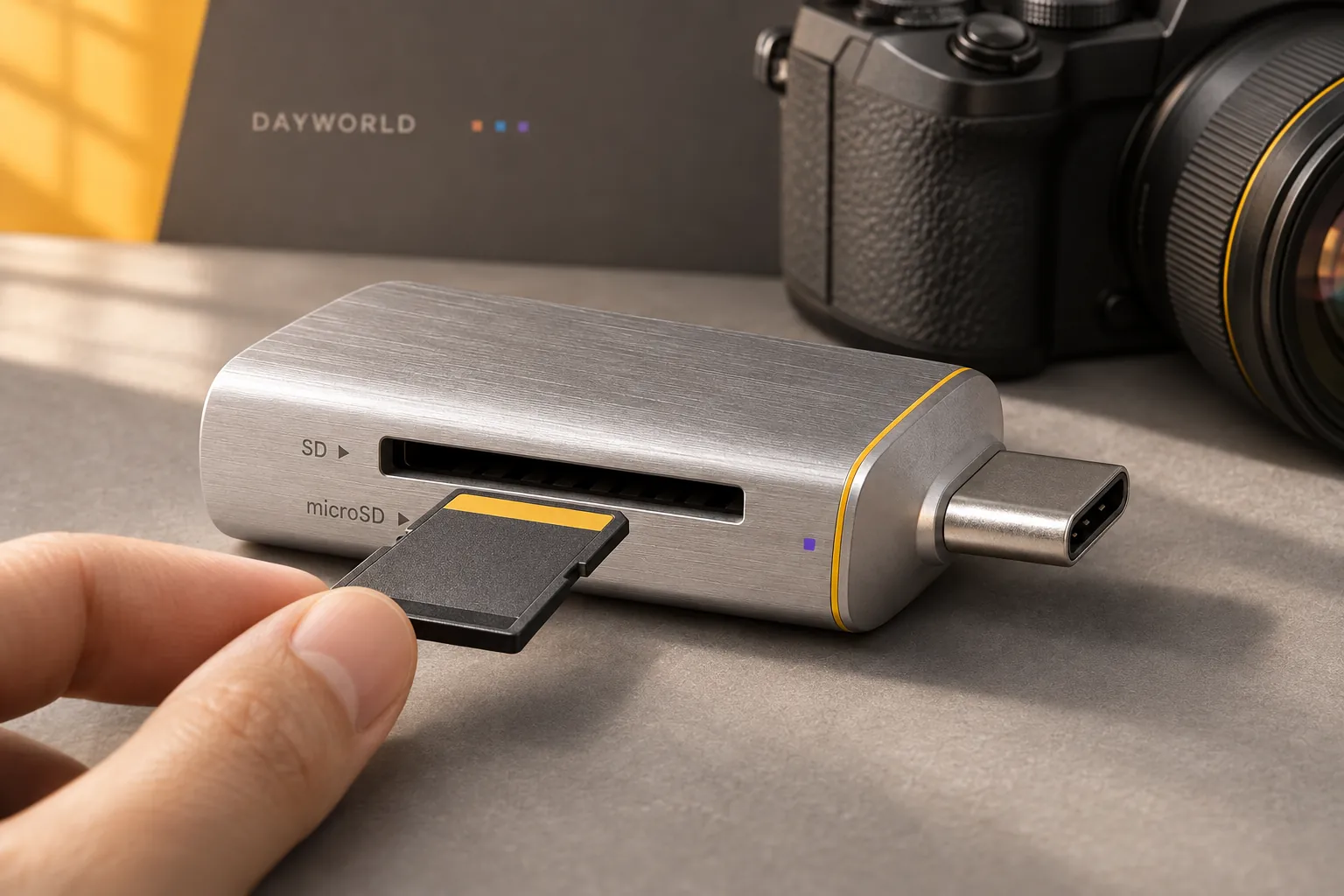
Eject the volume before unplugging. Keep bare cards in cases and separate copied cards from those still waiting for backup.
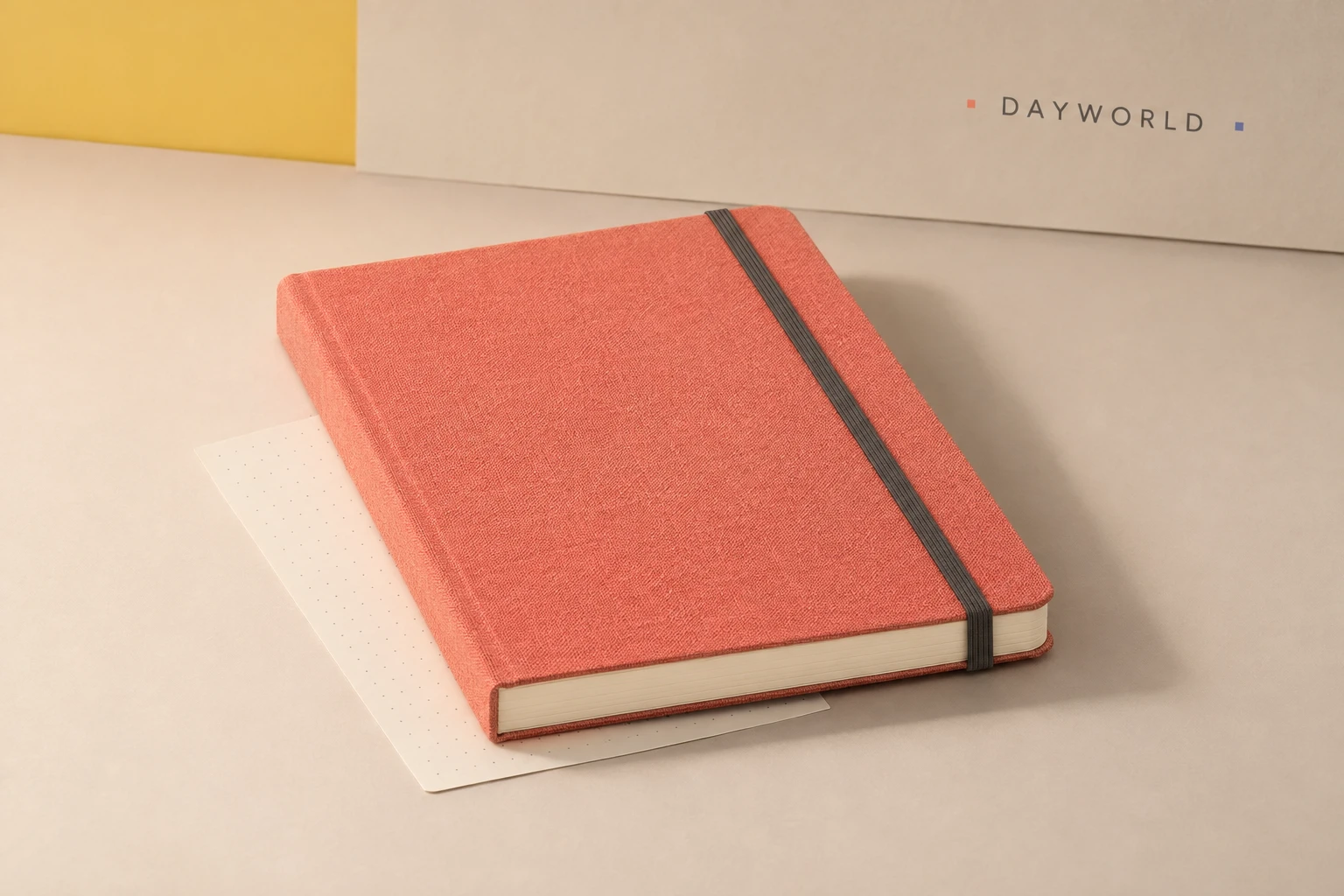
Stationery
Dot-grid pages for sketches, notes and meeting minutes.
Visit shop · Paper RoomThis collection features sample merchandise.
Use the 5 mm dots to align a table, a quick diagram or two meeting columns. Open space remains available for sketches and later additions.
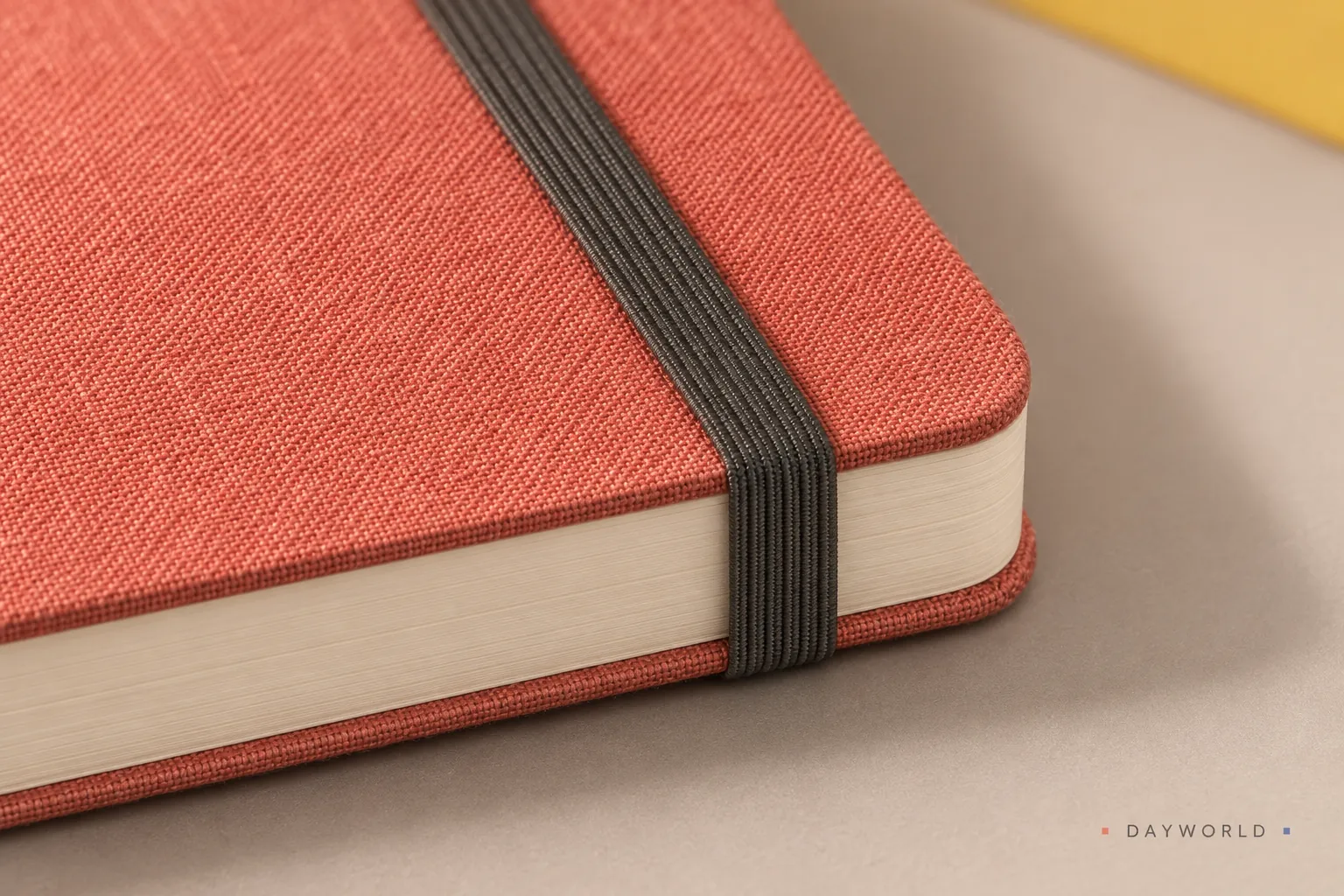
Put a task list on the left and sketches or measurements on the right. Fill a dot-grid square as each item is finished.
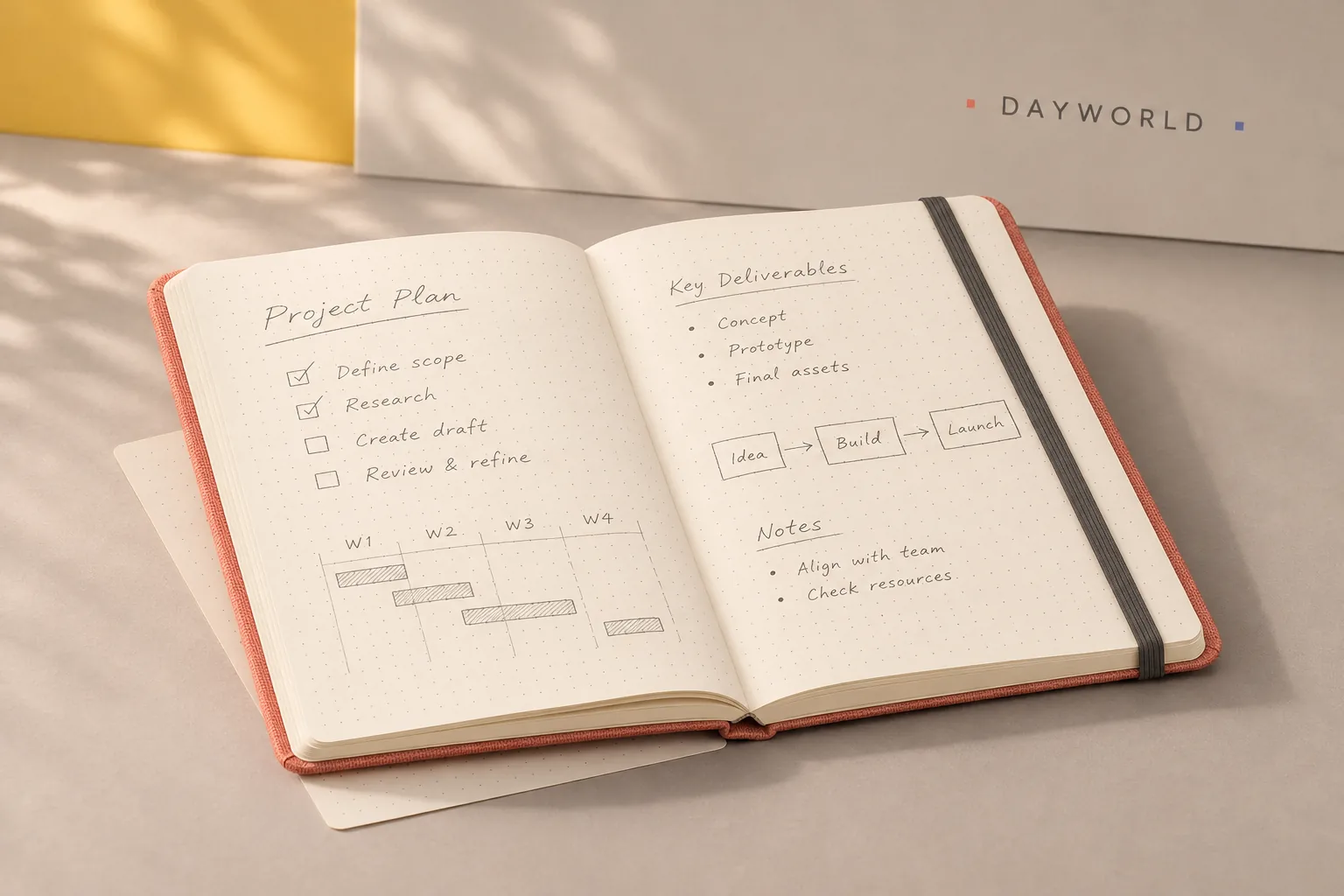
The A5 book has 160 pages. Reserve the last few for an index and use a narrow paper slip to mark an active spread.
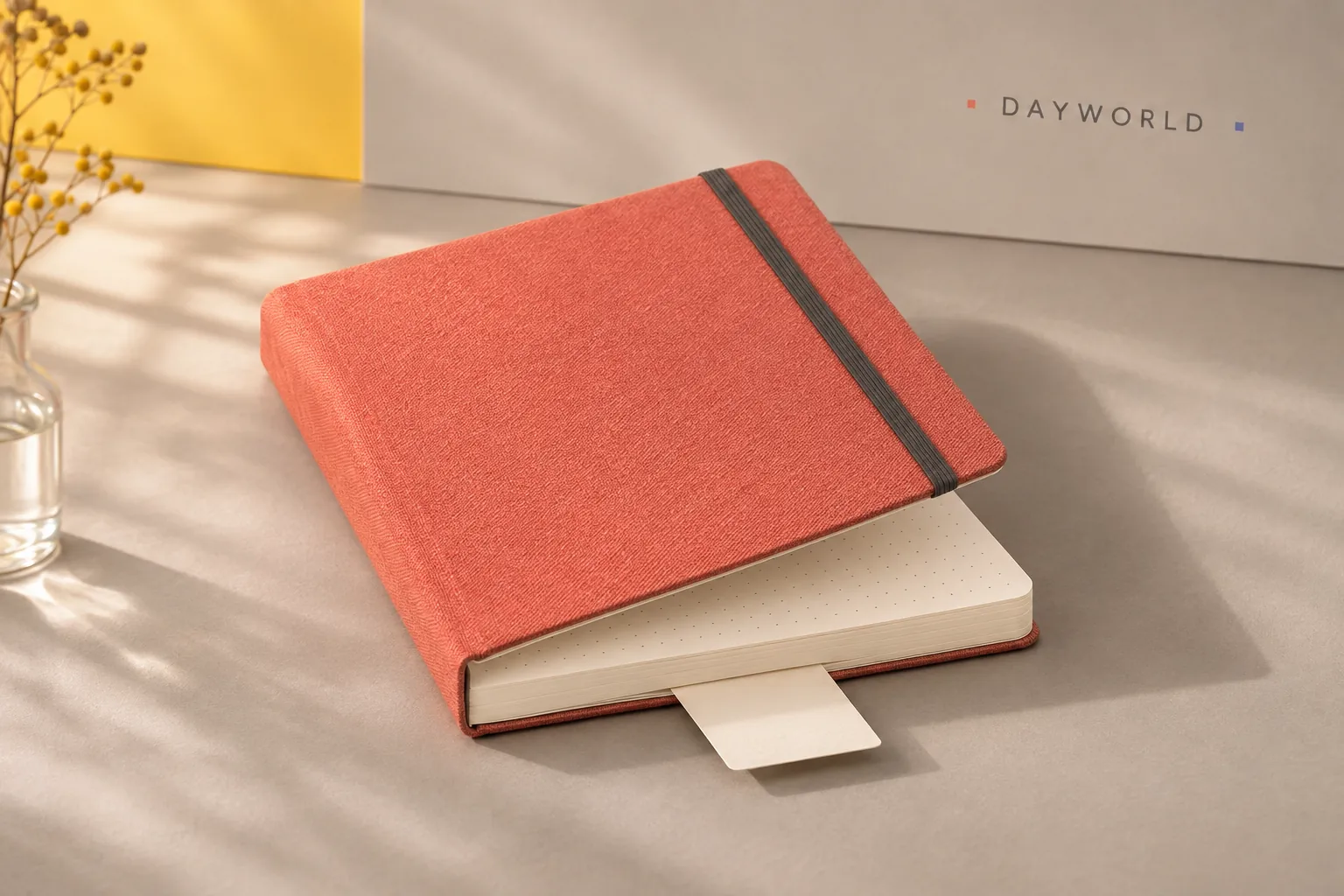
Stationery
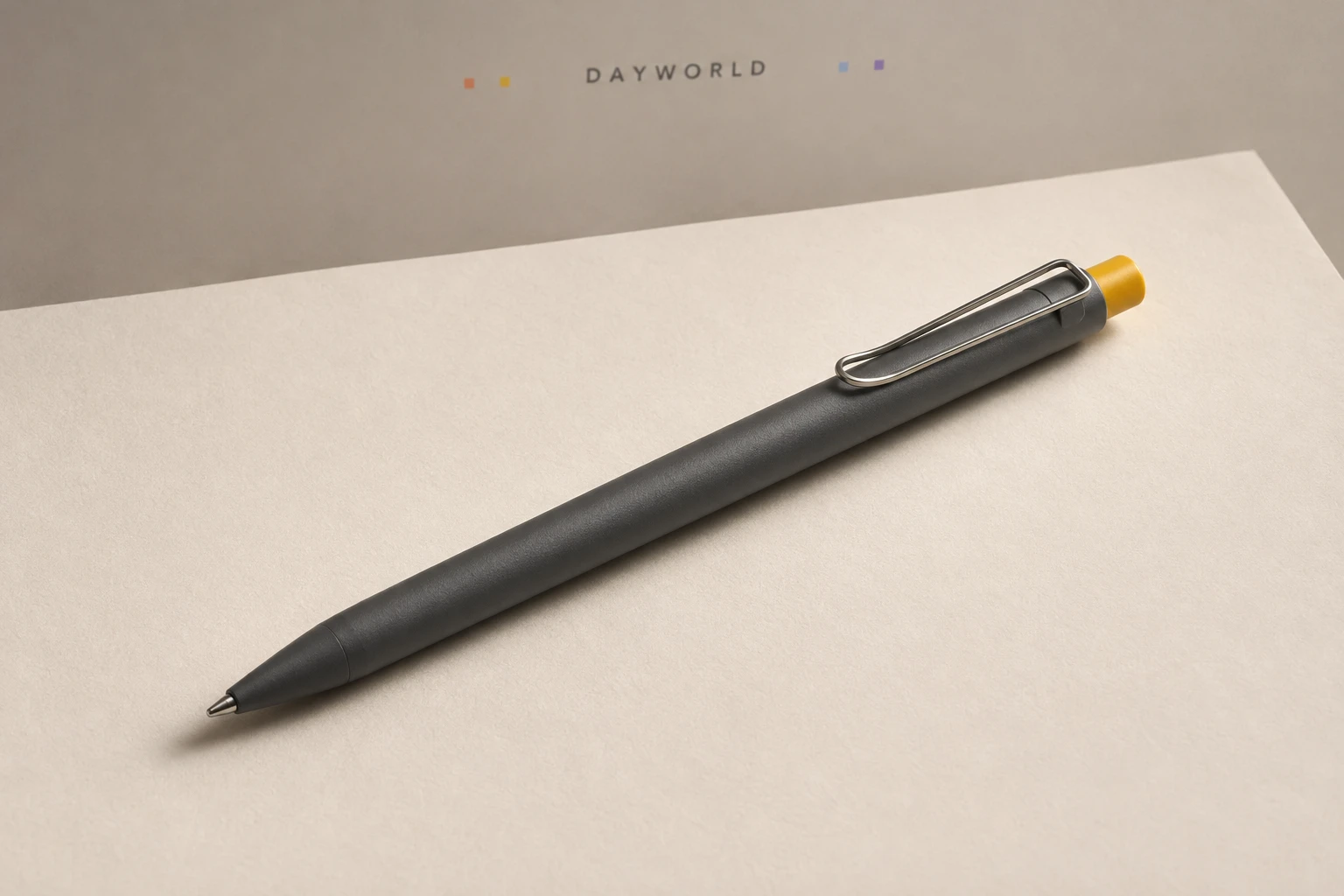
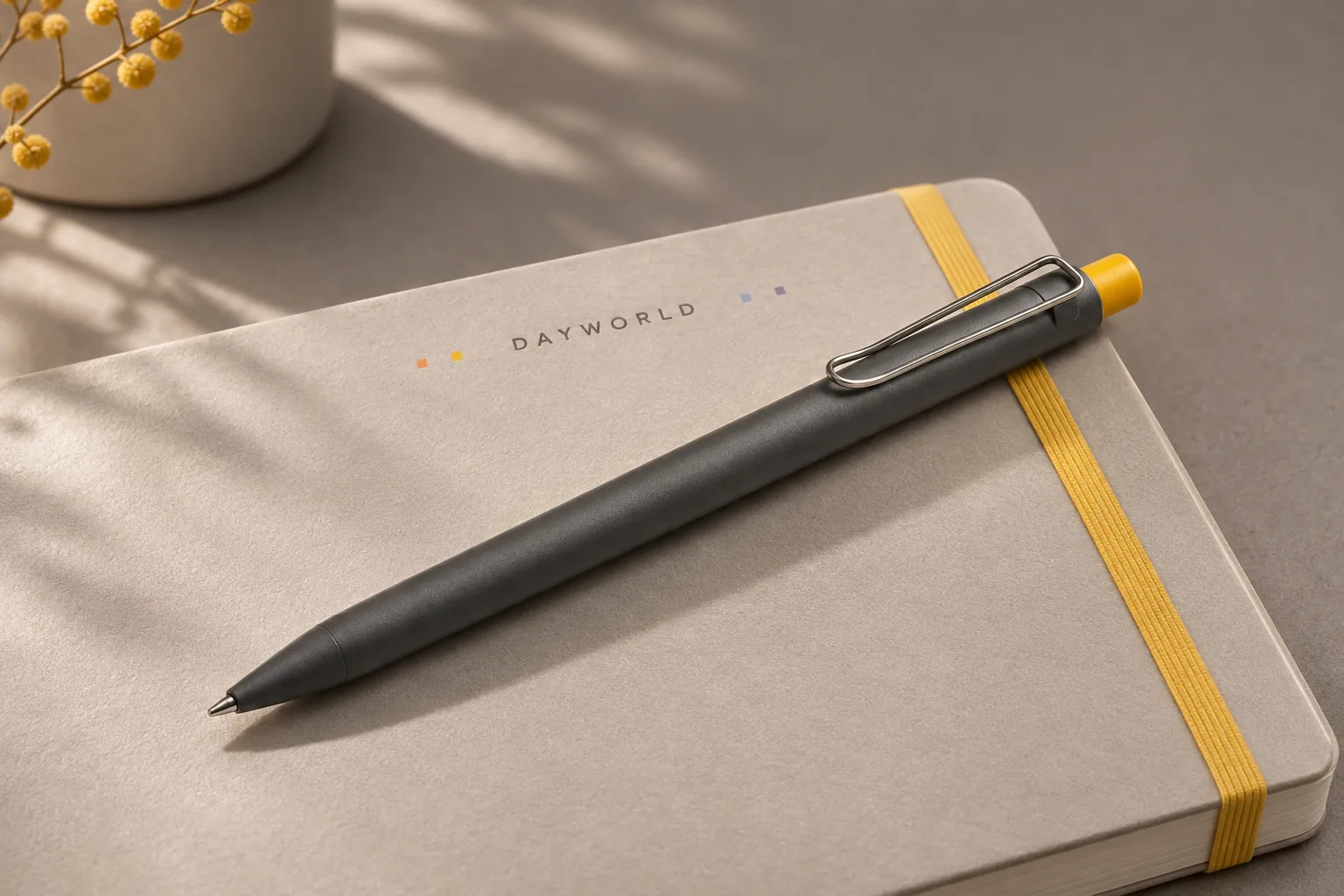
Click to write, then clip it to a notebook cover.
Visit shop · Paper RoomThis collection features sample merchandise.
Click to expose the 0.5 mm black tip. Try a line on scrap paper before filling in a small form or a notebook grid.
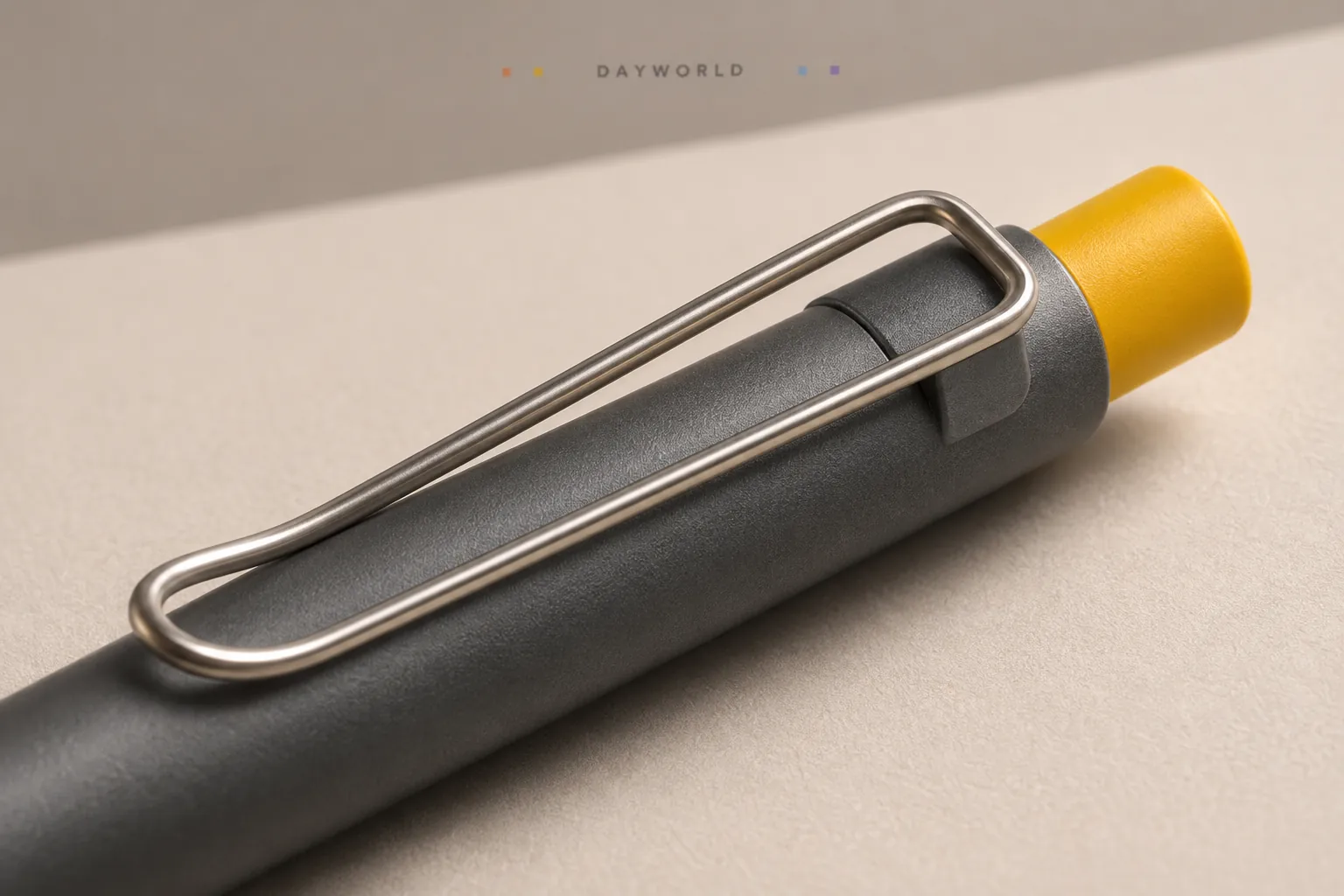
Move your grip slightly up or down the aluminium barrel to suit handwriting, checklists or annotations.
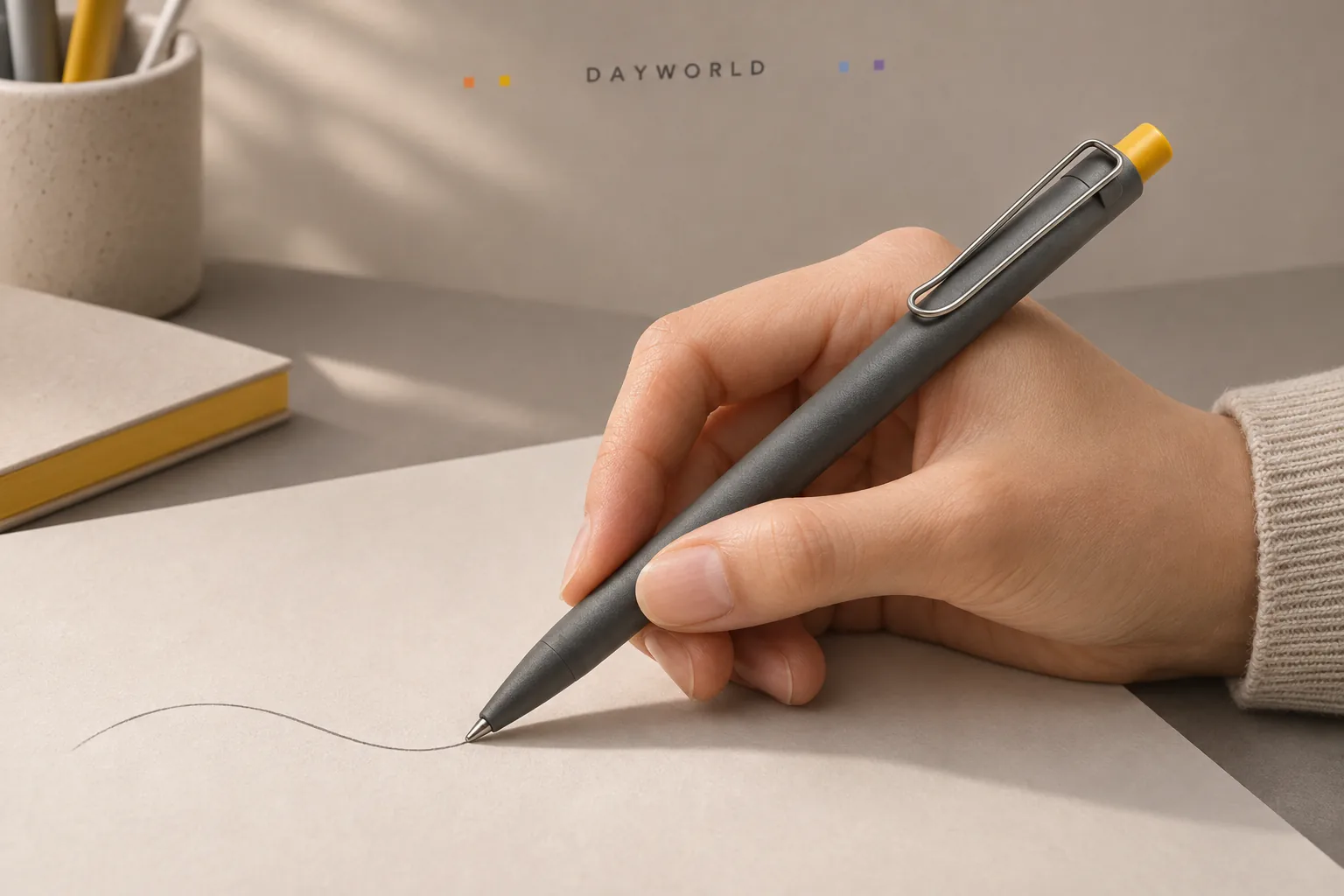
Retract the tip and clip the pen to a thin cover or pocket. Set the clip downward when placing it on a desk.
Stationery
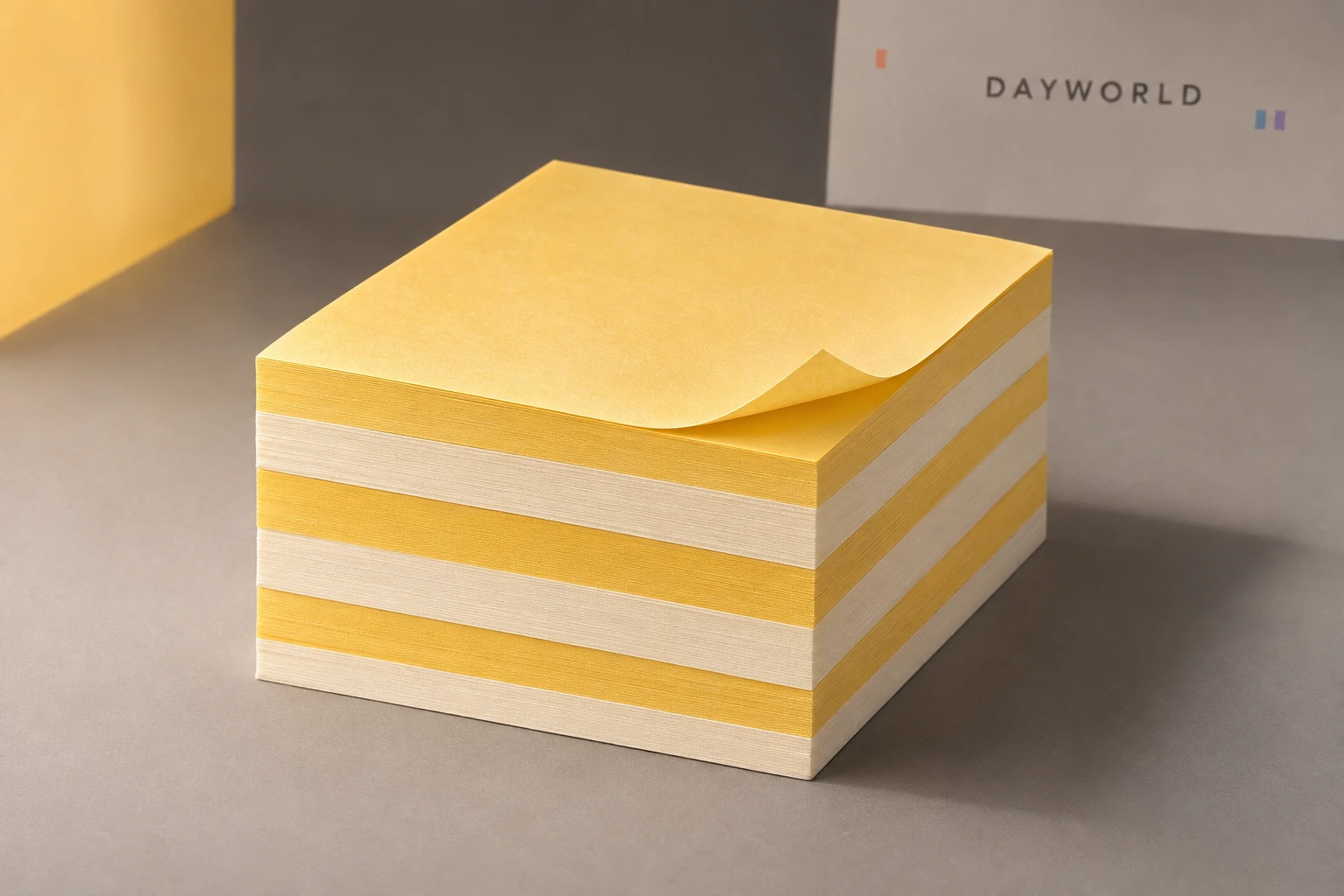
Use the two paper colours to separate tasks from notes.
Visit shop · Paper RoomThis collection features sample merchandise.
Assign one colour to actions and the other to reference notes. A single item per square is easy to move and reorder.
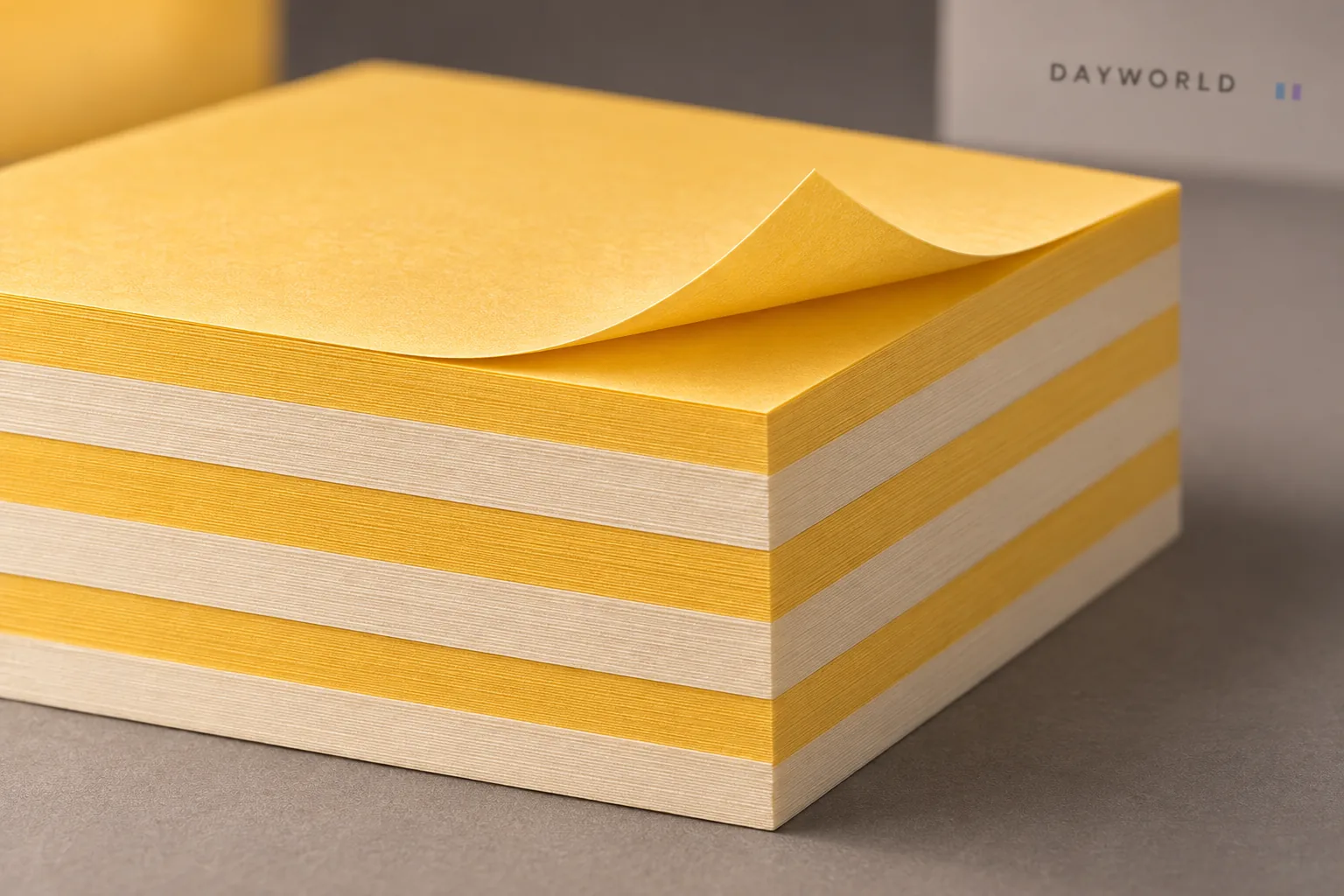
Place questions beside the relevant passage or arrange notes in a row to plan a day. Wipe dusty surfaces before applying.
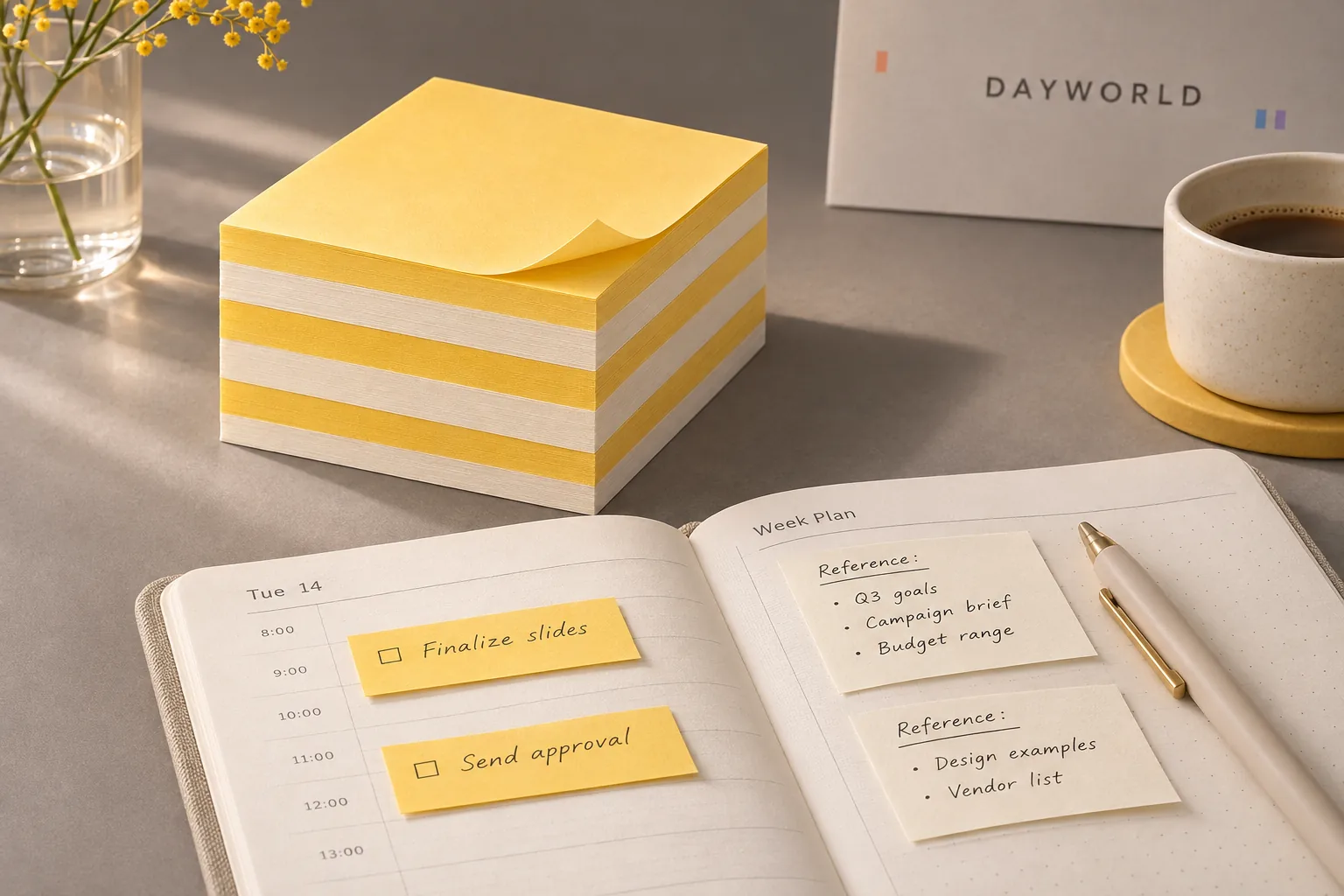
Peel sideways along the adhesive strip to limit curl. Transfer lasting decisions to a notebook and test delicate surfaces first.
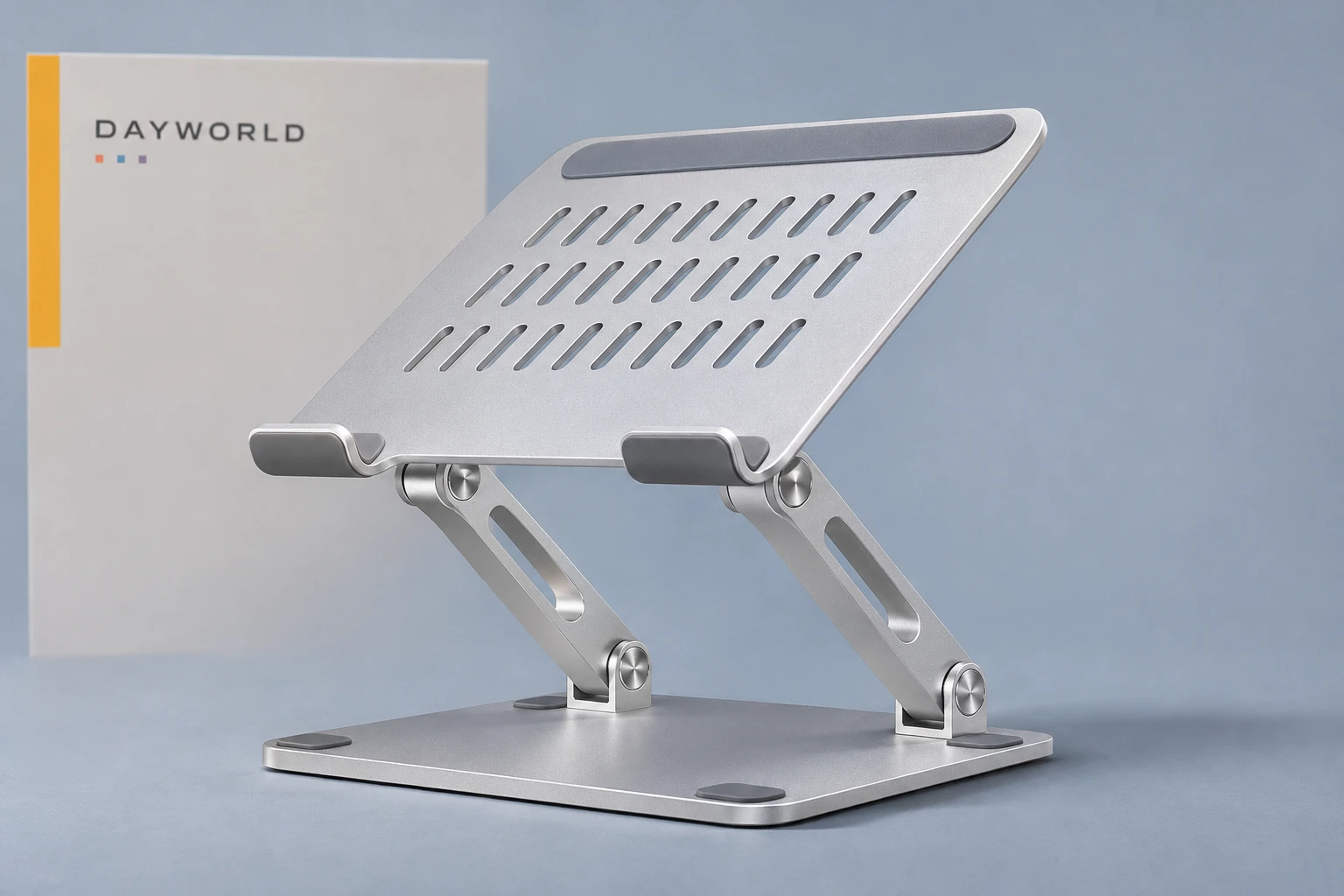
Desk stands
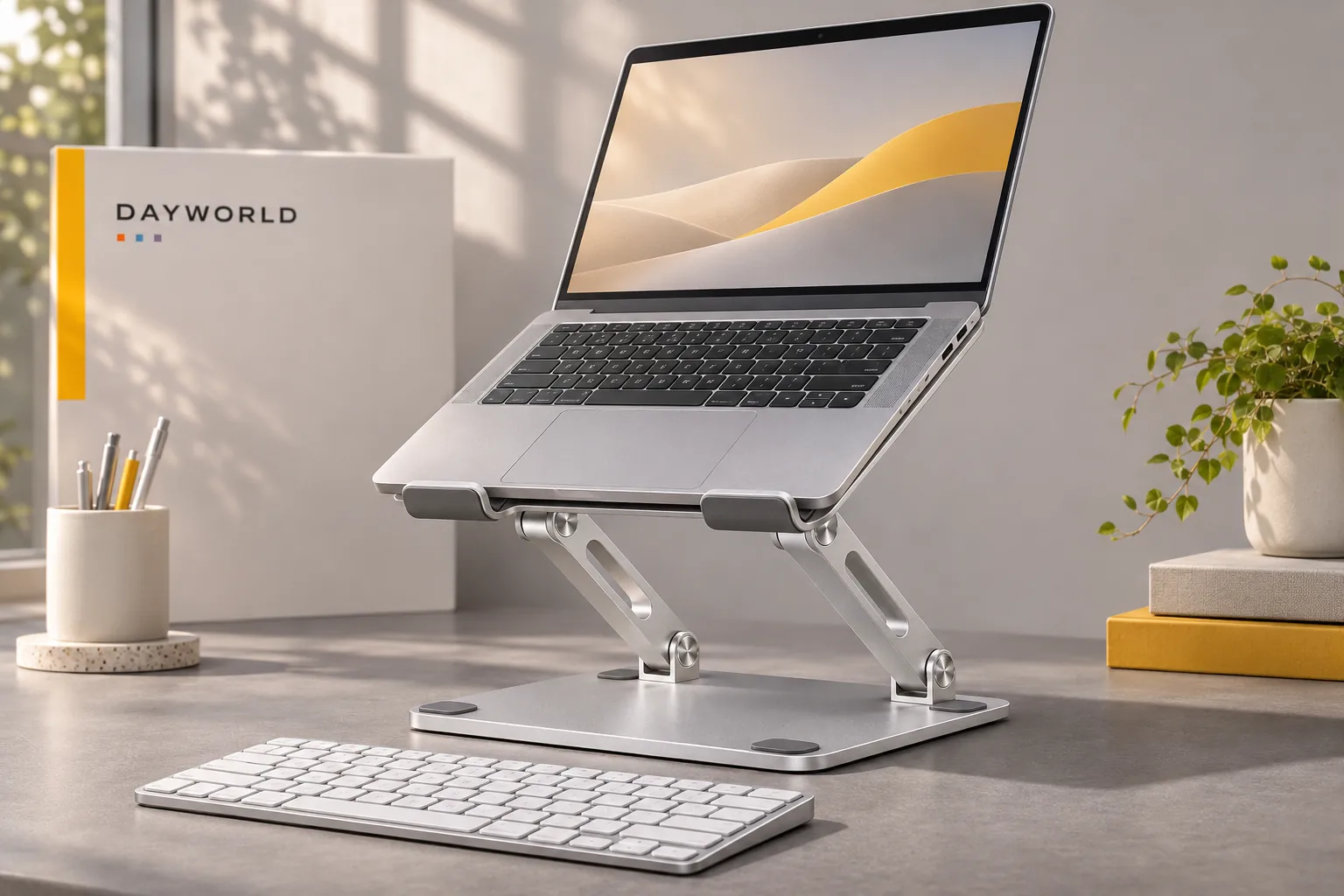
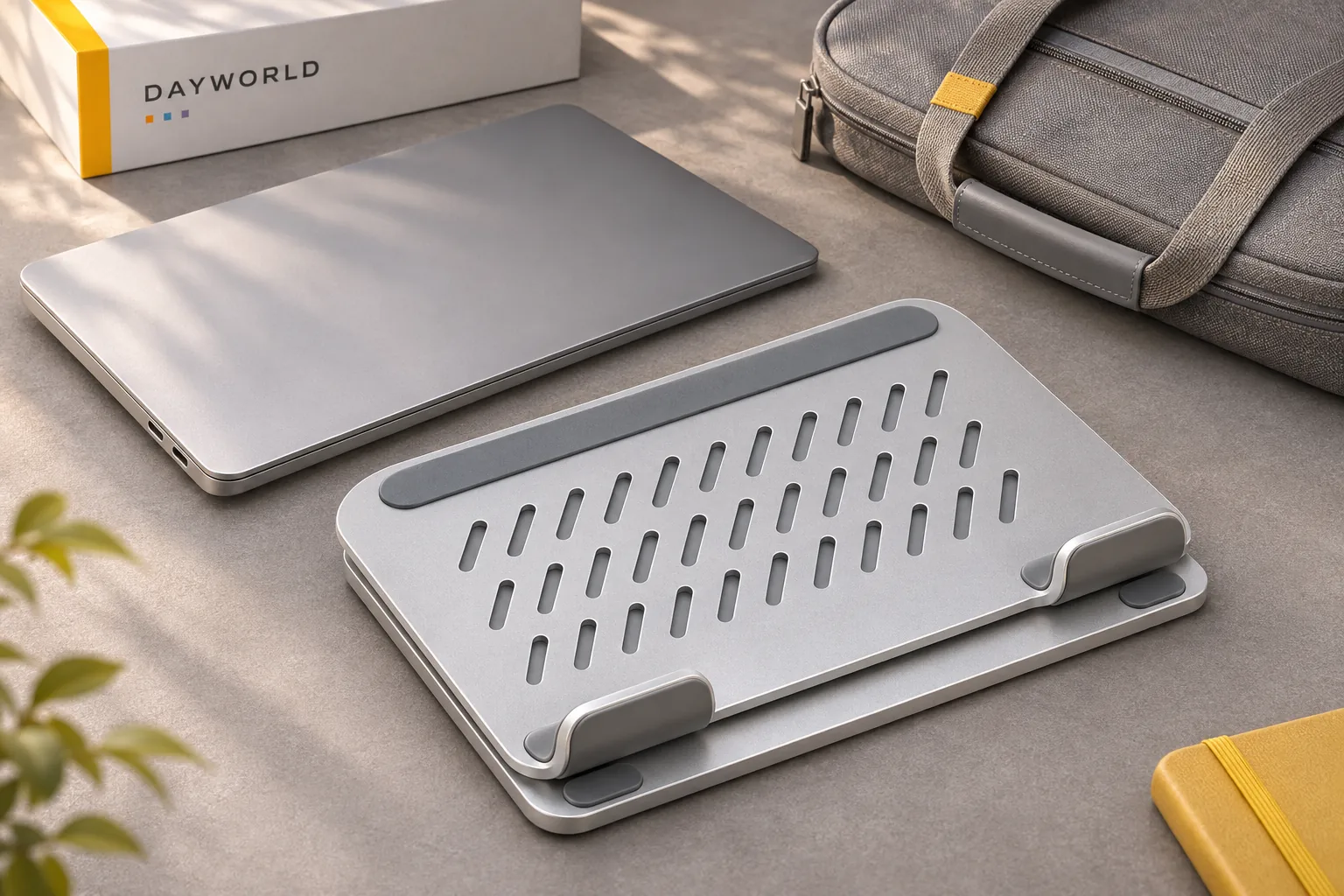
Raise the screen, then fold the stand flat when packing up.
Visit shop · Paper RoomThis collection features sample merchandise.
Set both arms to the same angle and check that the front lip and pads support the laptop evenly.
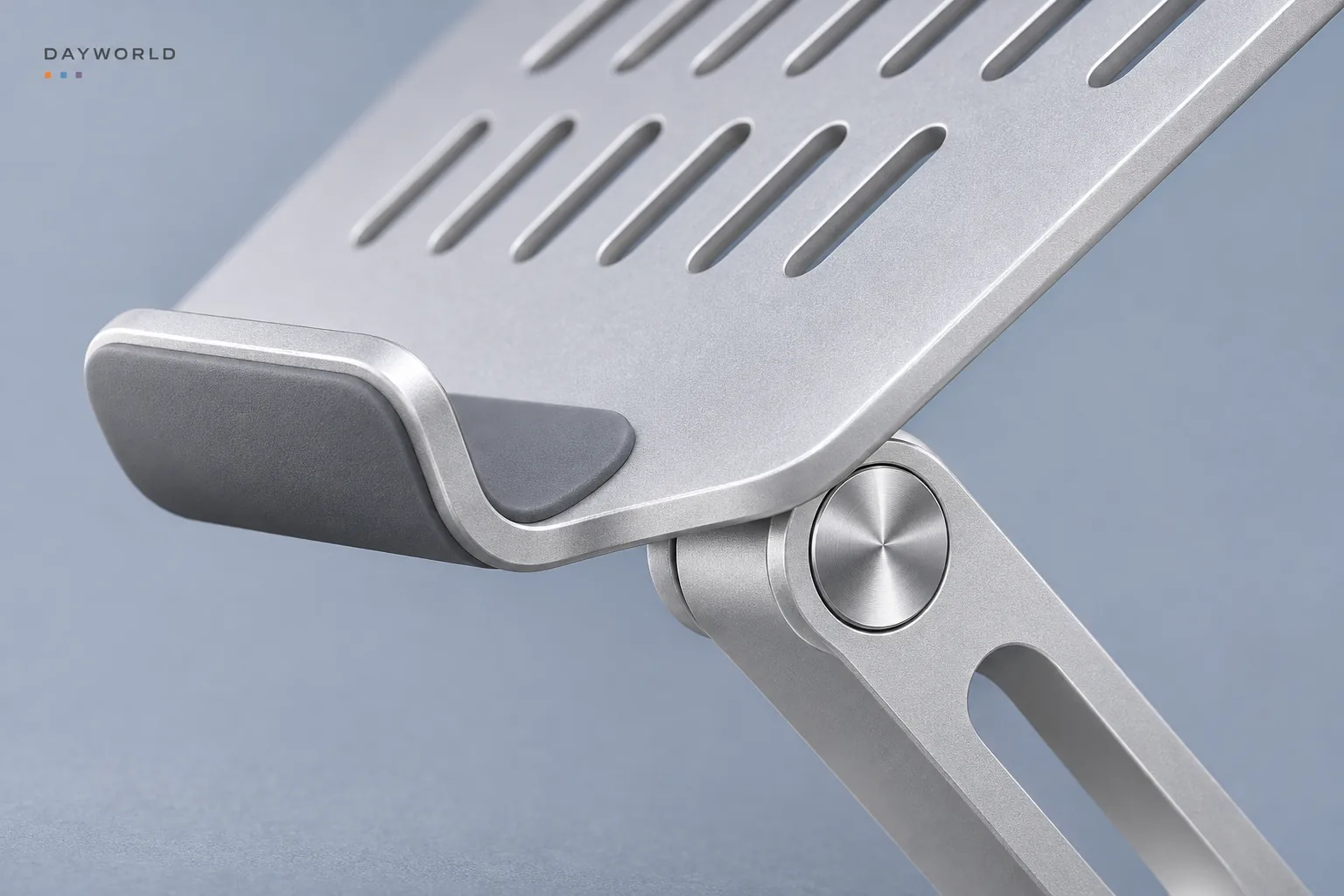
Choose the screen angle while seated, add an external keyboard and leave room for the power lead and display hinge.
Remove the computer before folding. Store the stand against a divider and check the contact pads for grit before setting up again.
Desk stands
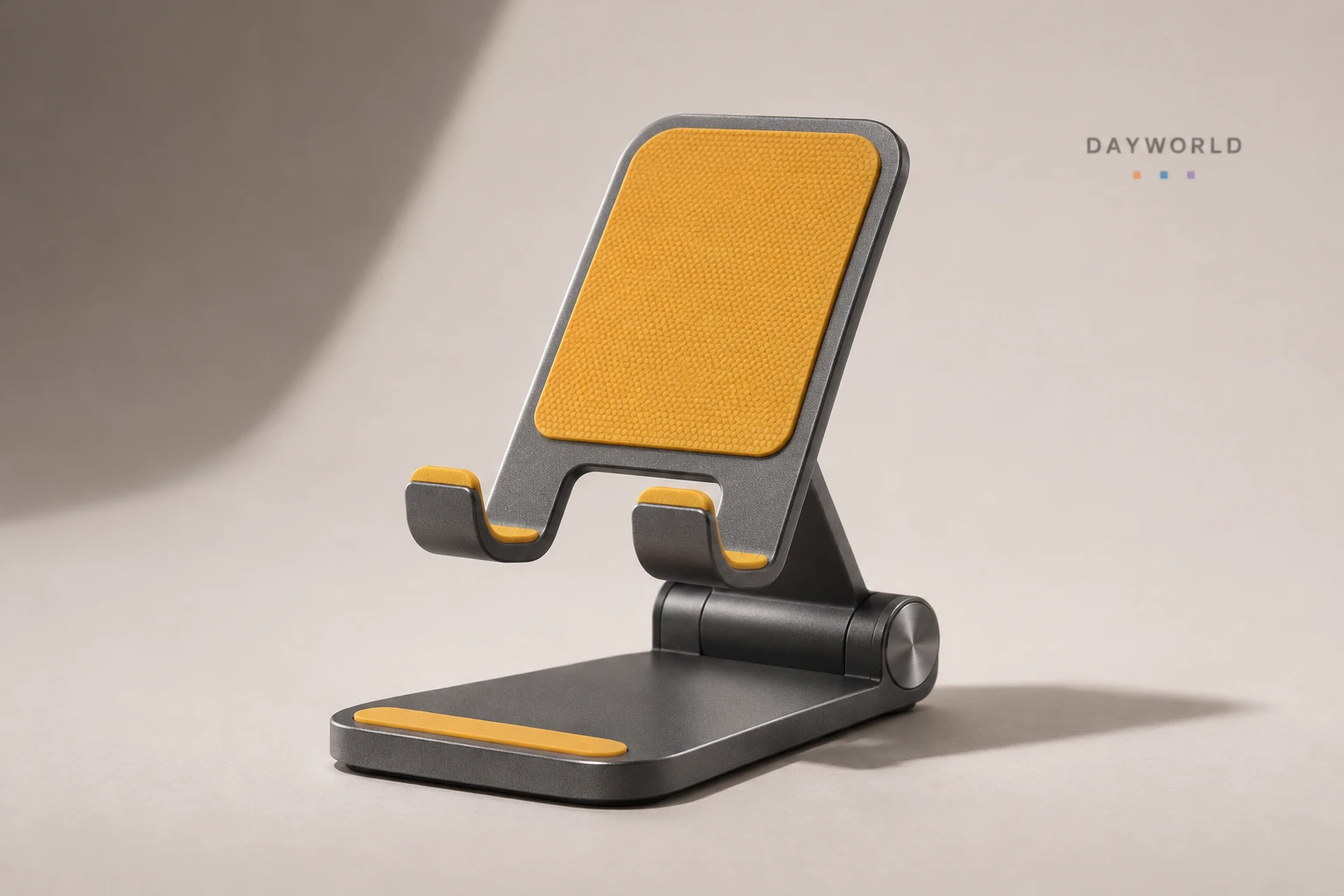
Prop your phone beside the keyboard for hands-free viewing.
Visit shop · Paper RoomThis collection features sample merchandise.
Seat both lower corners in the padded hooks. With a case fitted, check the combined depth and tap a corner to test stability.
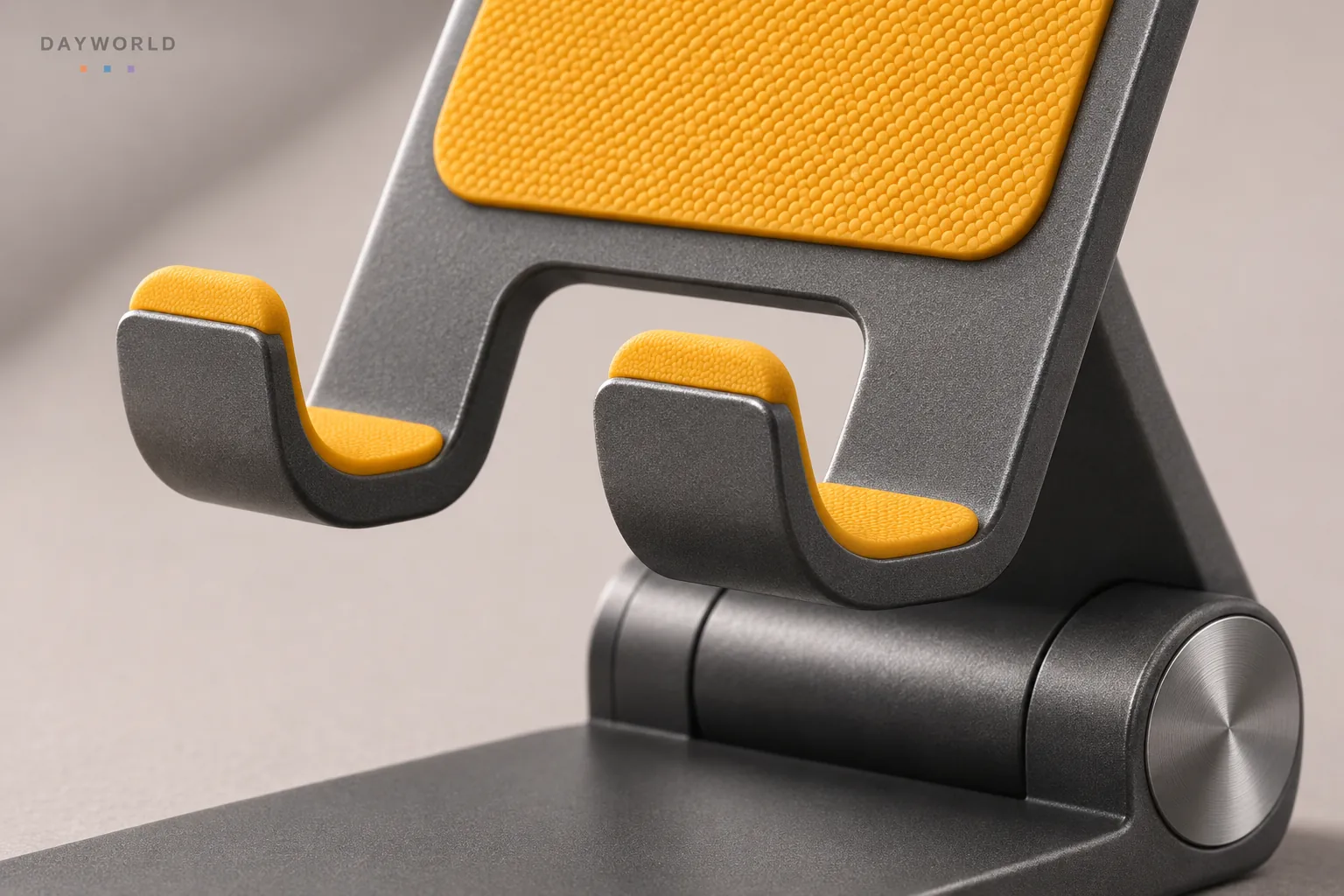
Set the viewing angle before fine-tuning the distance. Check that the charging connector does not lift the phone out of its cradle.
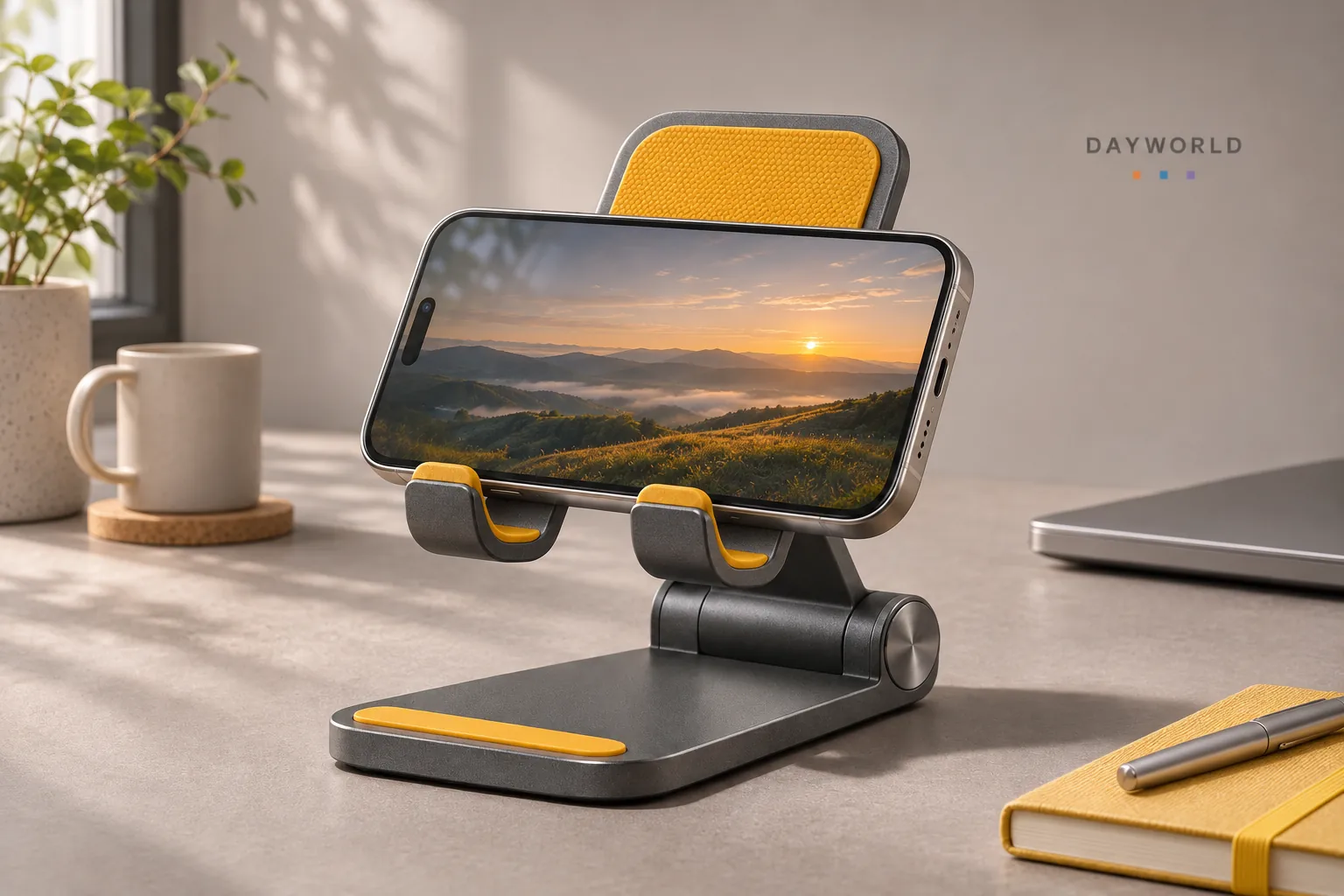
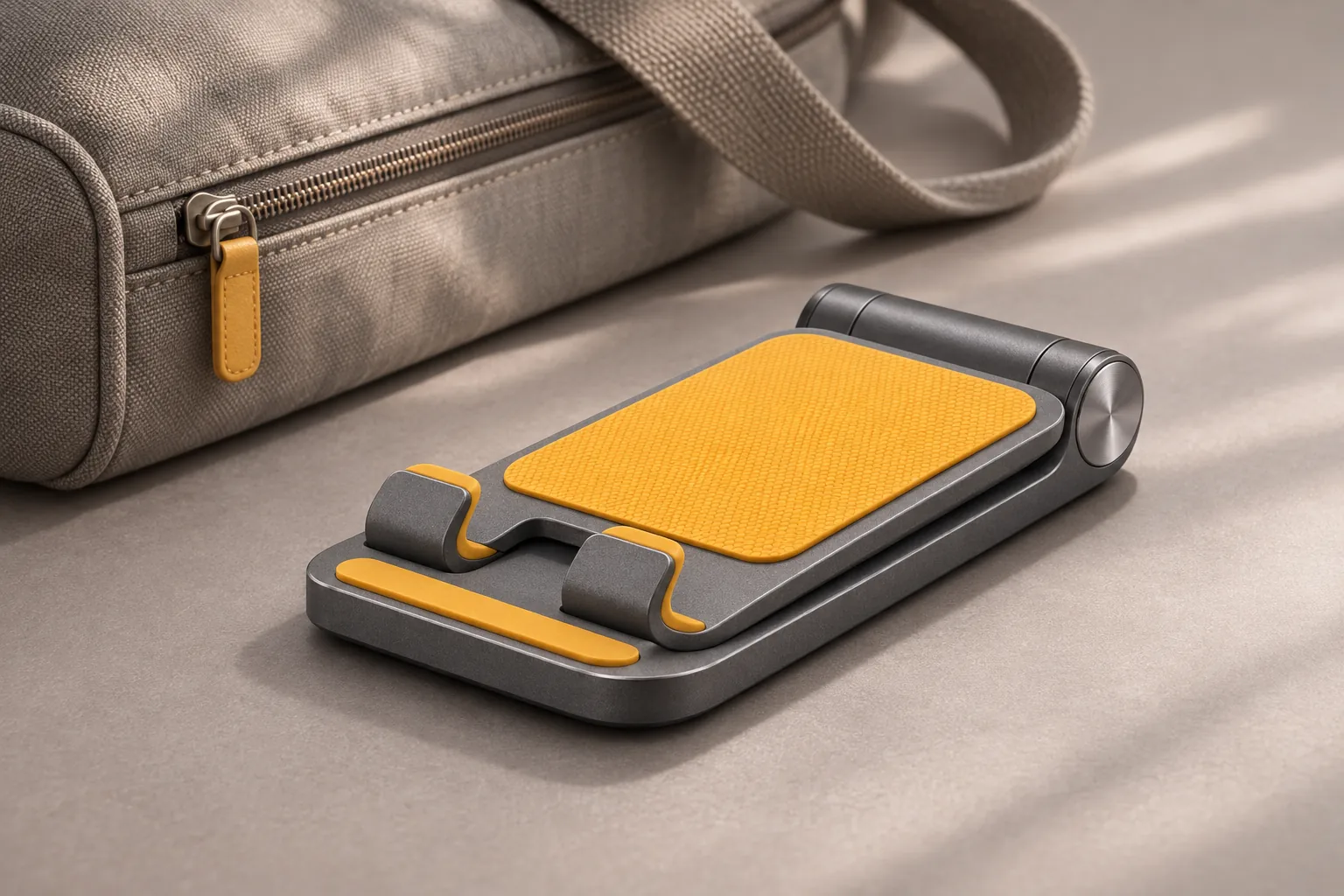
Remove the phone before folding the back into the base. Pack the flat stand in a shallow pocket and set it up on a firm surface.
Desk stands
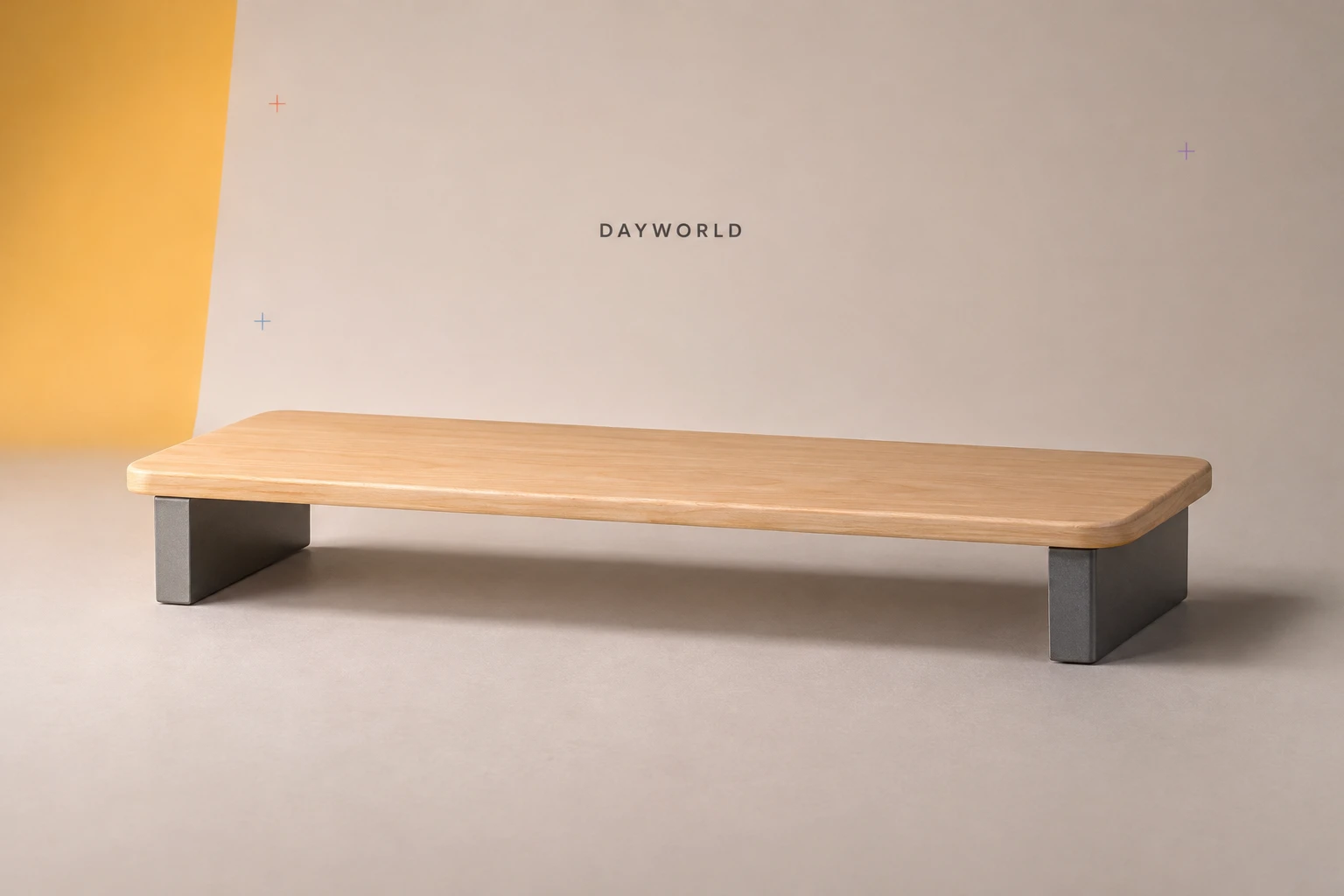
Lift a display and use the space underneath for your keyboard.
Visit shop · Paper RoomThis collection features sample merchandise.
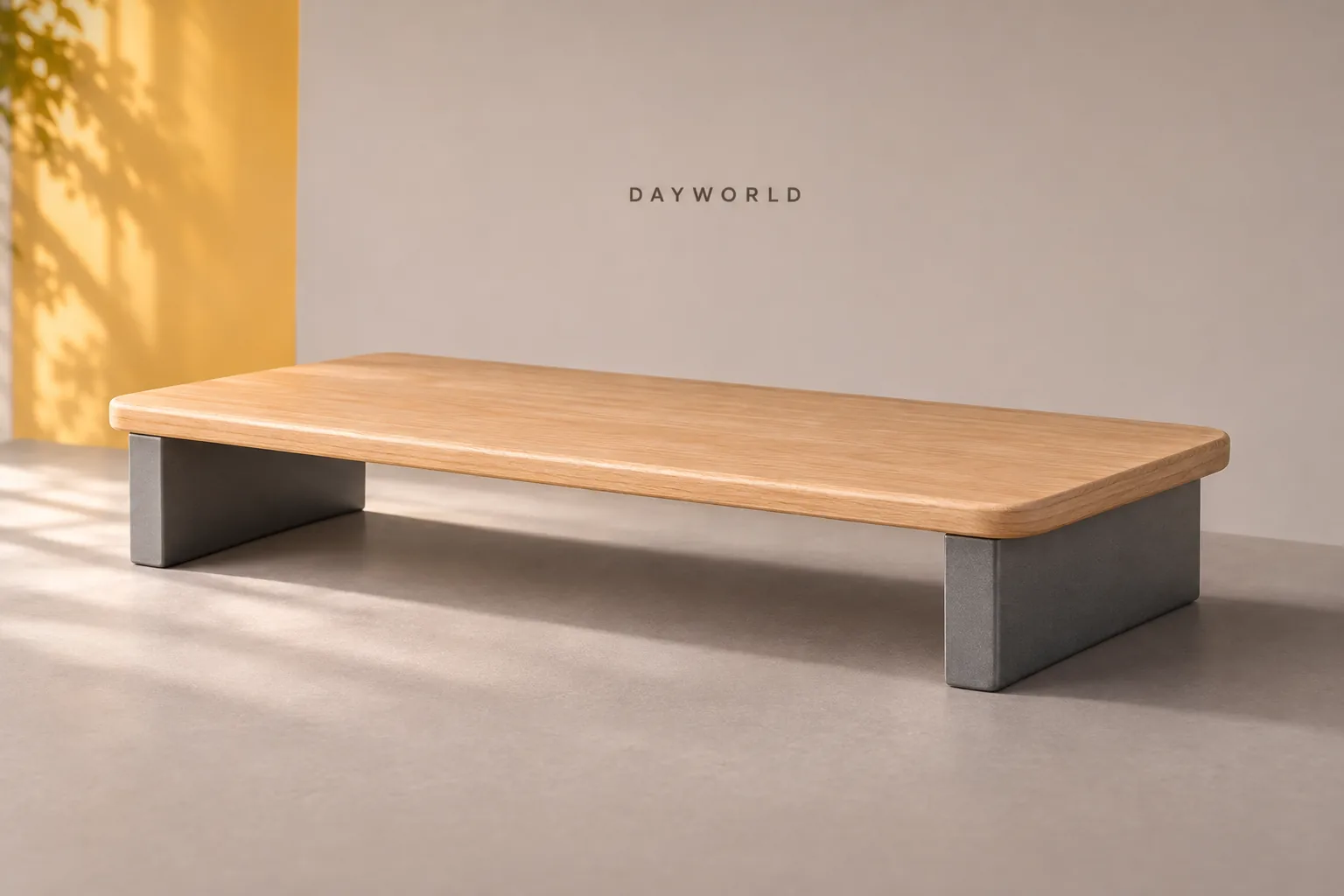
Check the monitor footprint against the wooden top and place both metal feet on solid desk space away from cut-outs.
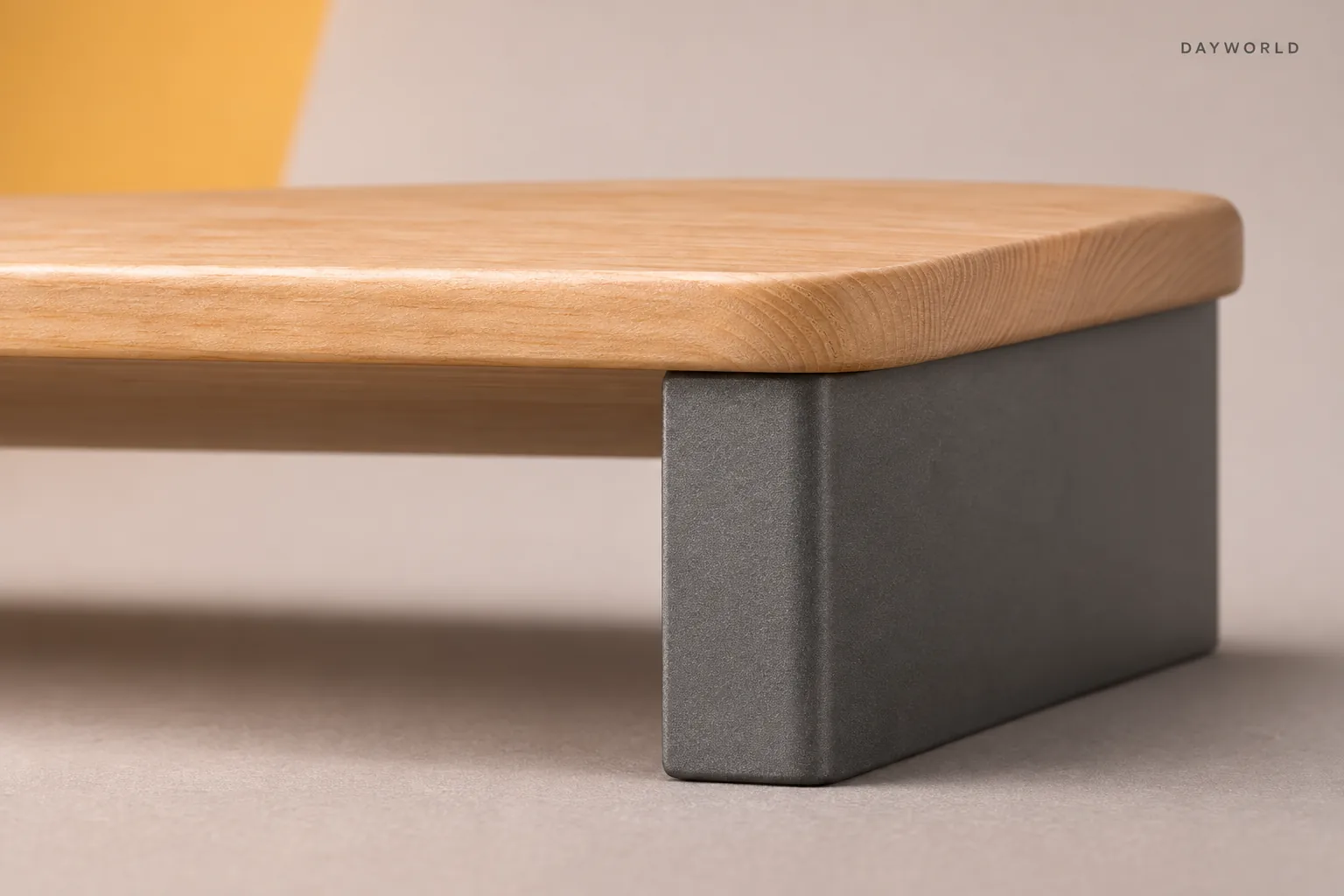
Centre the monitor and reserve the space underneath for a keyboard or frequently used notebooks. Leave room for the keyboard lead to move.
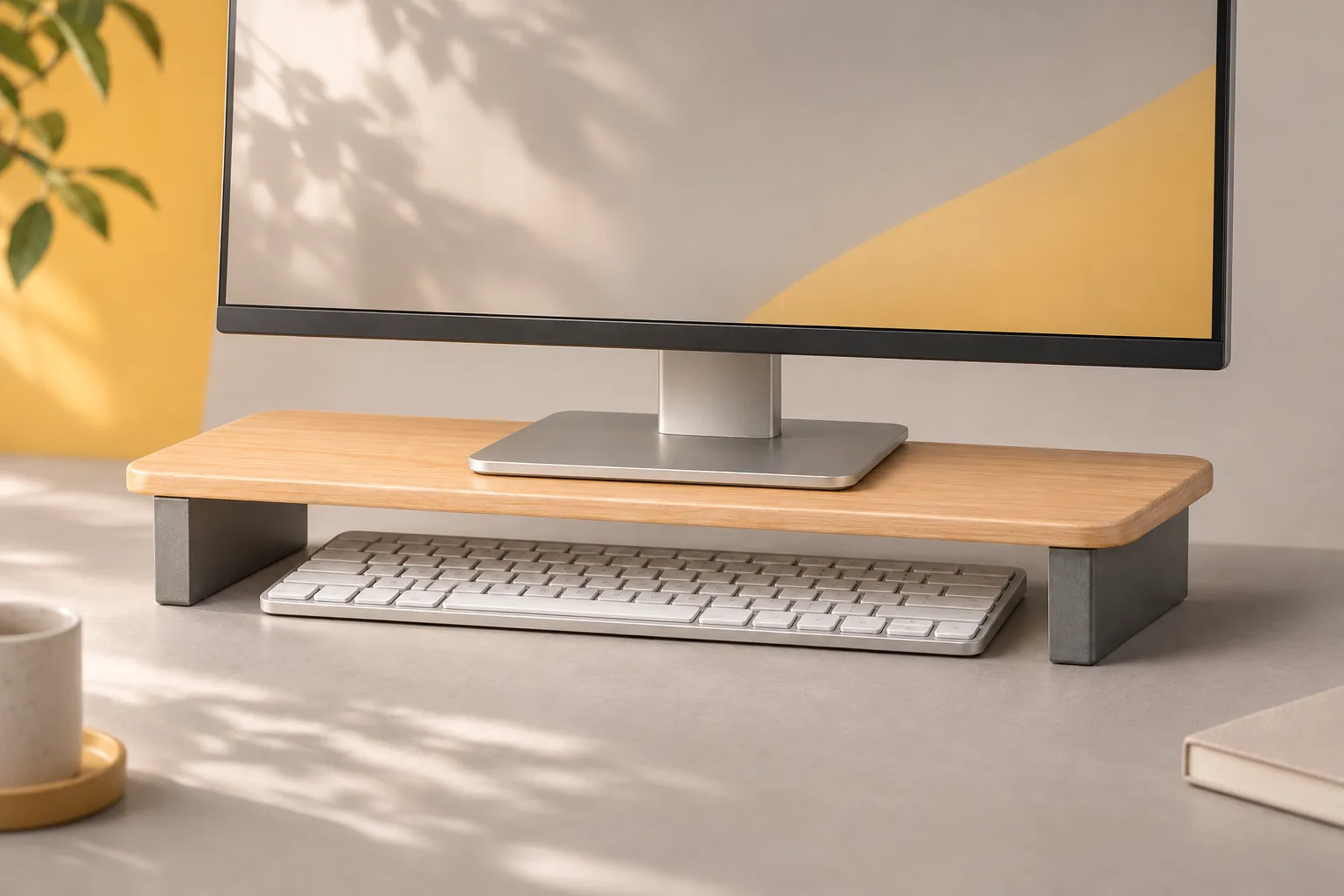
Measure between the feet and below the shelf, including raised keyboard feet and finger clearance. Remove equipment before wiping the top.
Audio
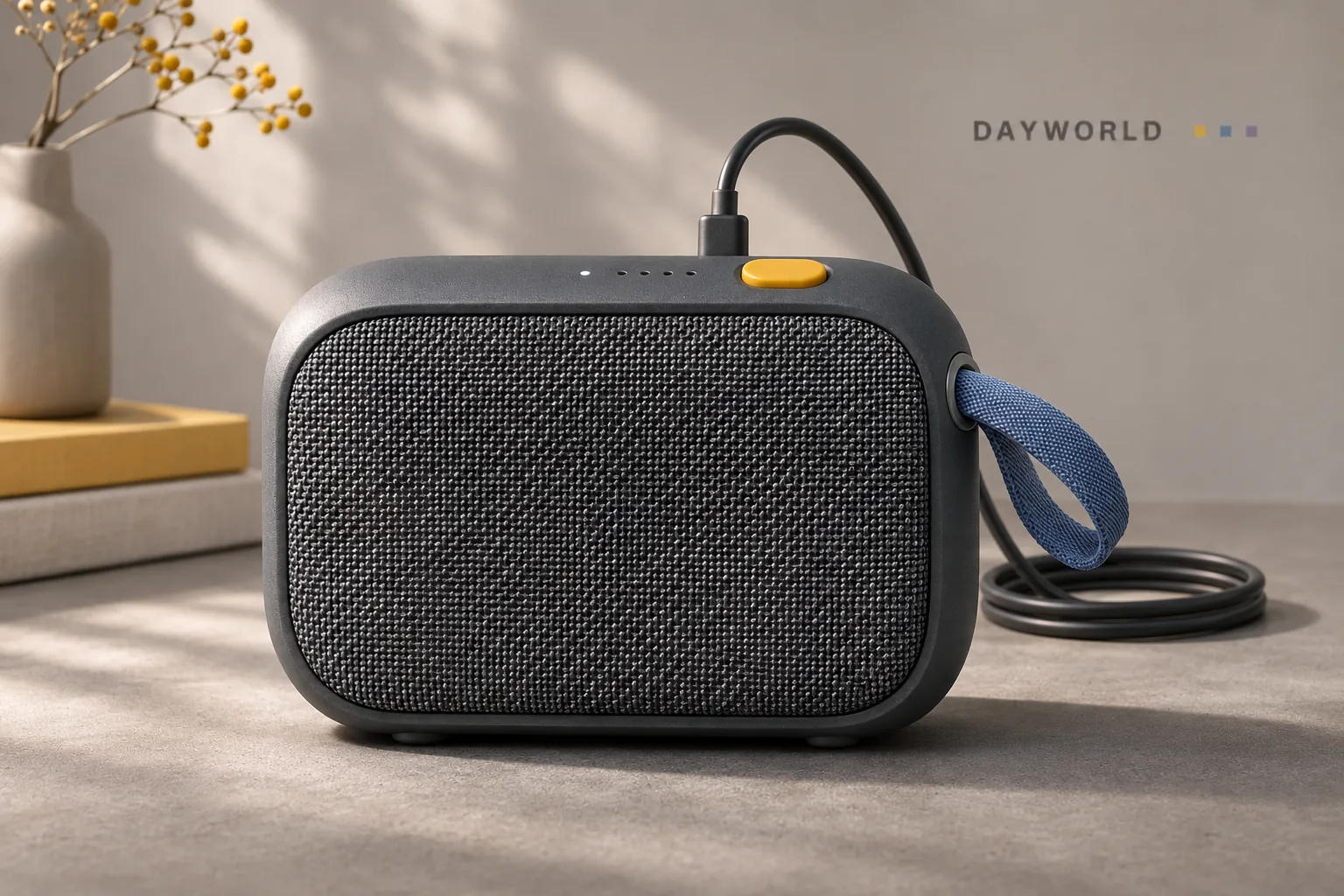
A woven grille and short carry loop suit a desk or meeting table.
Visit shop · Sunarc PeripheralsThis collection features sample merchandise.
Face the grille toward the listening position and keep books out of the sound path. Start low and adjust to a comfortable speaking level.
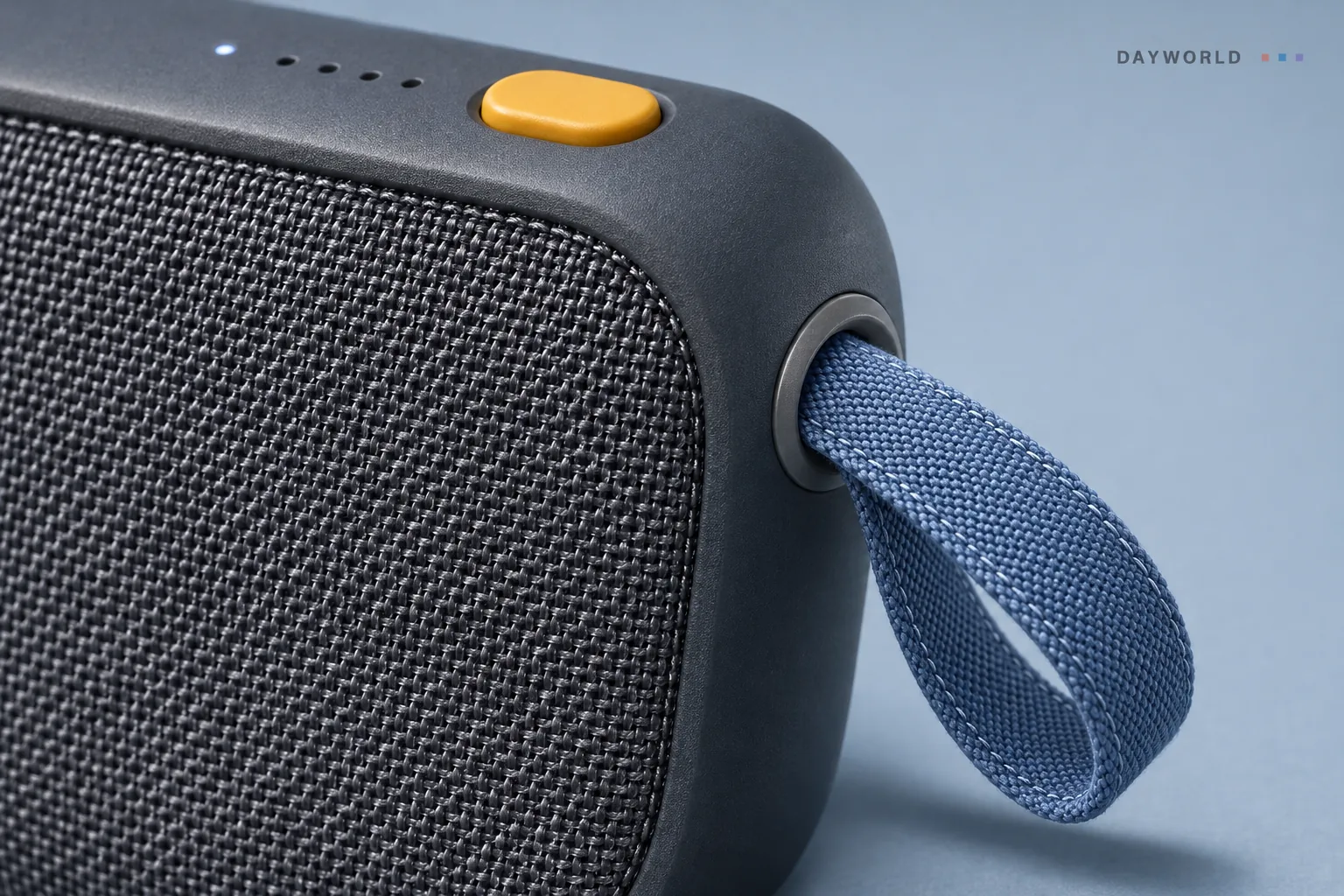
Select the speaker in the Bluetooth audio menu before playback. The same output selector lets you switch back to headphones after a call.
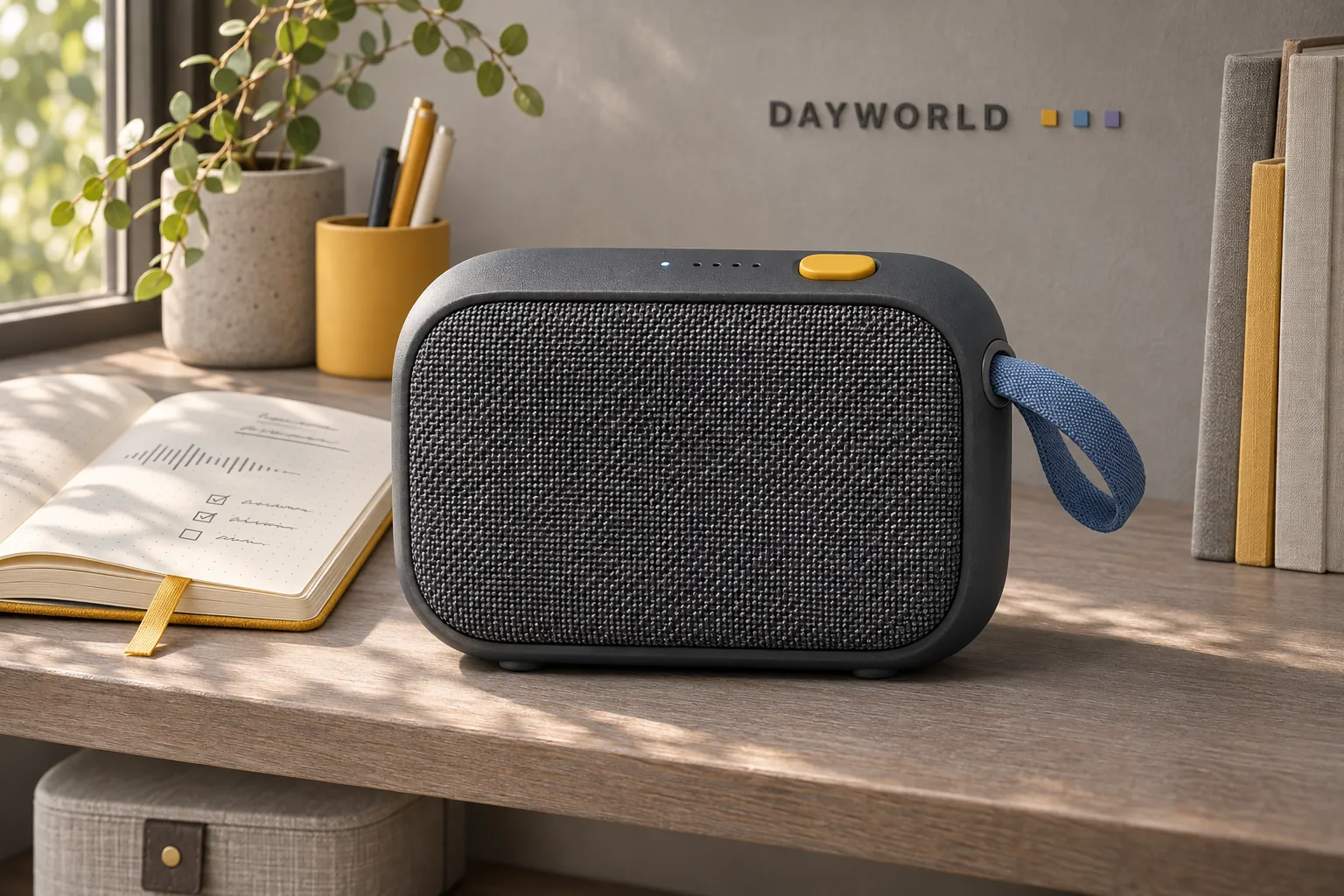
Leave a gentle bend behind the USB-C plug. Disconnect before lifting the speaker from a shelf or moving it to another room.
Audio
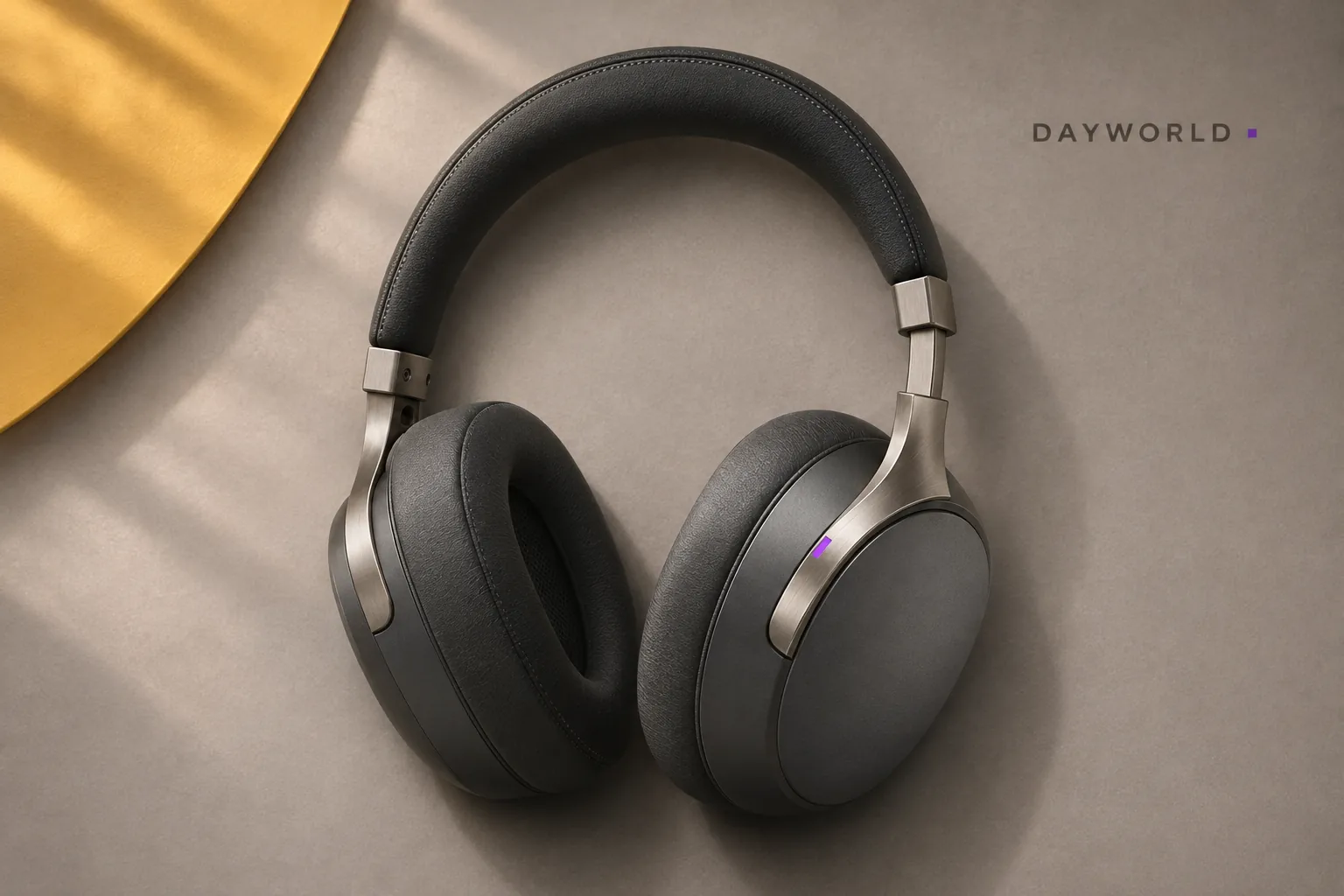
Soft cushions surround the ears, with independent adjustment on each side.
Visit shop · Sunarc PeripheralsThis collection features sample merchandise.
Adjust both sides evenly and position glasses before settling the cushions around the ears. The headband should rest lightly on top.
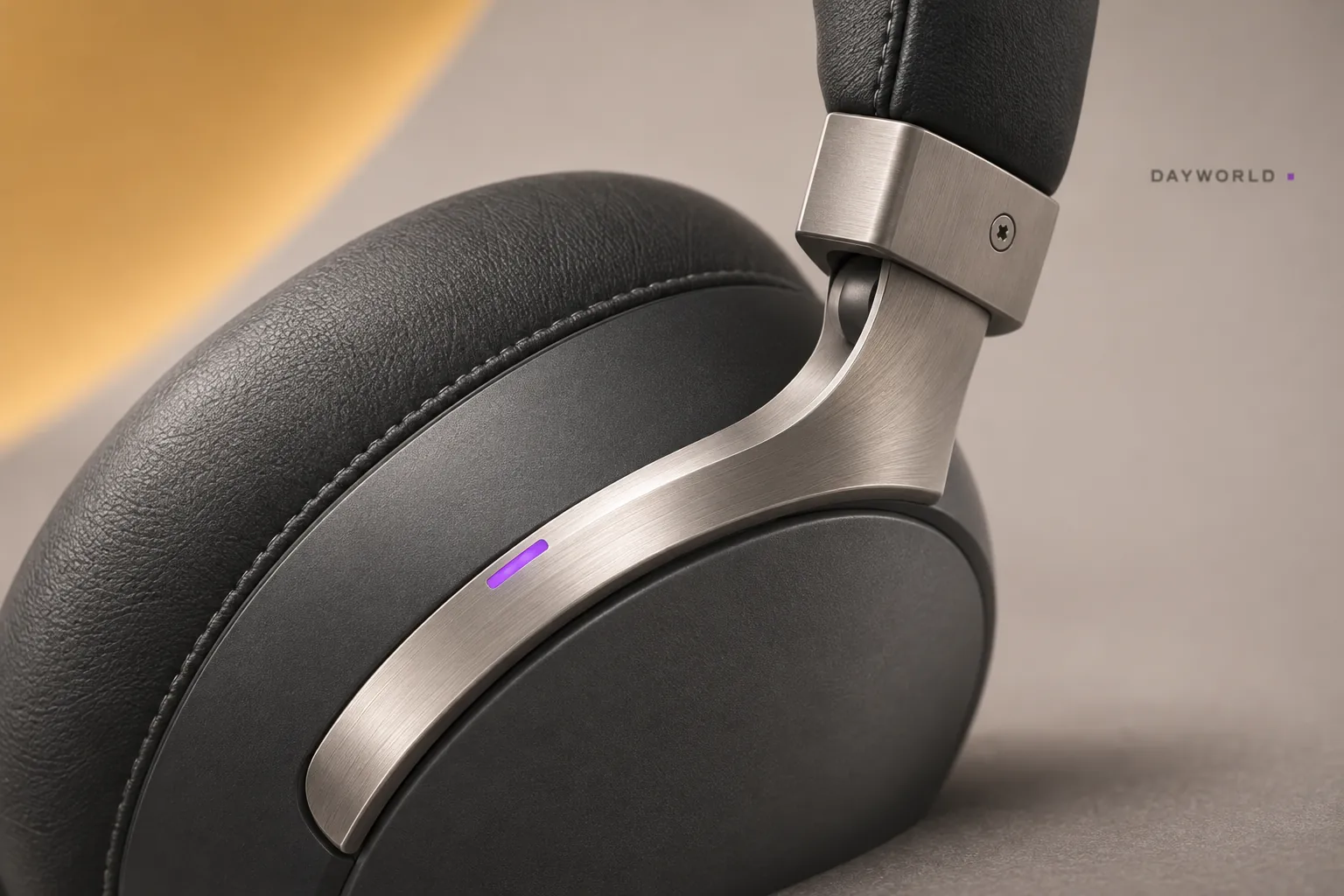
Keep playback controls within reach when reviewing voice recordings. Start quietly and let the closed ear cushions air between sessions.
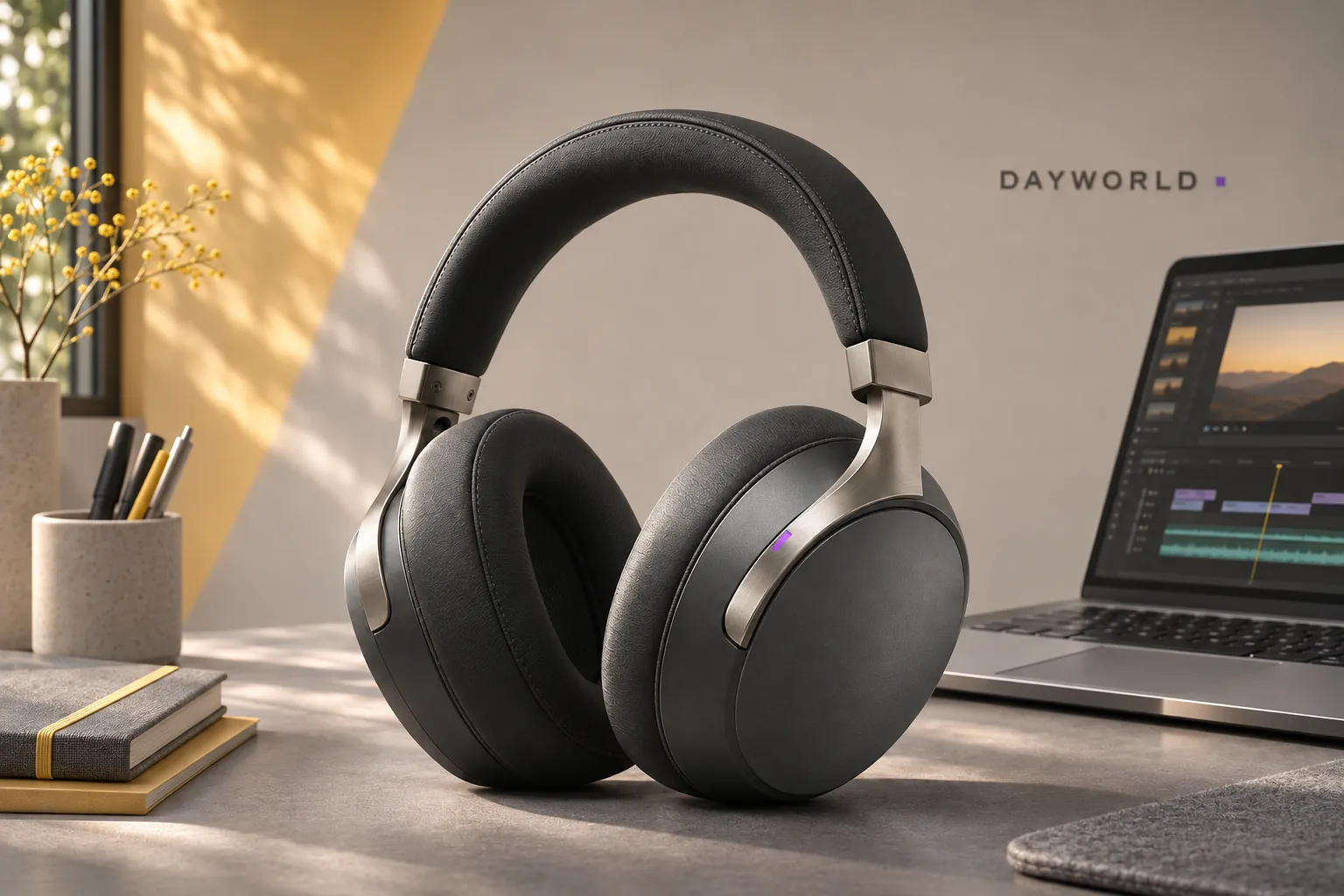
Note the extension on each side. Lift the headset by both cups and store it on a broad support without pressing the cushions against sharp objects.
Audio
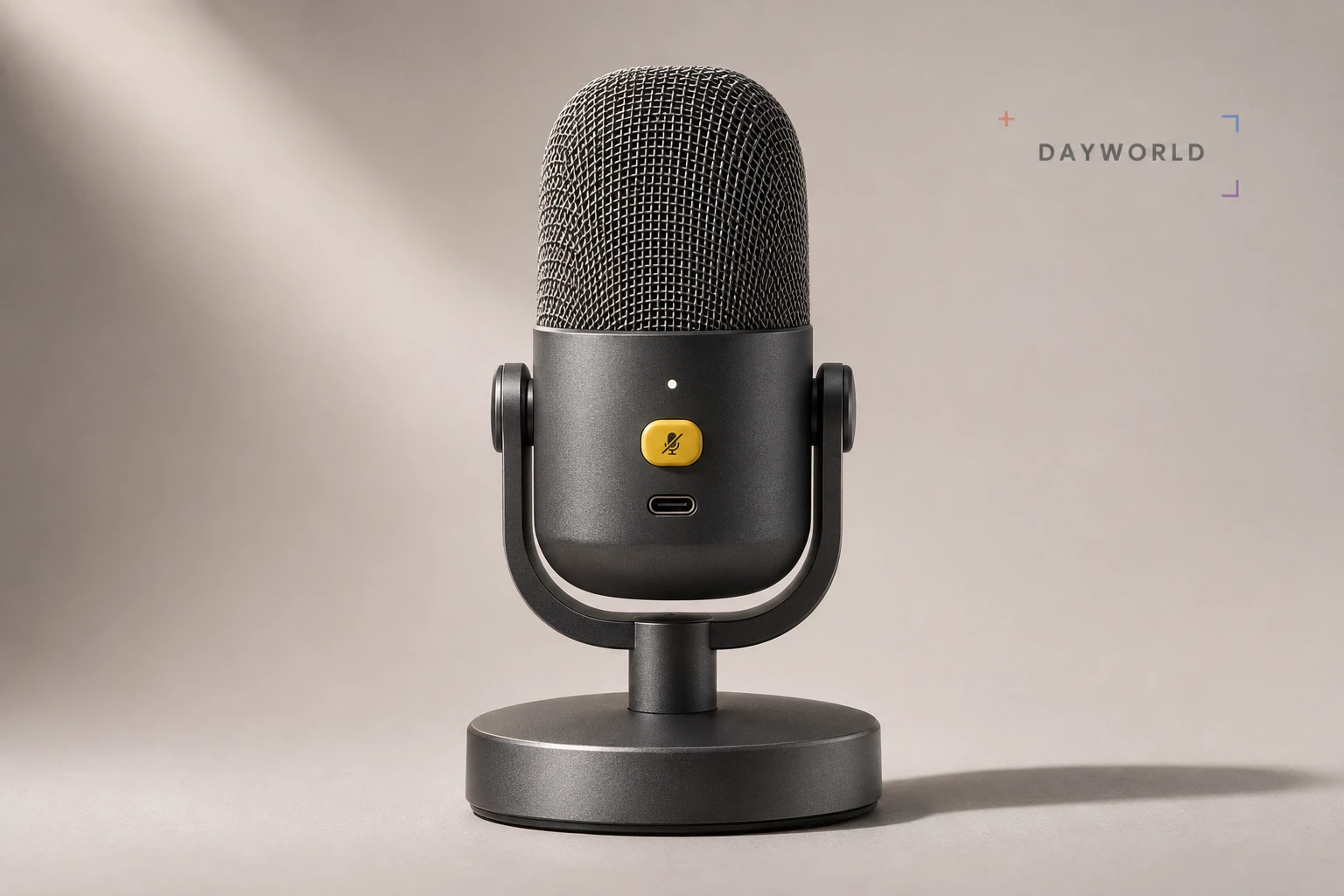
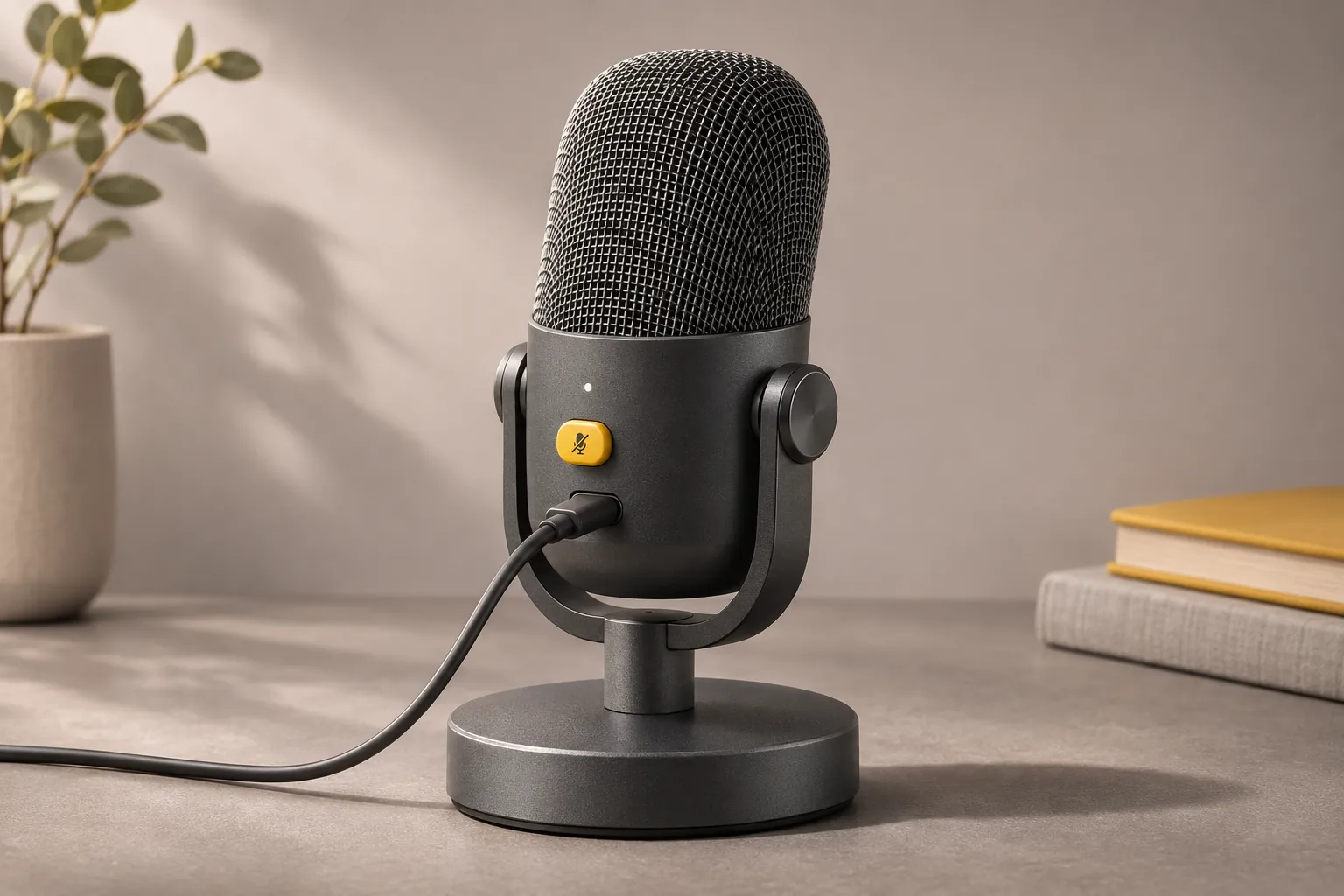
Angle the microphone towards the speaker on its desktop base.
Visit shop · Sunarc PeripheralsThis collection features sample merchandise.
Angle the mic on its base and record a familiar sentence. Listen for desk taps and breath noise before settling on a position.
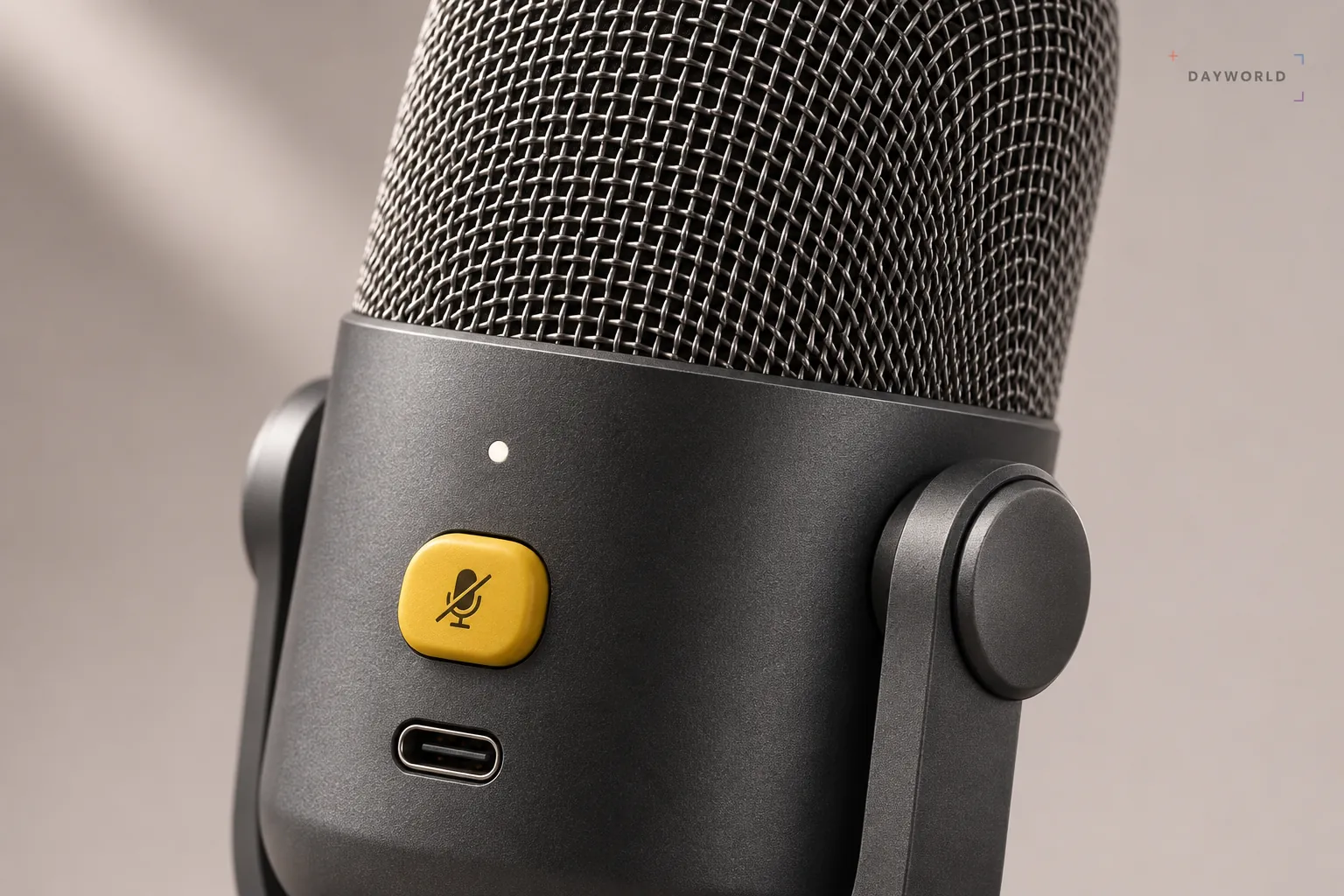
Place notes beside the mic and keep the keyboard clear of its stand. A steady speaking distance makes the recording easier to follow.
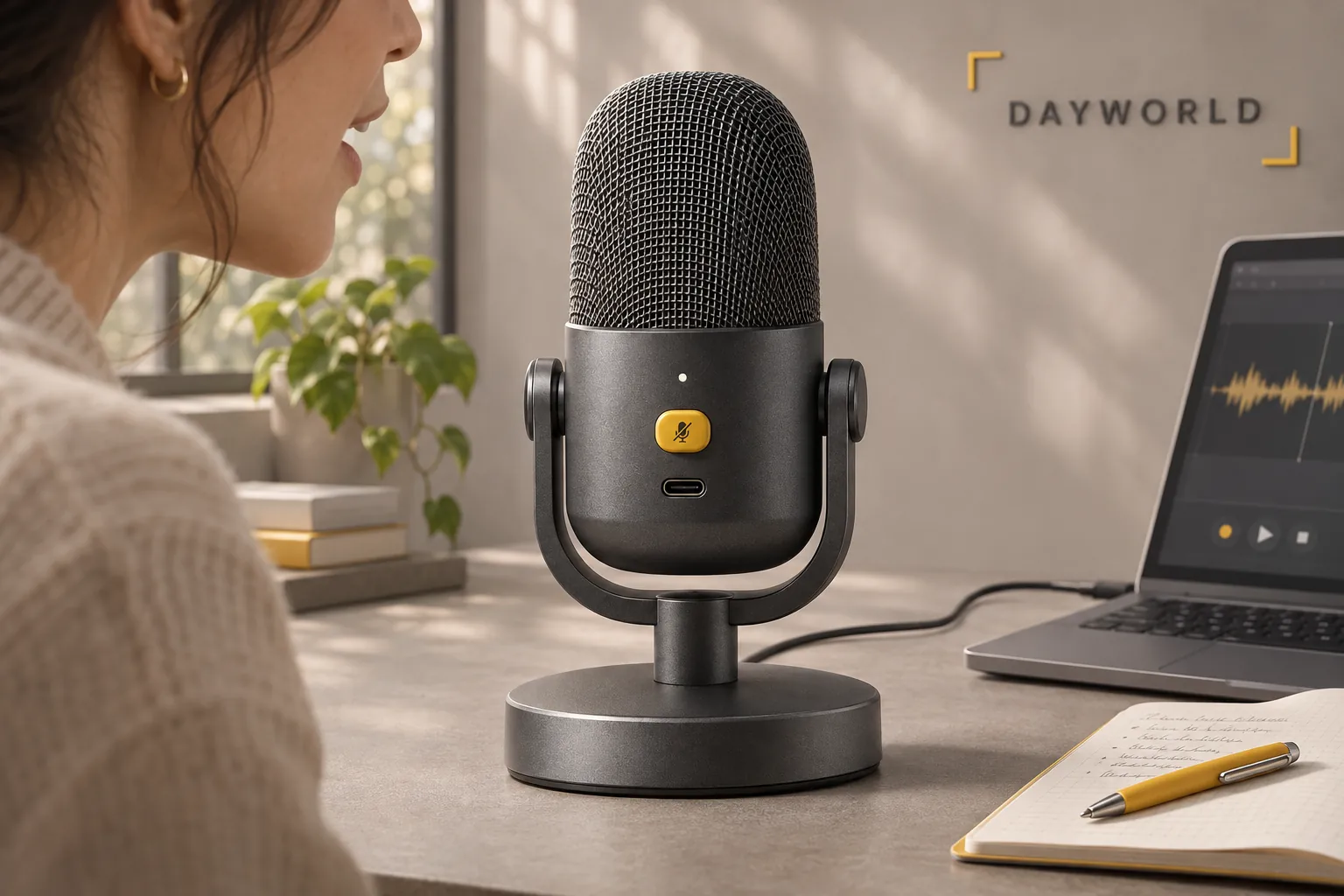
Select the USB mic in the application's input menu and play back a short test. Route the cable behind the stand and away from loose pages.
Desk lighting
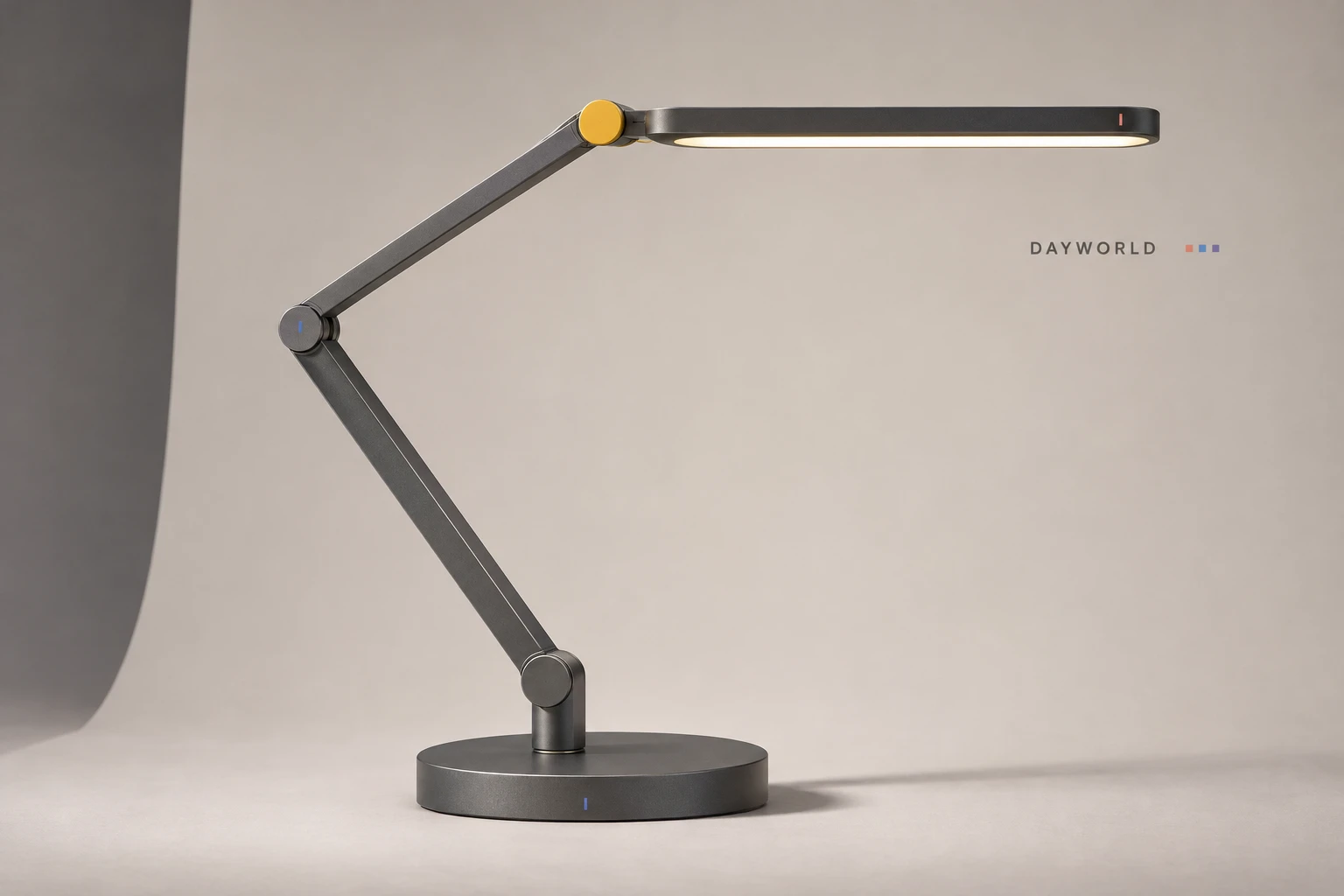
Swing the two-part arm over a notebook or to the side of your keyboard.
Visit shop · Sunarc PeripheralsThis collection features sample merchandise.
Hold the base while adjusting the two arm sections. Set the height first and leave clearance for the rear joint near a wall.
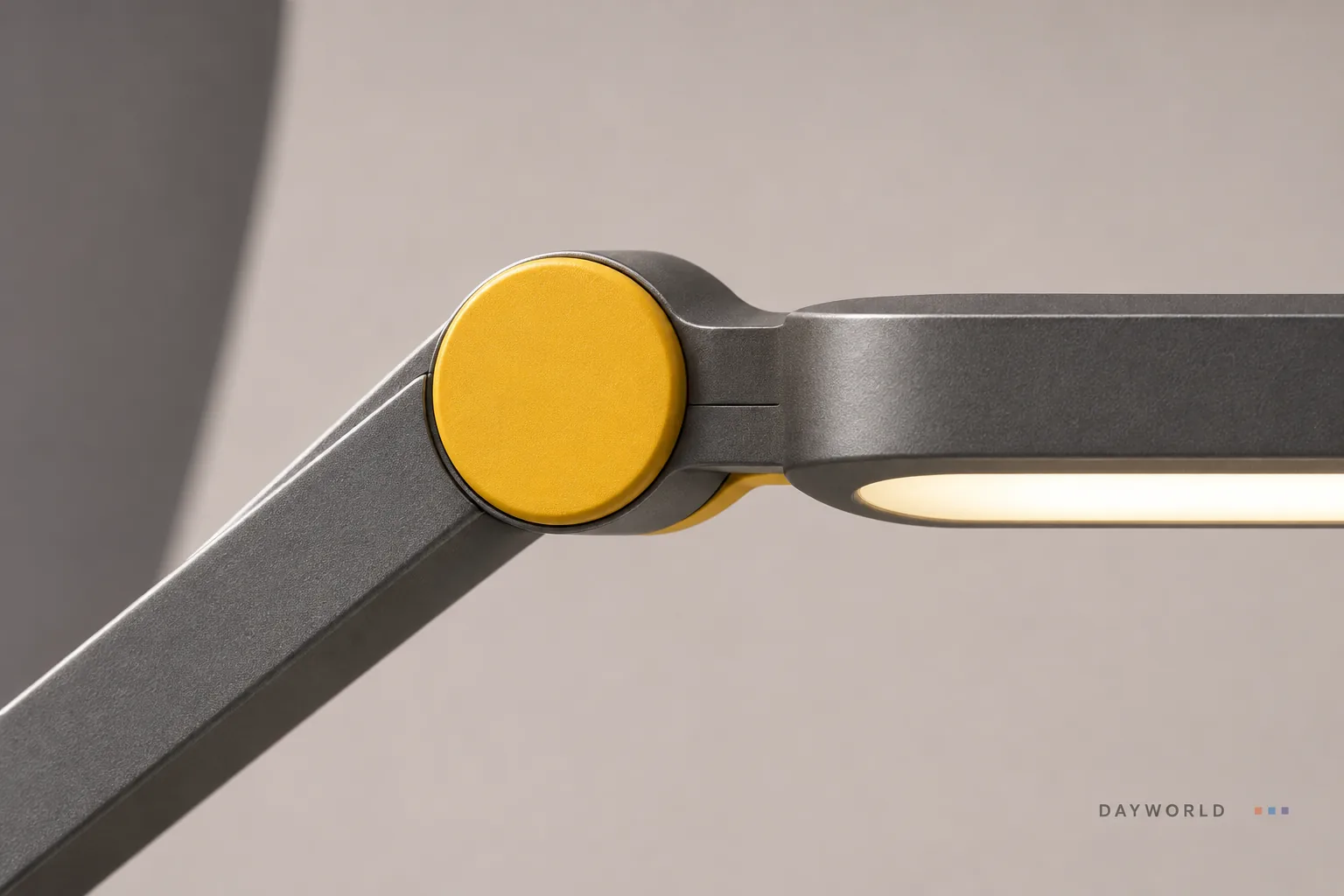
Place the lamp opposite your writing hand and test the light on an open page. Make small changes at the arm as the working area moves.
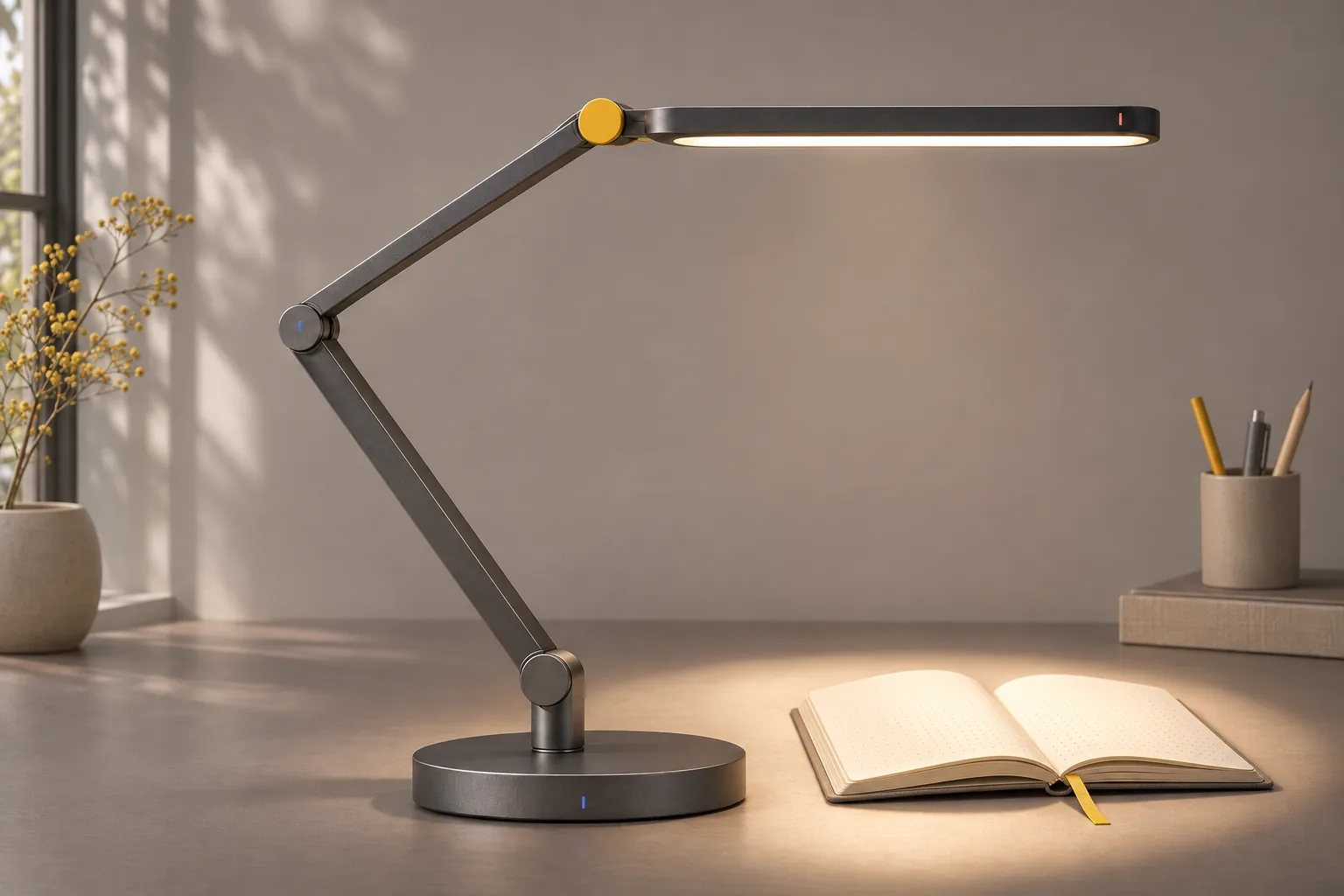
Keep the full base on a firm, even part of the desk. Bring the head back toward the base before moving the lamp.
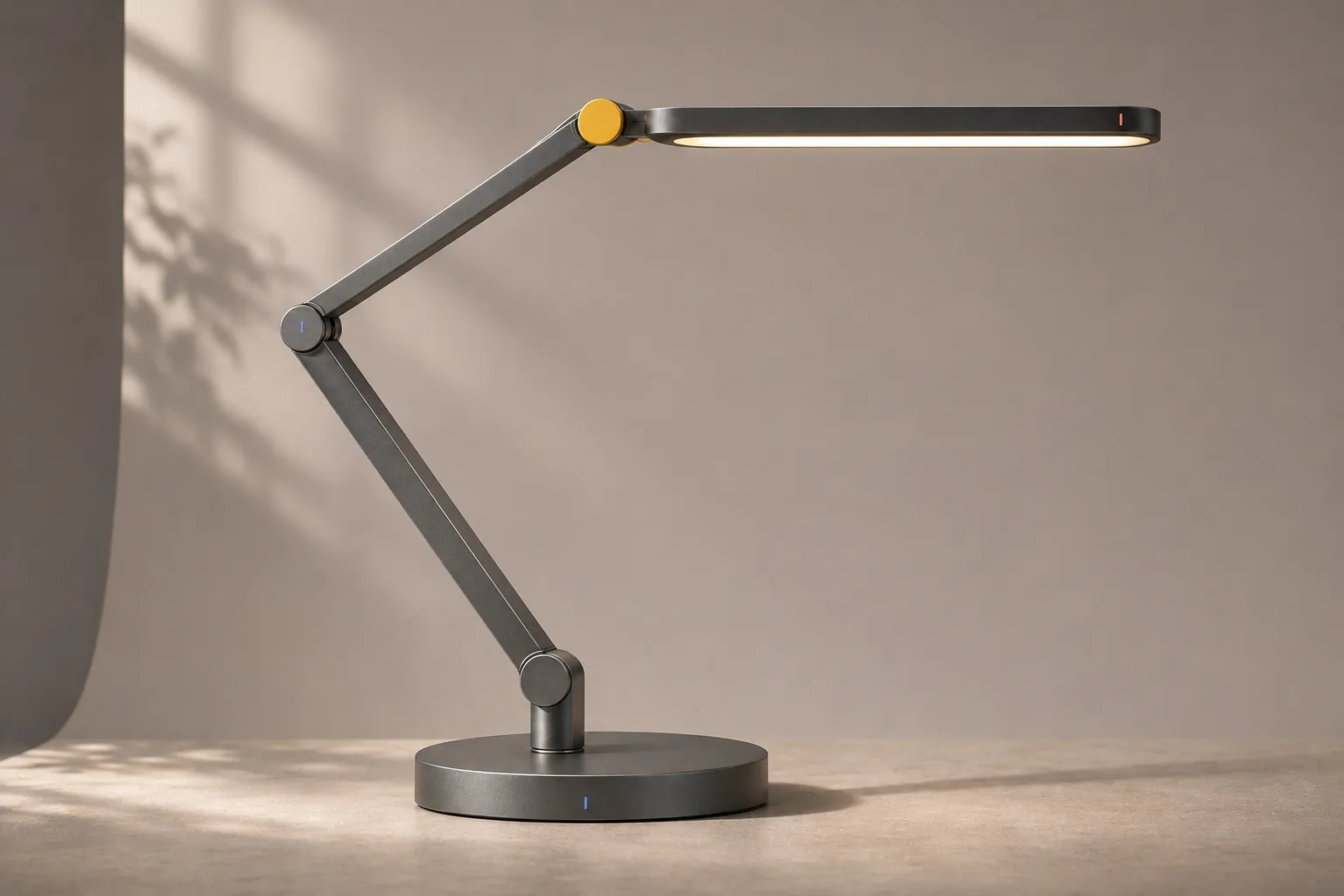
Desk lighting
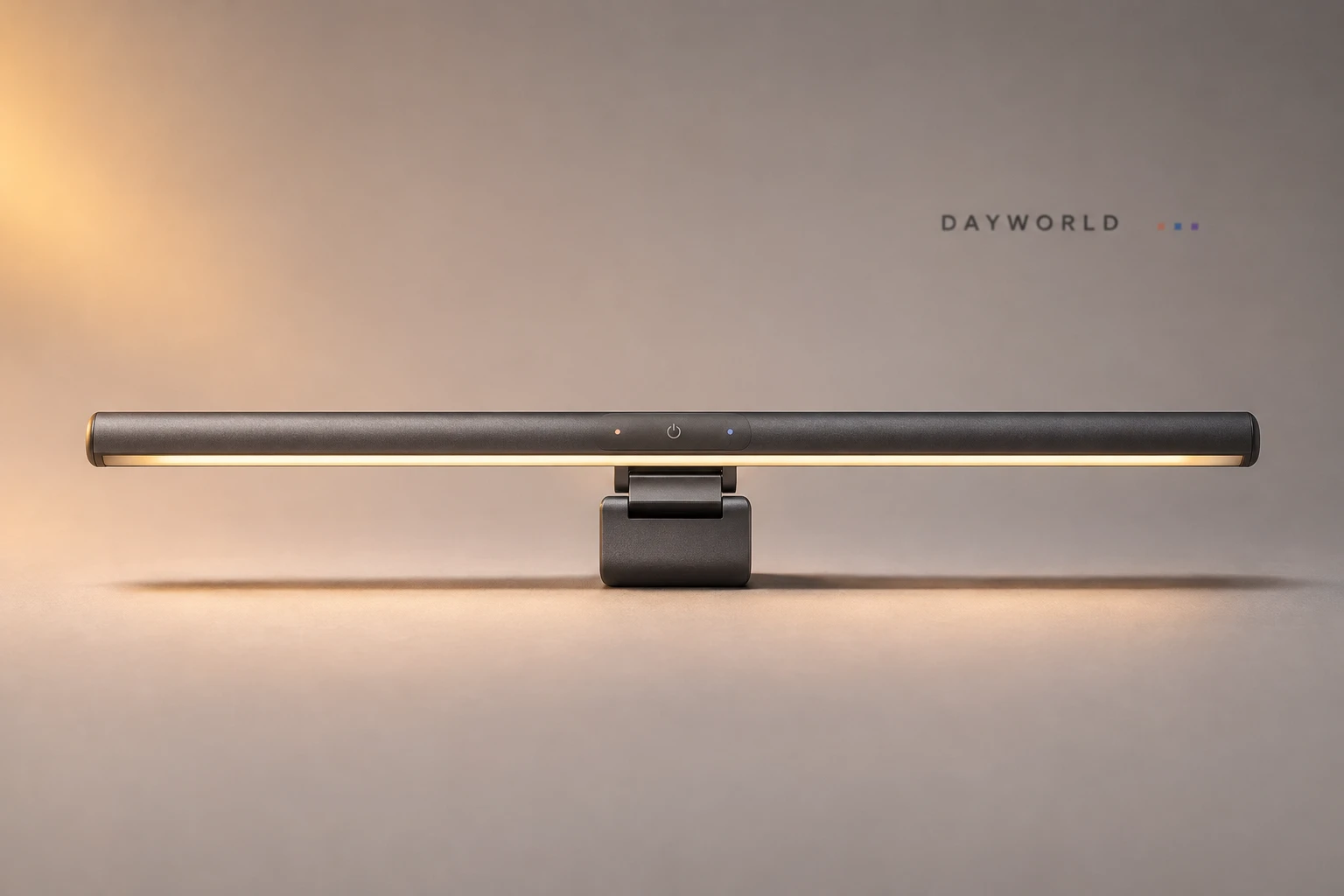
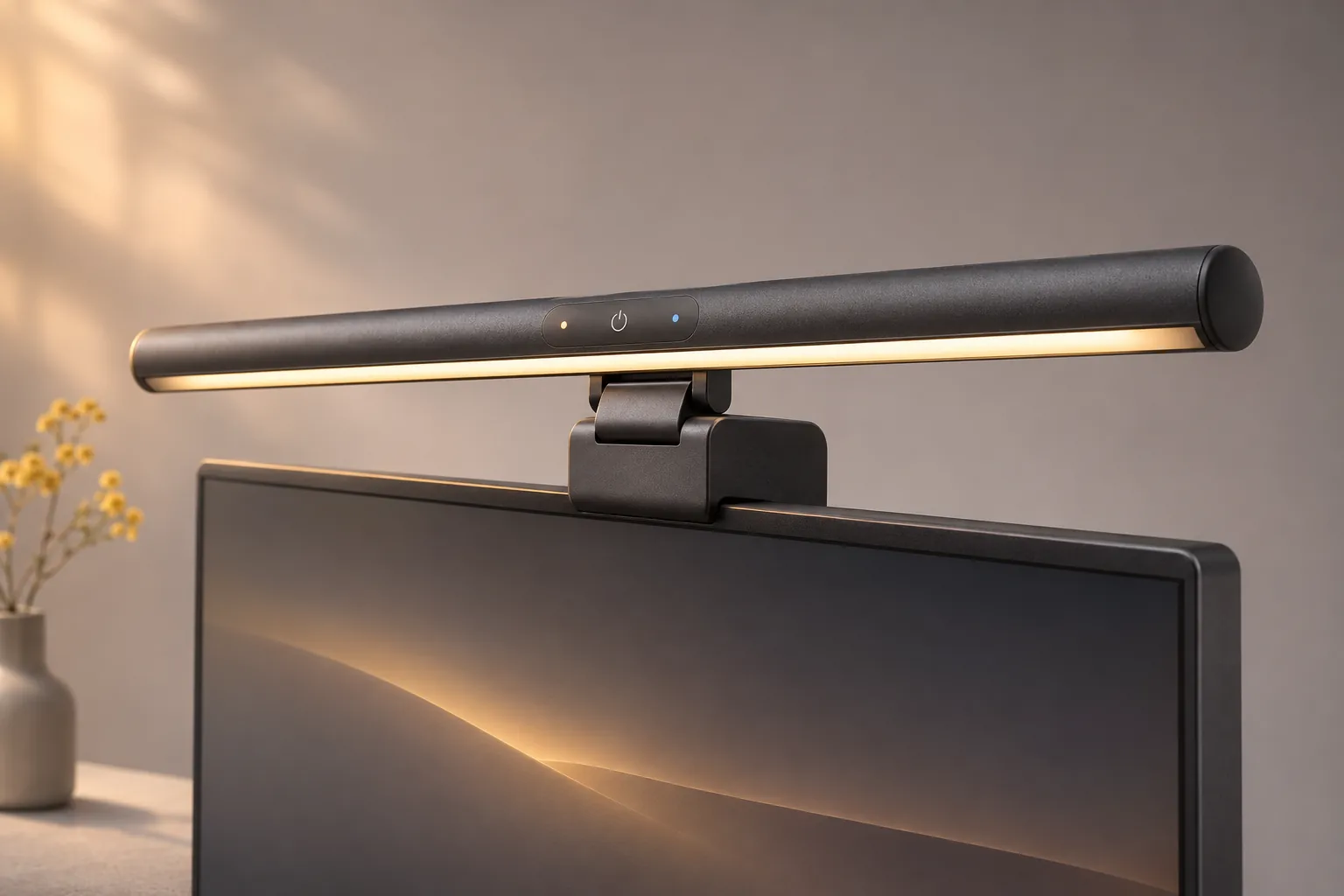
Clamp the light to the monitor to illuminate the work surface below.
Visit shop · Sunarc PeripheralsThis collection features sample merchandise.
Check bezel shape, thickness, camera position and rear curvature. Screen diagonal alone does not determine whether the clamp will fit.
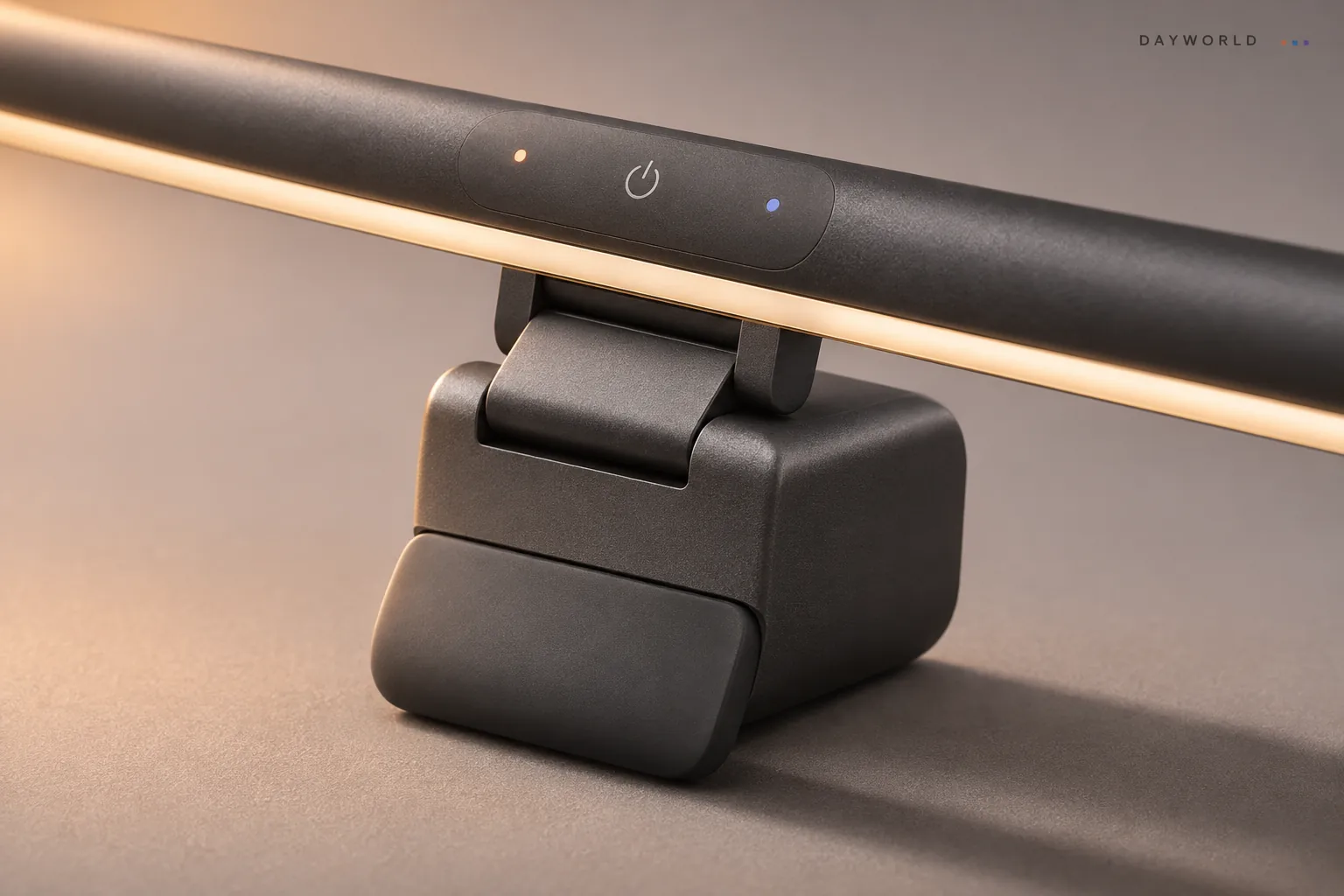
Aim the light at the keyboard, then check reflections from your normal seat using a dark screen. Shift glossy desk accessories if needed.
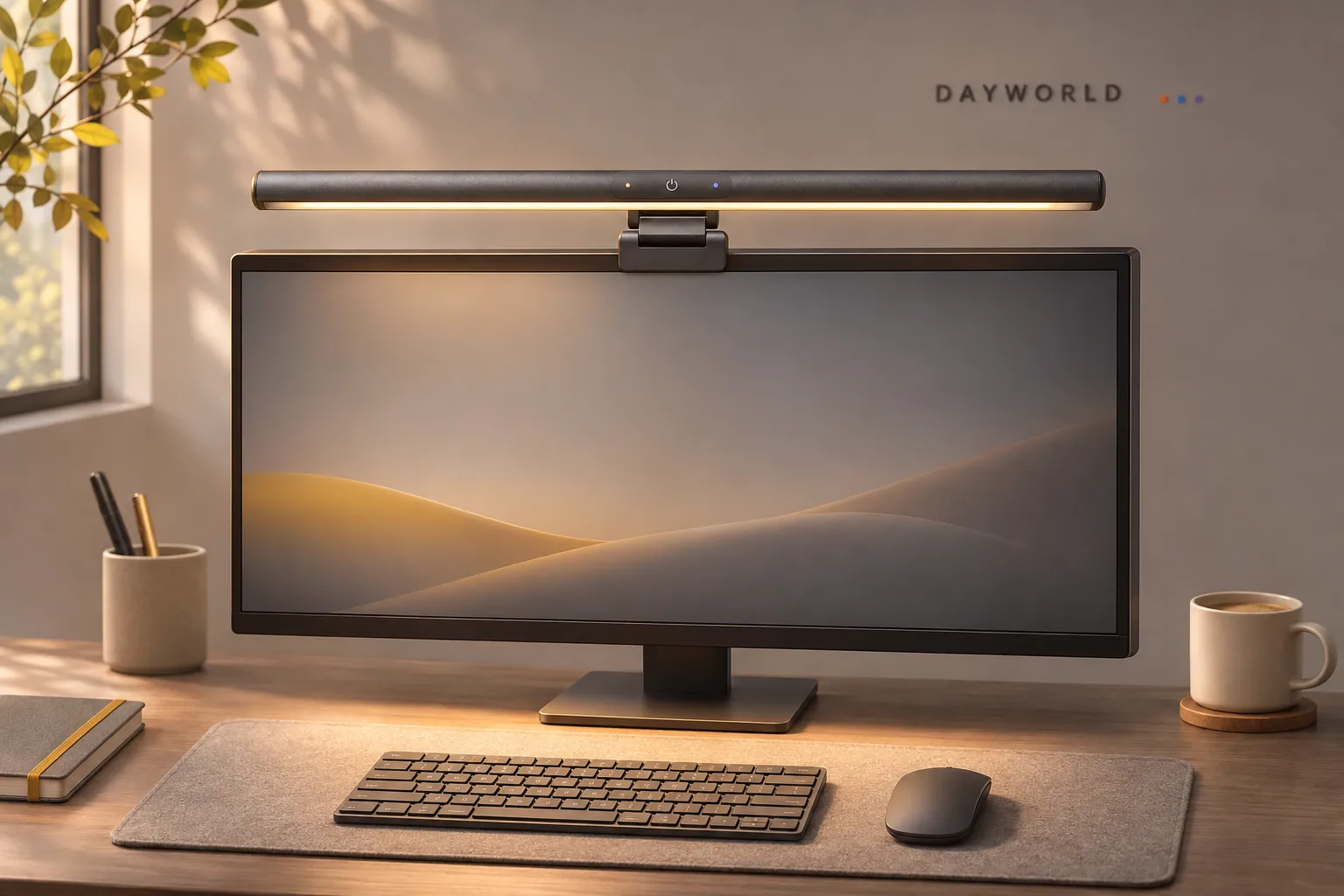
Inspect the clamp from the side and leave enough cable for monitor height and tilt adjustments. Check the grip after moving the screen.
Desk lighting
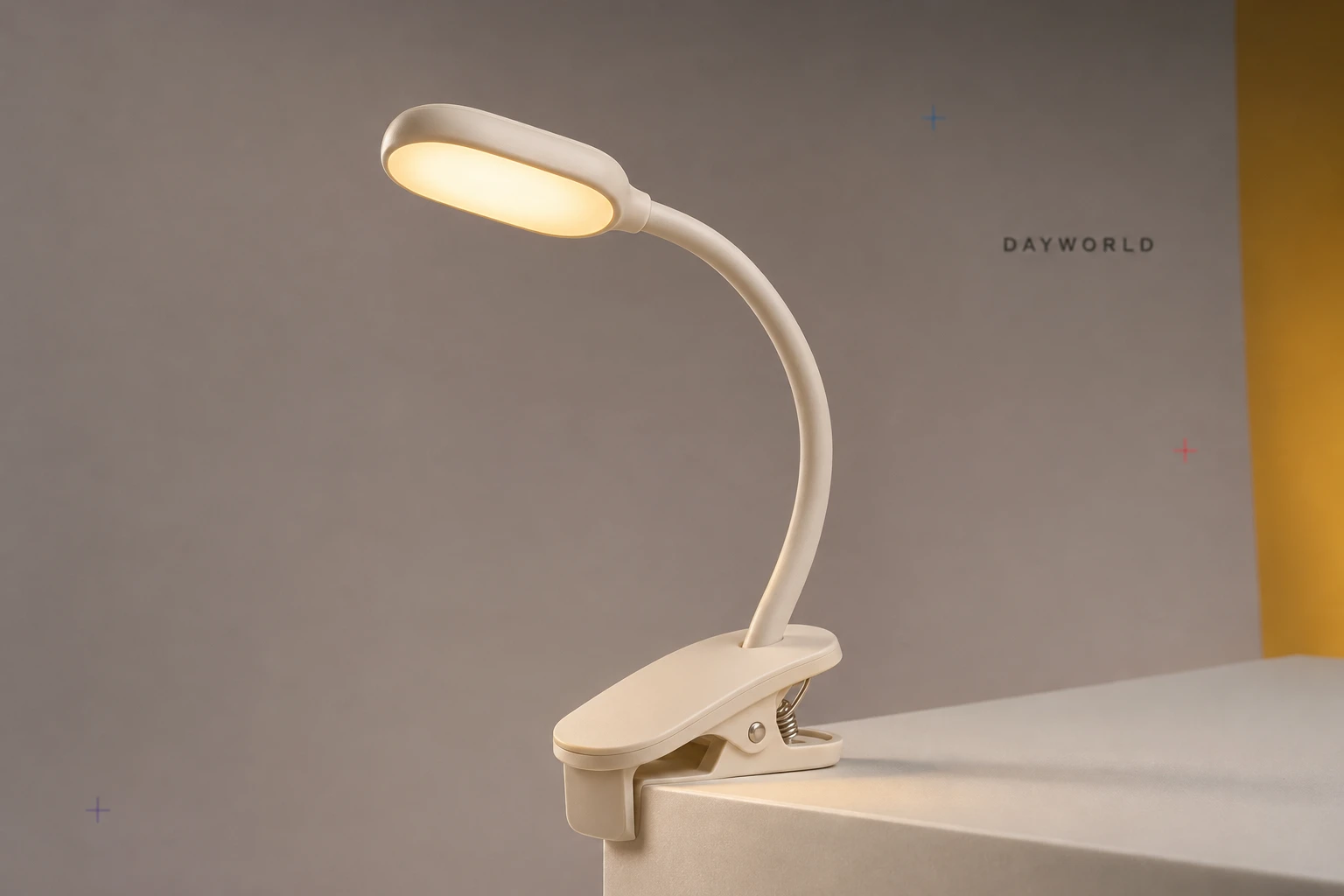
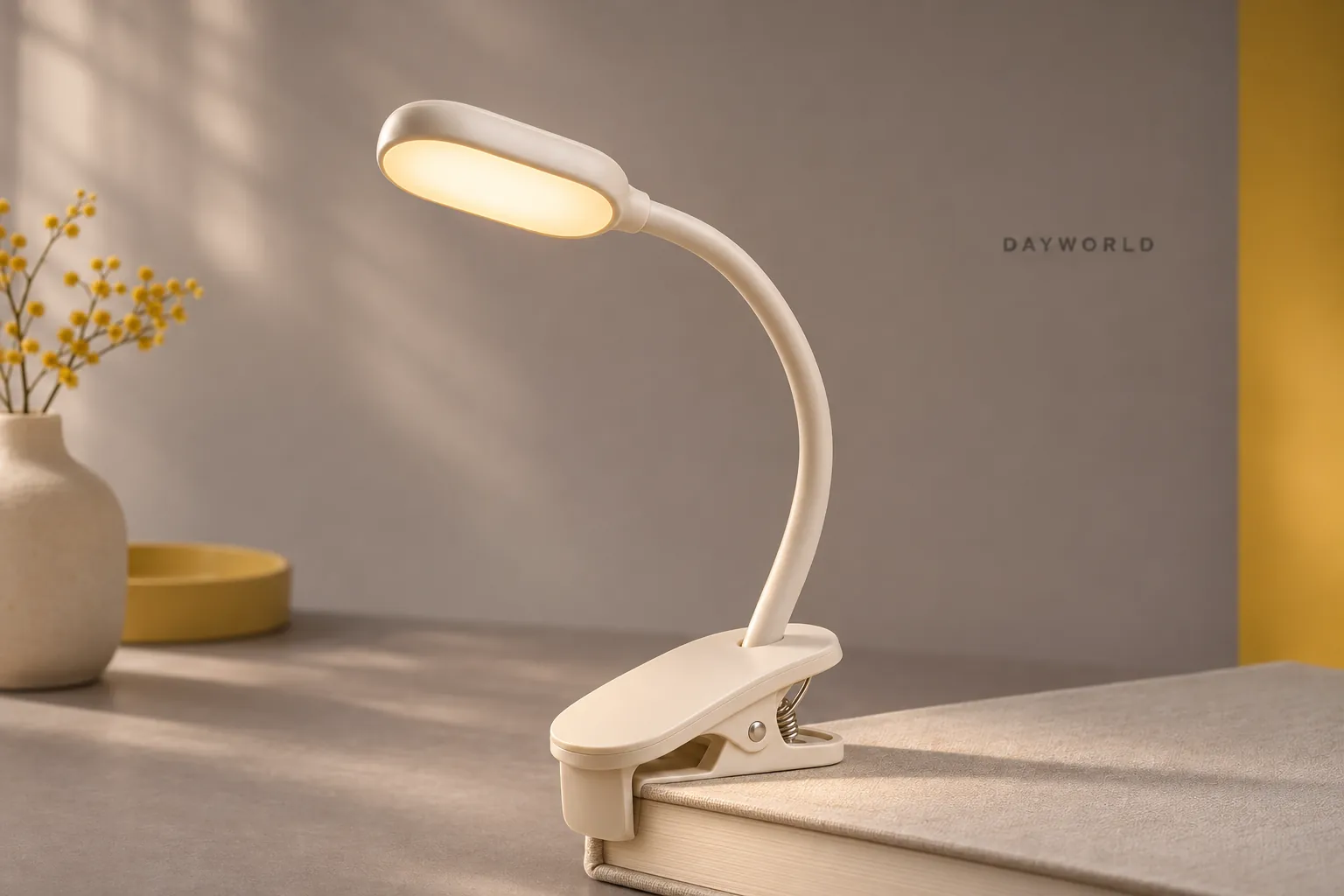
Clip it to a book cover and bend the neck to light the page.
Visit shop · Sunarc PeripheralsThis collection features sample merchandise.
Clip to a firm cover or several pages rather than a thin sheet. Slip clean card between the jaws and a delicate book surface.
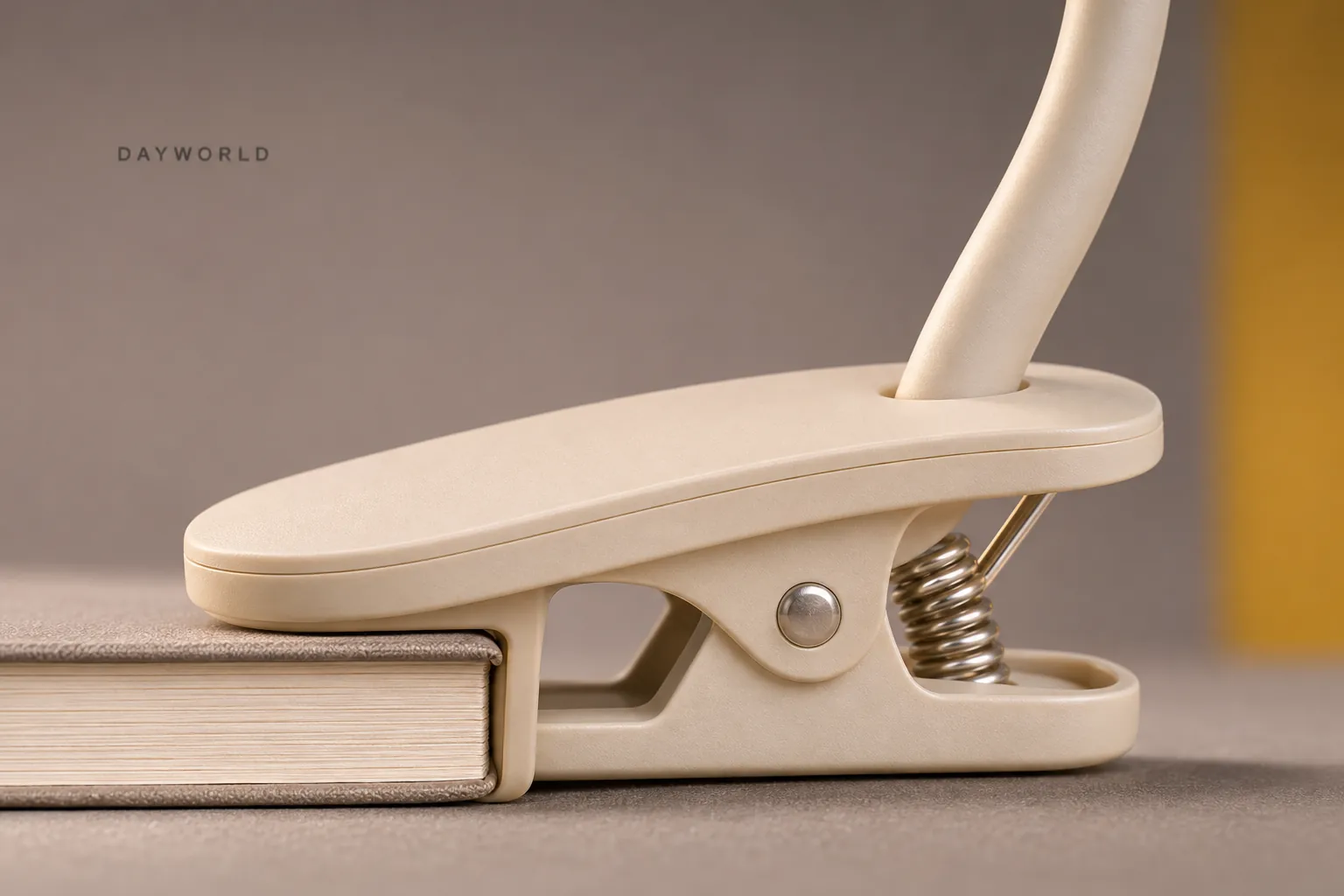
Angle the neck above your sightline and check both the first and last lines. If pages catch the head, move the clip outward slightly.
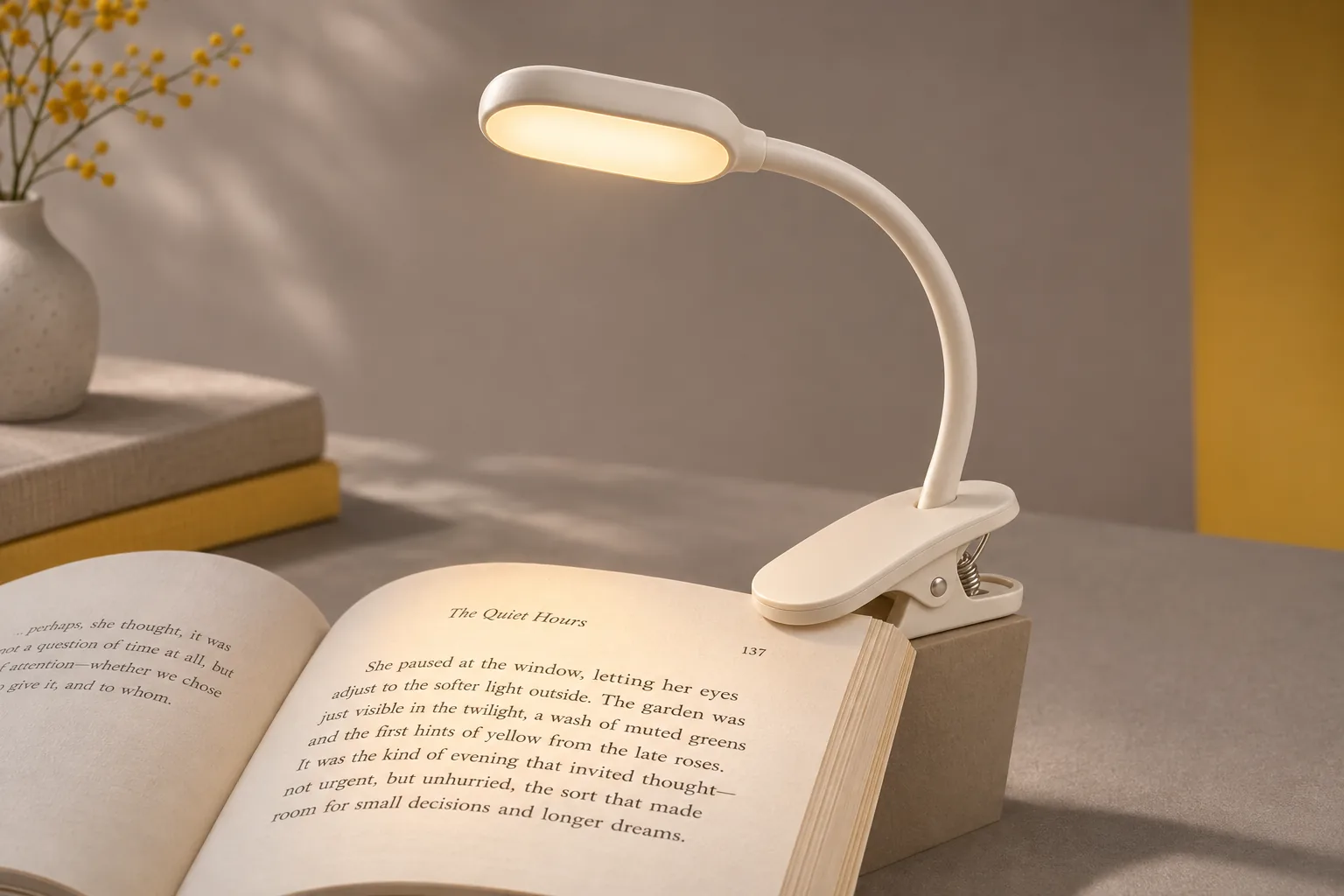
Remove the clip before closing the book. Charge on a stable surface and store the flexible neck in a gentle curve.
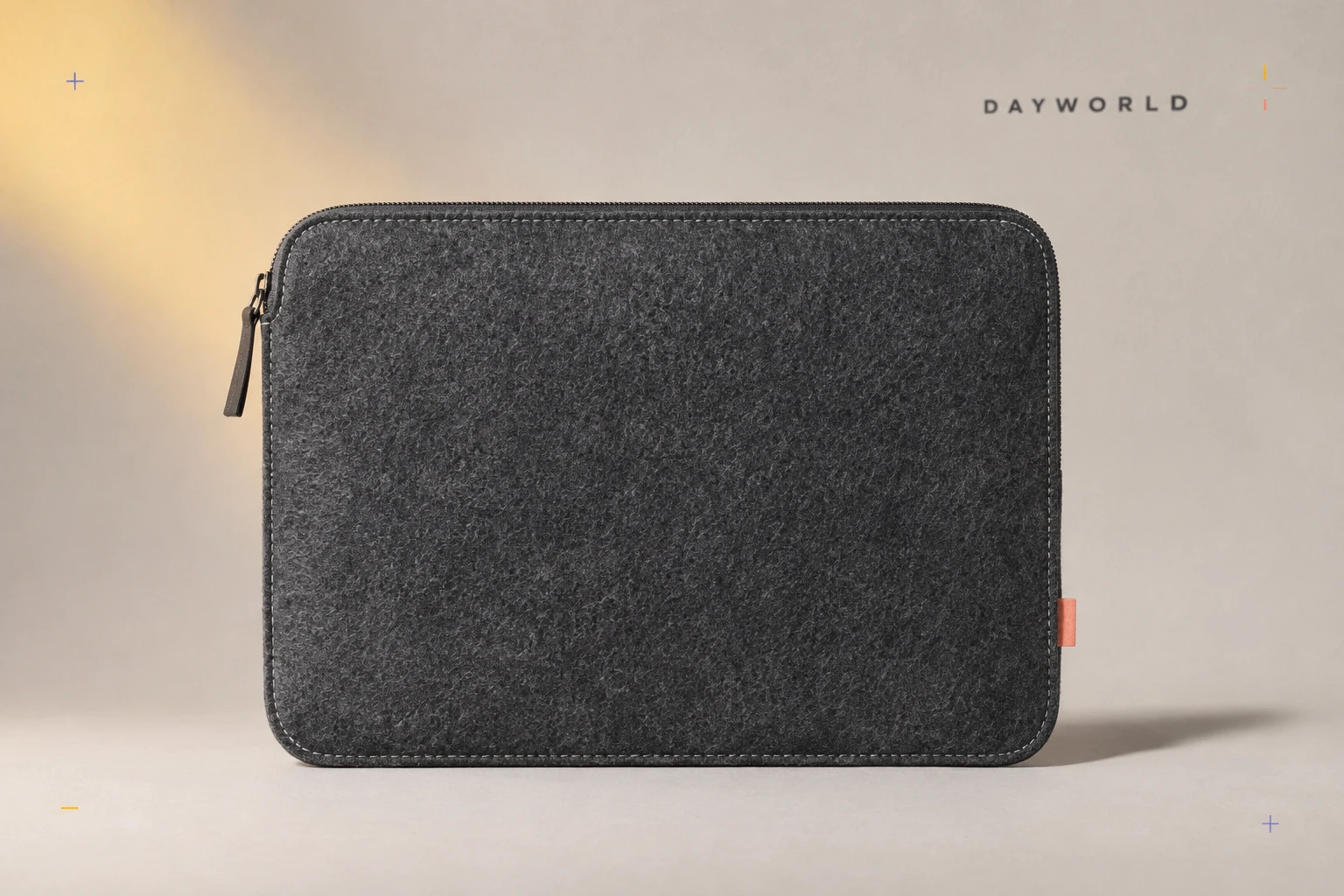
Cases & pouches
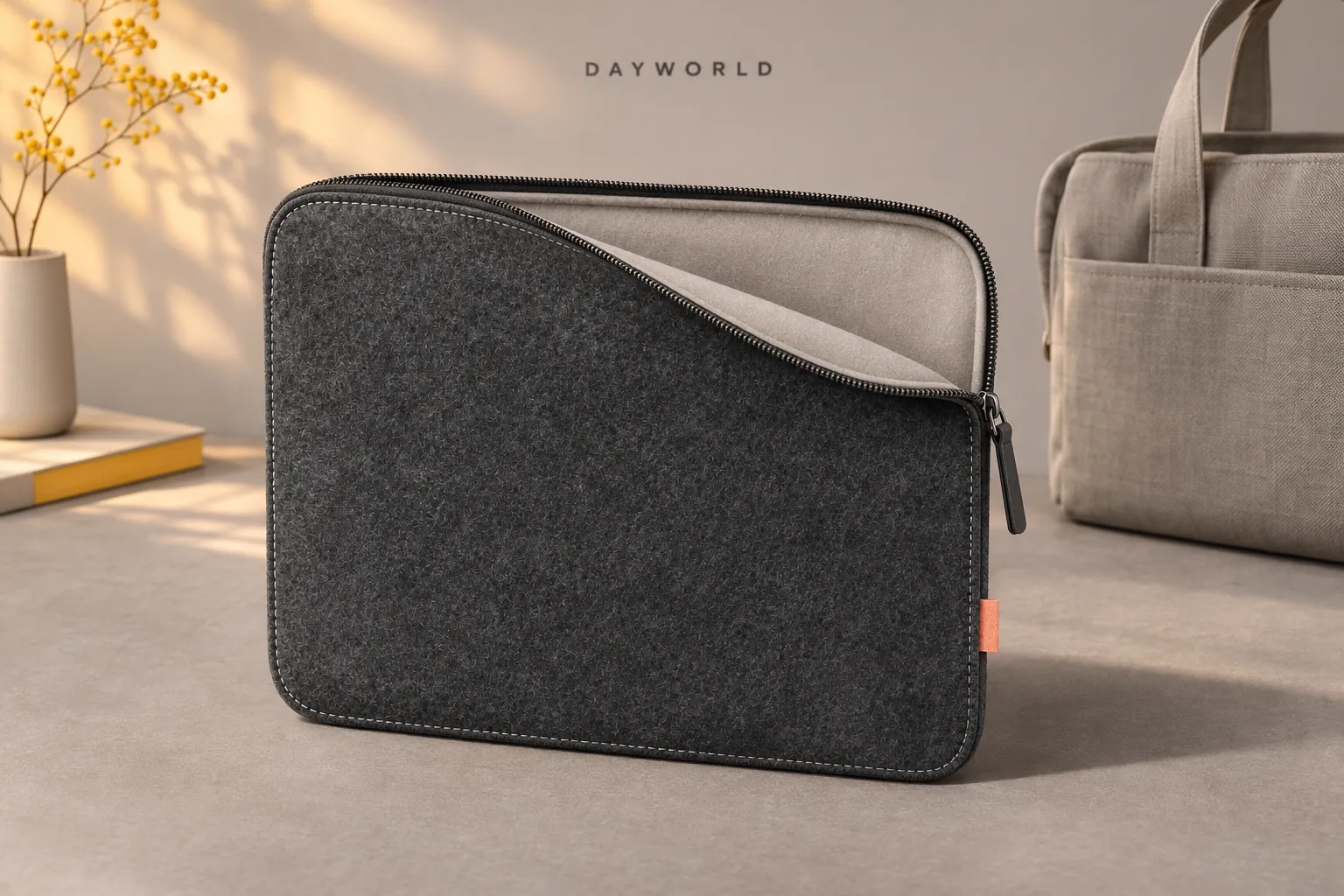
A soft lining separates a laptop from hard objects in a larger bag.
Visit shop · Foldline ConnectThis collection features sample merchandise.
Measure the closed laptop, including its thickest hinge and any shell. A 13-inch screen size alone cannot establish the fit.
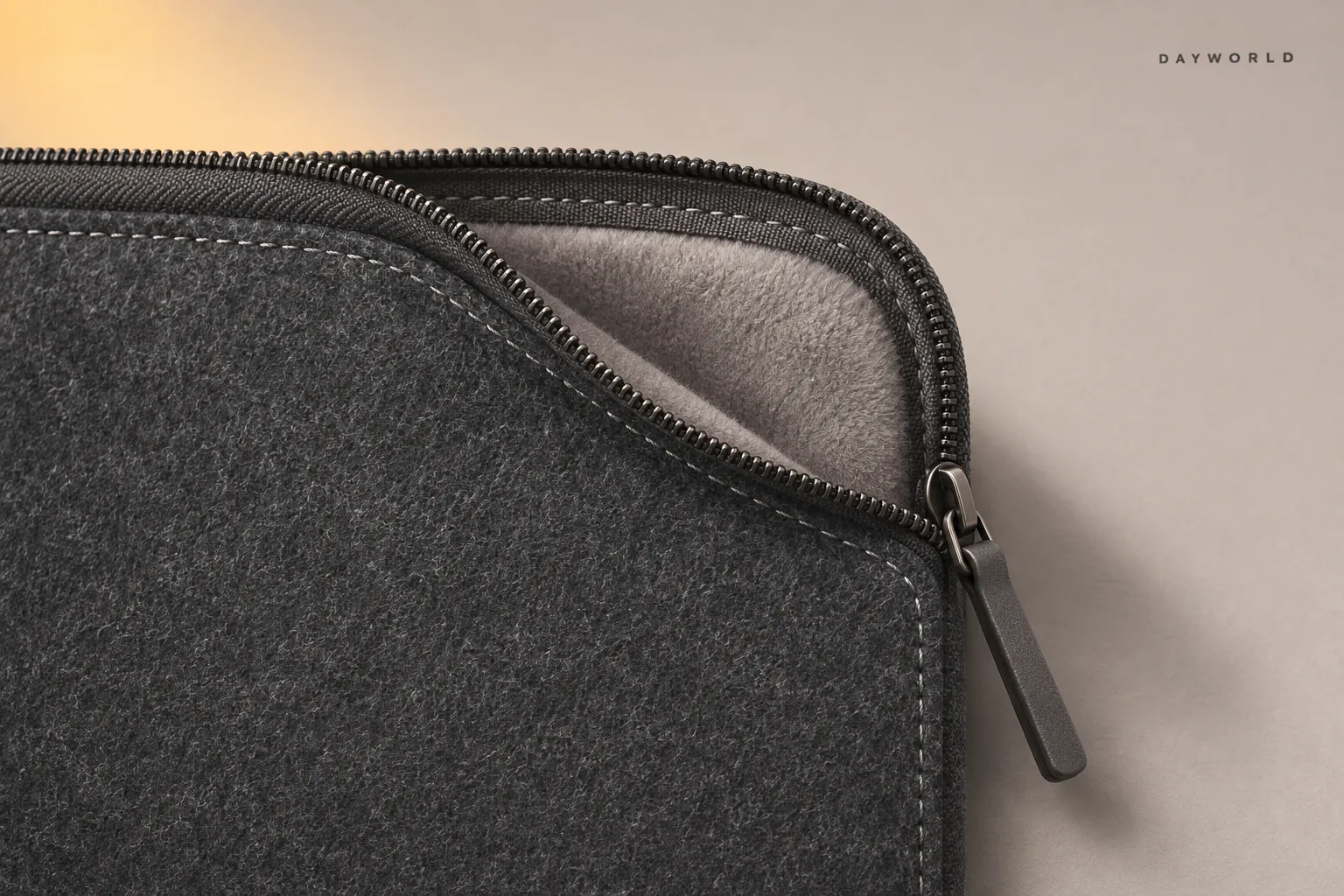
Open the zip fully, check the soft lining for debris and slide the computer in. Stop if closing the last corner takes pressure.
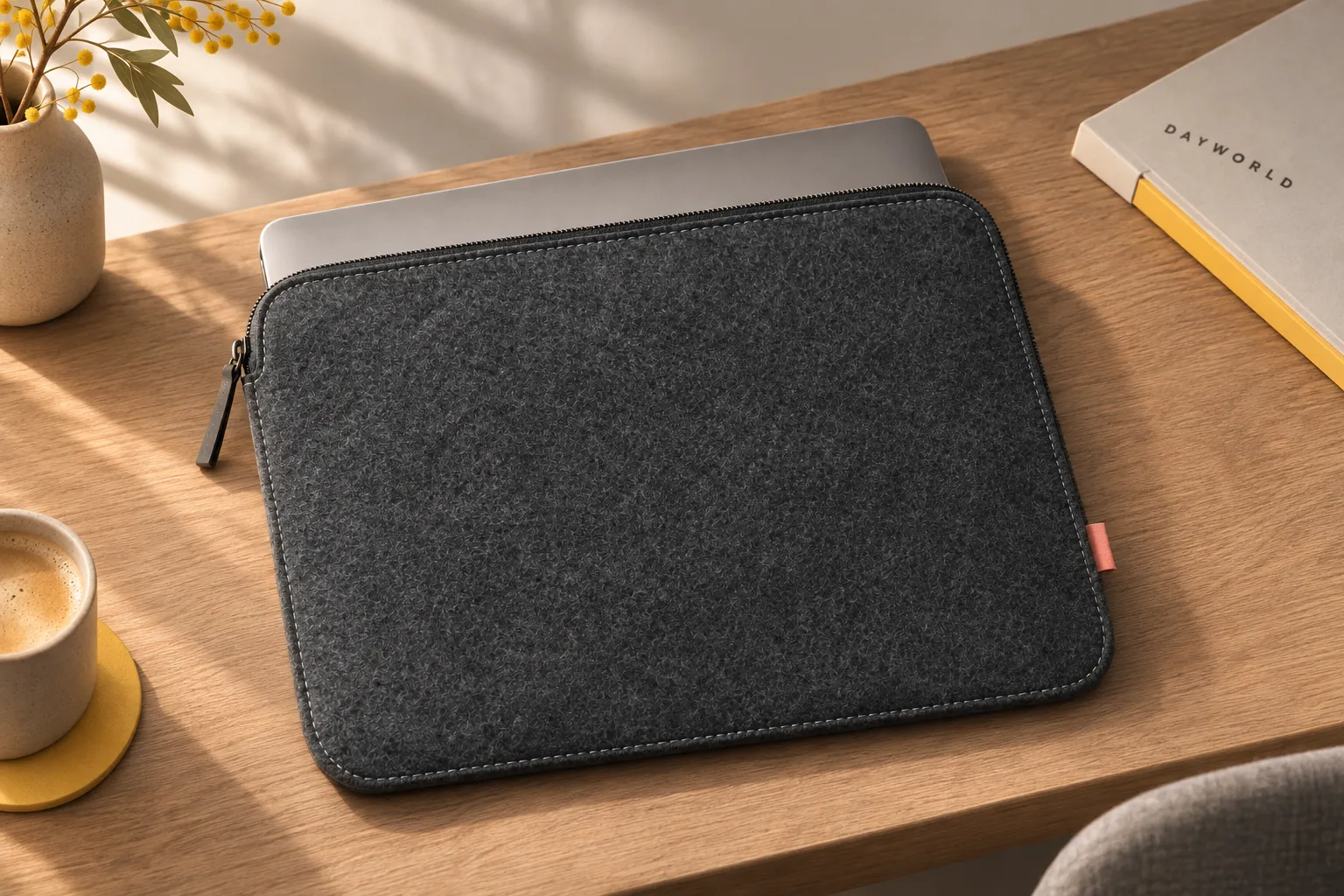
Keep chargers, keys and adapters in a separate pocket. Lay the sleeve flat before unzipping and keep the lining dry between trips.
Cases & pouches
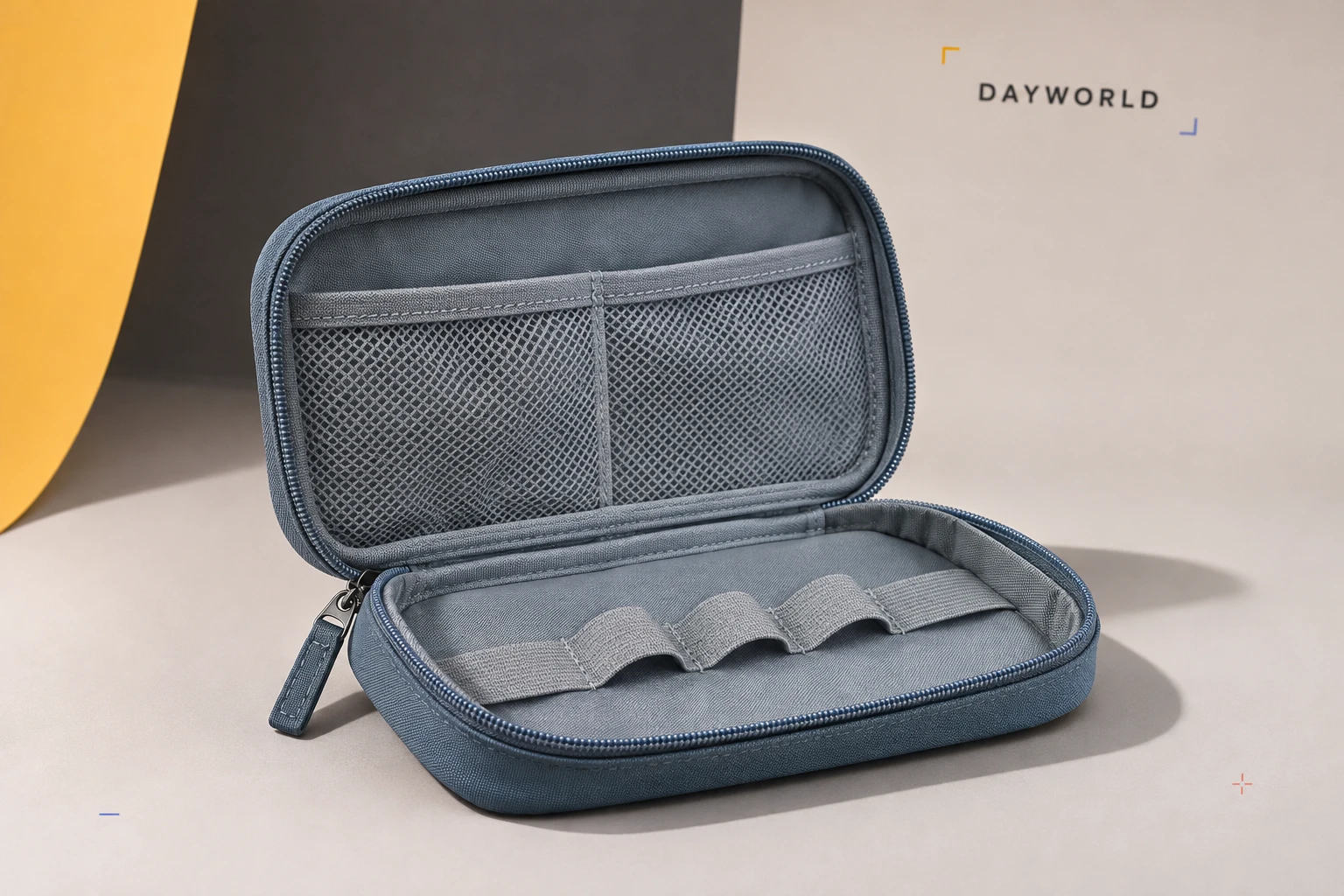
Mesh pockets and loops keep plugs and adapters visible when open.
Visit shop · Foldline ConnectThis collection features sample merchandise.
Use one mesh compartment for leads and the other for small adapters. Keeping a regular spot for each accessory makes missing pieces easier to notice.
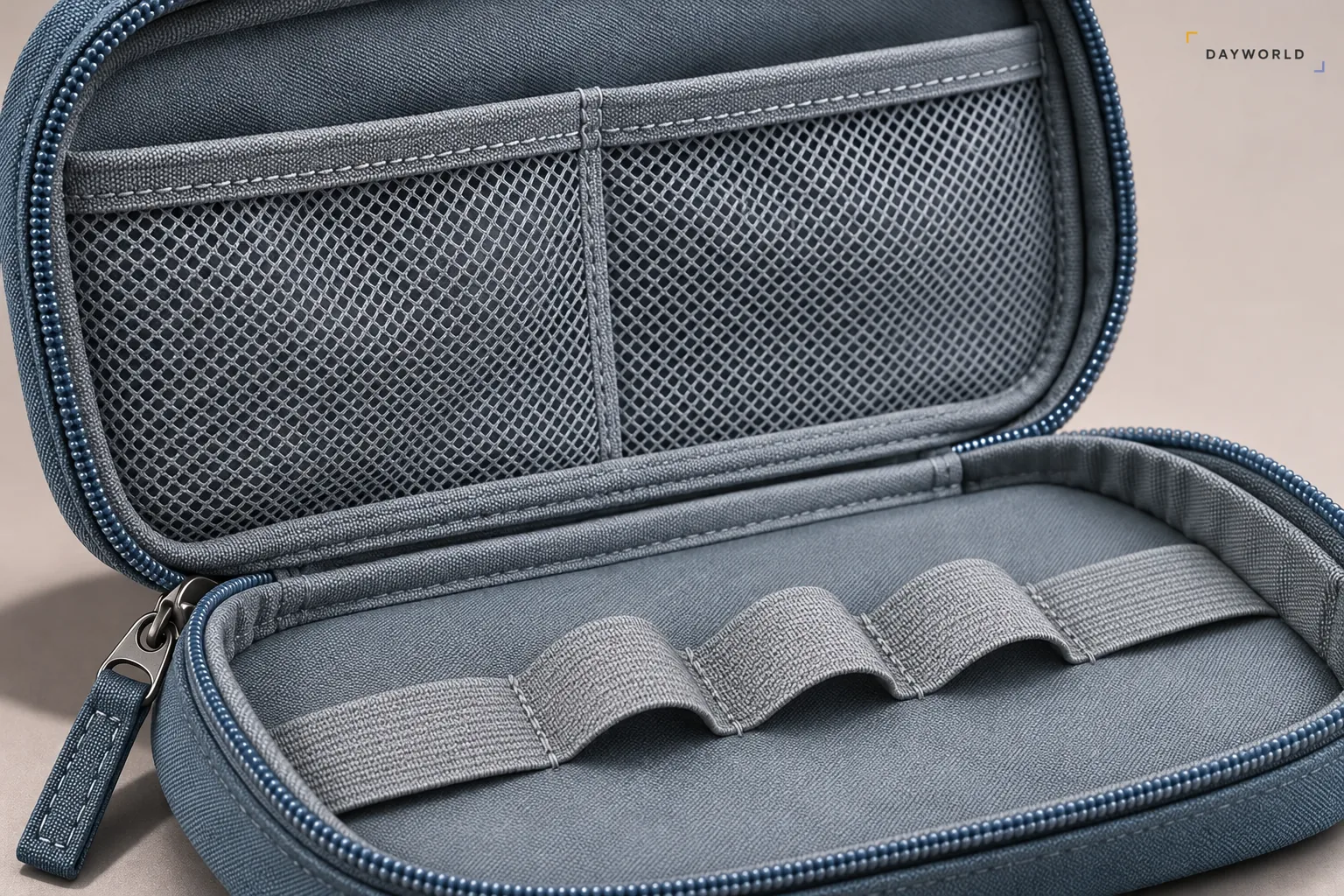
Coil leads loosely with plugs facing inward. Bring the two sides together gently and move any adapter pressing against the opposite pocket.
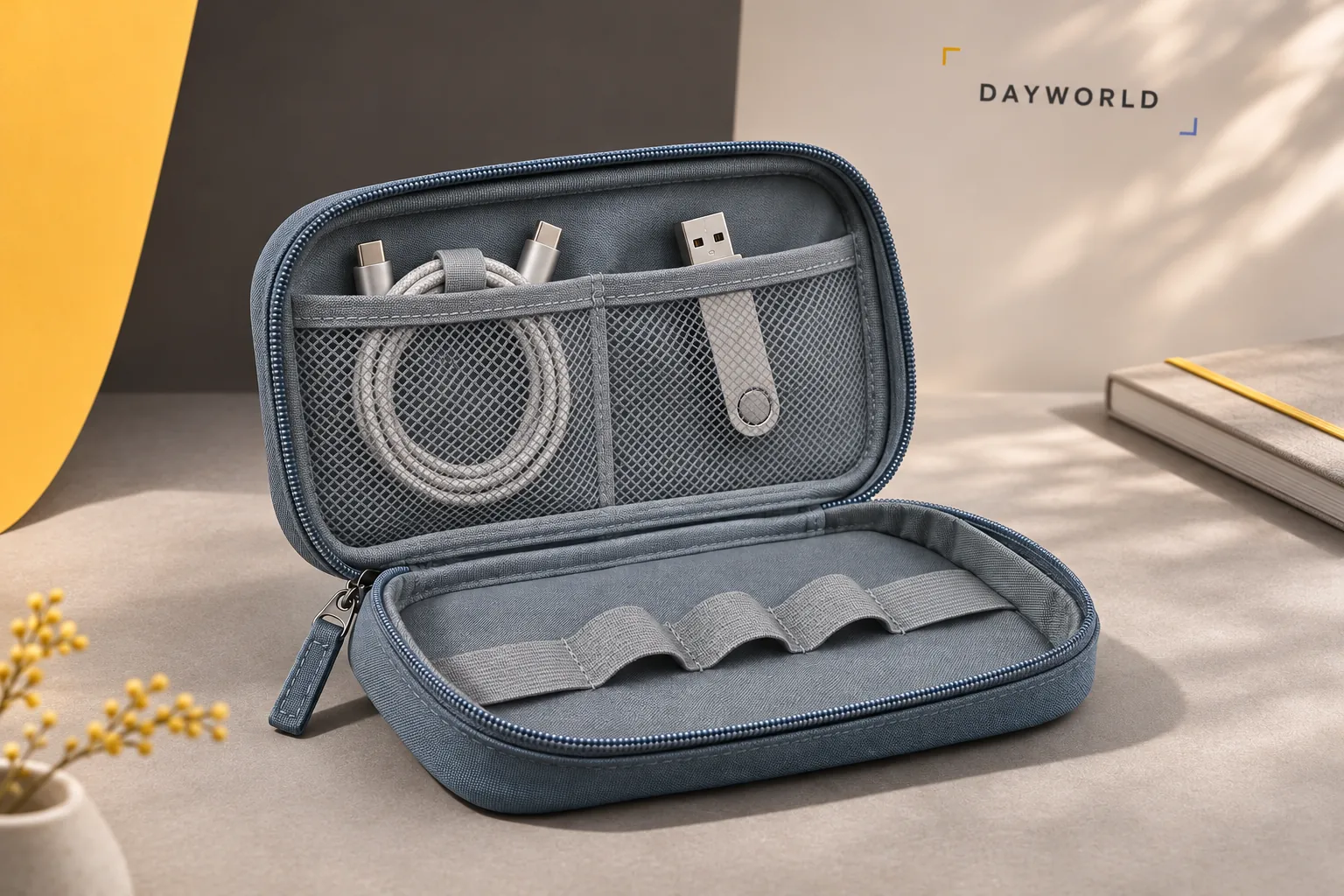
Keep the zip toward the opening of your work bag. Leave the pouch open on the desk for temporary items and let the fabric dry before repacking electronics.
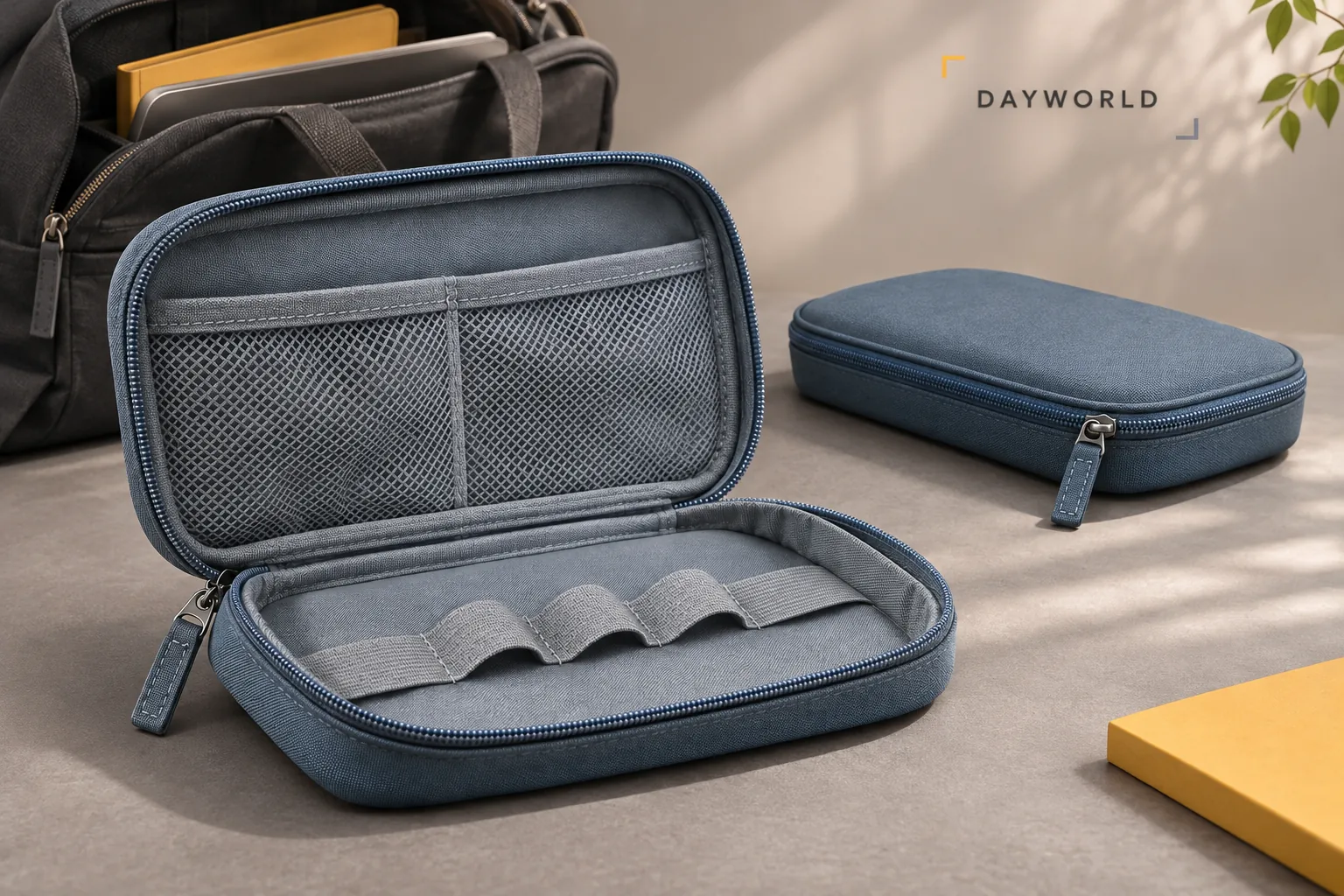
Cases & pouches
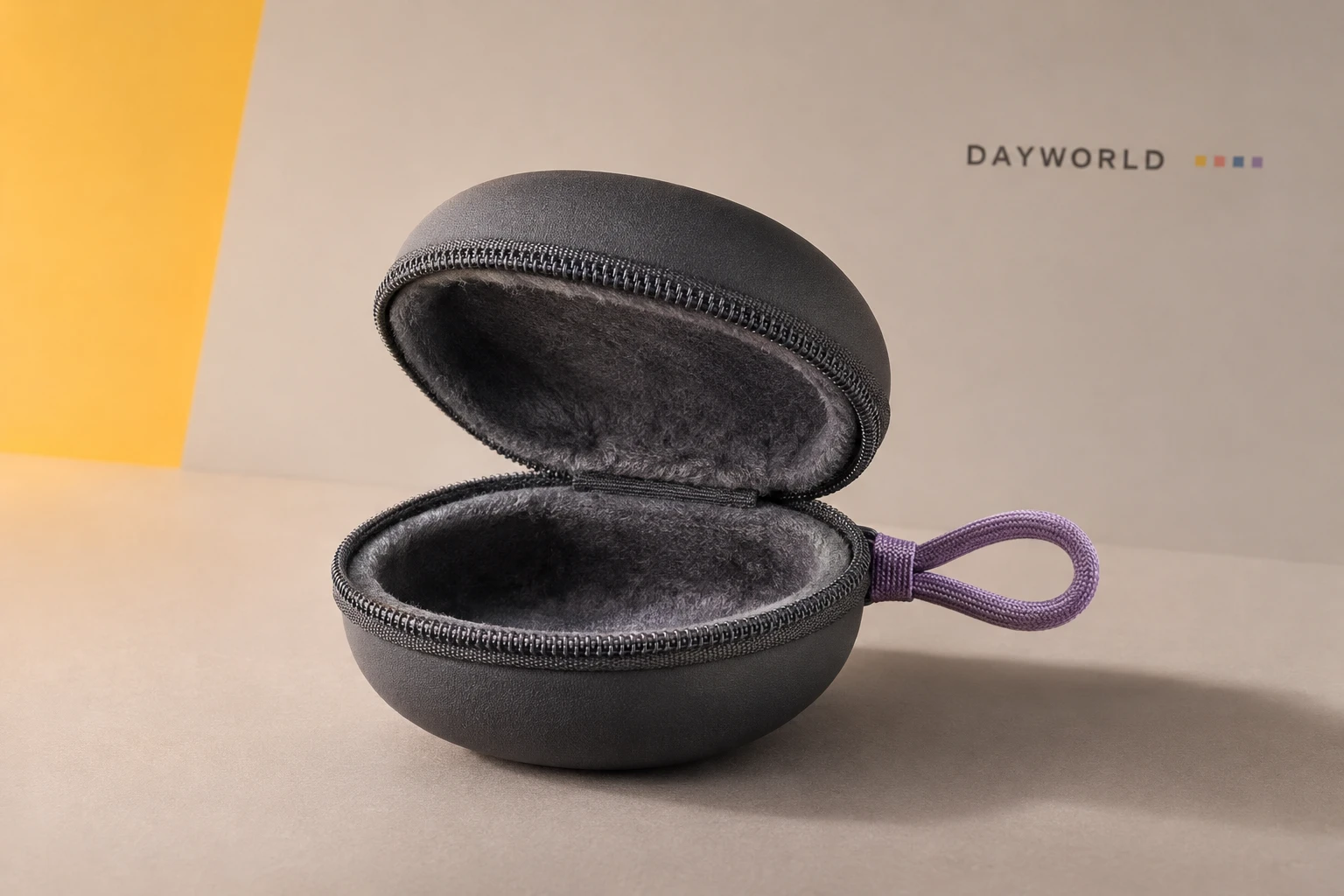
Protect earbuds and a short cable in a compact case with a carry loop.
Visit shop · Foldline ConnectThis collection features sample merchandise.
The shell keeps its shape while the lining contacts the cable. Place heavier plugs inside a loose coil and check for grit before packing.
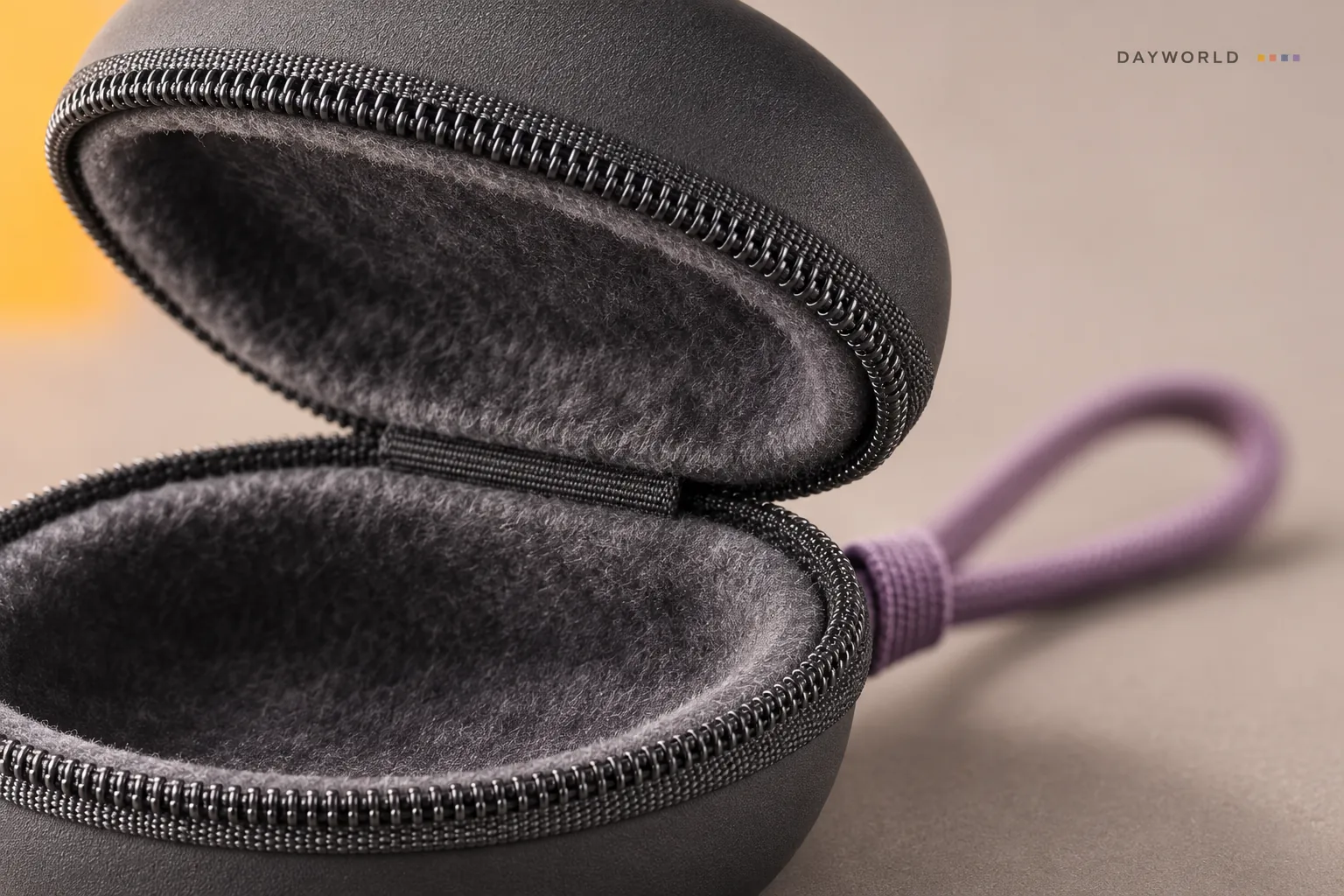
Loop the cable from the split without twisting the earpieces together. Nest the earbuds inside and keep wires clear of the closing edge.
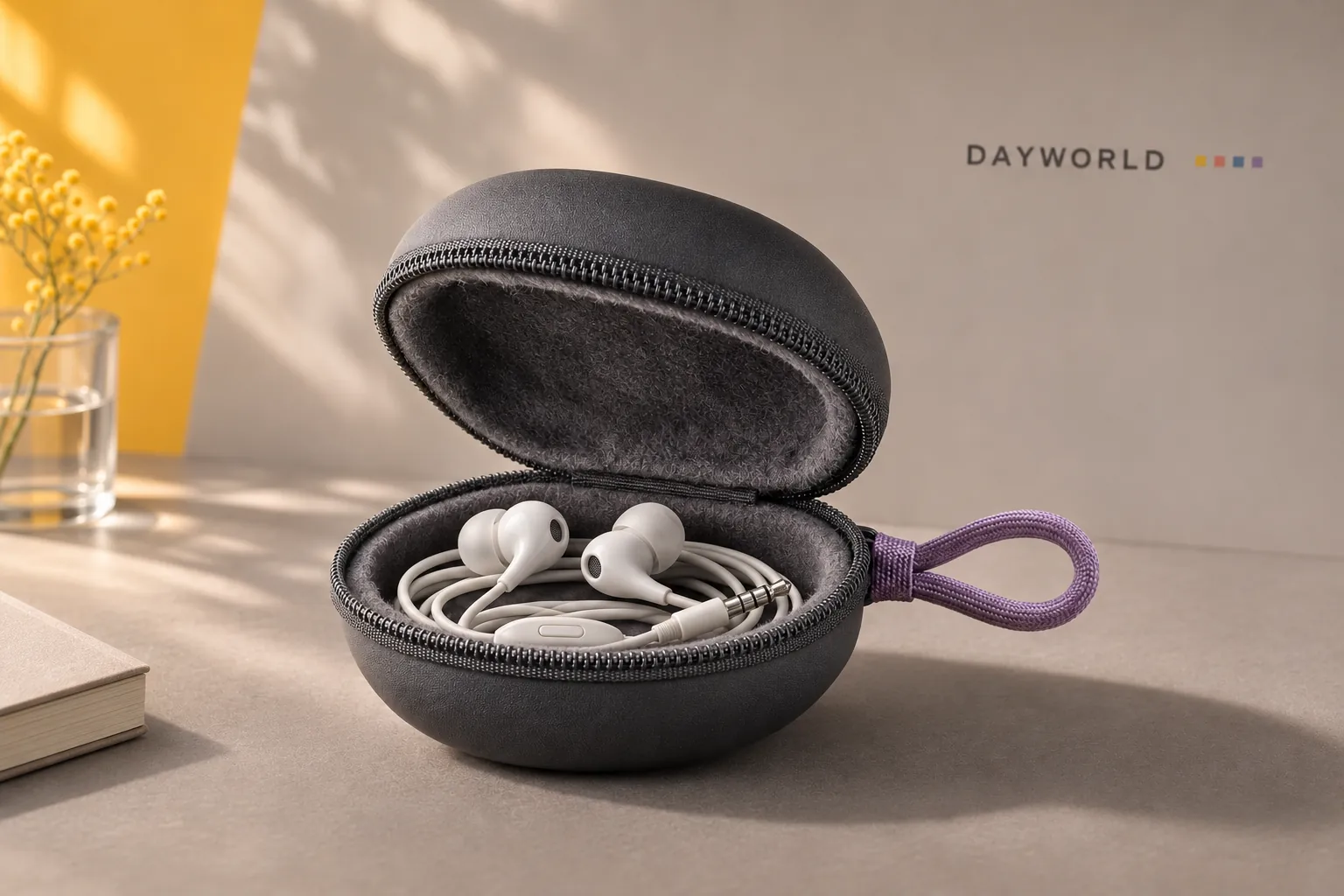
Face the loop upward in a side pocket. Check bulkier plugs side by side and remove an item if the case needs pressure to close.
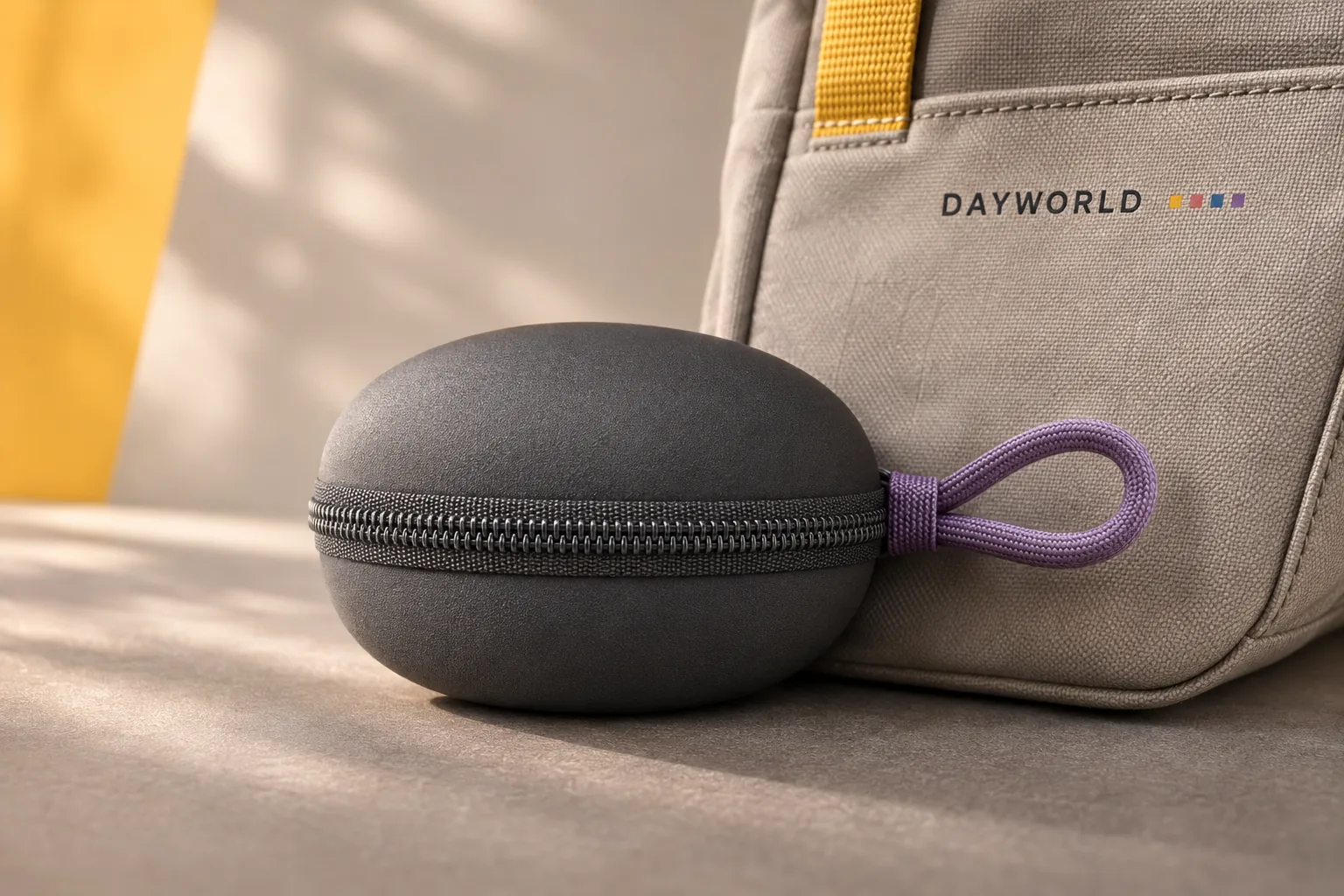
Power & charging
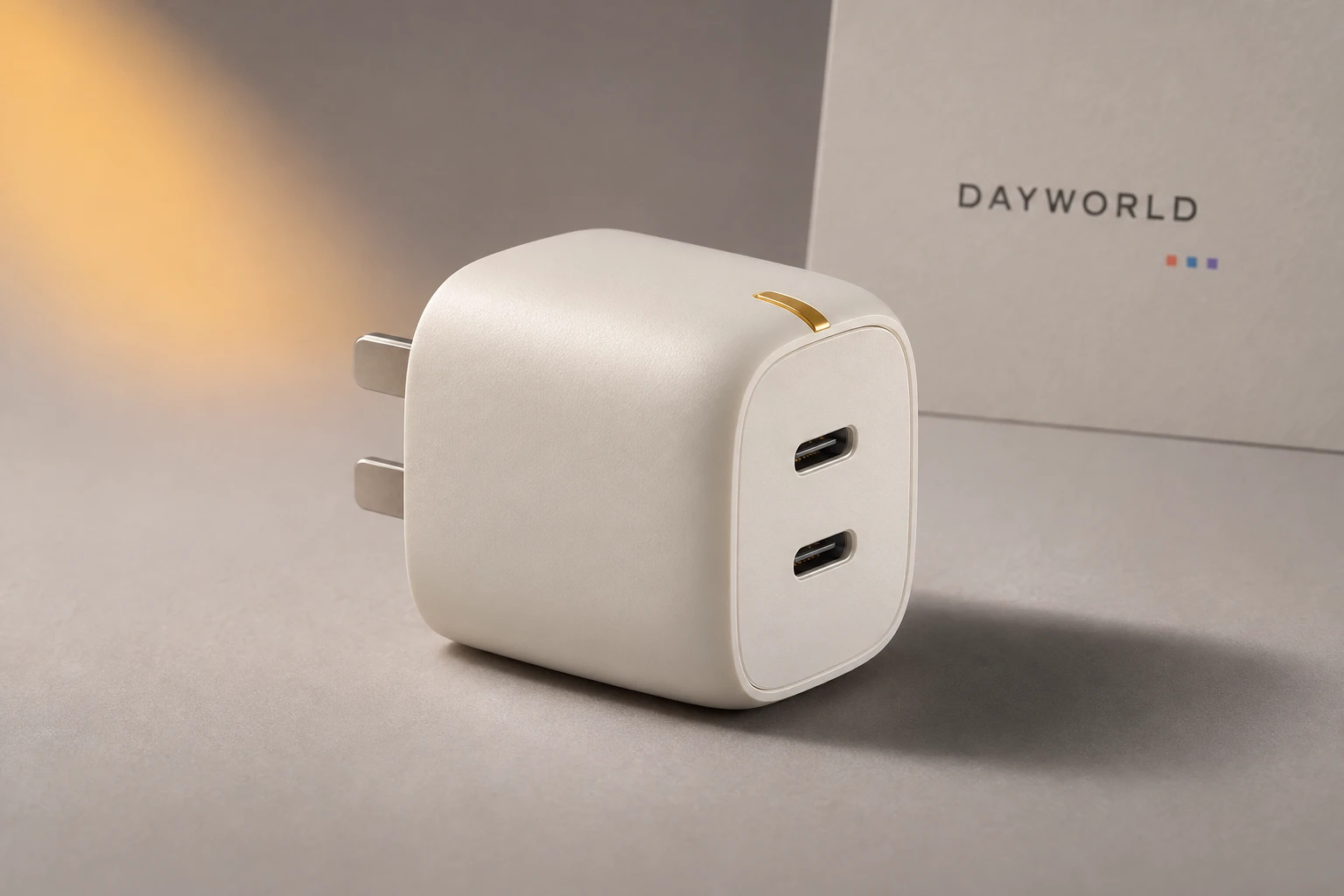
Two USB-C outputs share a single wall socket.
Visit shop · Foldline ConnectThis collection features sample merchandise.
The two USB-C ports share a 65 W total rating. Check the computer's original supply requirements and the power rating of your cable.
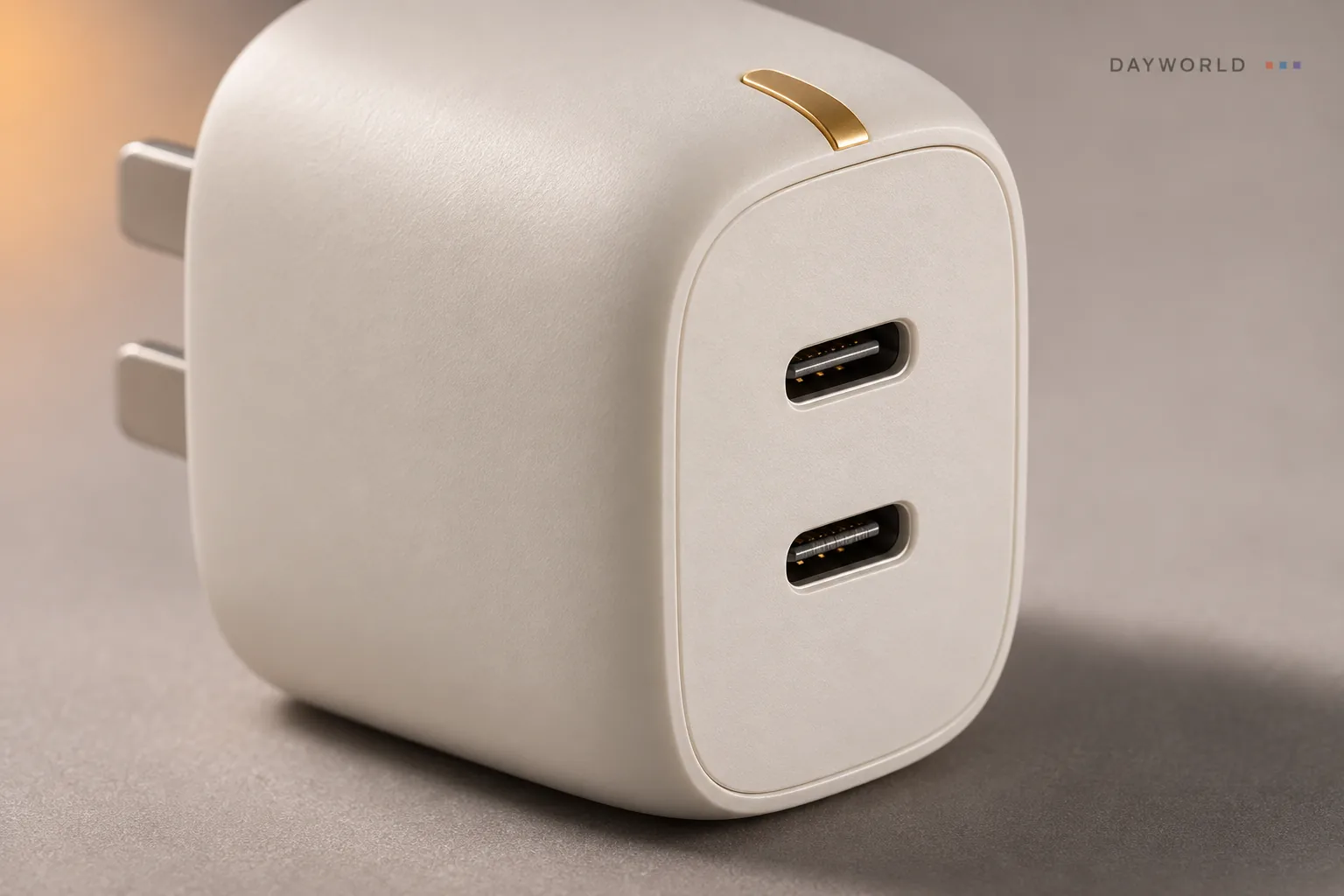
Check clearance at neighbouring sockets before inserting the Chinese flat-pin plug. Keep the housing clear of fabric and paperwork while charging.
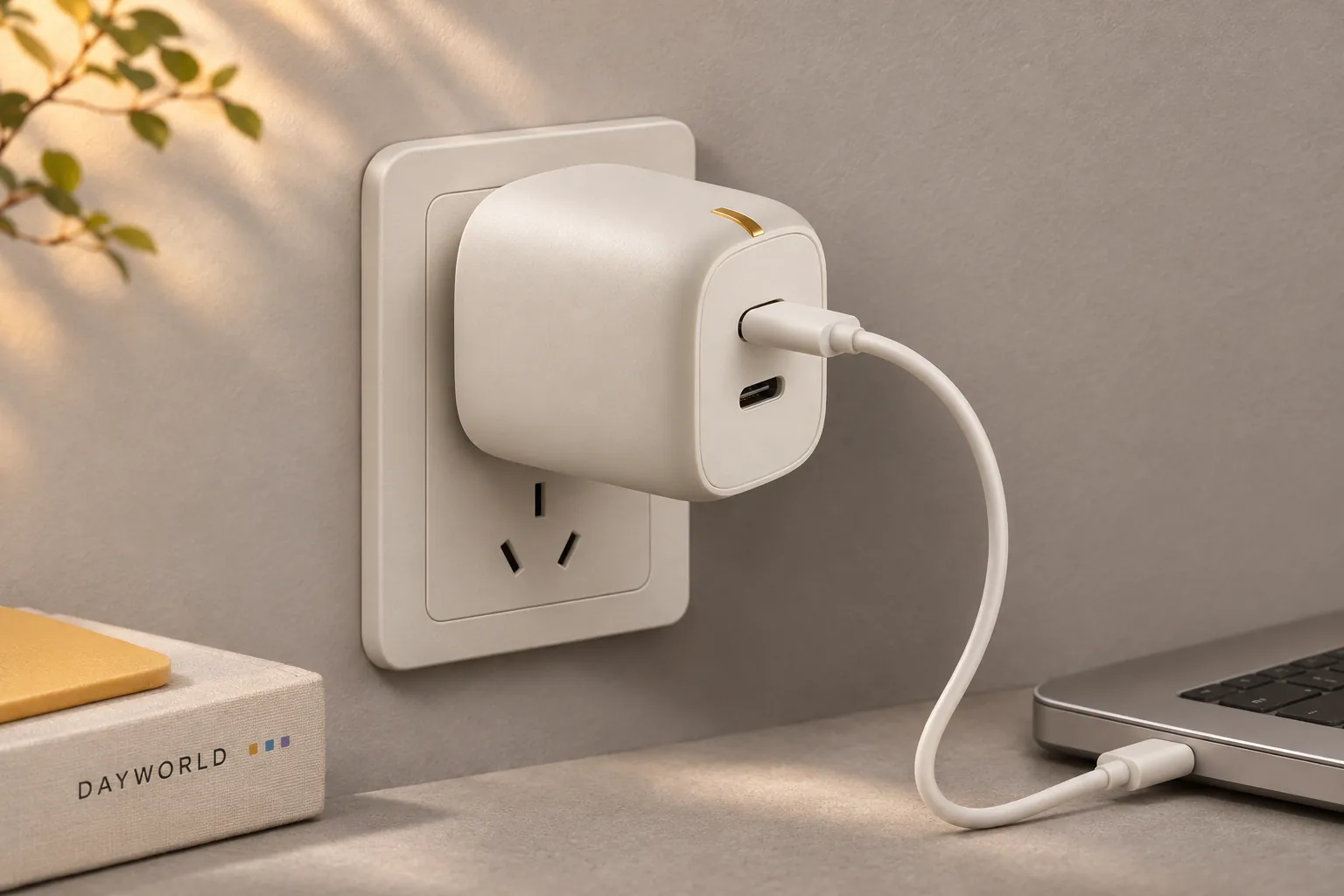
Check both ends of each travel cable against the devices you are taking. Hold the body to unplug and pack the metal pins away from screens and lenses.
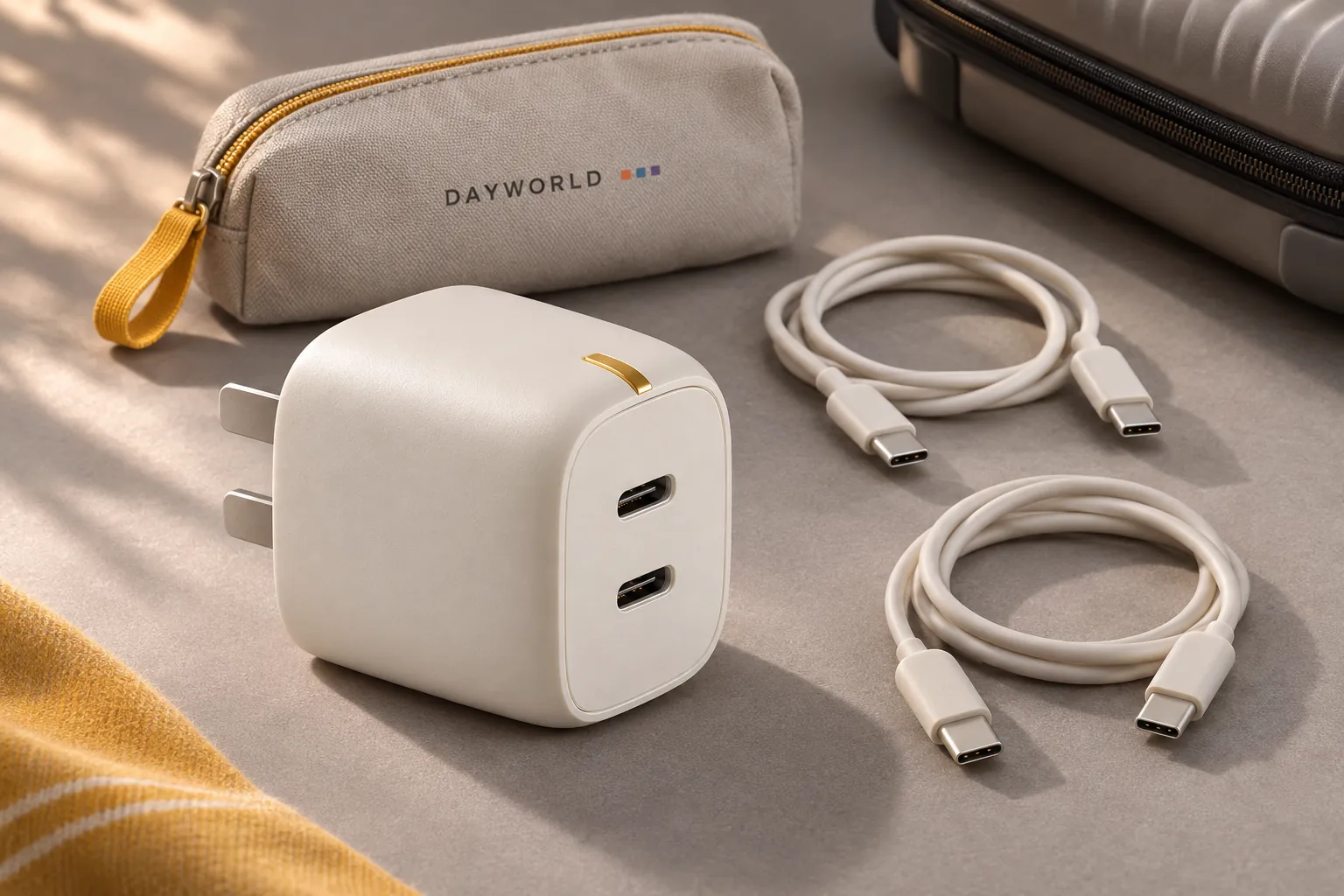
Power & charging
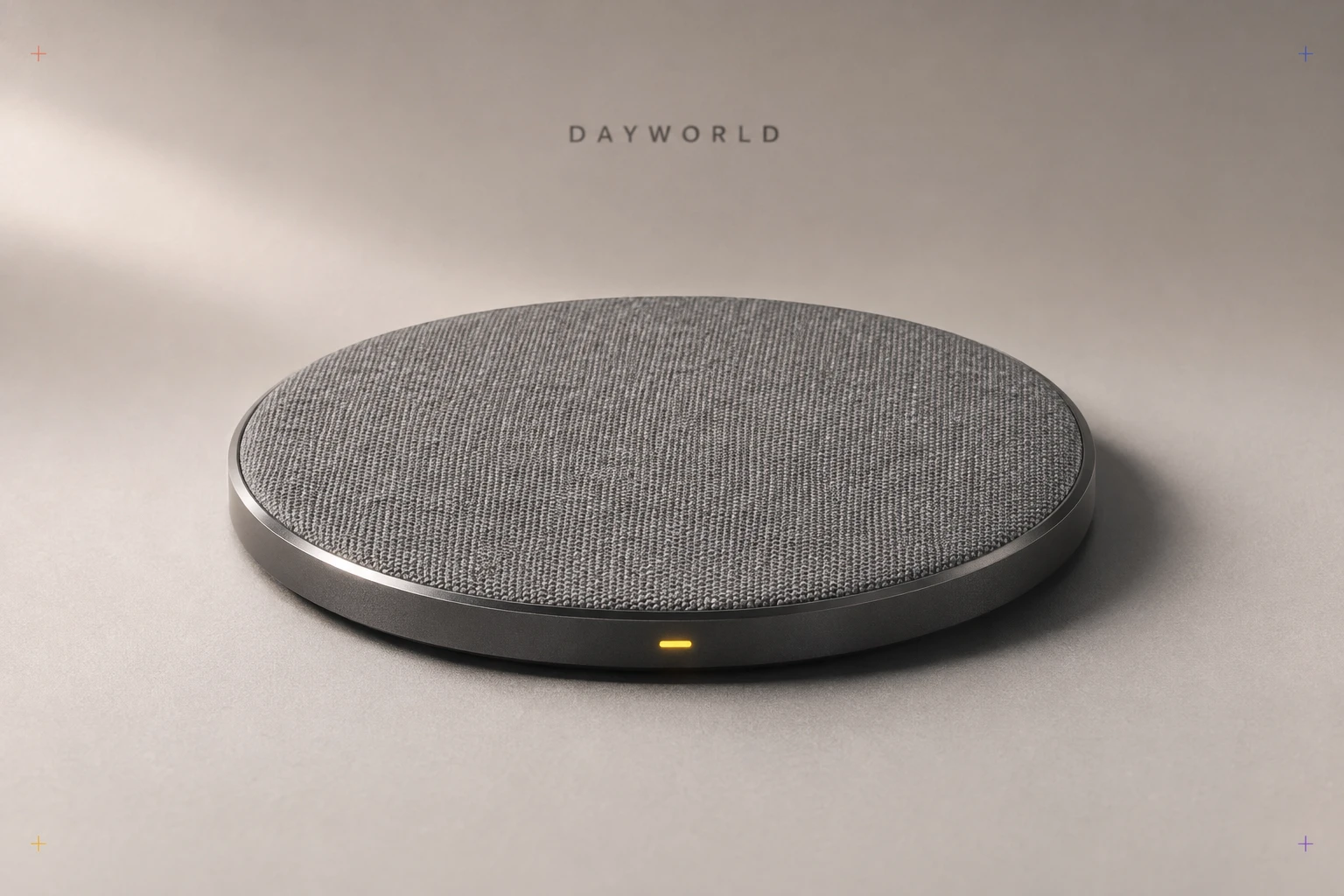
Set a compatible phone in the middle of the pad for easy charging.
Visit shop · Foldline ConnectThis collection features sample merchandise.
Centre a compatible phone over the pad and check its charging indicator. Thick cases, cards and metal attachments can interfere with alignment.
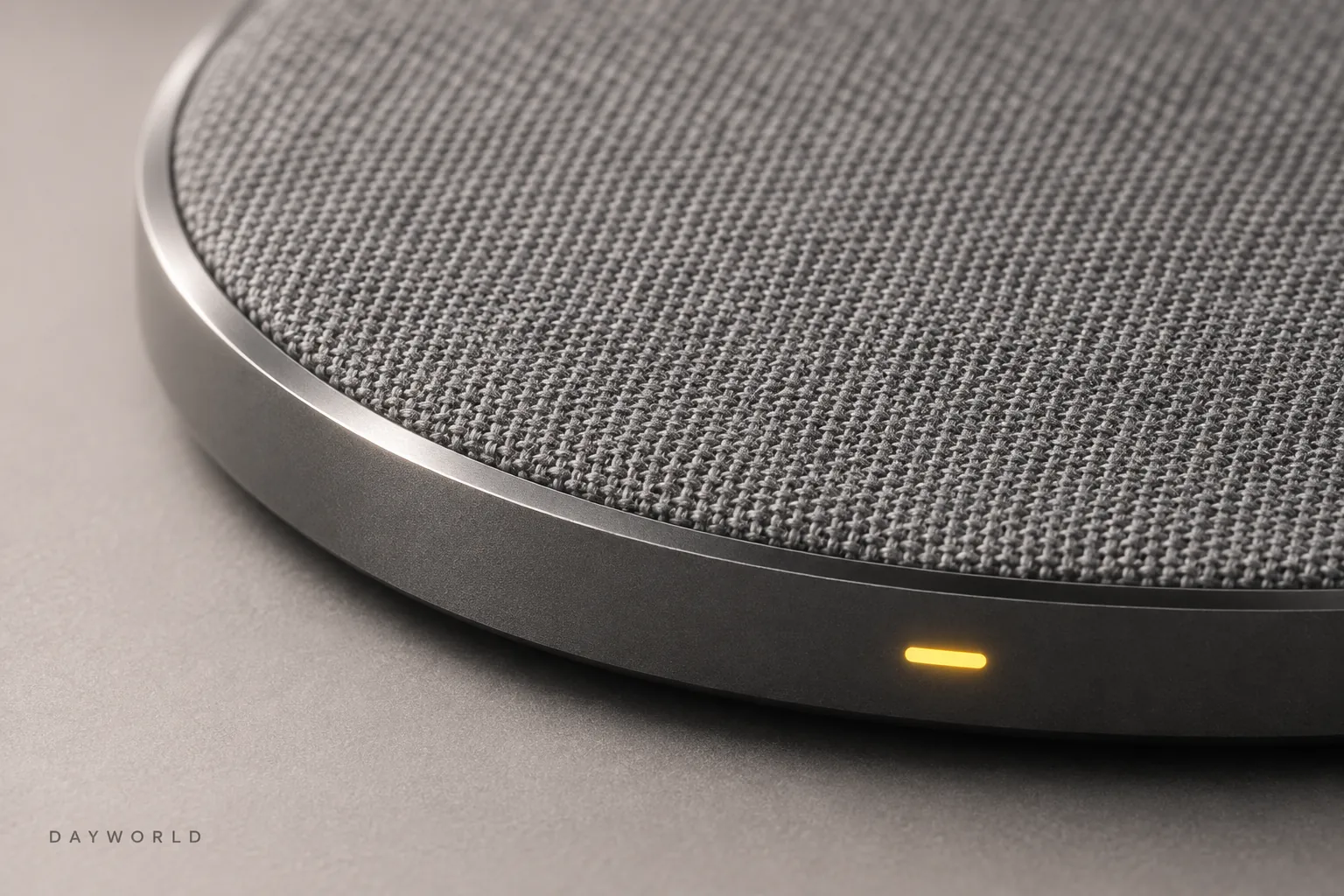
Use a firm, clear surface with the cable running behind the pad. Practise placing the phone a few times until the charging position feels natural.
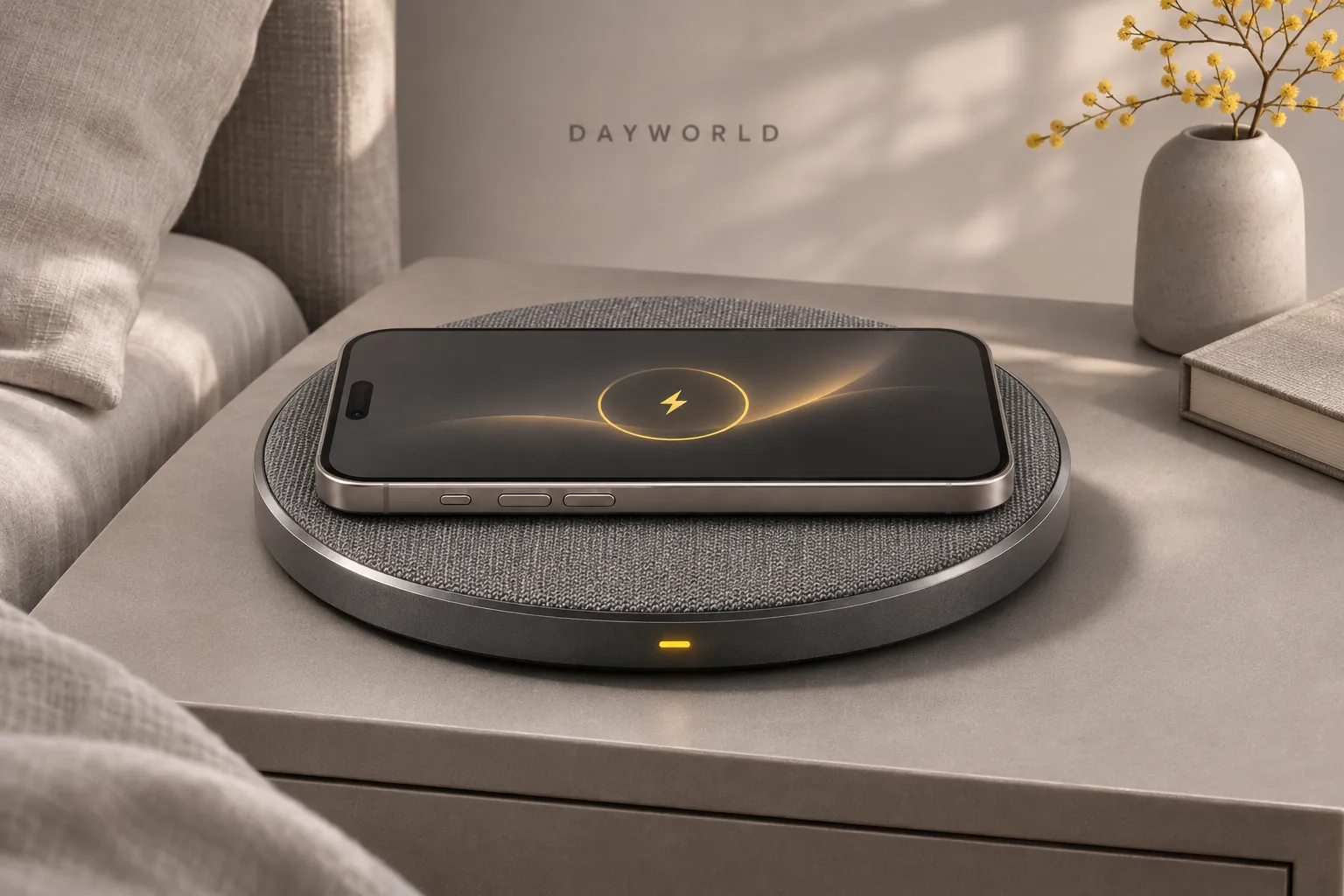
Connect USB-C power first. If charging does not start, check the supply, lead and alignment in turn. Lift the pad to move it rather than dragging it.
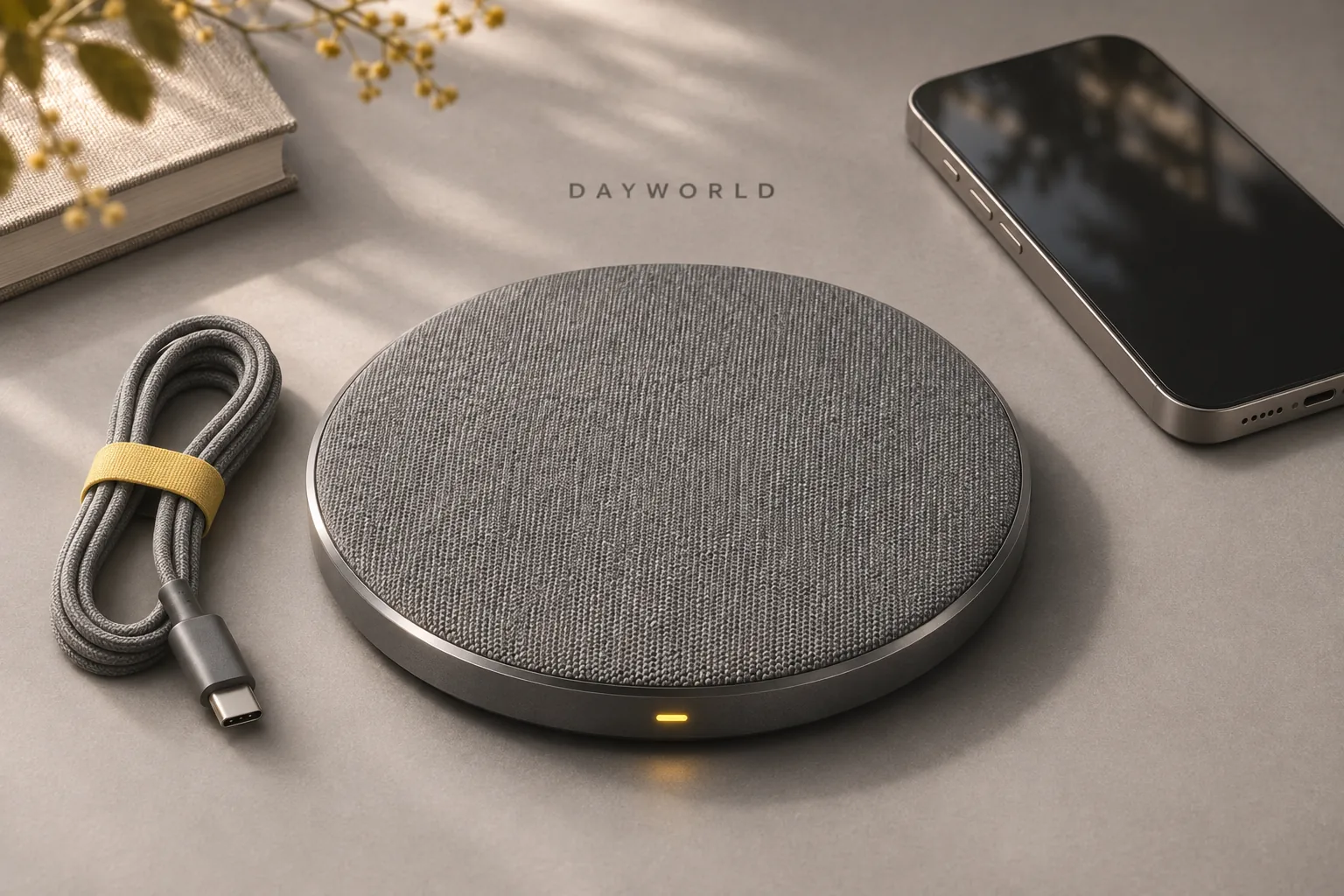
Power & charging
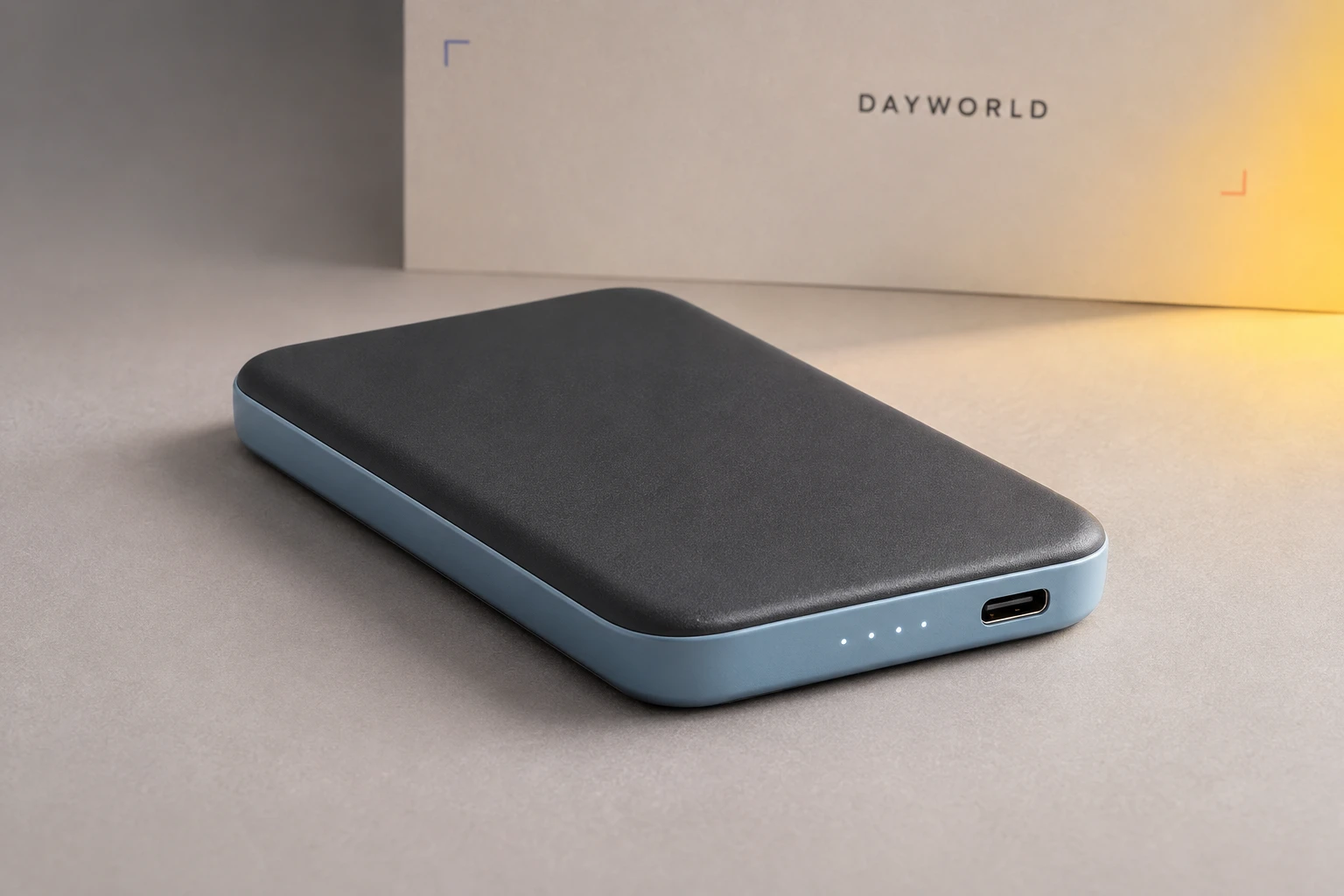
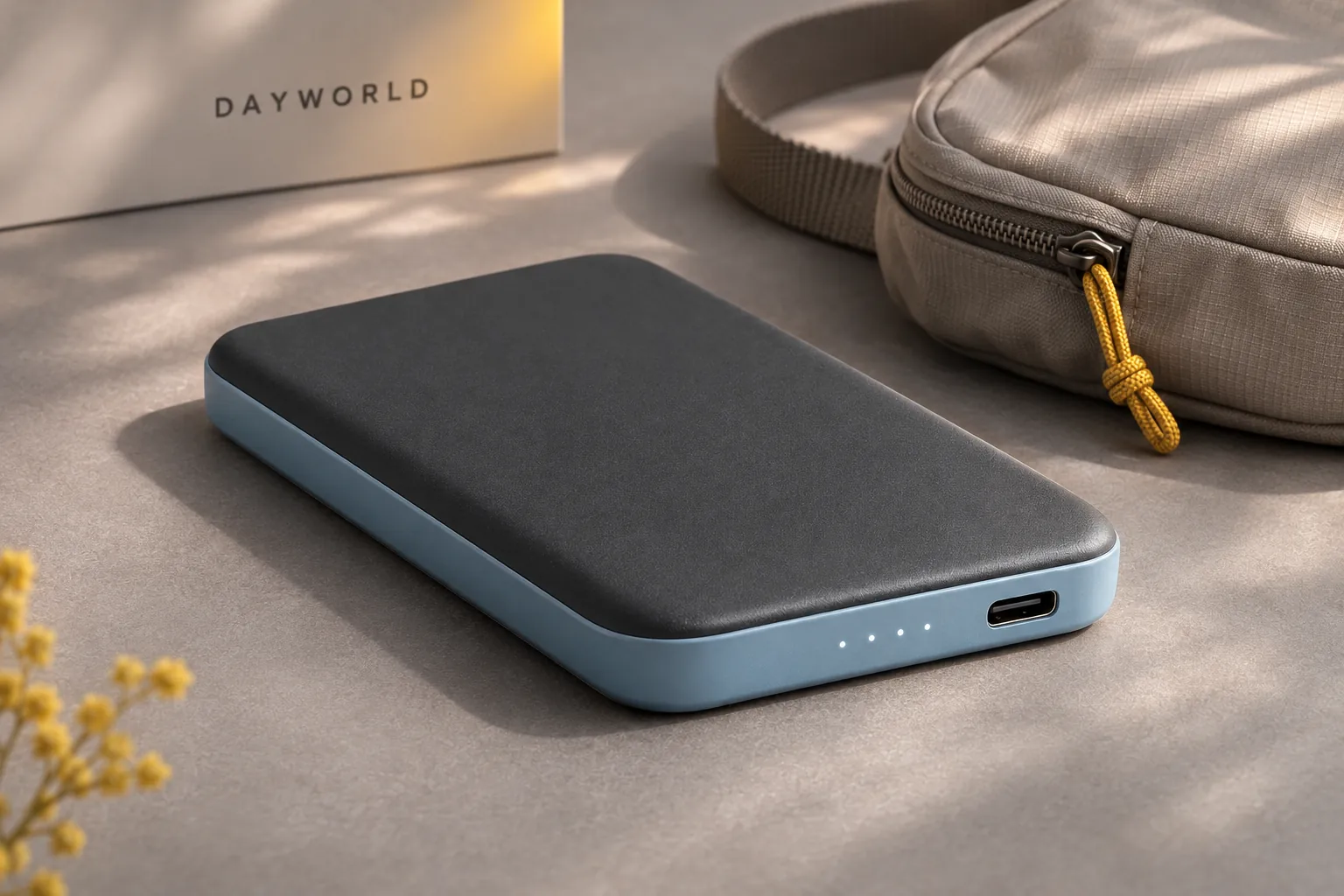
Check the side indicators before packing the power bank in your bag.
Visit shop · Foldline ConnectThis collection features sample merchandise.
The four LEDs indicate approximate charge. The 10,000 mAh cell rating does not translate directly into a fixed number of phone charges.
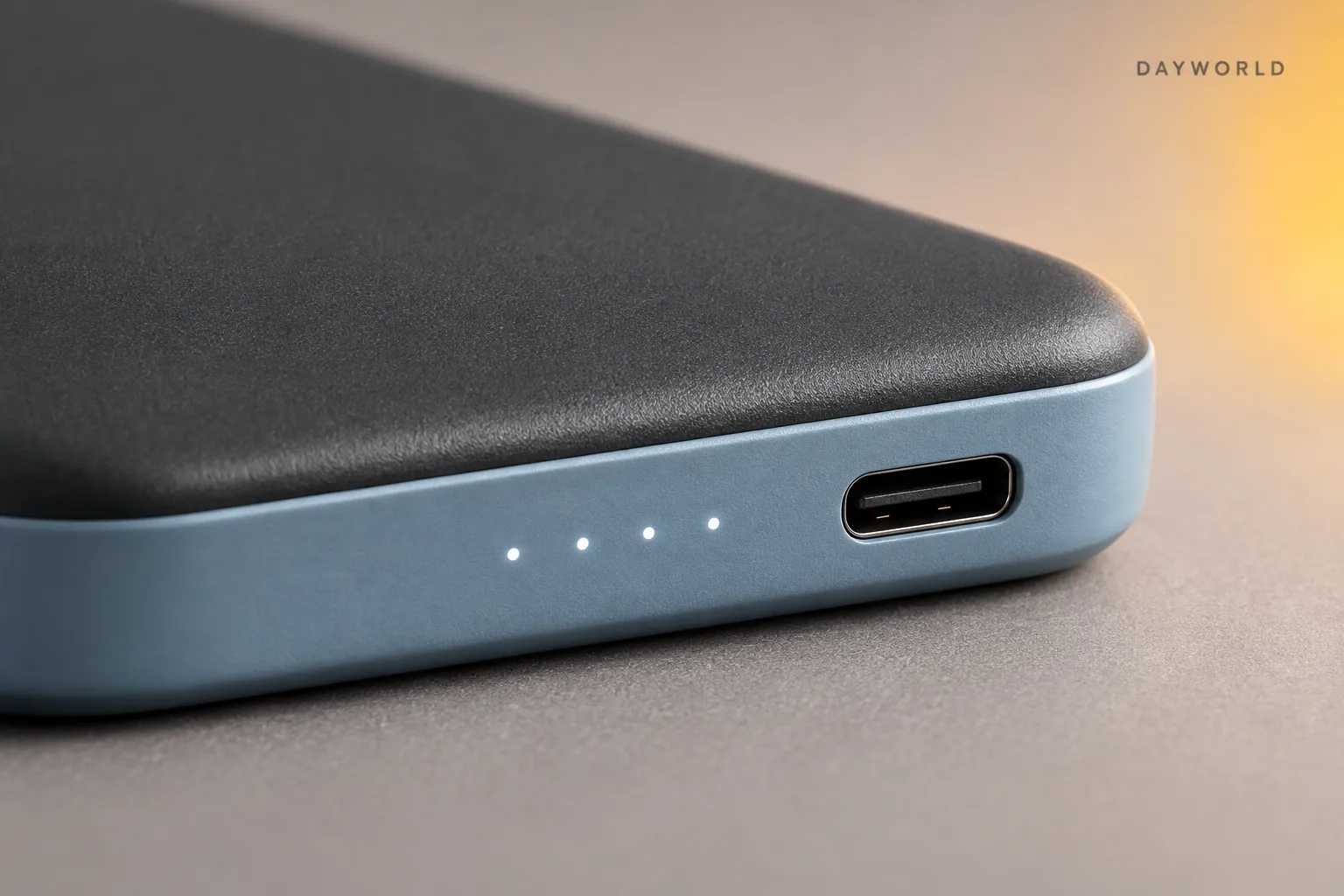
Place the phone and power bank side by side with slack at both plugs. Check the phone's charging indication before getting back to work.
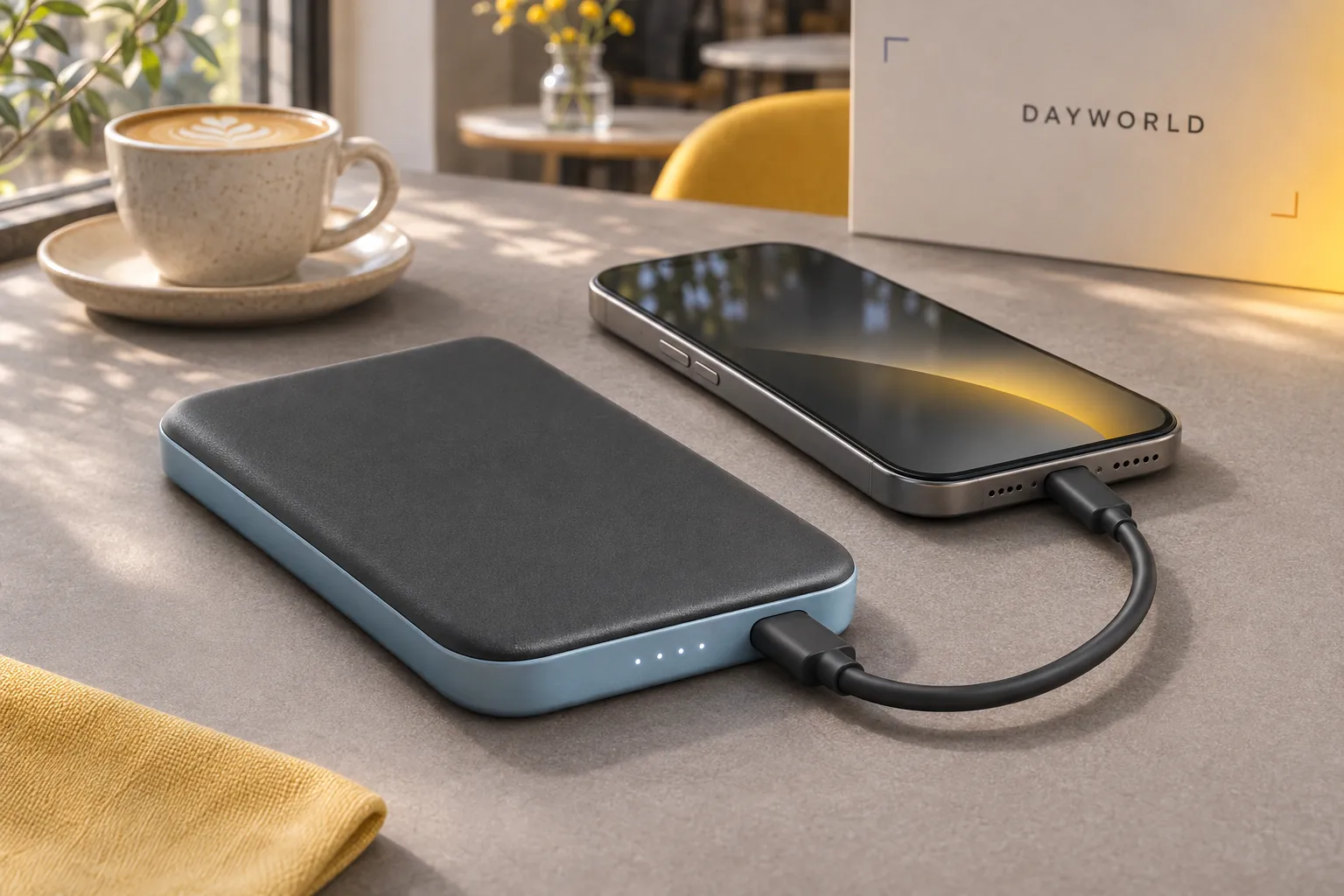
Check the bank and select the right cable before leaving. Keep metal objects away from ports and stop using a damaged or swollen unit.
Desk organisation
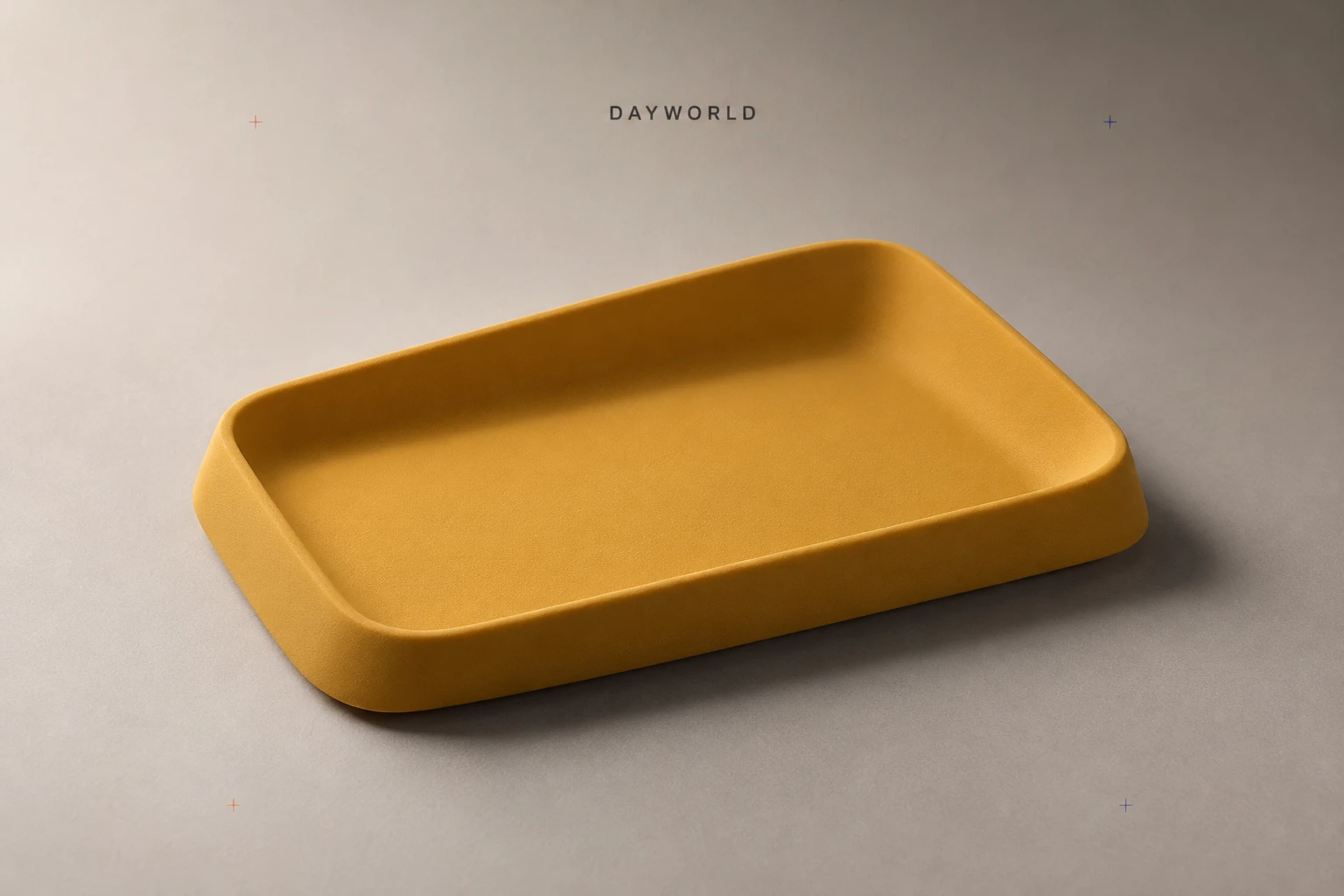
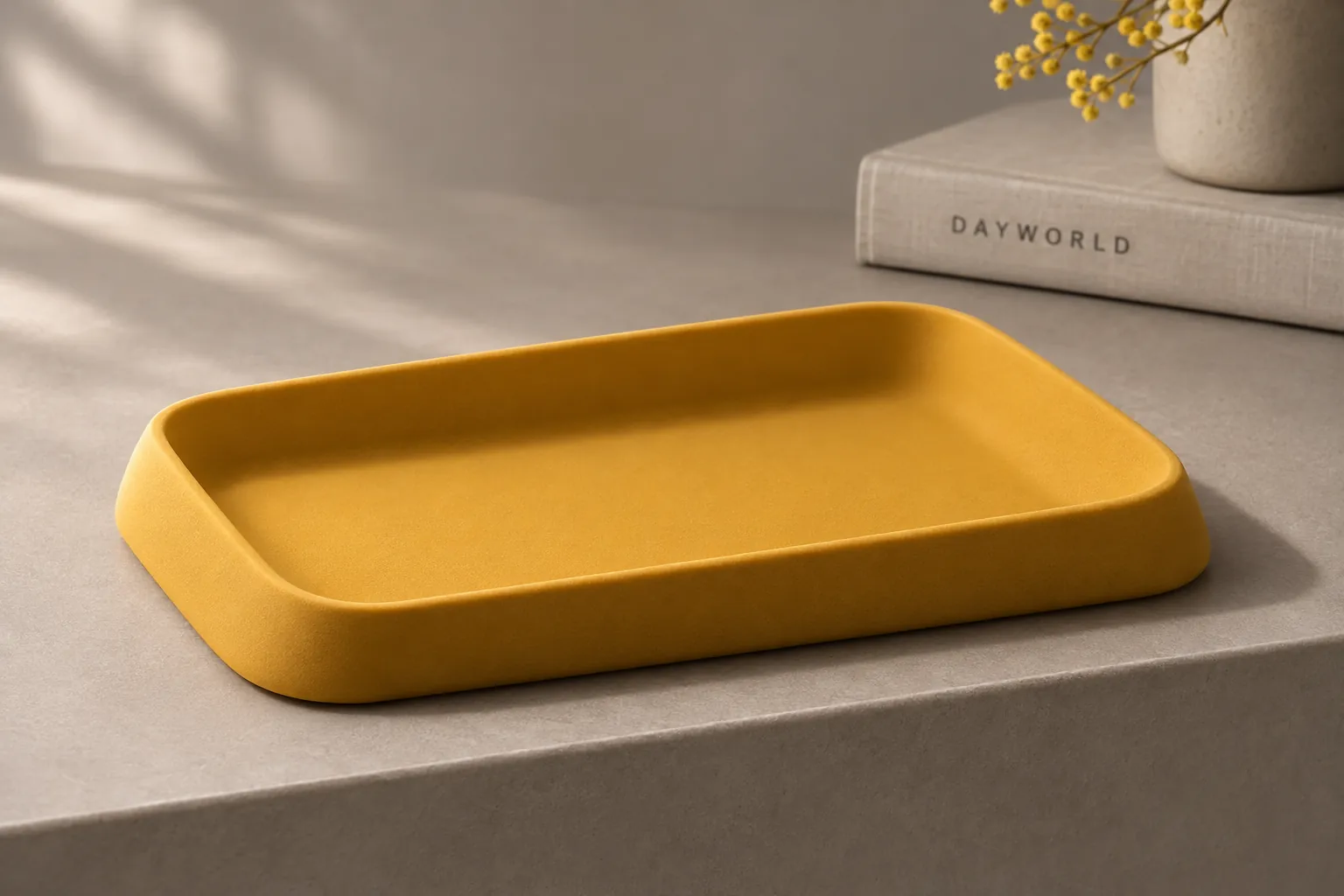
Keep a badge, keys and earbuds together in a low-sided tray.
Visit shop · Paper RoomThis collection features sample merchandise.
A low rim keeps keys, coins and adapters visible from a seated position. Empty the tray before wiping around its rounded corners.
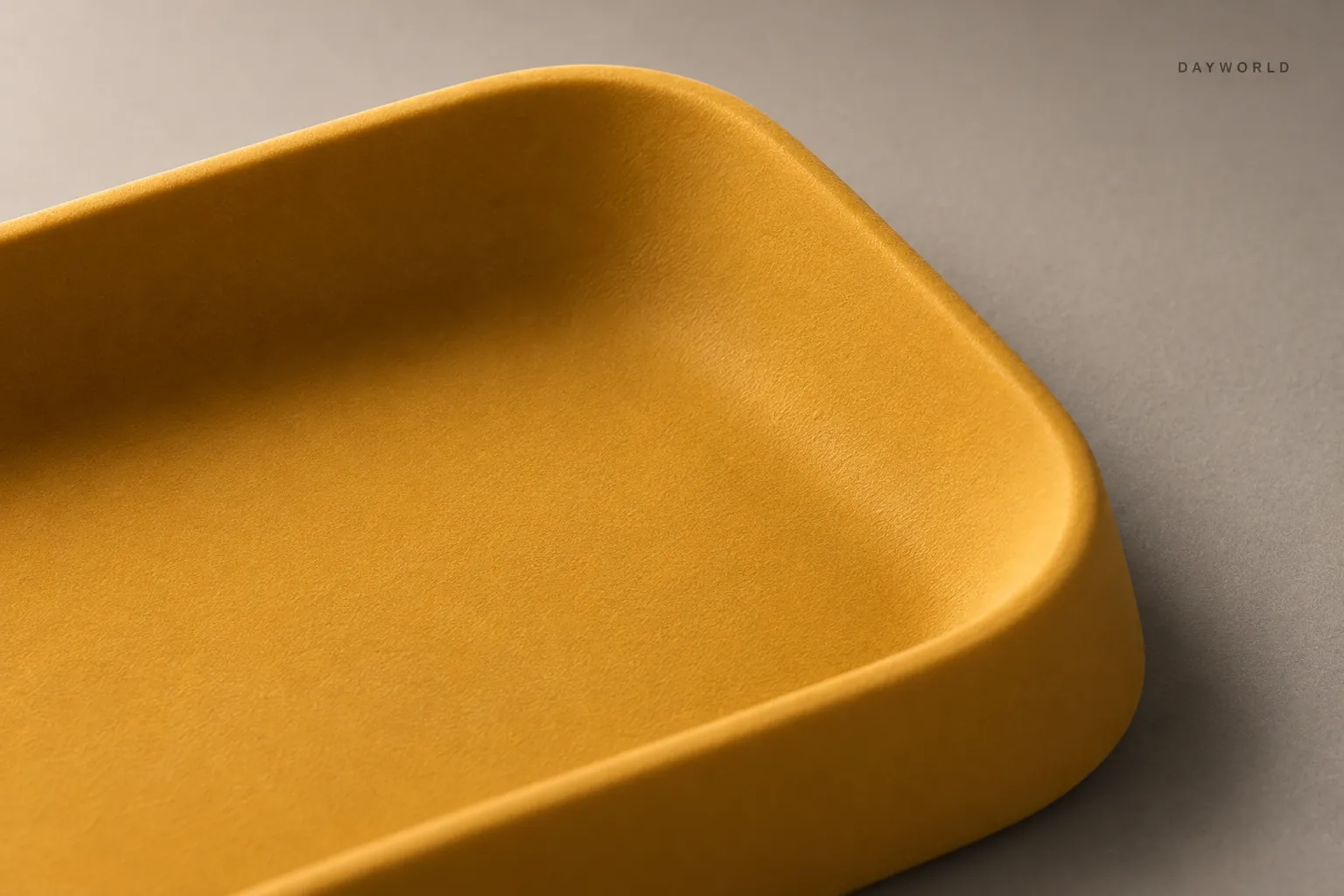
Choose a consistent spot and separate tiny receivers from larger keys. The tray also keeps small screws in sight during a quick repair.
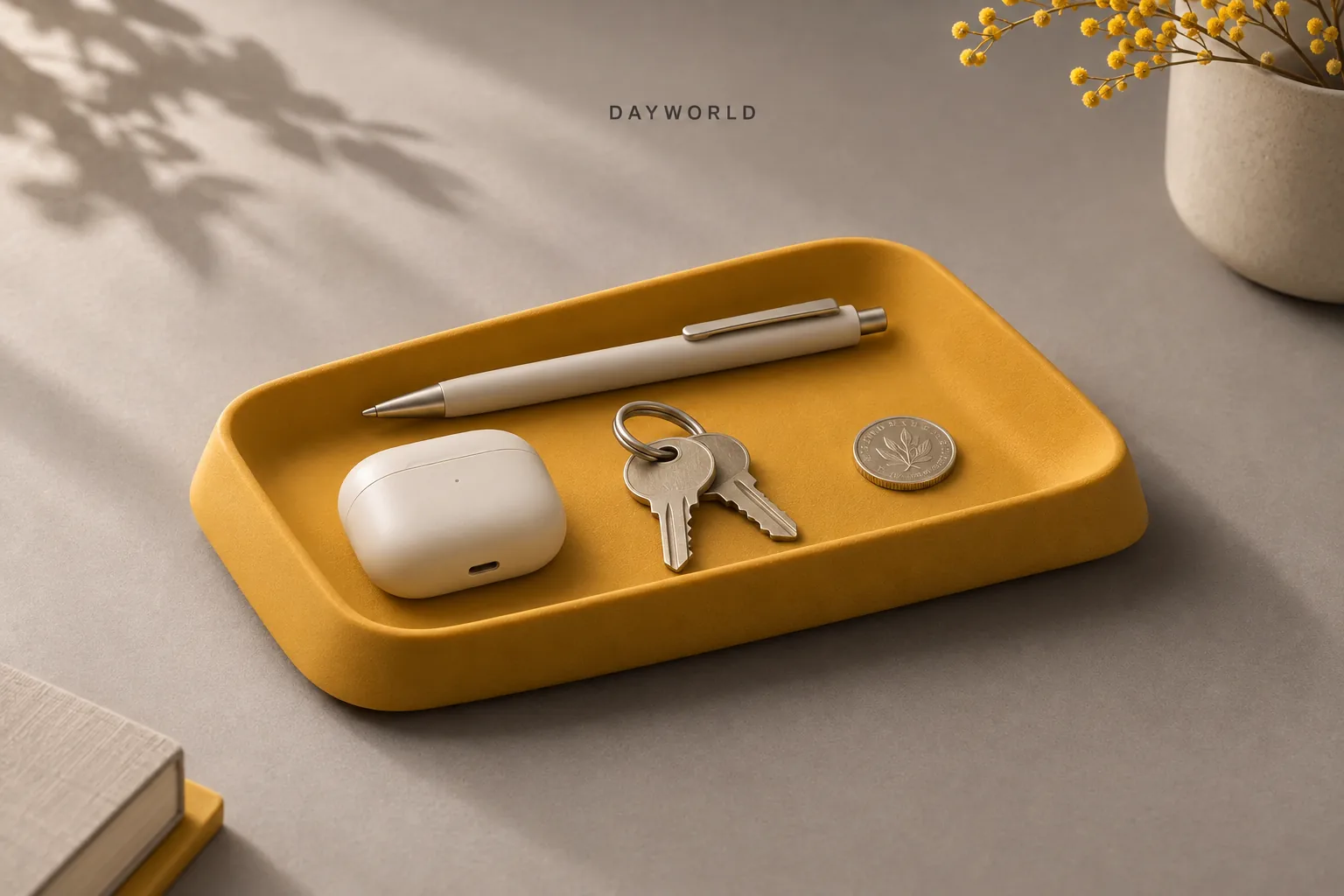
Set the base flat on a clean desk and try reaching for an item from your seat. Clear out spent tickets or spare pieces before piling items higher.
Desk organisation
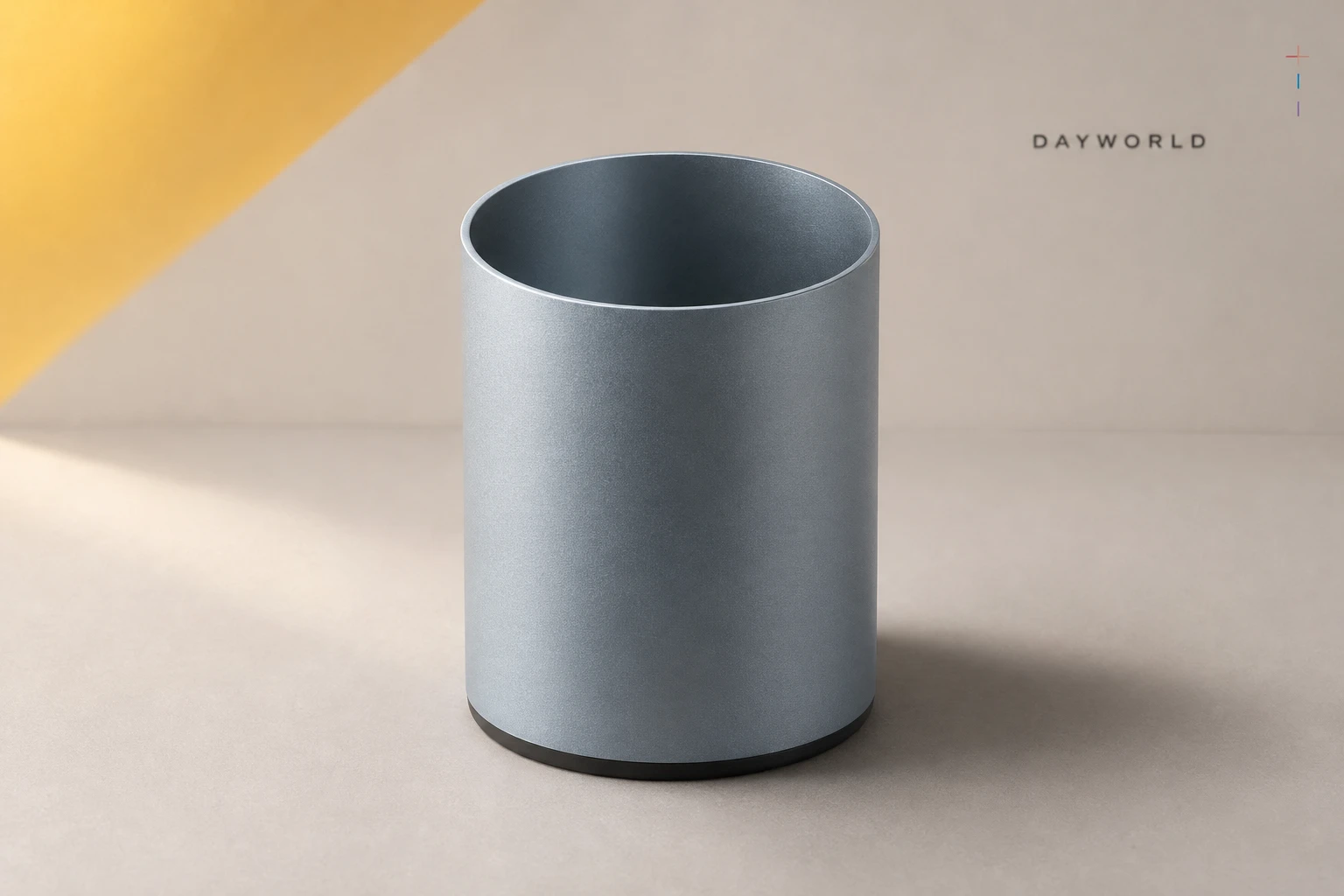
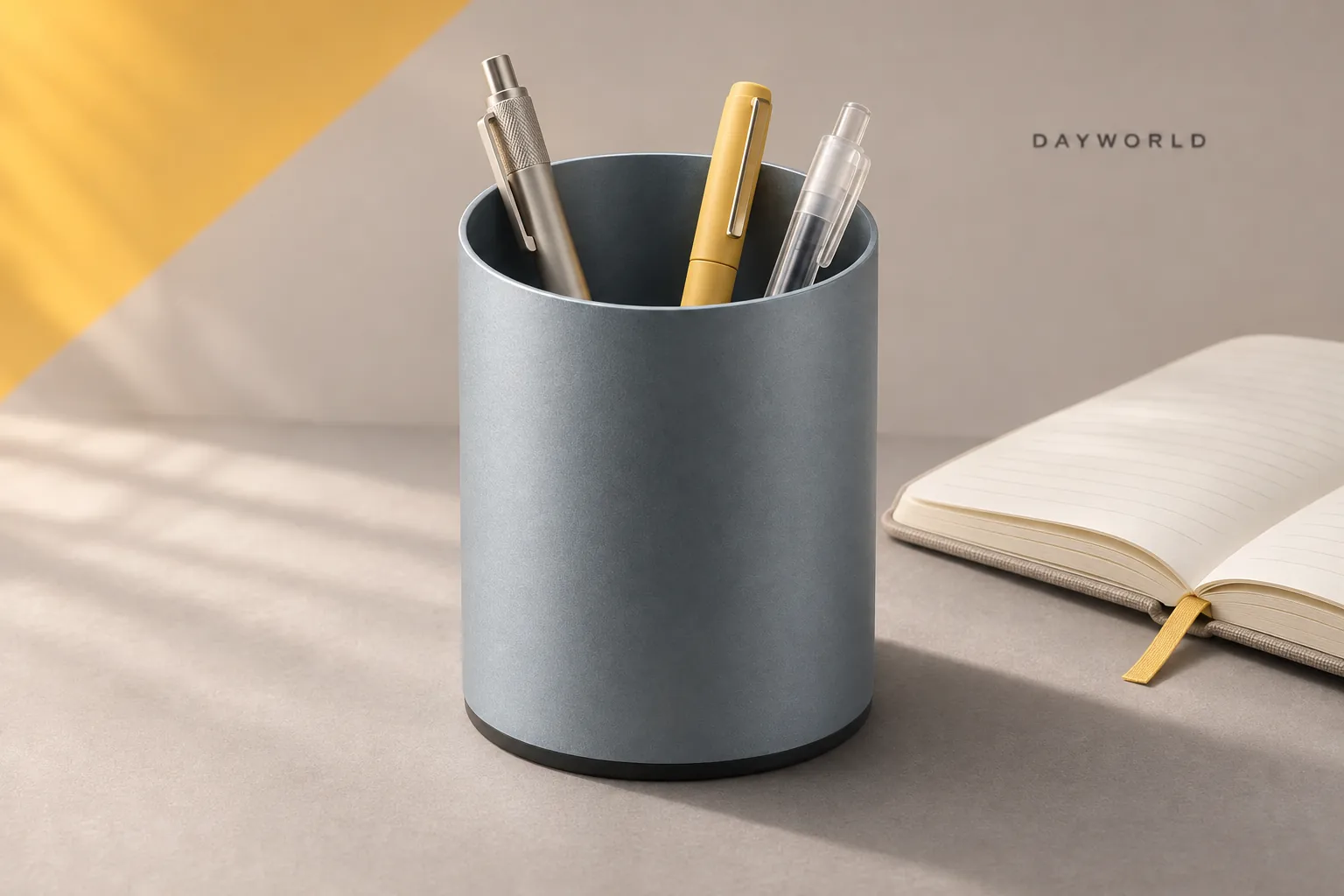
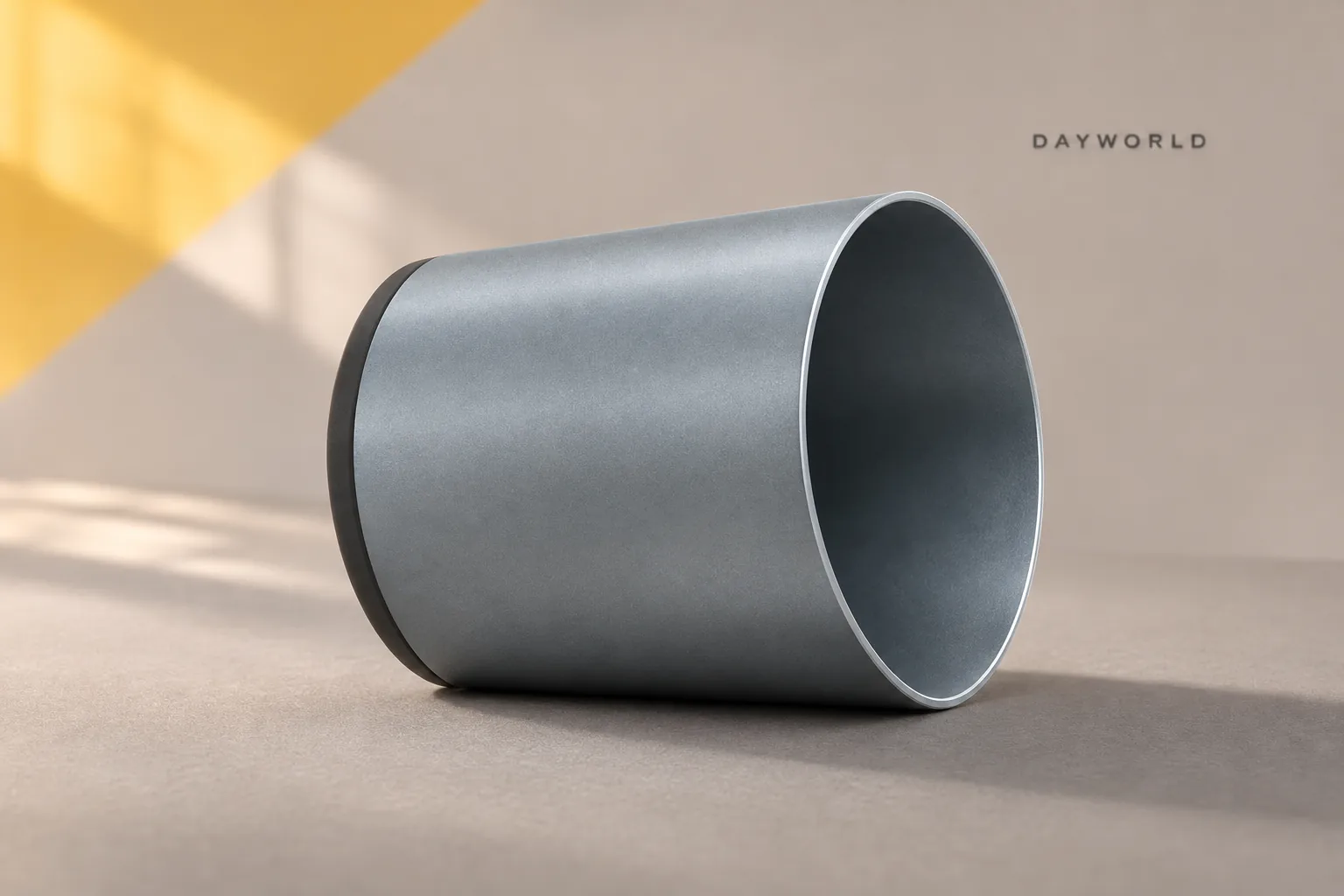
Keep pens and a ruler upright within easy reach.
Visit shop · Paper RoomThis collection features sample merchandise.
Start with two or three everyday pens and check how much protrudes above the rim. A shallow tray may suit very short pencils better.
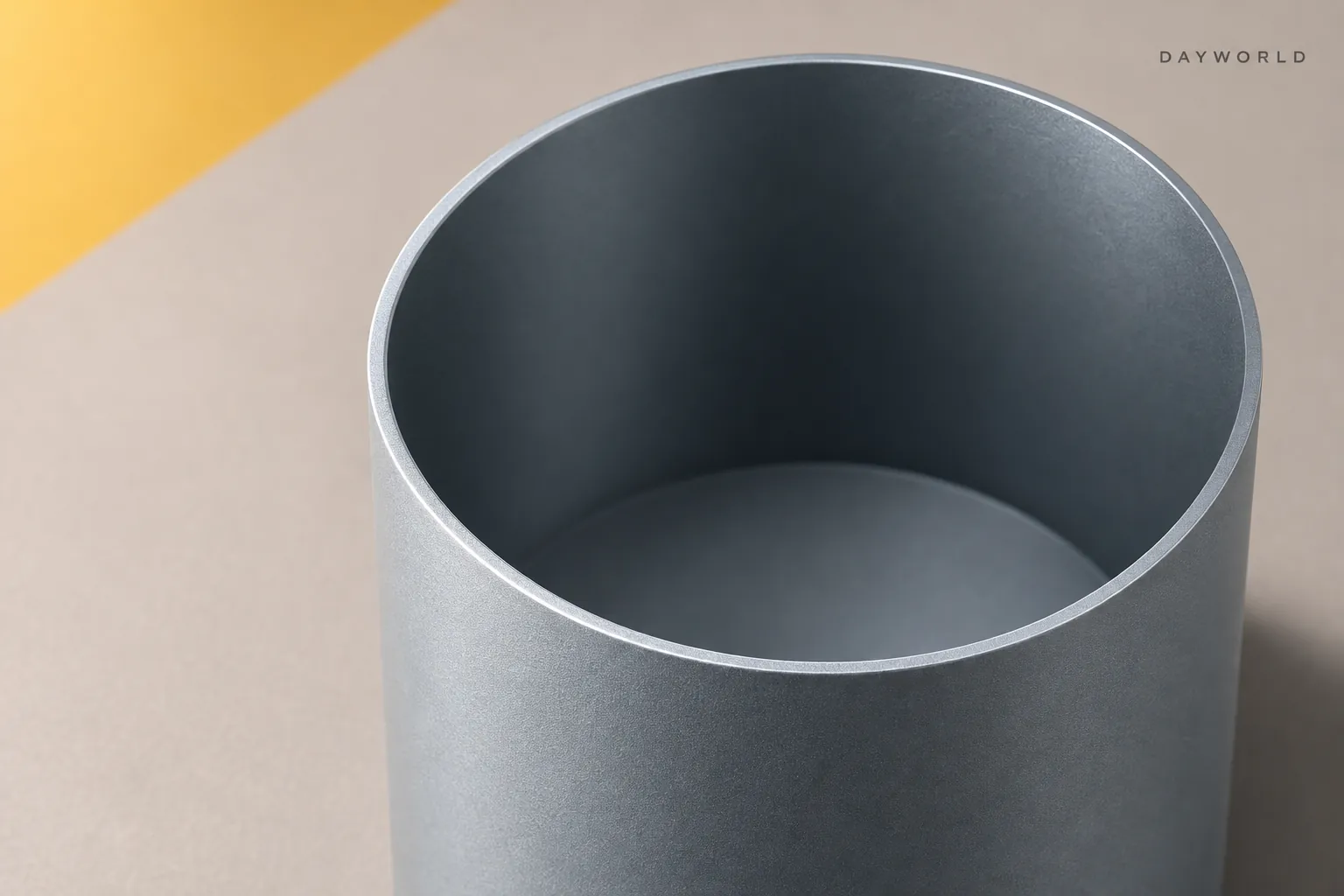
Place the holder at the top of your notebook or on your writing side. Keep refills elsewhere so ordinary pens and highlighters are easy to separate.
Lift the padded base to move it. Empty crumbs before wiping the rim, and retract or cap wet pen tips before storage.
Desk organisation
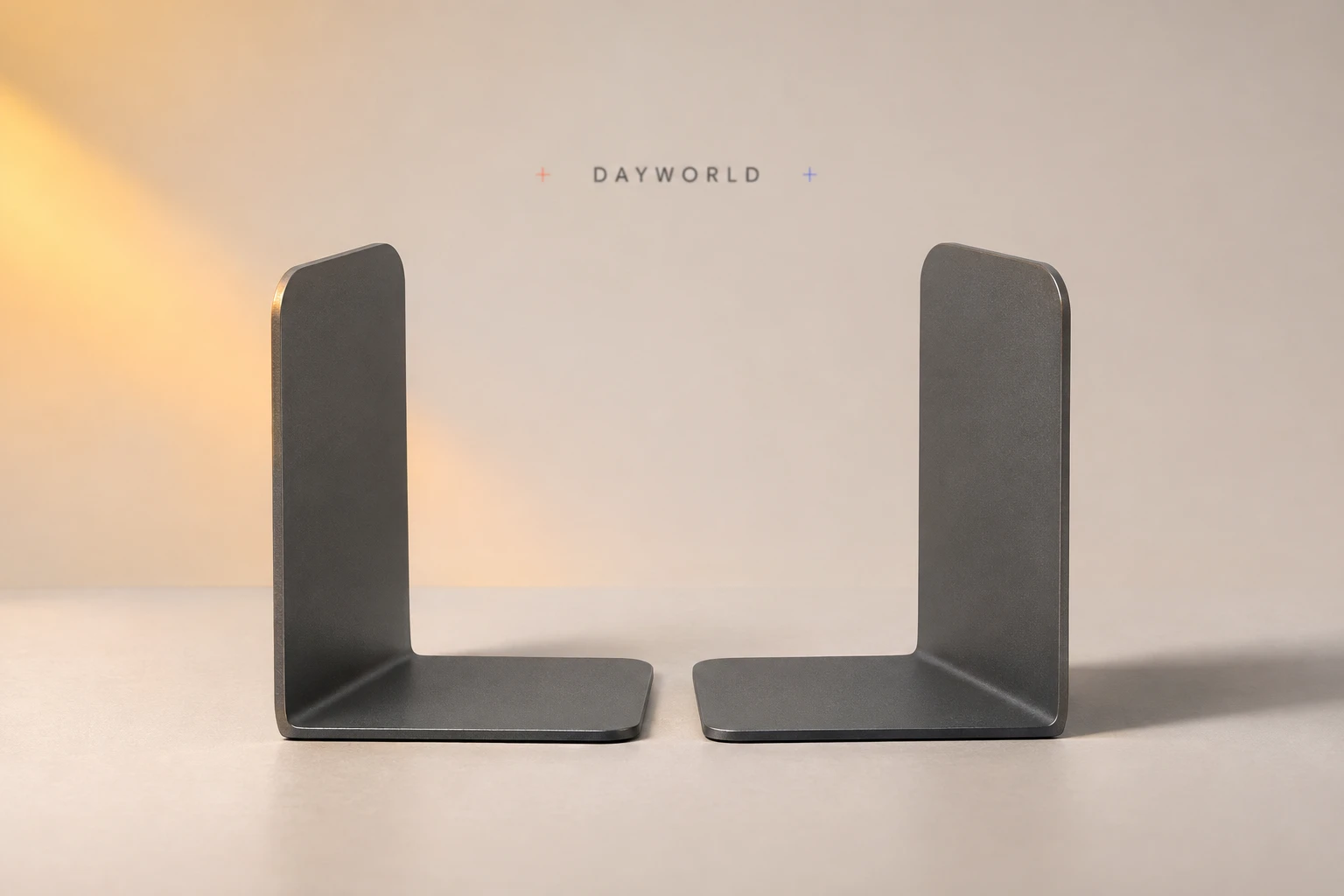
Use the pair to support manuals and folders at either end of a shelf.
Visit shop · Paper RoomThis collection features sample merchandise.
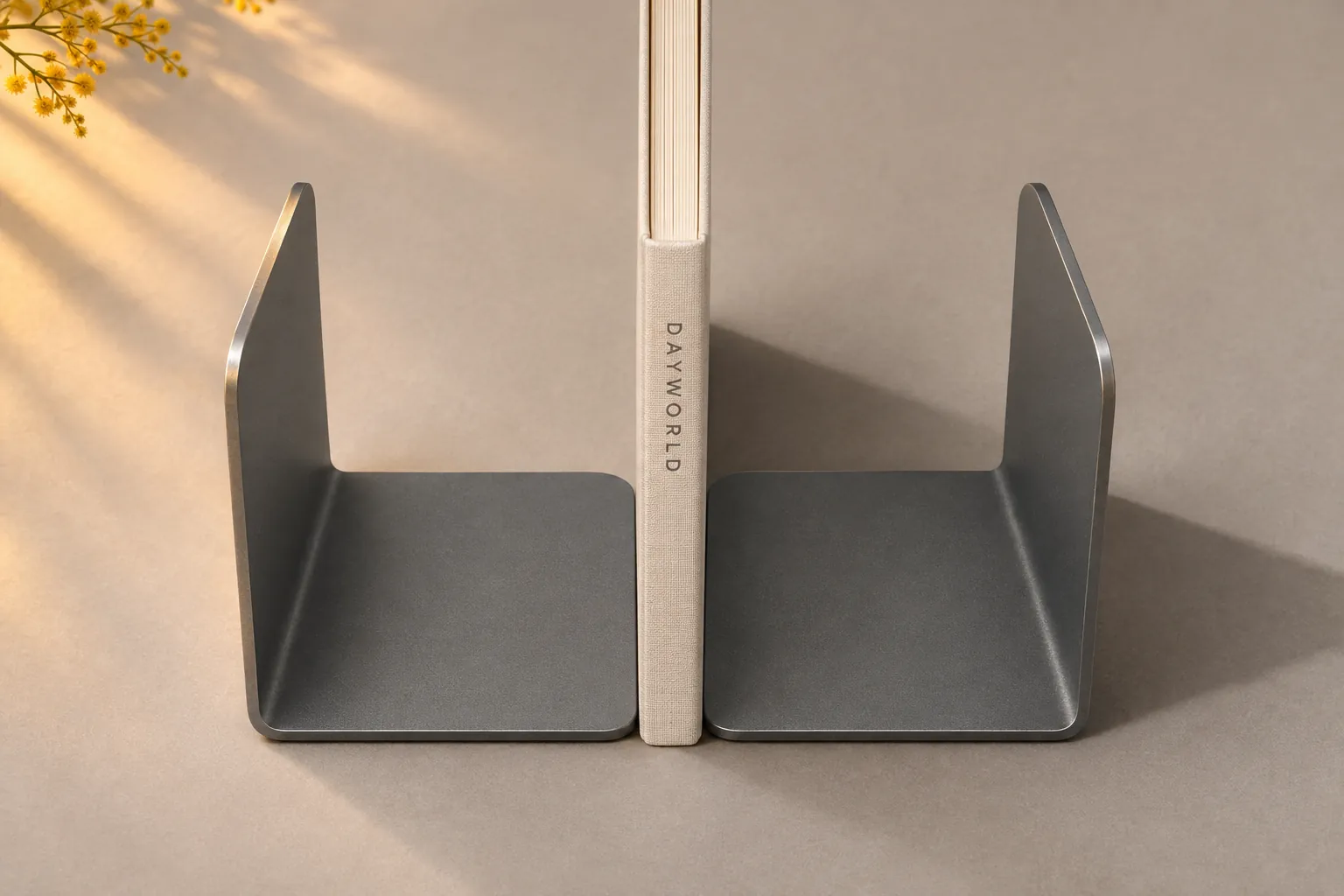
Position the bent steel feet under the books and slide the two ends toward the row on a level shelf.
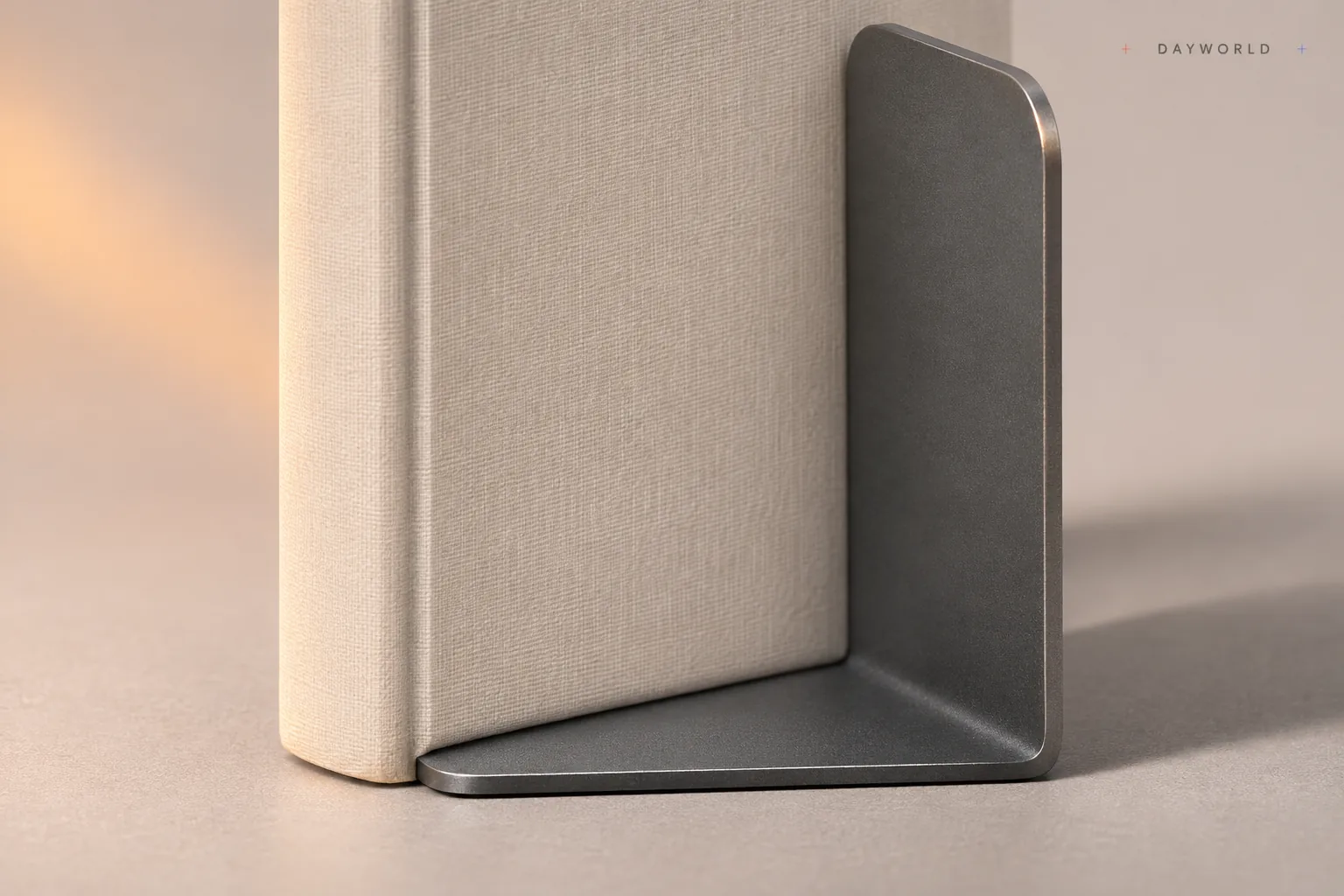
Put sturdier volumes at the ends and slim pamphlets in the middle. Close the gap when you remove a thick book.
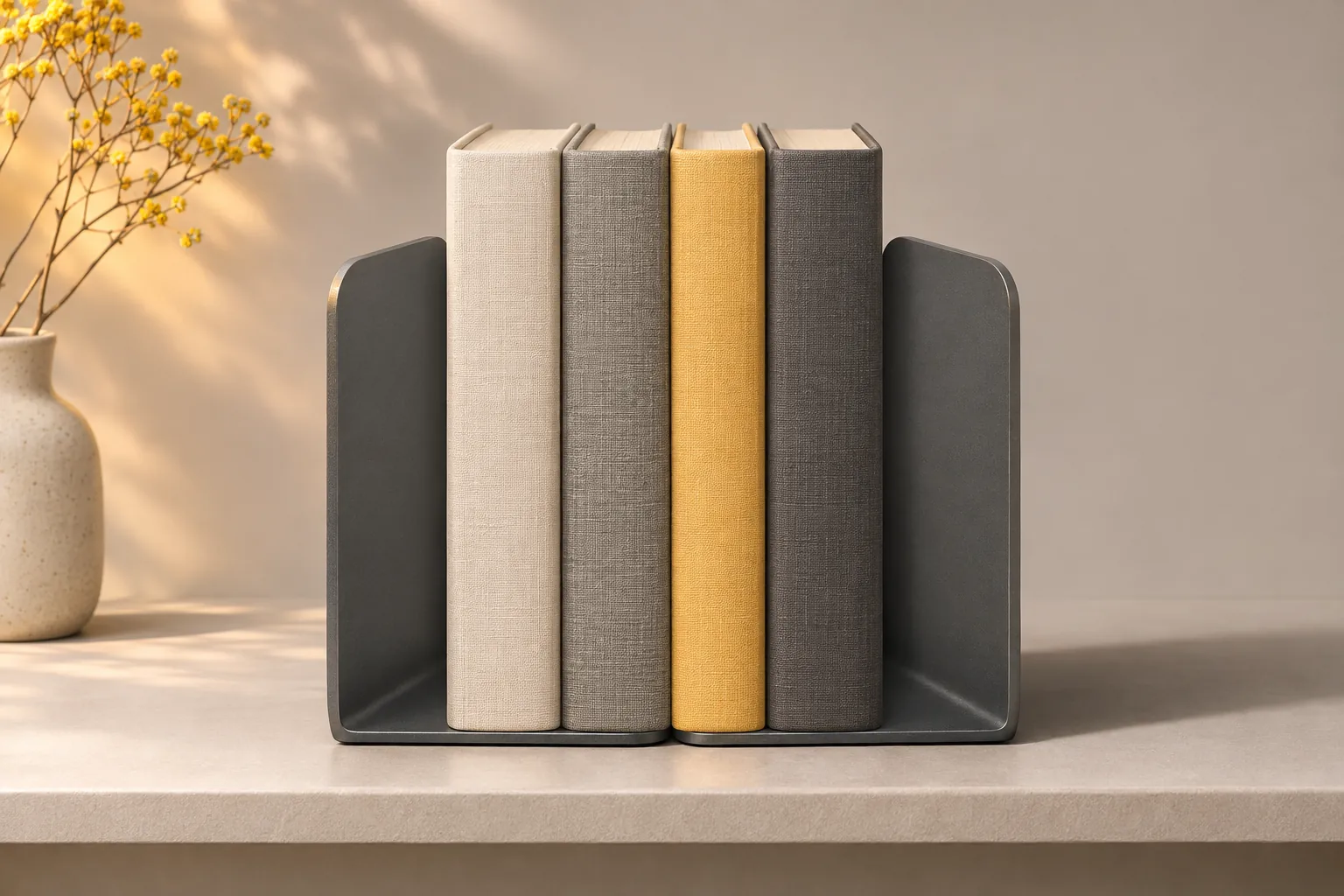
Keep the full base on the shelf and allow room for fingers at the ends. Unload a few books before moving the row to a new position.
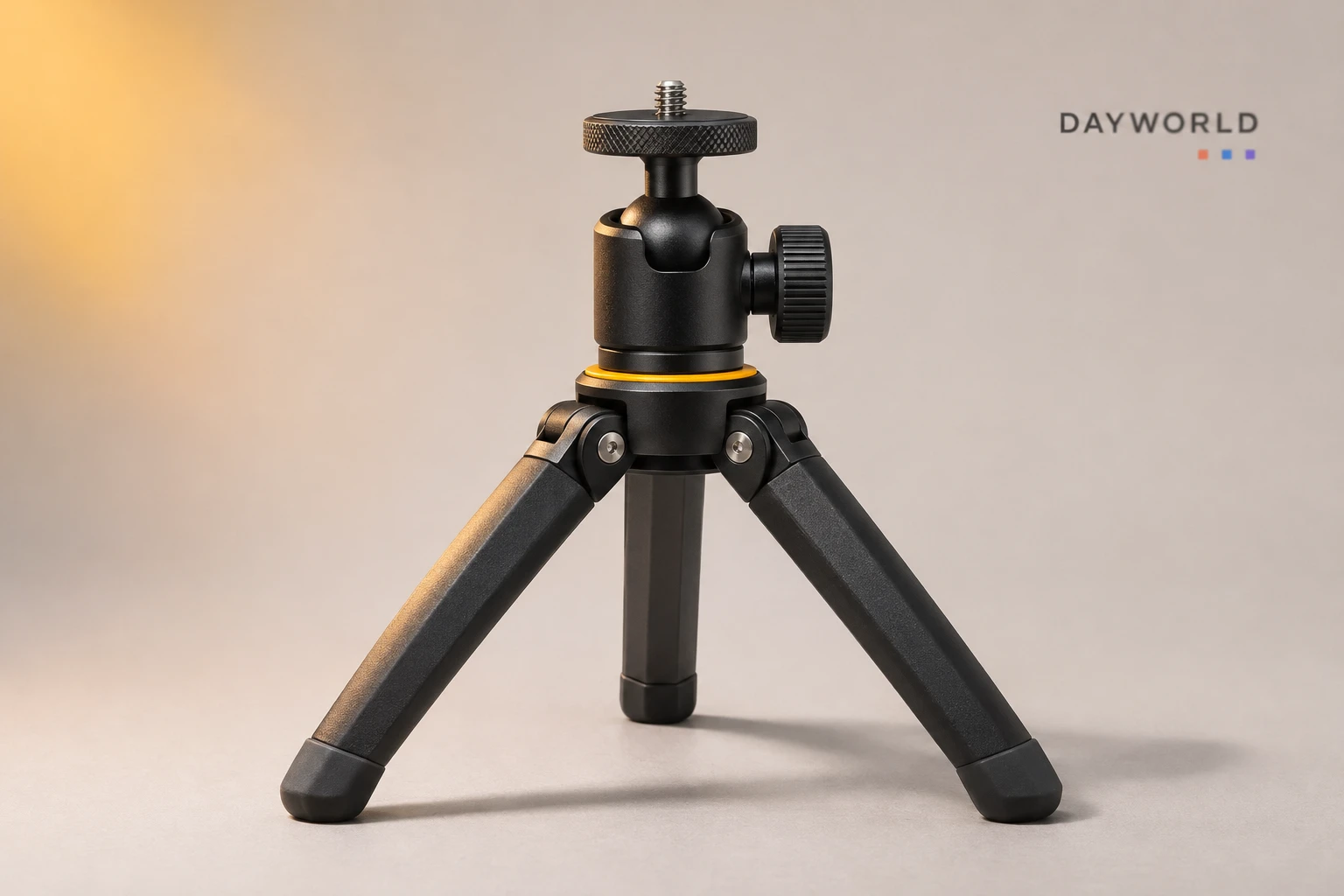
Camera gear
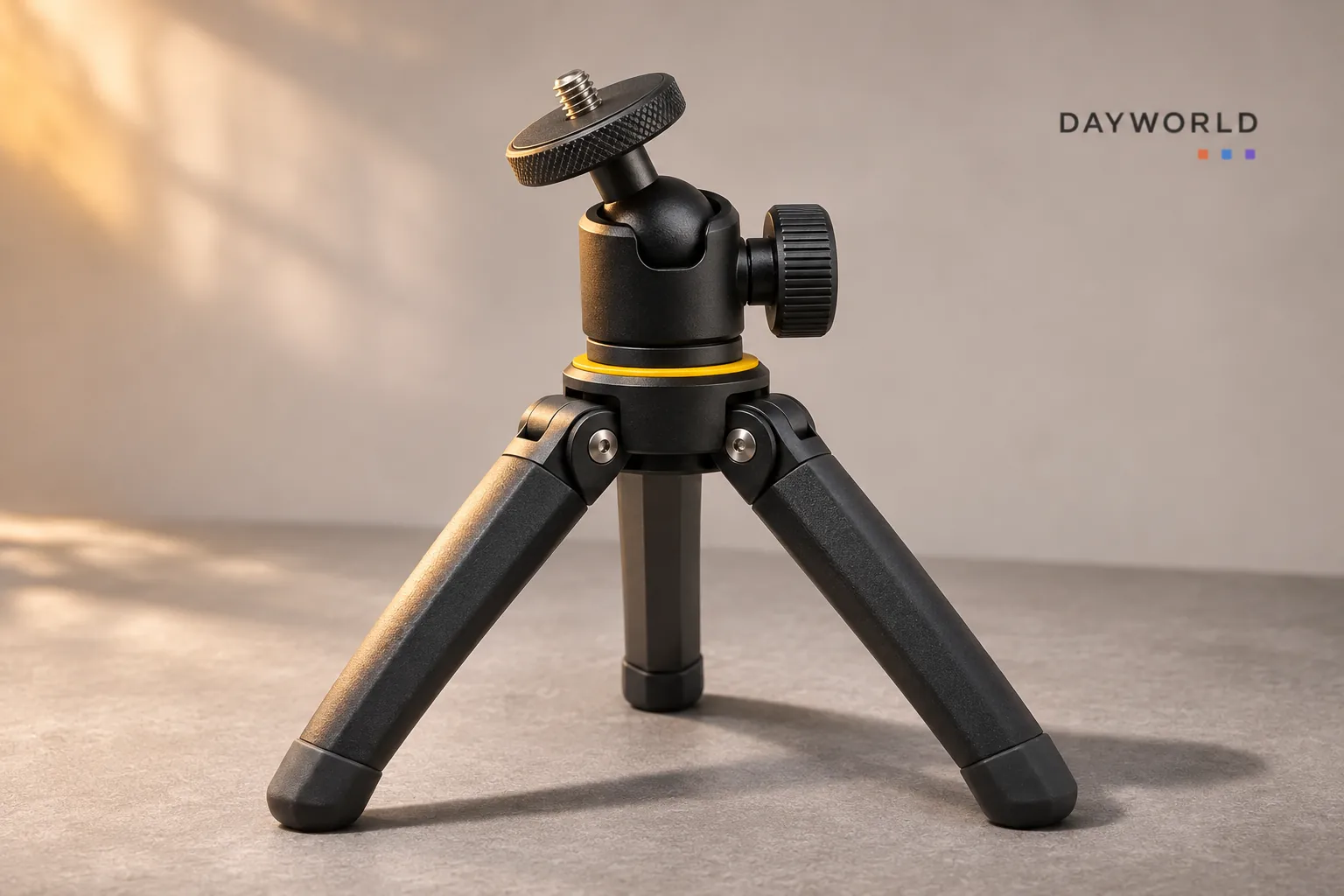
Spread the three legs for a stable tabletop camera position.
Visit shop · Sunarc PeripheralsThis collection features sample merchandise.
Check the camera's socket against the quarter-inch screw. Make sure the base sits flush and steady the camera while adjusting and securing the ball head.
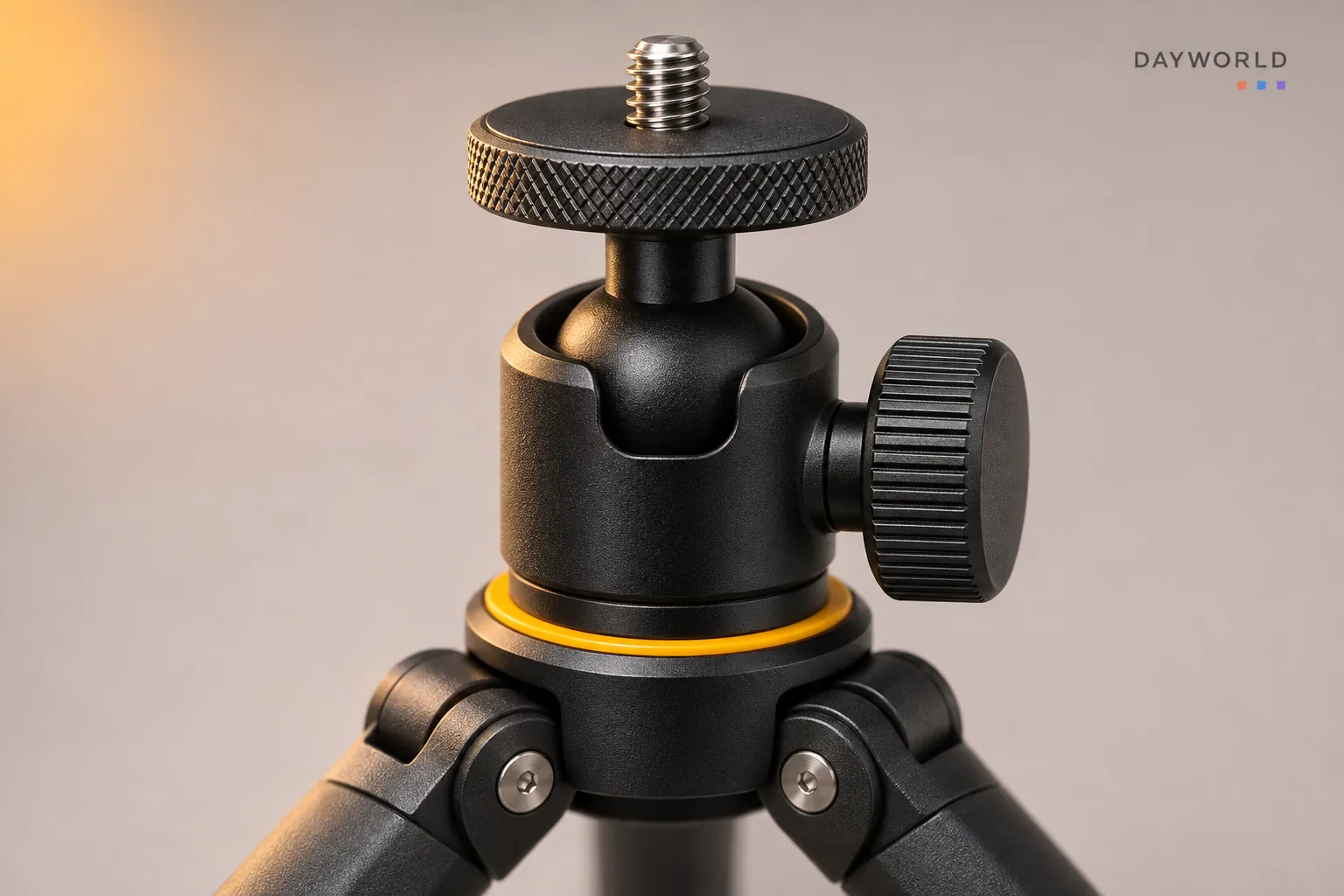
Spread all three legs on a firm surface, clear of the edge. Move the whole tripod for framing and use the head for finer adjustments.
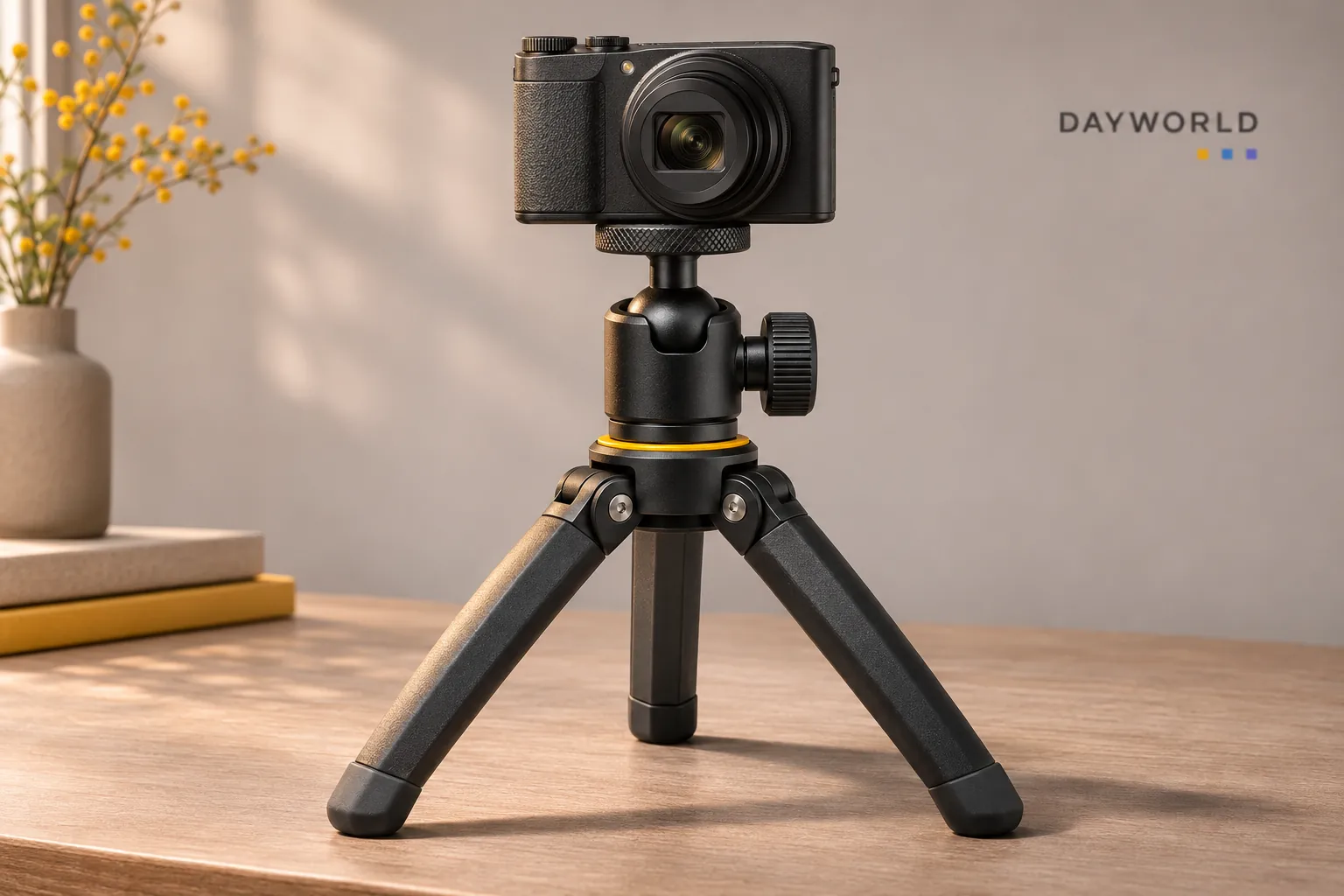
Watch the centre of gravity when tilting, particularly with a longer lens. Support the camera while removing it and pack the exposed screw away from glass.
Camera gear
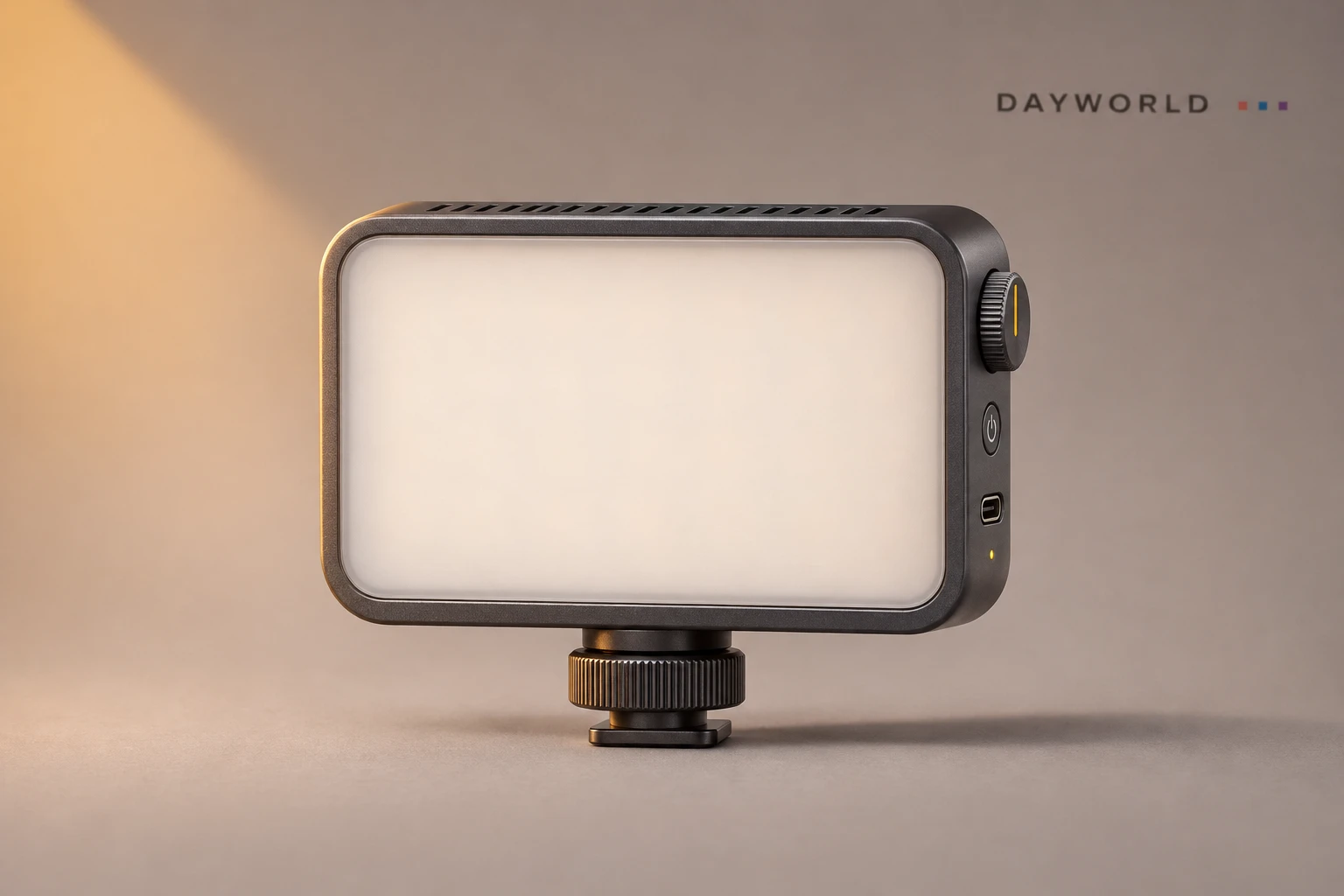
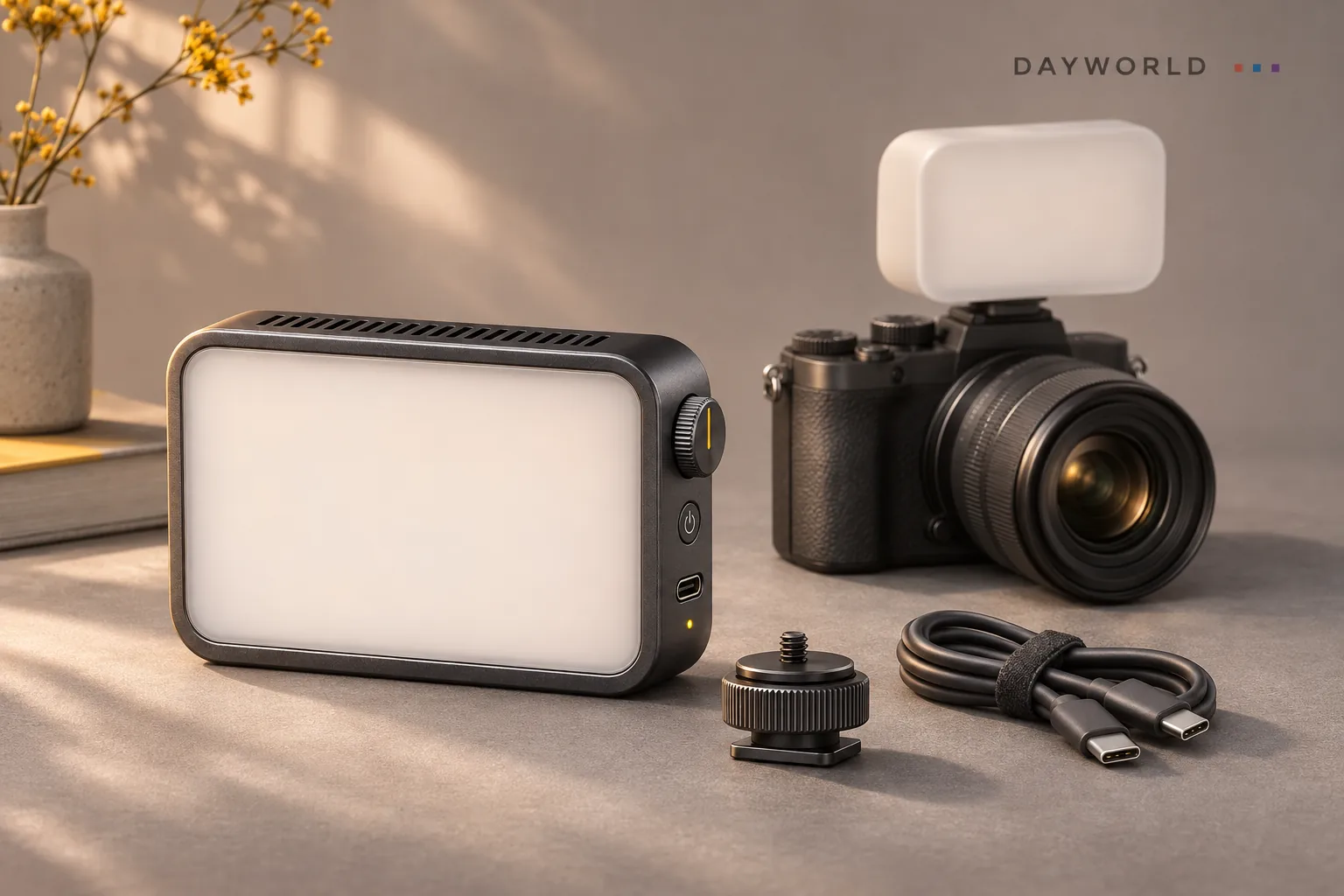
Add a patch of diffused light beside the camera for tabletop subjects.
Visit shop · Sunarc PeripheralsThis collection features sample merchandise.
Move the diffused face closer to or farther from the subject to change the shadow edge. Check cold-shoe fit and clearance around the camera controls.
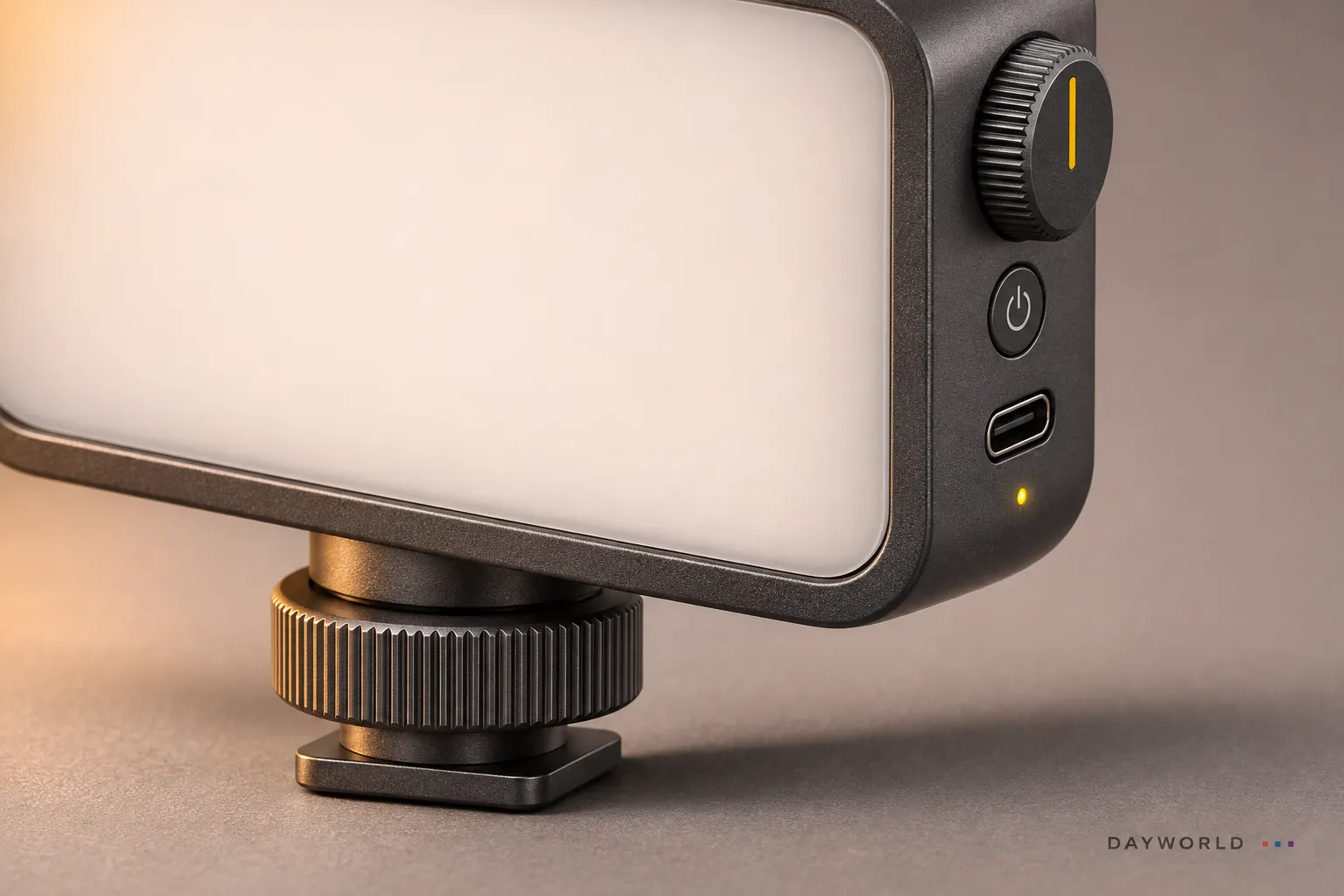
Start from one side to reveal texture. With polished metal, change the lamp or camera angle until highlights describe the edge without covering the detail.
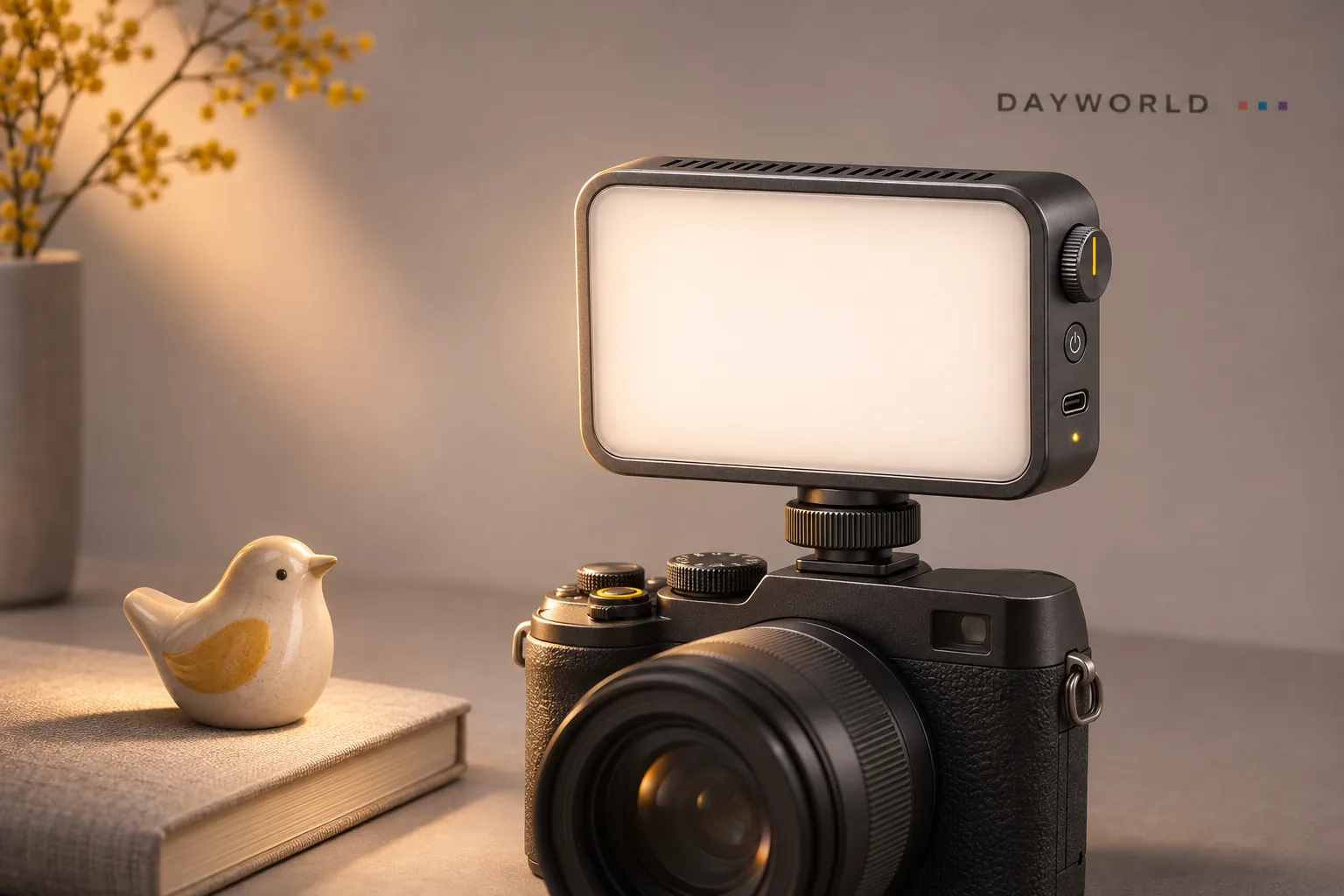
Remove the panel from its cold shoe before packing. Keep the diffuser against a clean divider and disconnect the USB-C lead after charging.
Camera gear
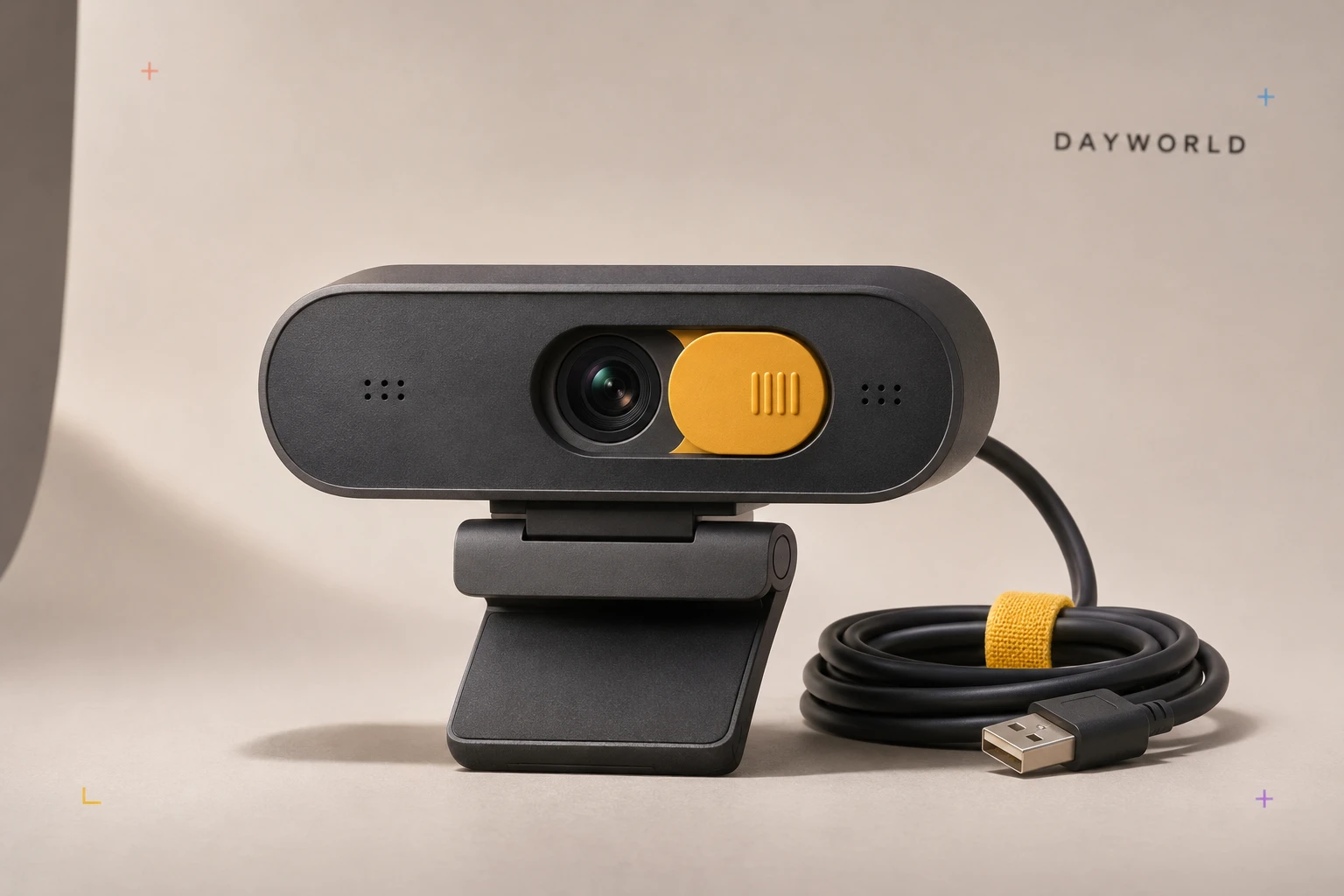
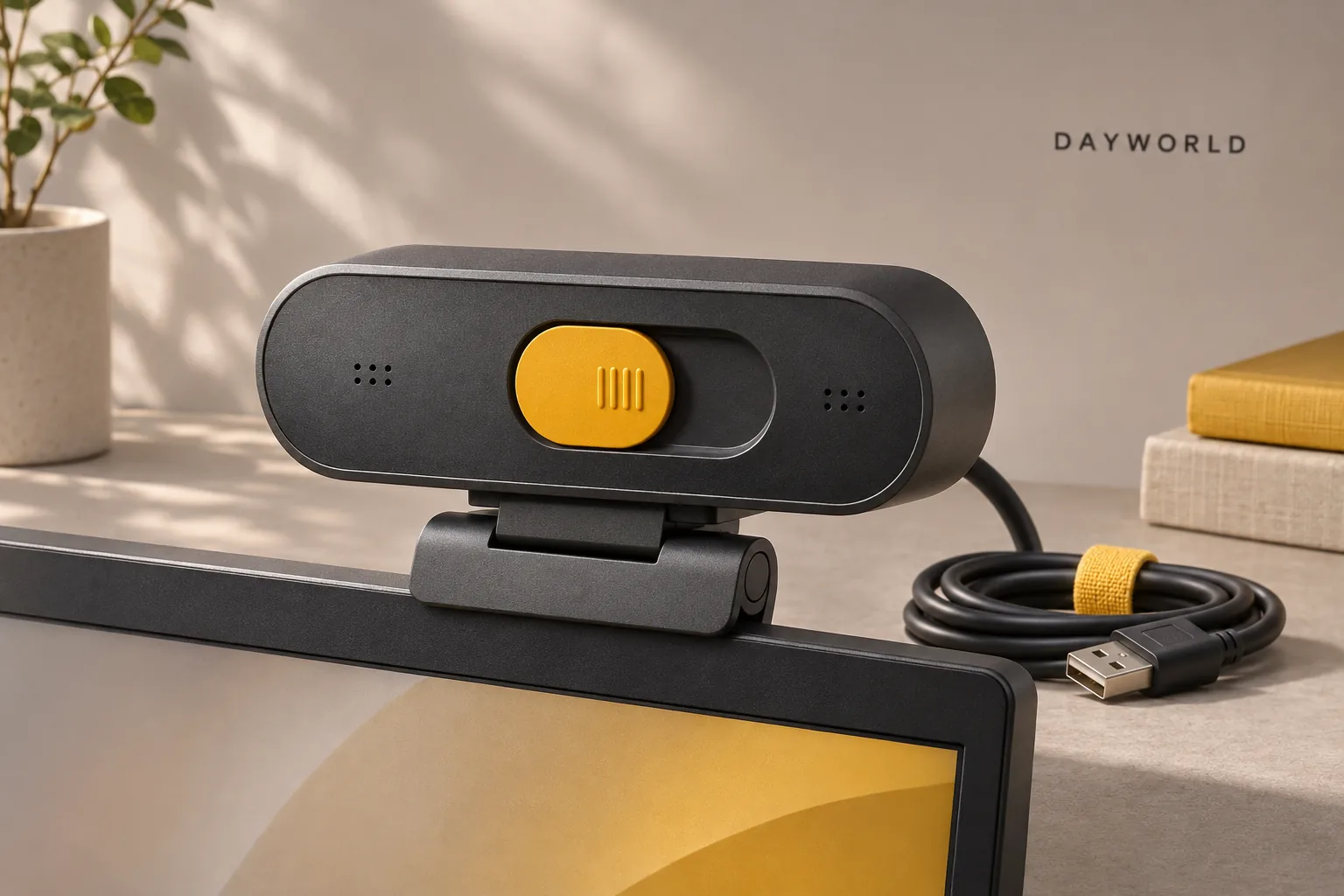
Mount it on a display and slide the lens cover shut after a call.
Visit shop · Sunarc PeripheralsThis collection features sample merchandise.
The physical slider covers the lens. Audio remains a separate software control. Preview framing before joining a call.
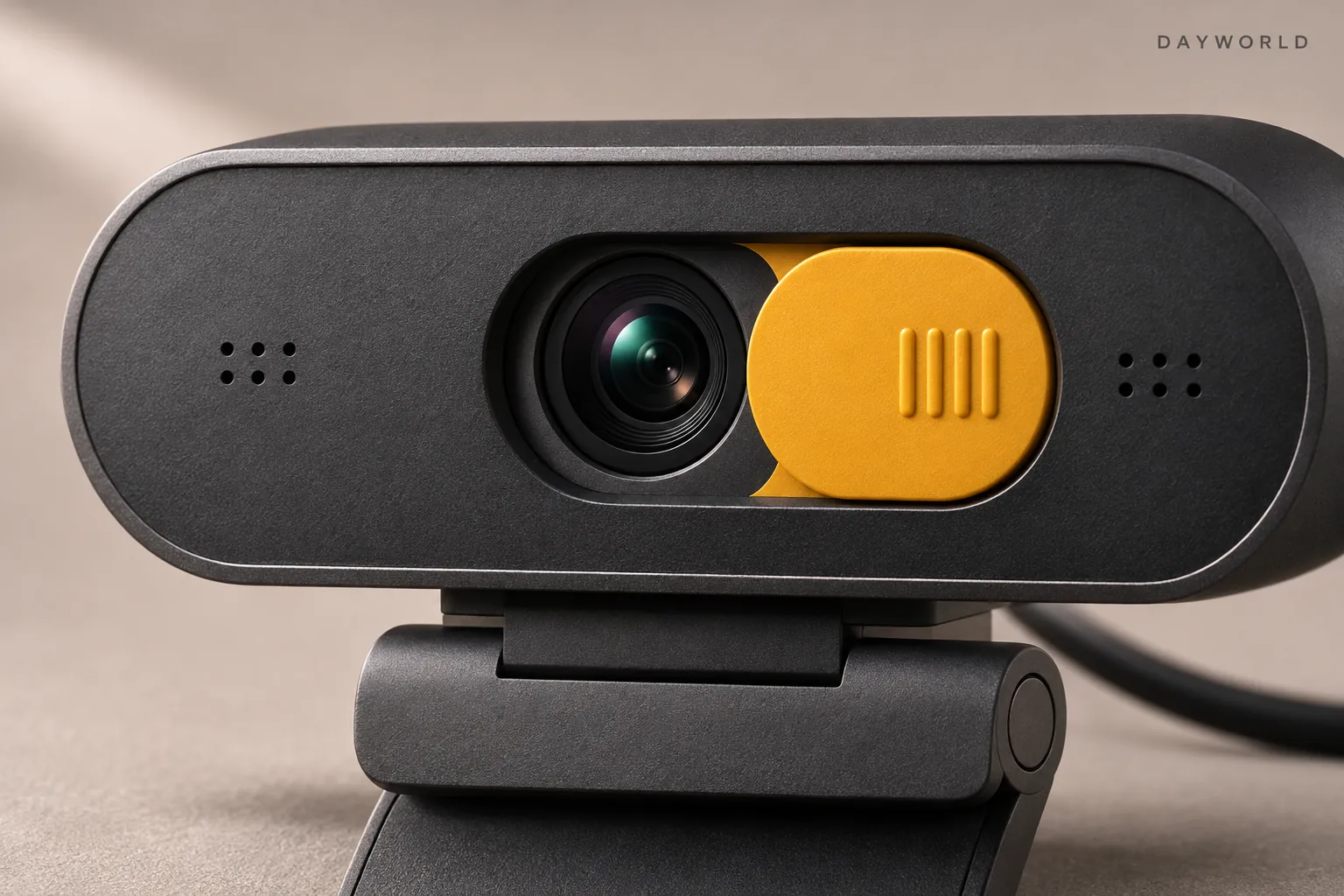
Check the rear clip contact and place the camera near the centre of the bezel. Select the USB camera in your meeting software.
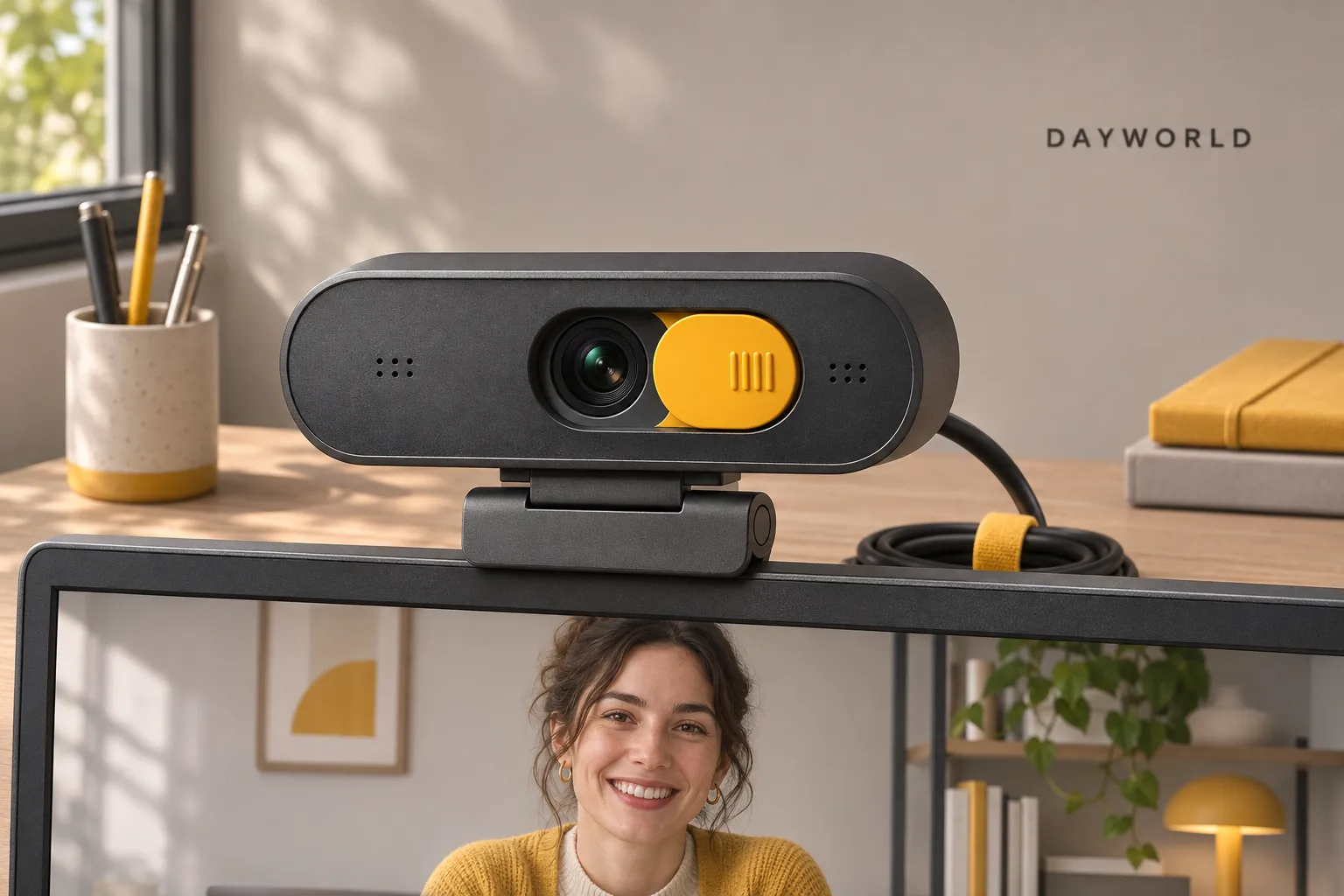
Leave the call, then close the slider while steadying the clip. Remove the webcam before moving the screen and pack it with the lens facing a clean surface.
Care & repair
Squeeze the bulb to lift loose dust from lenses or between keys.
Visit shop · Foldline ConnectThis collection features sample merchandise.
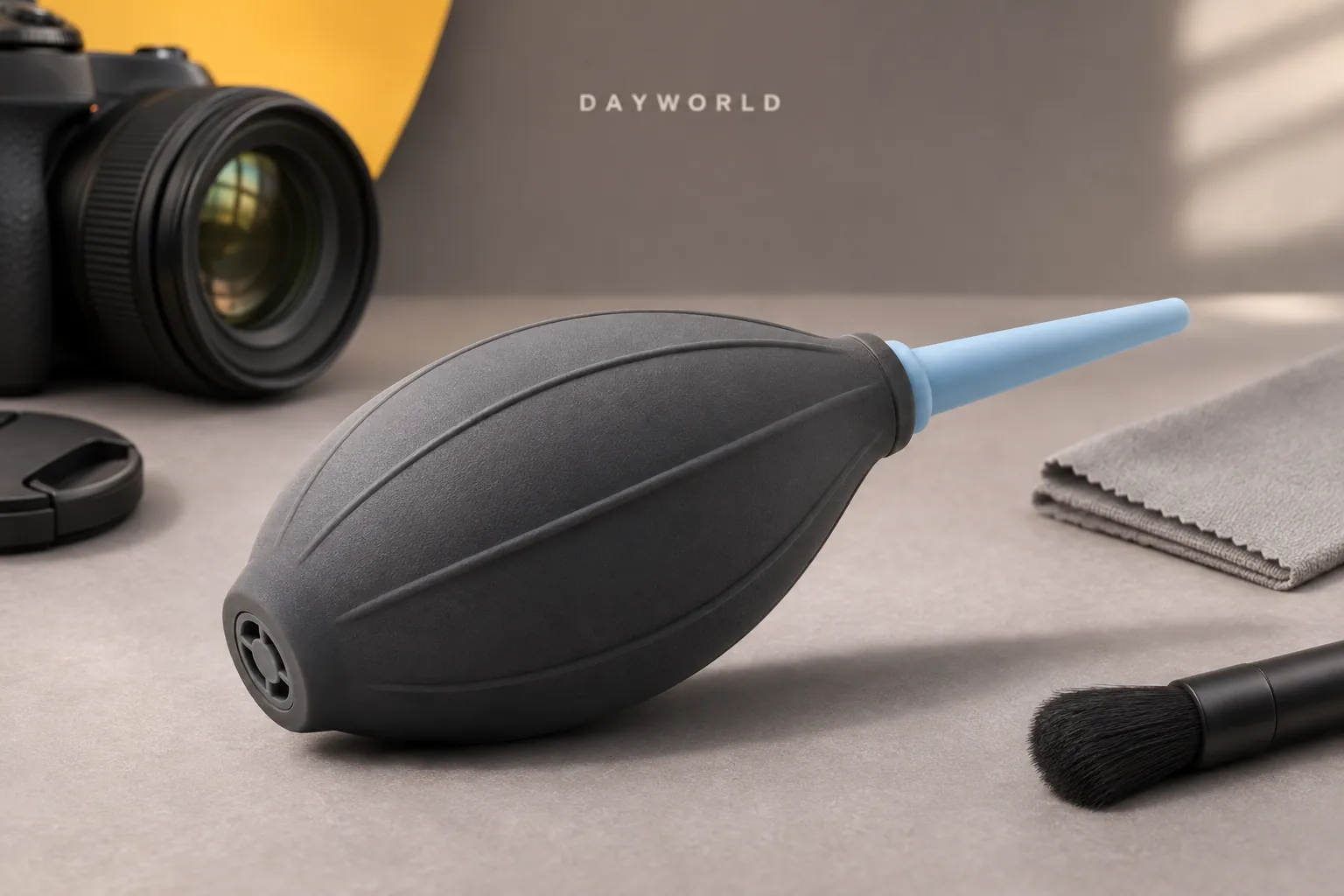
Squeeze the silicone bulb to move loose dust outward. Leave an air gap between the nozzle and delicate surfaces.
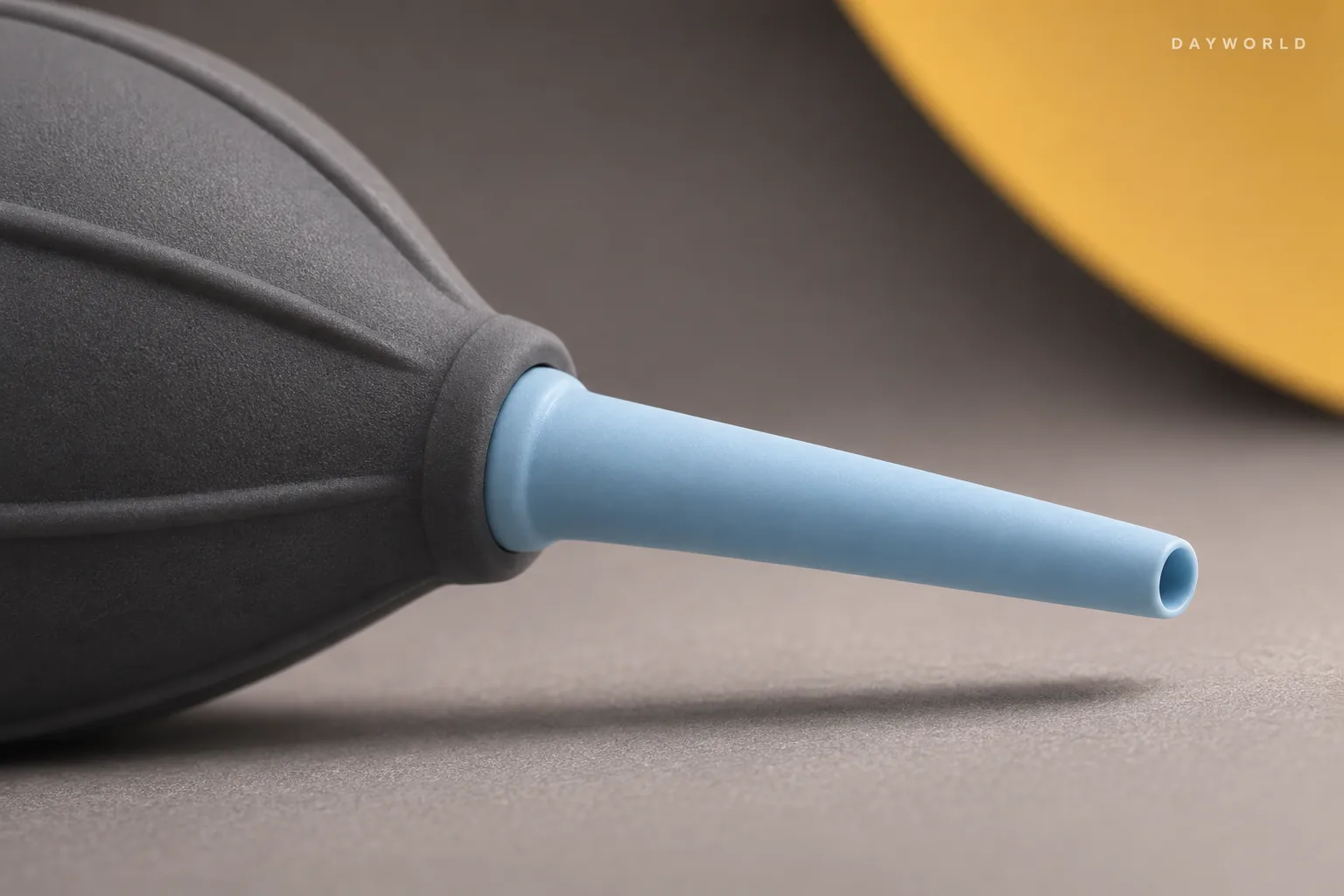
Disconnect the keyboard and tilt the dusty edge slightly so debris can escape. Use a different care method for stuck-on residues.
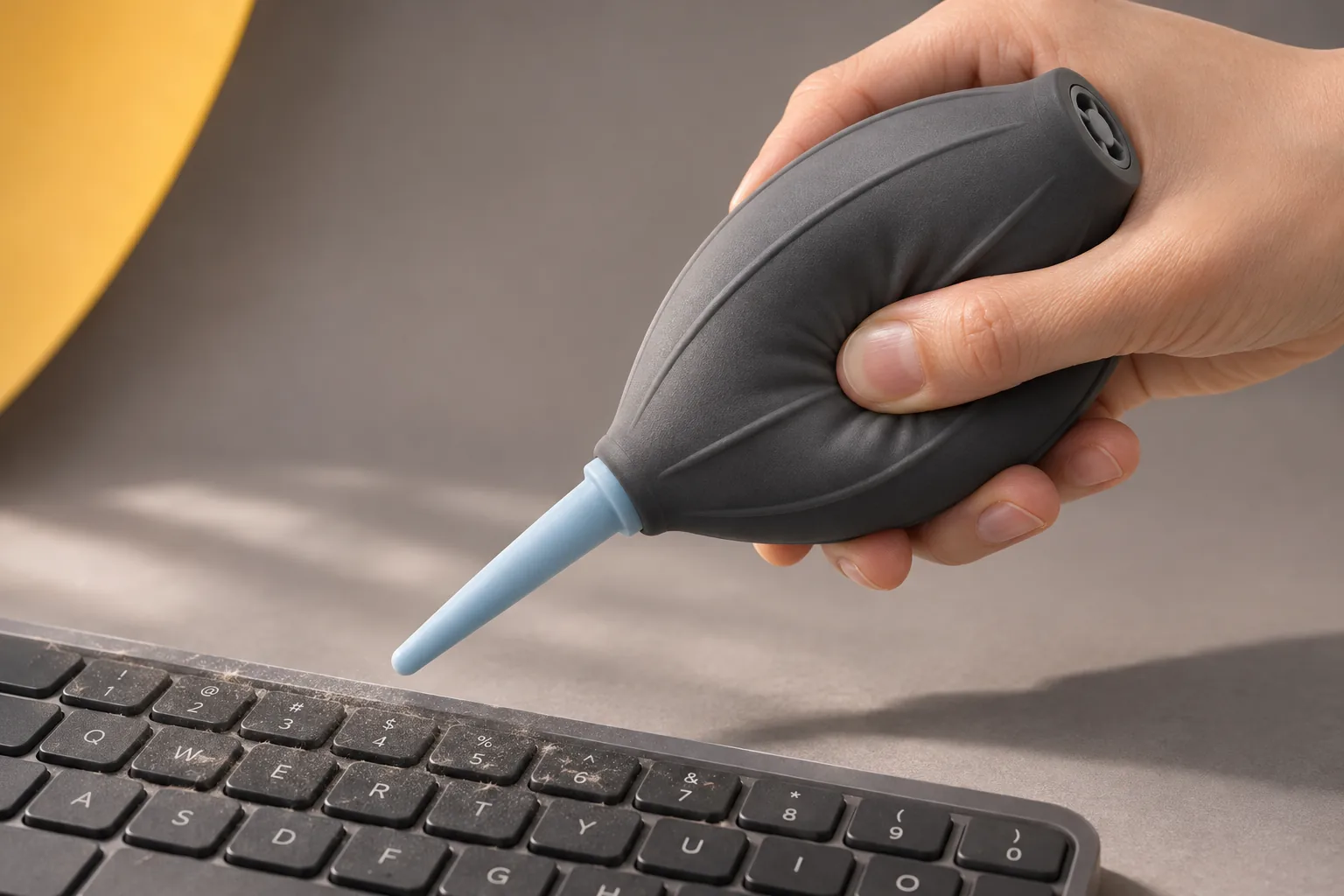
Inspect the nozzle before packing it away from grit and hard accessories. Test a few puffs into open air before approaching a lens.
Care & repair
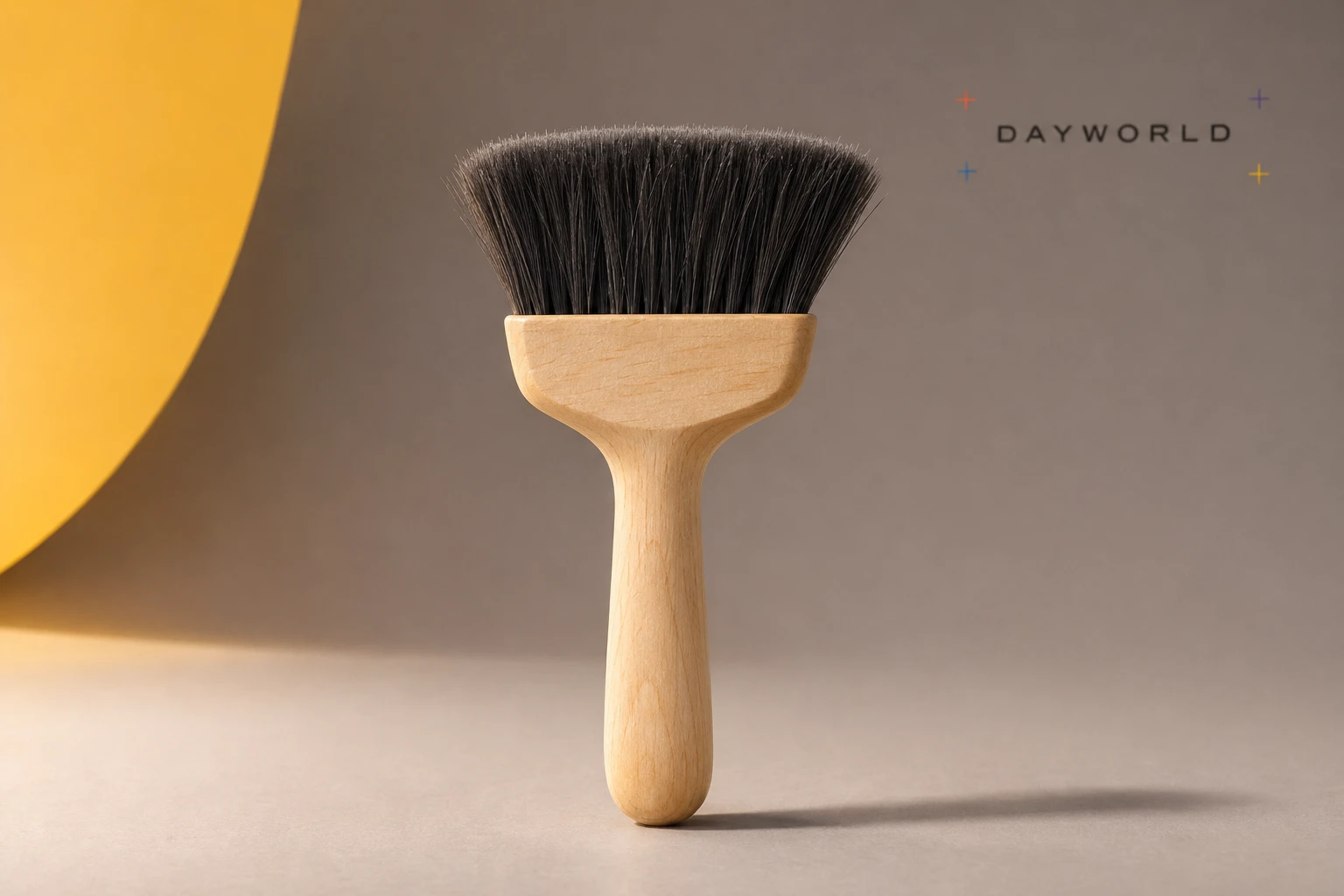
Sweep around keycaps and along device seams with the soft bristles.
Visit shop · Foldline ConnectThis collection features sample merchandise.
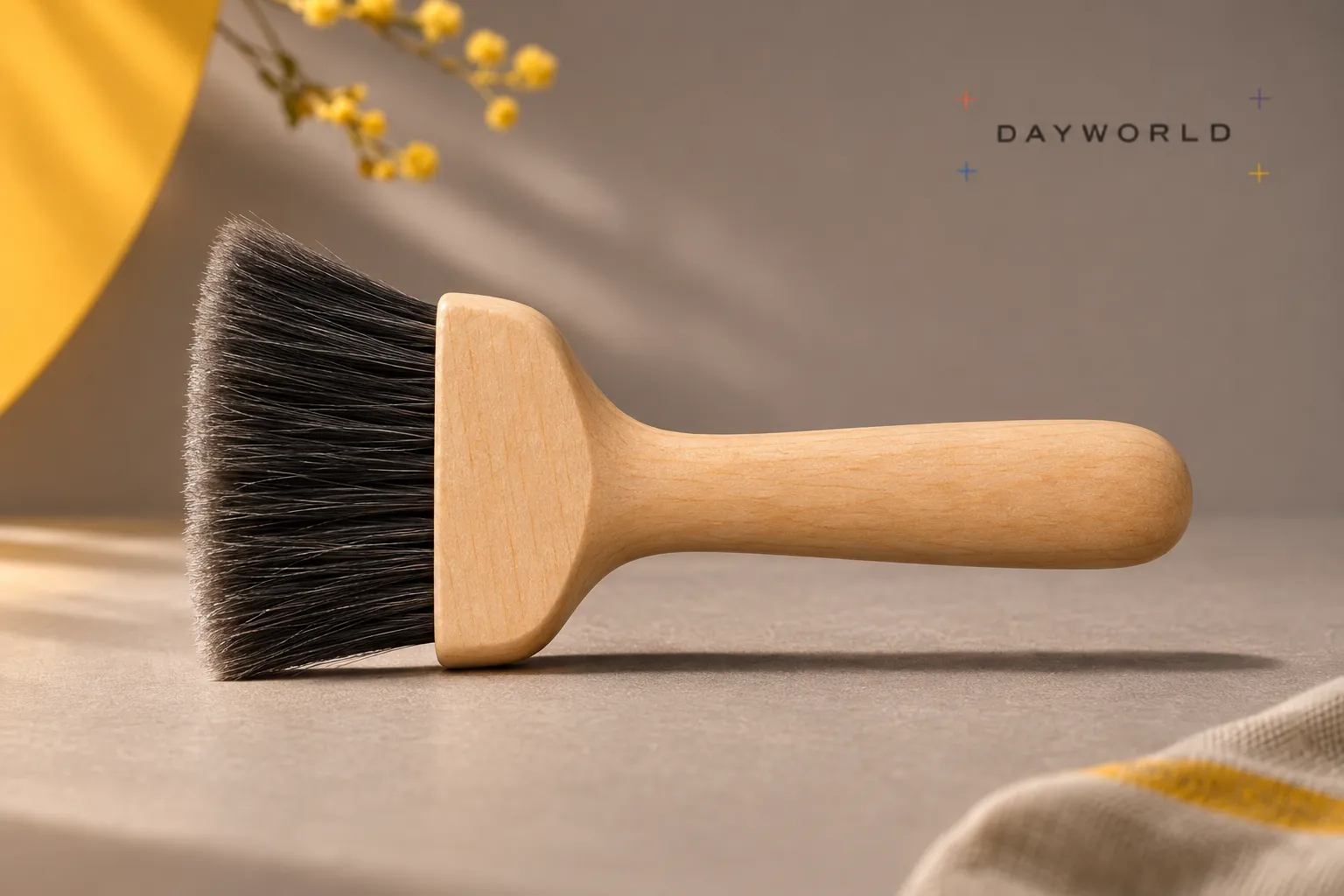
Use the broad face across keycaps or the edge between rows. Let just the soft tips flex rather than forcing the whole brush into a gap.
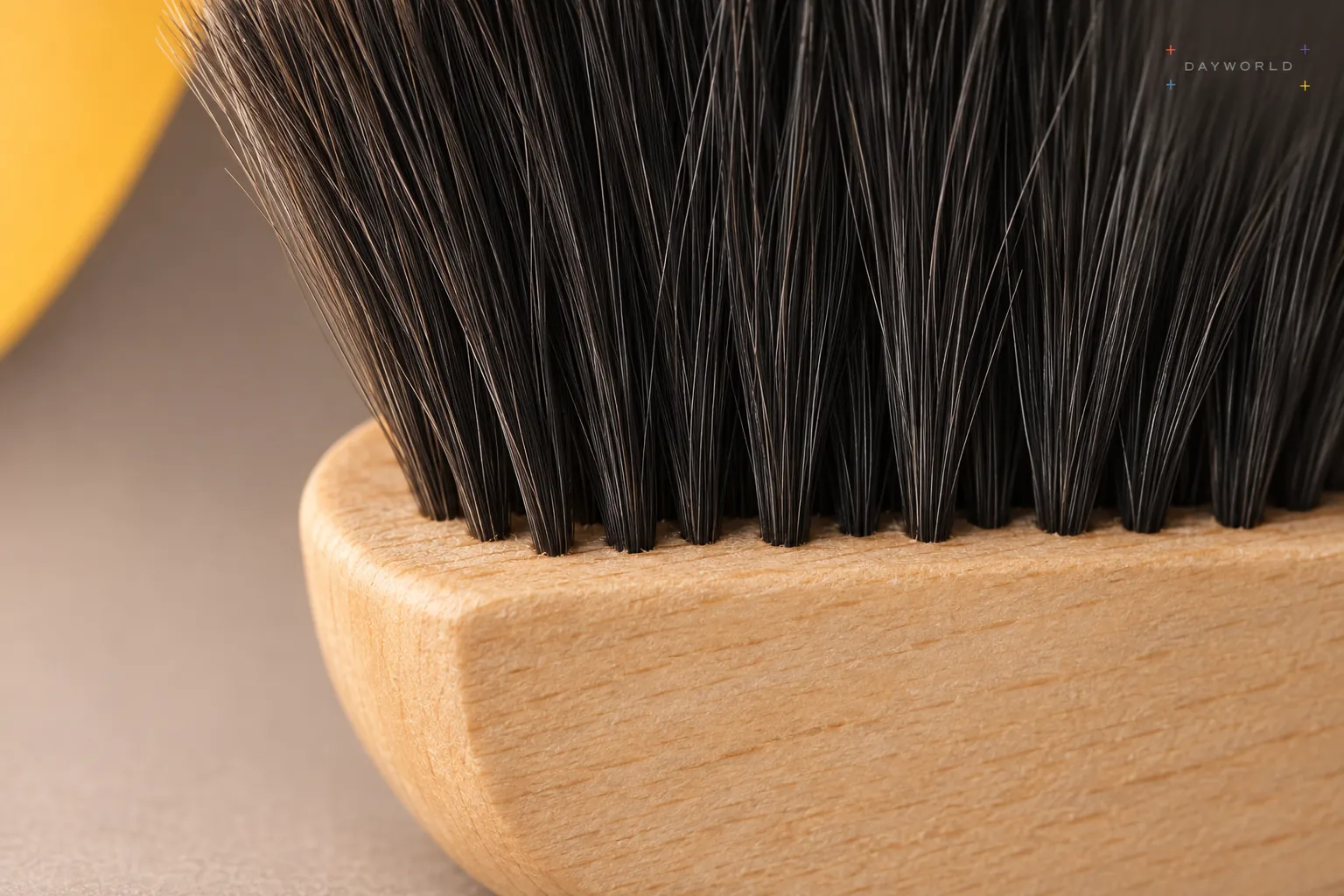
Start at the far side of the disconnected keyboard and work one row at a time. Follow the device care instructions for spills before brushing.
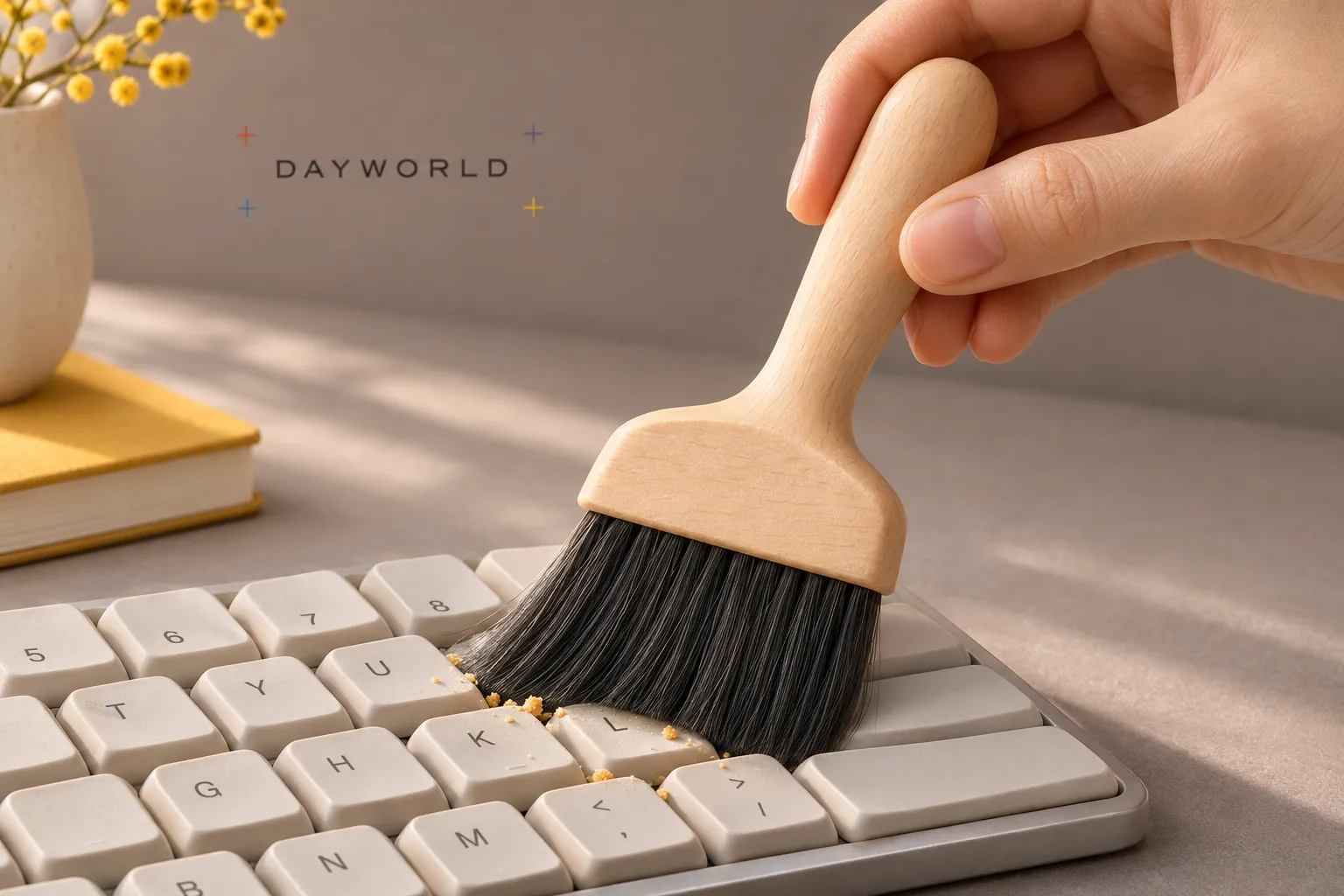
Shake out grit, inspect the tips and rest the brush without compressing them. Keep the wooden handle and bristle base out of standing water.
Care & repair
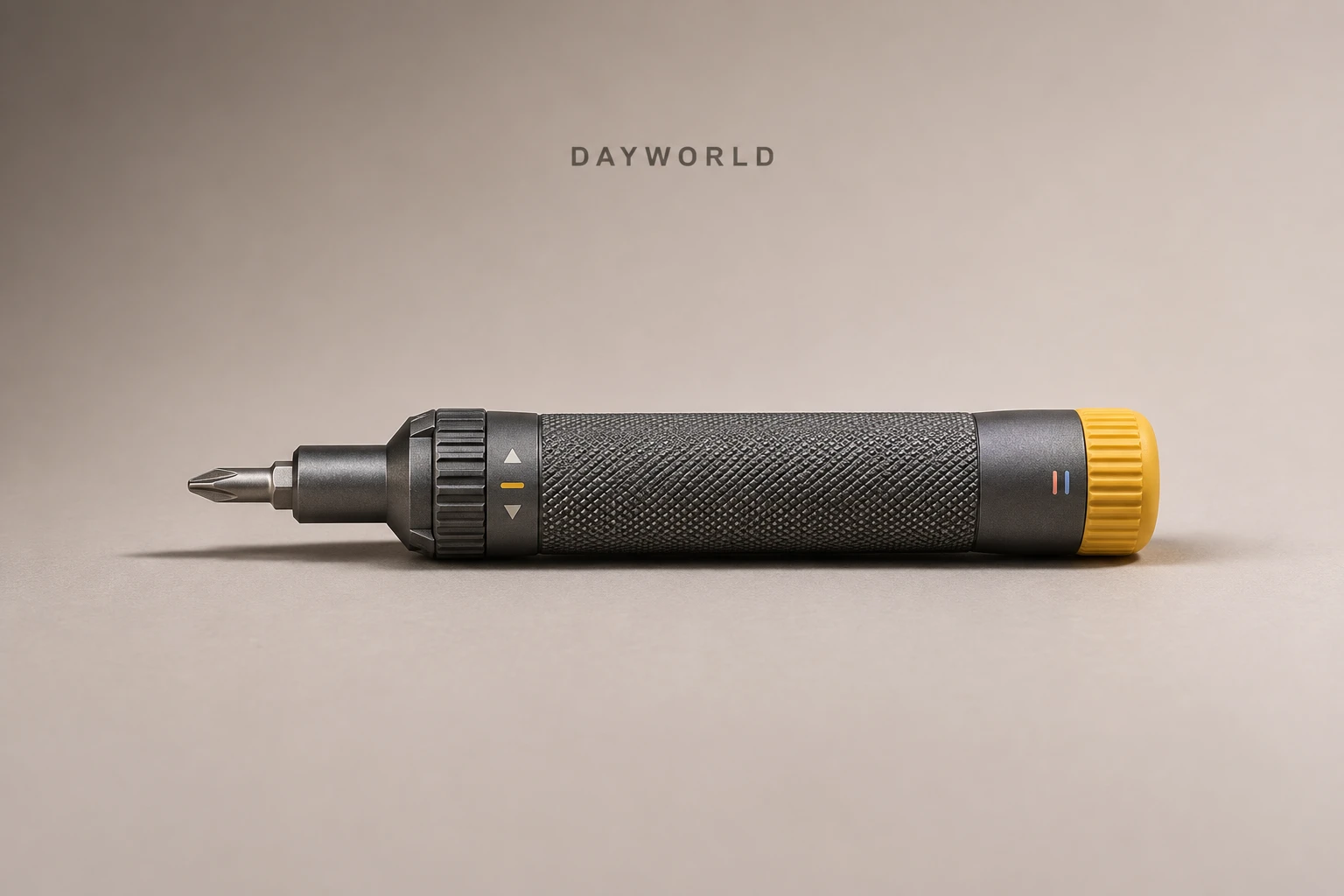
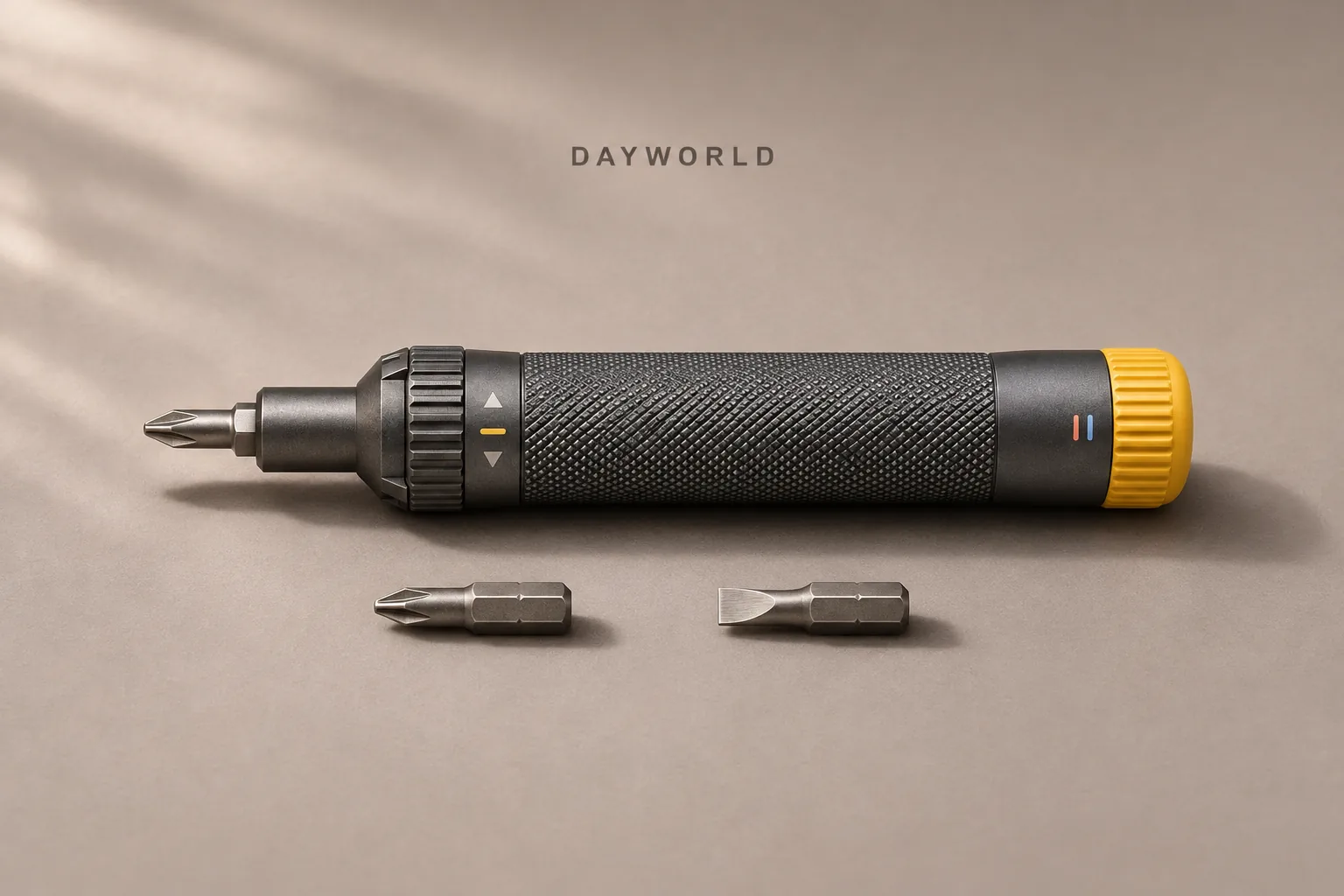
Turn the knurled handle with your fingertips and swap bits as needed.
Visit shop · Foldline ConnectThis collection features sample merchandise.
Match both the shape and size of the screw. Keep the bit on axis and make a small test turn before applying more force.
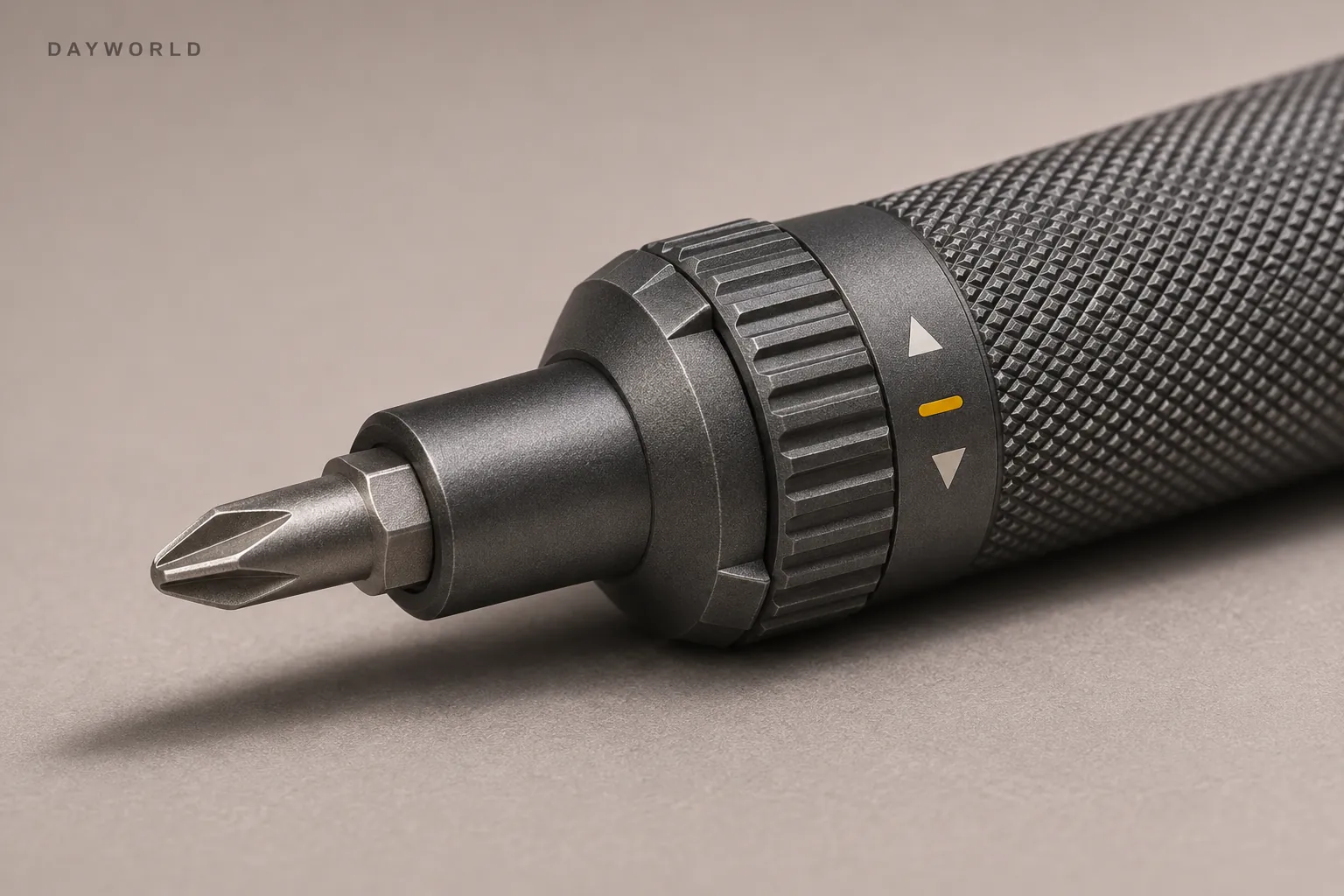
Disconnect the device and steady it on a mat. Use short ratchet strokes and stop to check fit and direction if the screw binds.
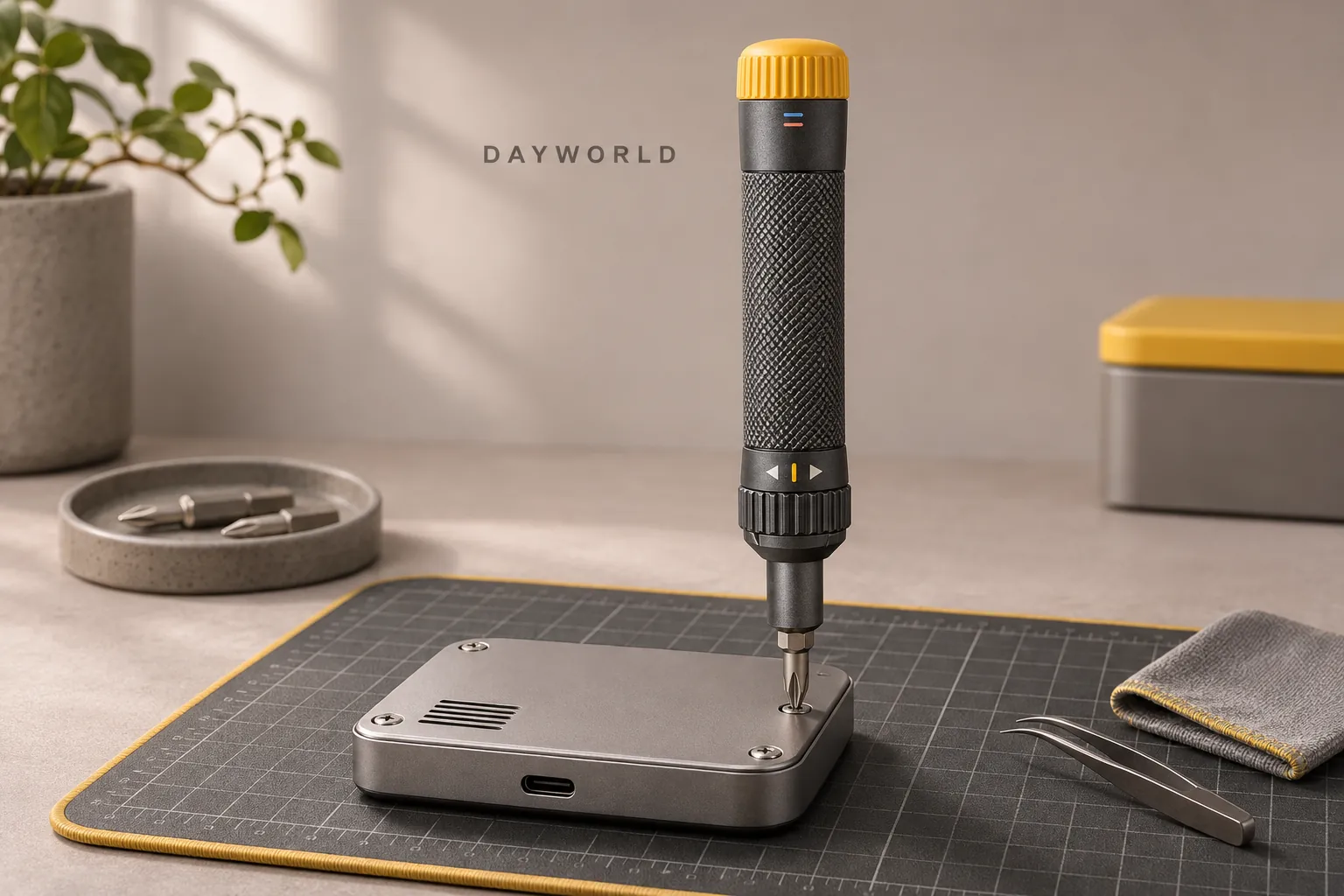
Change bits away from the device, then organise removed screws by location and length. Slow down near the end when refitting them.
Workspace comfort
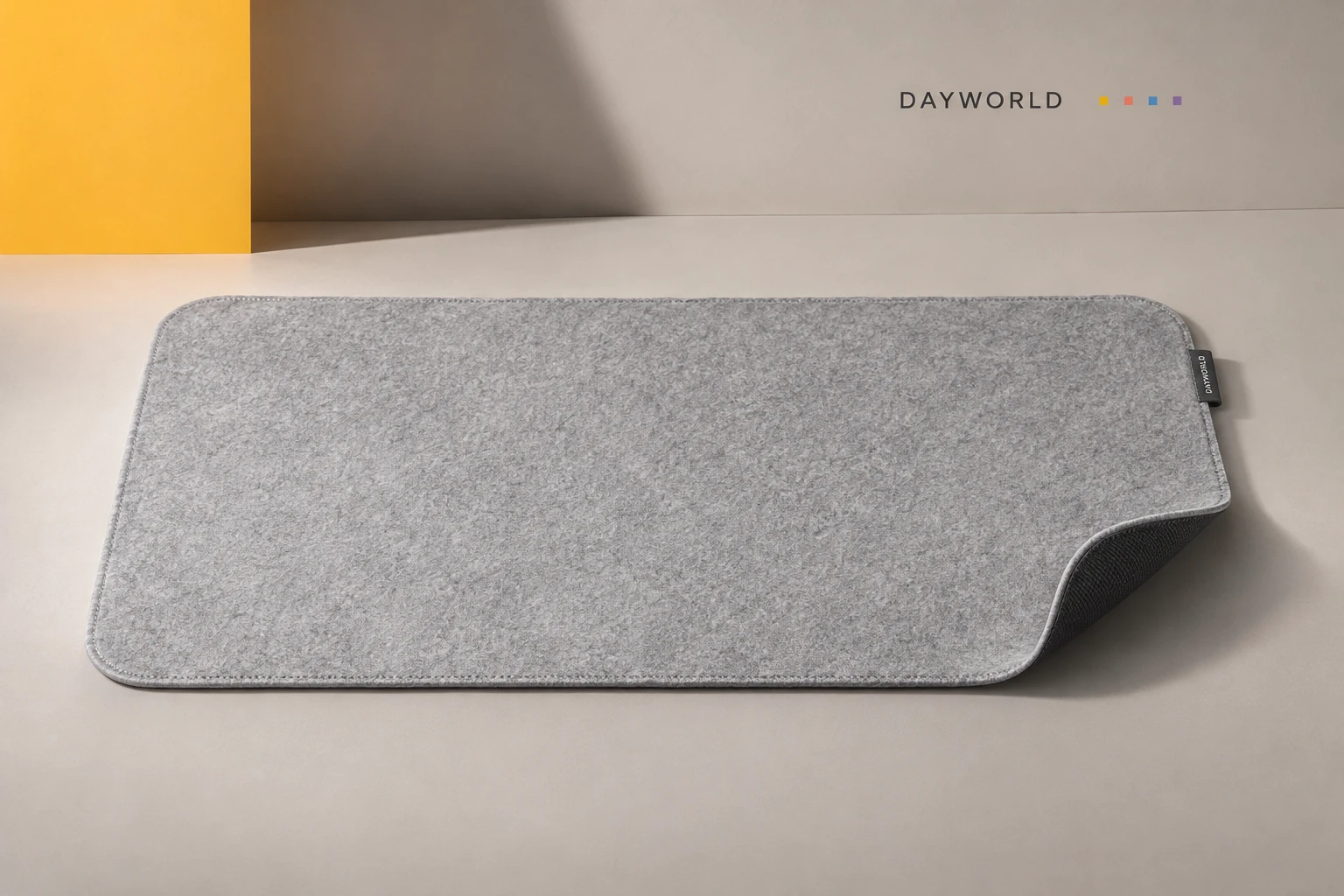
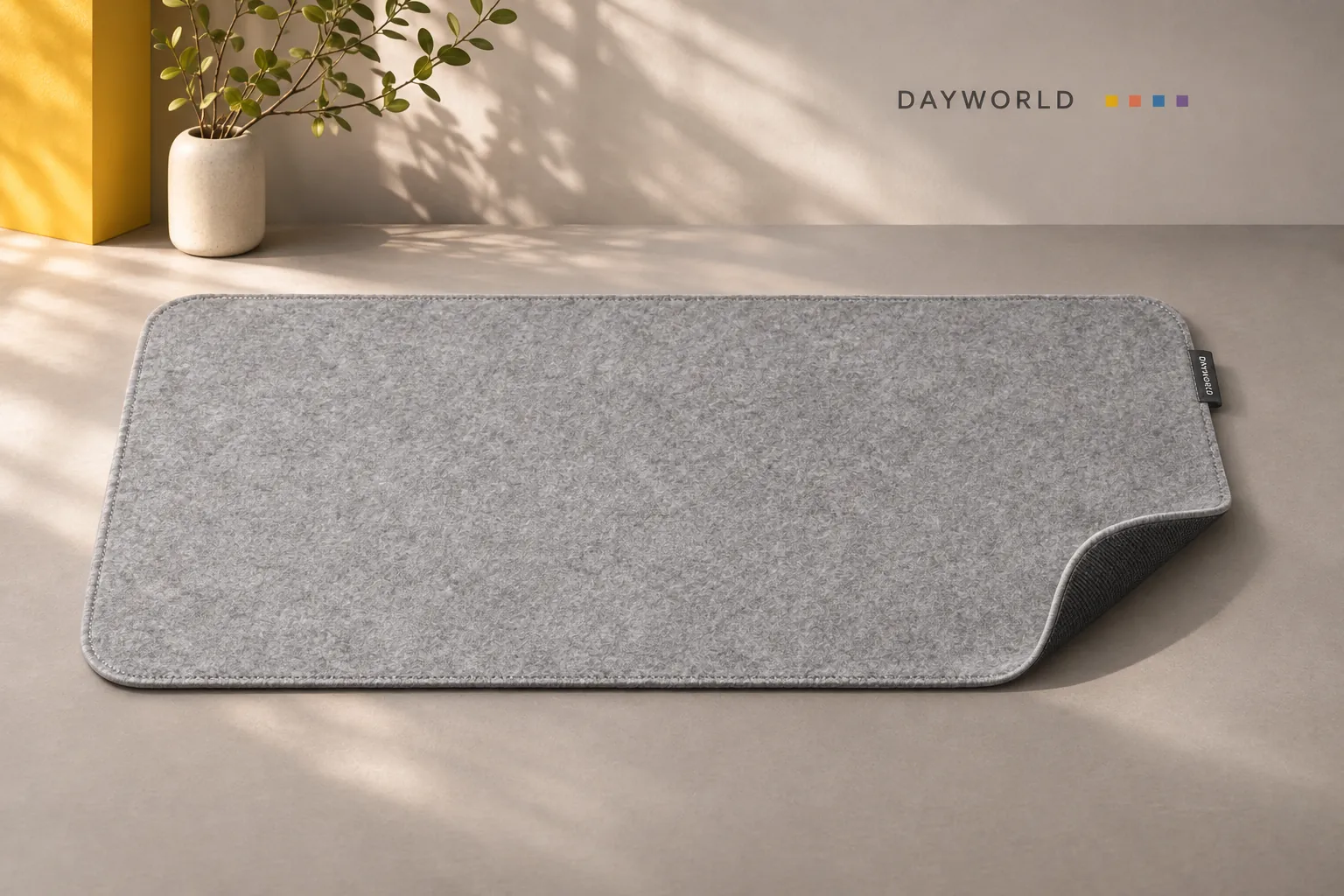
Give your keyboard and mouse a continuous felt work surface.
Visit shop · Paper RoomThis collection features sample merchandise.
Measure the usable desk depth, cable clearance and space occupied by lamps or cups before placing the rectangular mat.
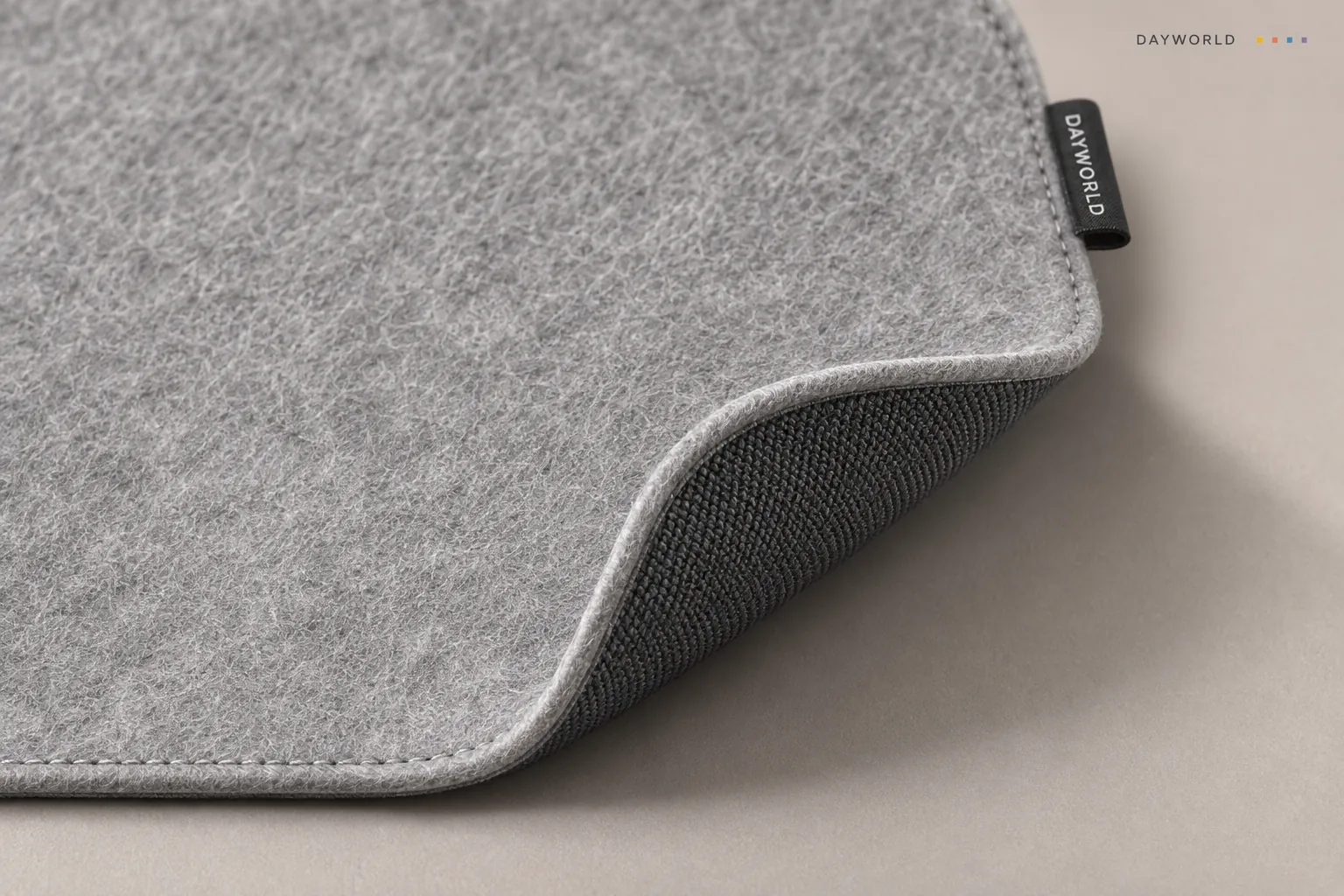
Centre the keyboard and move the mouse through a normal sweep before adding stationery. Adjust the layout to suit your usual movement.
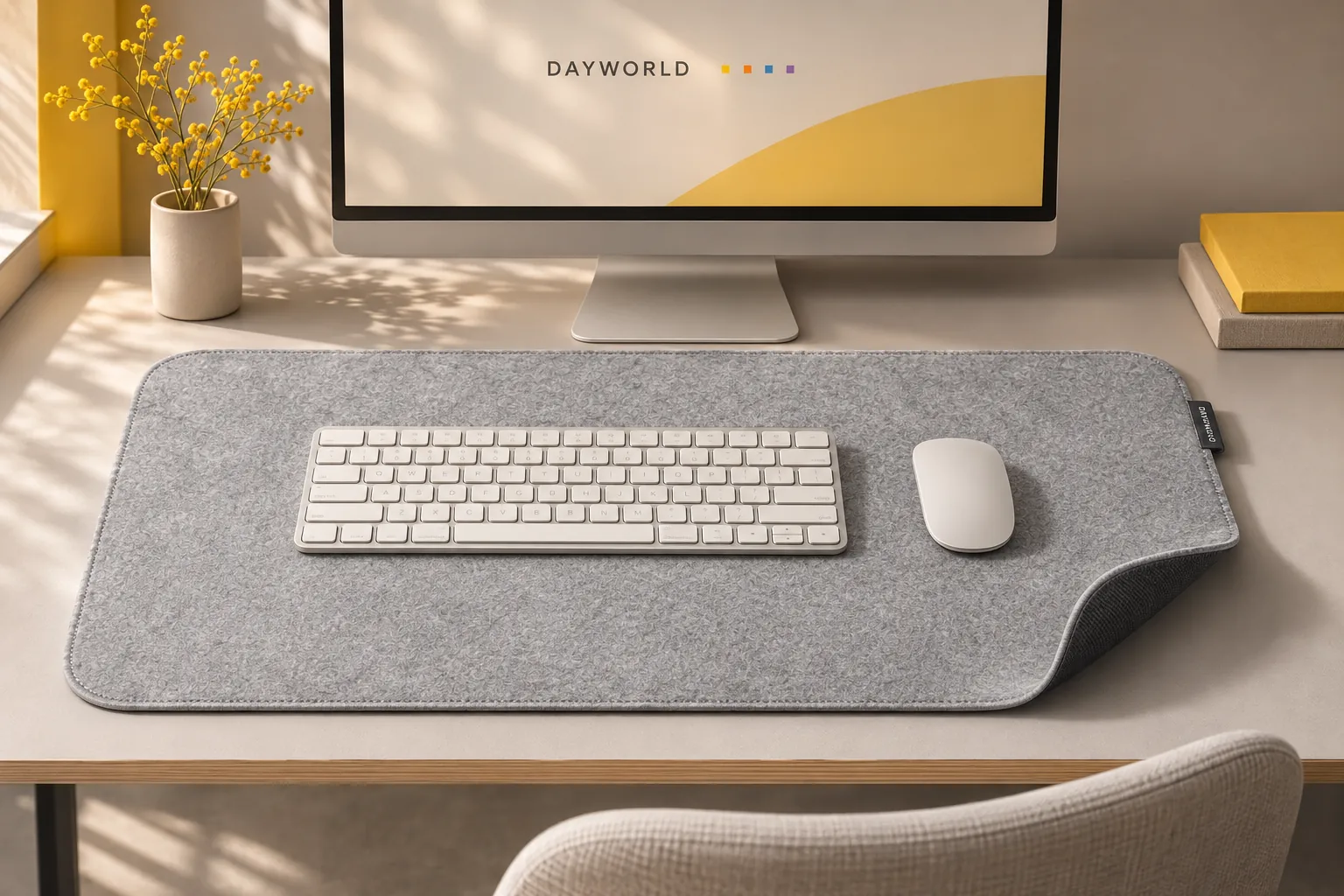
Wipe away grit, place the rubber side down and smooth the corners. Lift equipment before repositioning and sweep loose crumbs off the felt.
Workspace comfort
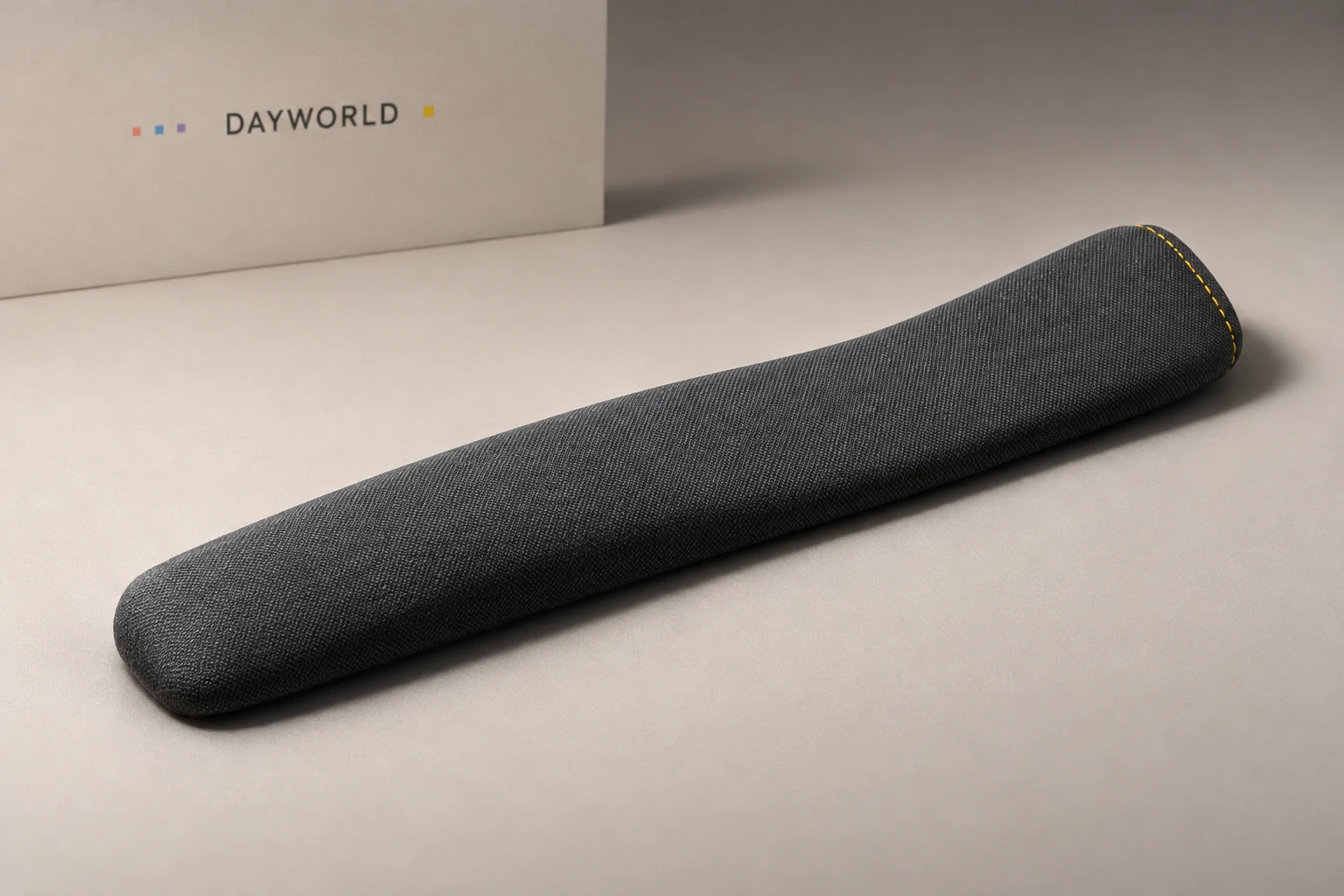
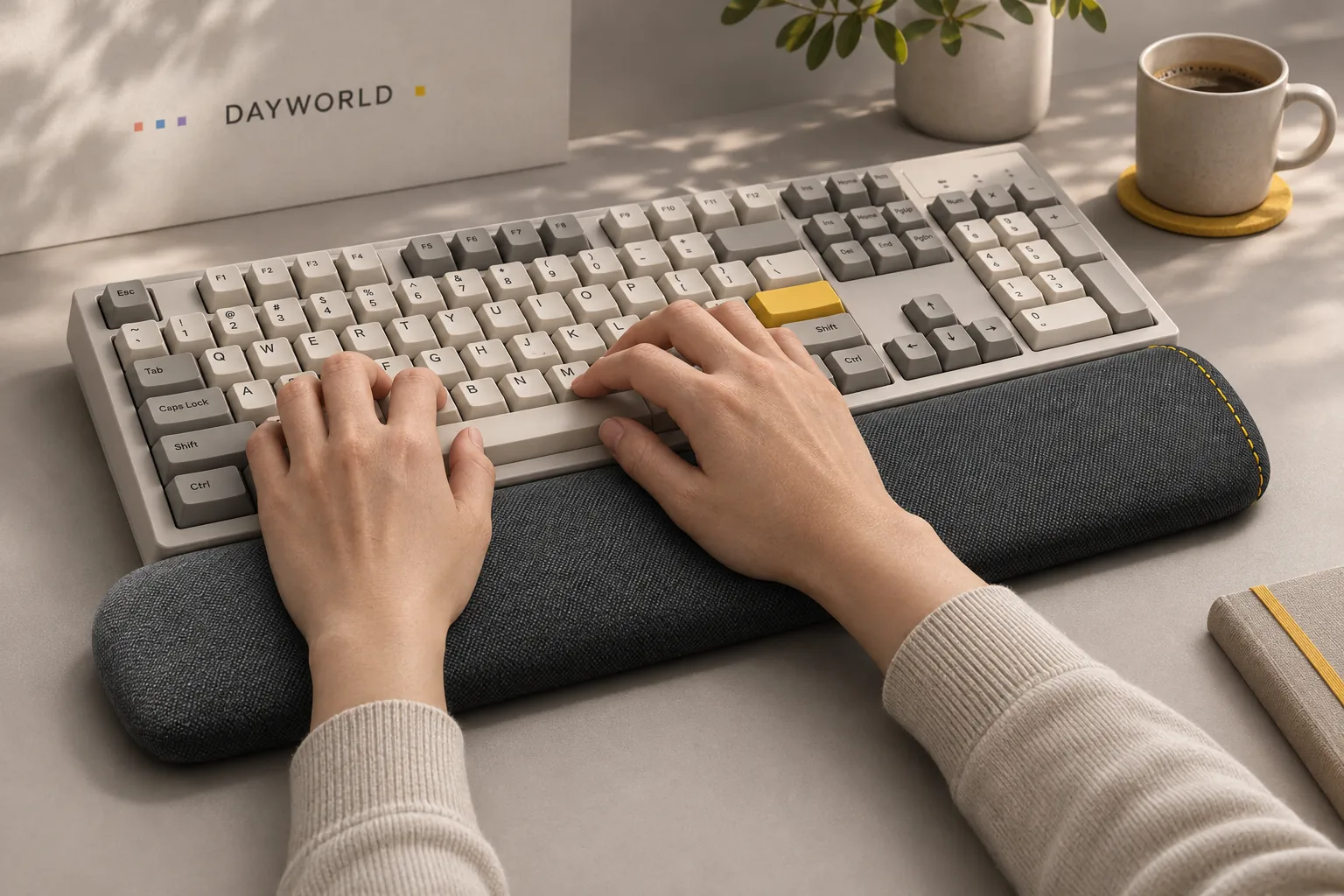
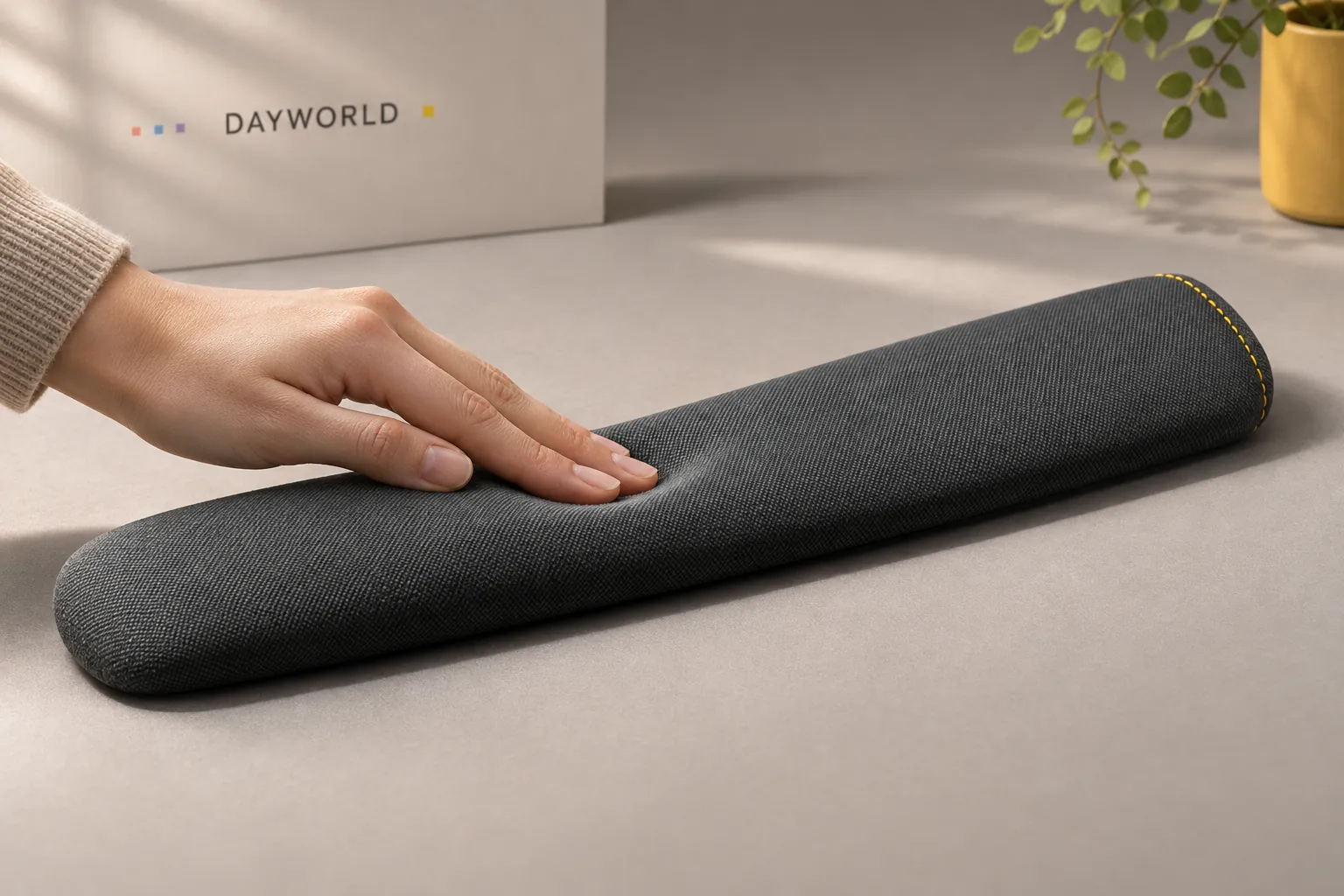
Set it along the front of the keyboard to support your wrists between tasks.
Visit shop · Paper RoomThis collection features sample merchandise.
Set the fabric-covered foam rest in front of the keyboard. Type a few lines and check where the heels of your hands fall during a pause.
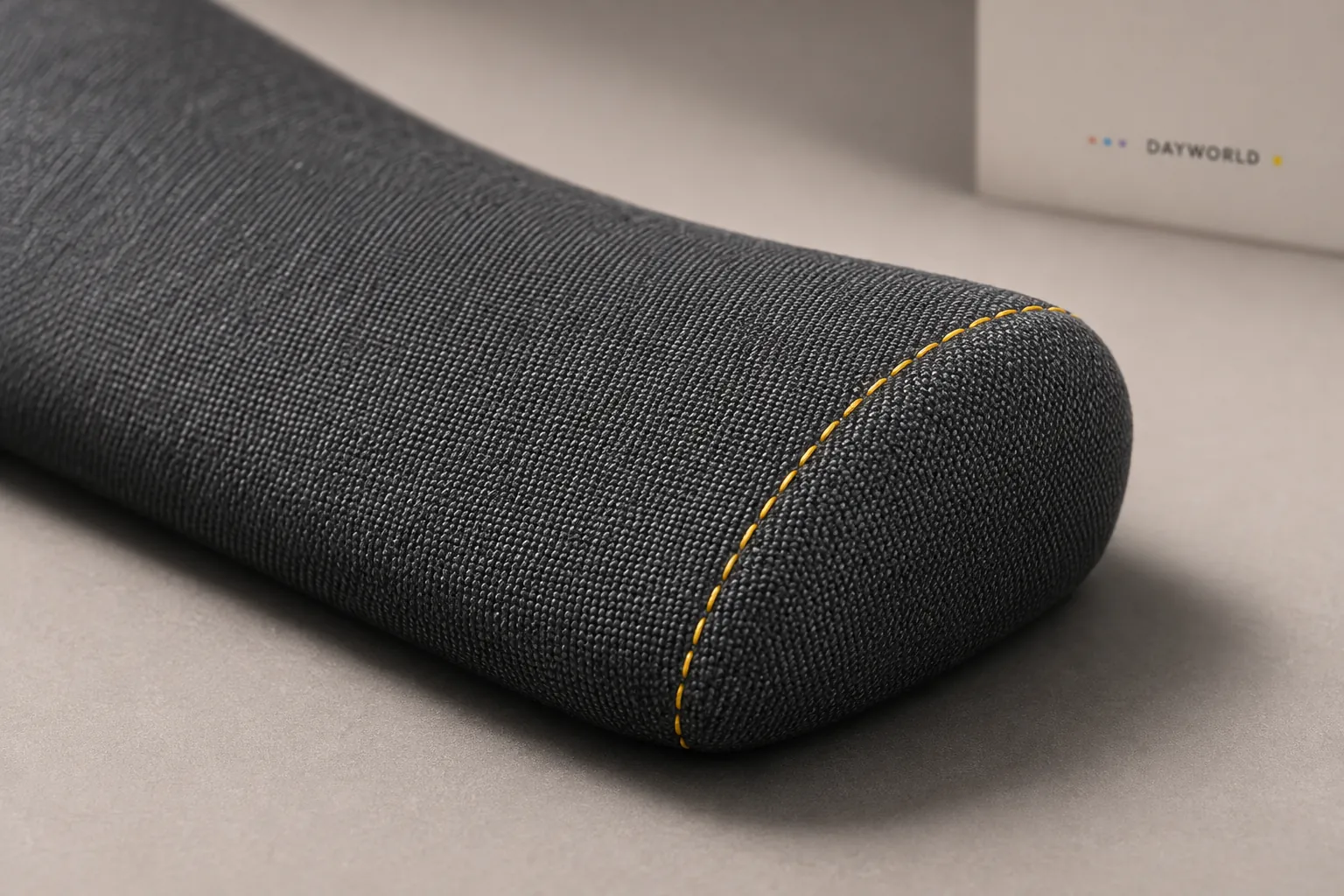
Align the rest to the keys you actually use. Allow your hands to move freely while typing and rest them lightly during pauses.
Keep the entire non-slip base level. Brush off crumbs and let the fabric dry fully after spot cleaning. Avoid prolonged pressure on one point when stored.
Workspace comfort
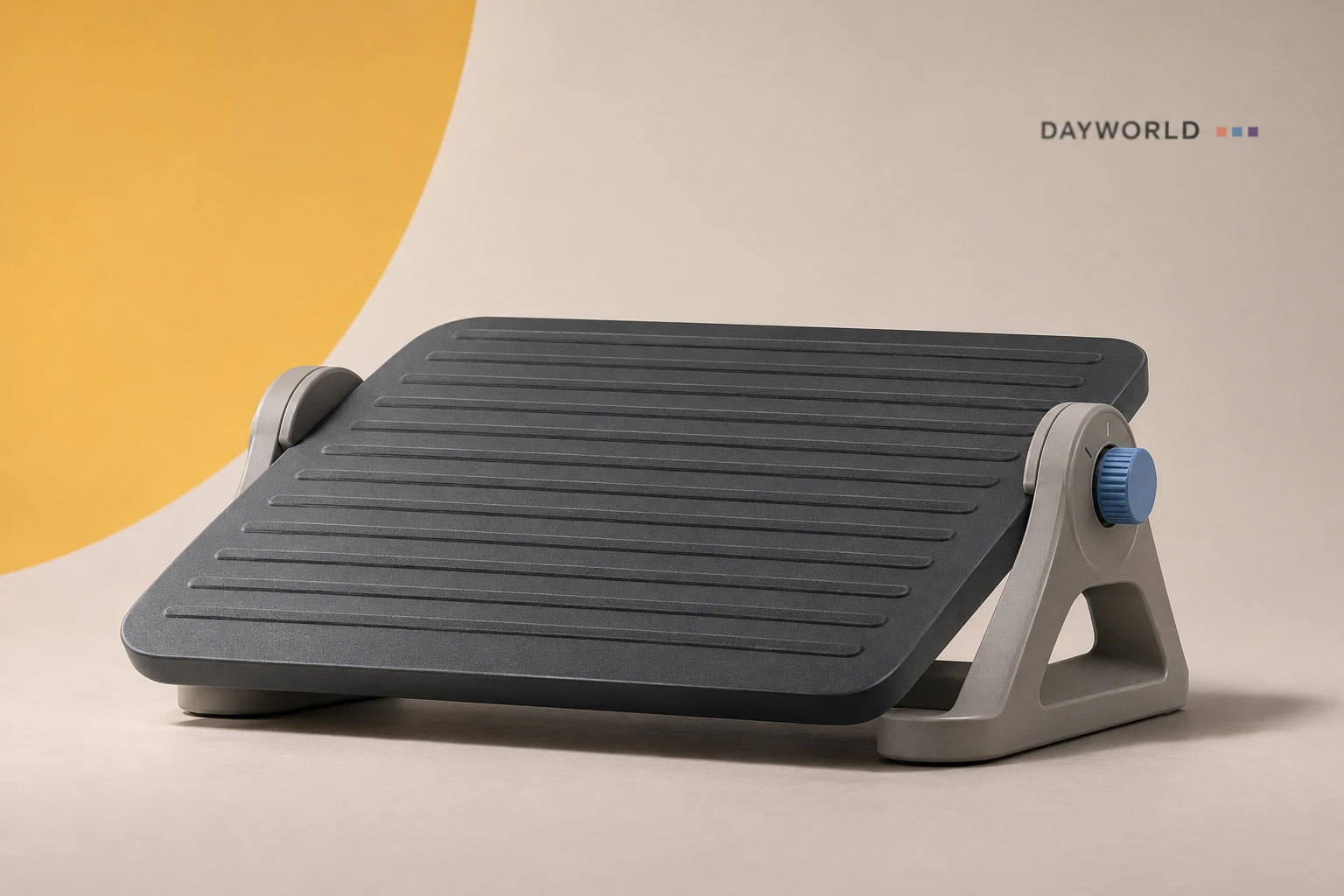
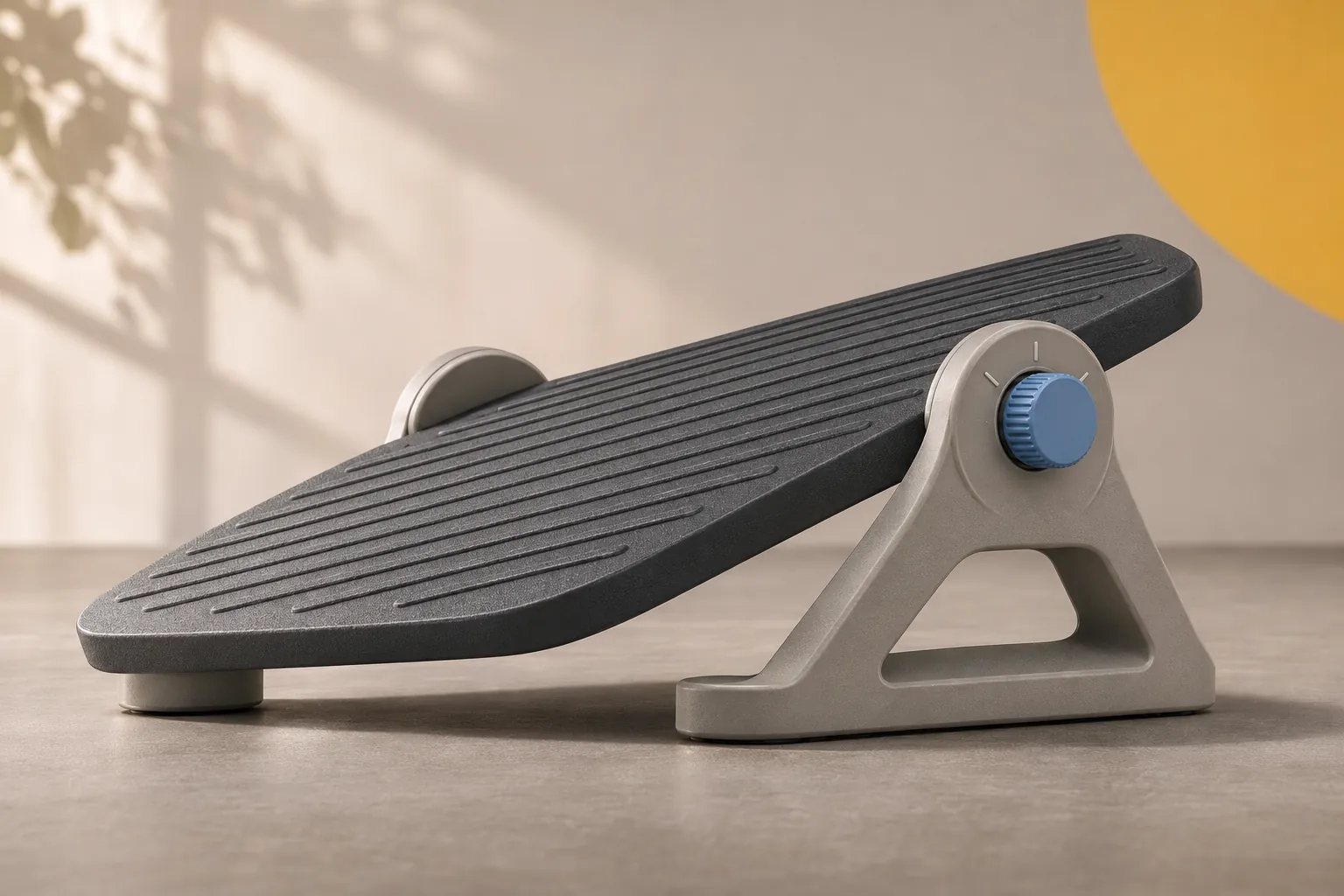
Set the platform under the desk and adjust it to a comfortable angle.
Visit shop · Paper RoomThis collection features sample merchandise.
Adjust your chair first, then position both feet on the textured platform. Check knee clearance and the path of any chair wheels.
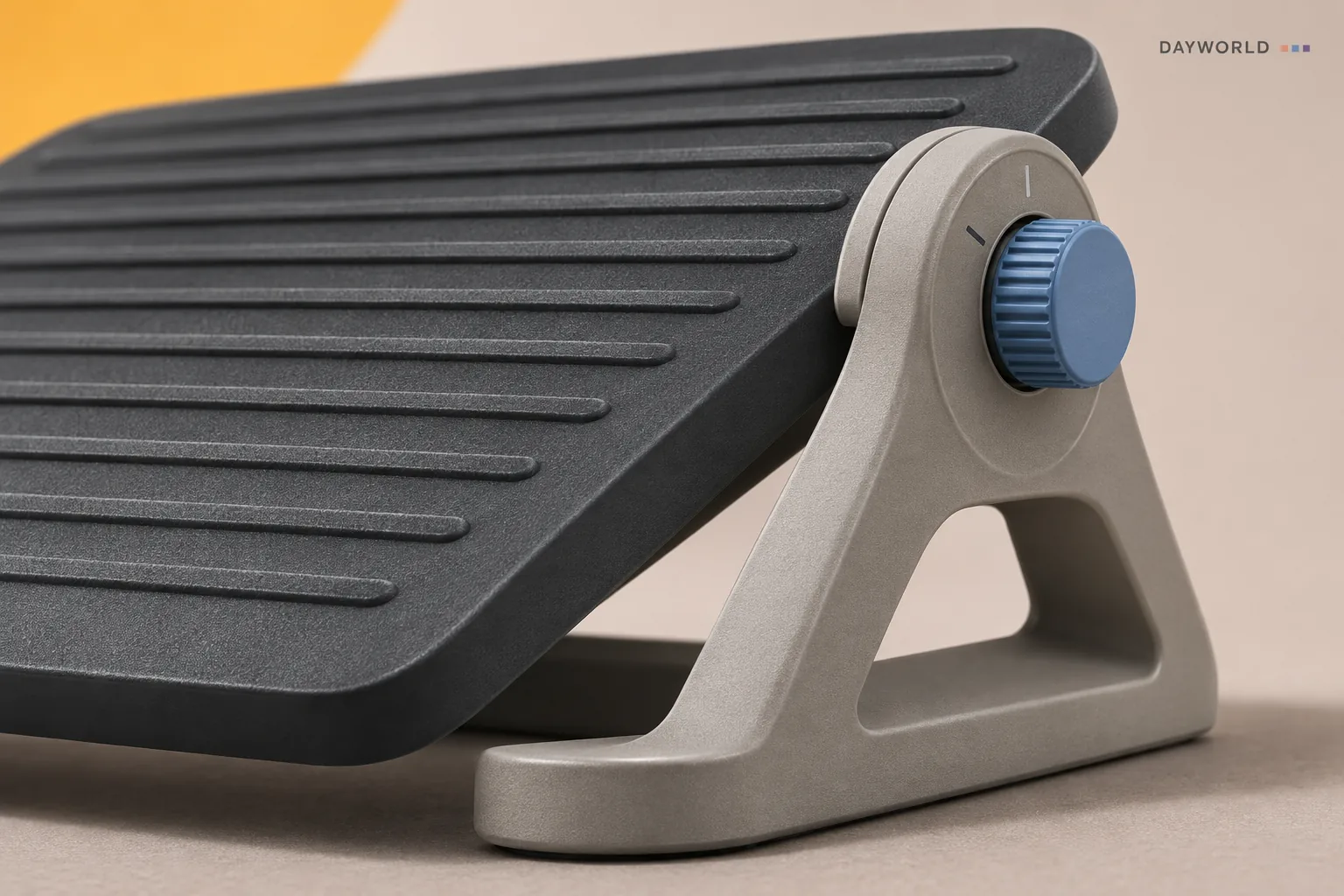
Start directly in front of the chair and try it with your everyday shoes. Clear floor cables and boxes from the space needed to sit and stand.
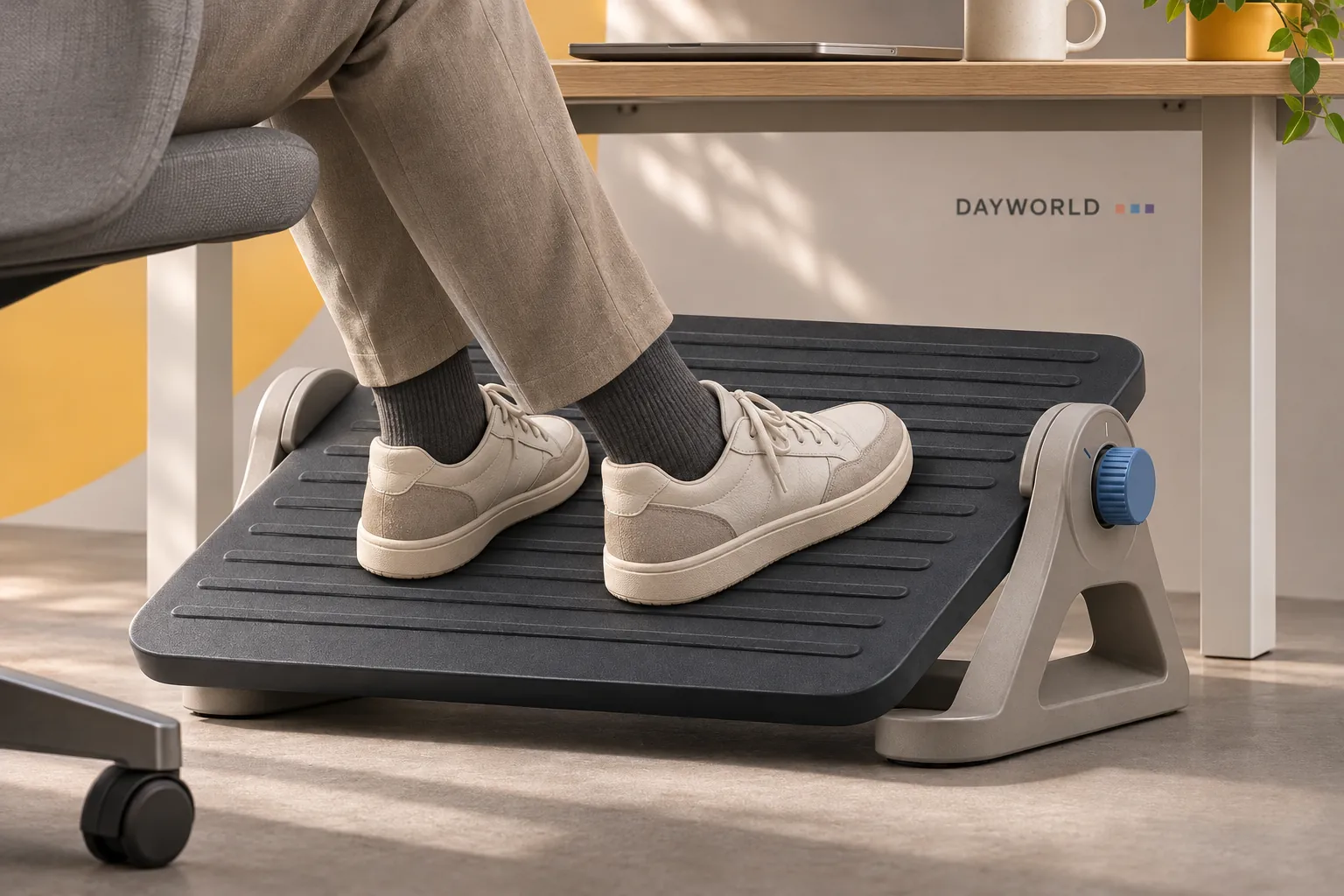
Take your feet off before changing the tilt. Check both supports on the floor before applying weight and lift the rest when moving it.
Sample shop
Input, audio, lighting and camera equipment.
Sample shop
Connectivity, charging and everyday tech accessories.
Sample shop
Stationery, organisation and accessories for the workspace.